

Prerequisite: the Subscriptions and Memberships app is active and online payment is set up. See Subscriptions & Memberships.
How a team office subscription works
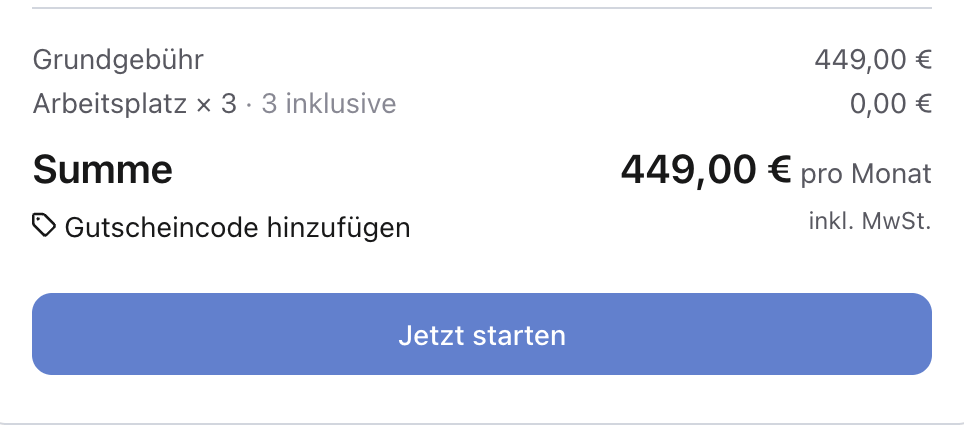
The subscription price is the base price plus every seat above the included ones. With 5 seats in the example, that is €449 + 2 × €129.
Step by step
1
Create the plan
Open Catalog → Plans and click New. Enter a name (for example “Team Office”), choose a Group, and enter Price per period, Invoice Period and Tax Rate. Optionally set a Minimum term, Notice period and Withdrawal period.
2
Create seats for the team
In the Benefits & seats section, click New and create a benefit such as “Team member” or “Workspace”. Set Billing to Seat-based and turn on Seats for people. Each seat then belongs to one person whom you or your customer invites.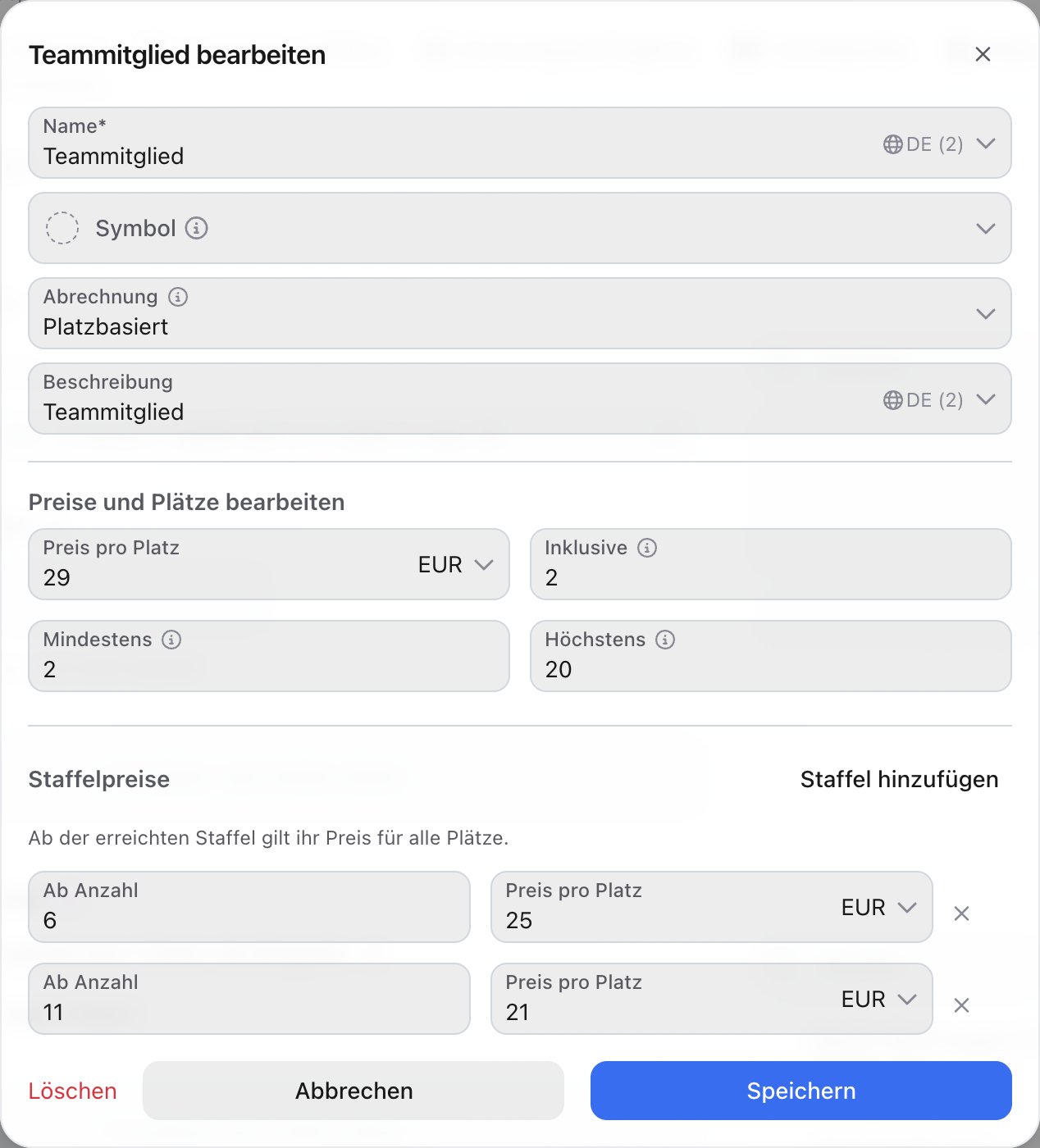
3
Set prices and limits
In the same dialog, under Edit pricing and seats, enter:
- Price per seat: what each seat above the included ones costs.
- Included: how many seats the base price contains (0 for none).
- Minimum and Maximum: how many seats a subscription may have. Leave empty for no minimum or no limit.
- Volume tiers (optional): with Add tier you set from which quantity a lower price applies. Once a tier is reached, its price applies to all seats.
4
Give the team quotas
In the Booking quotas section you decide how the team books: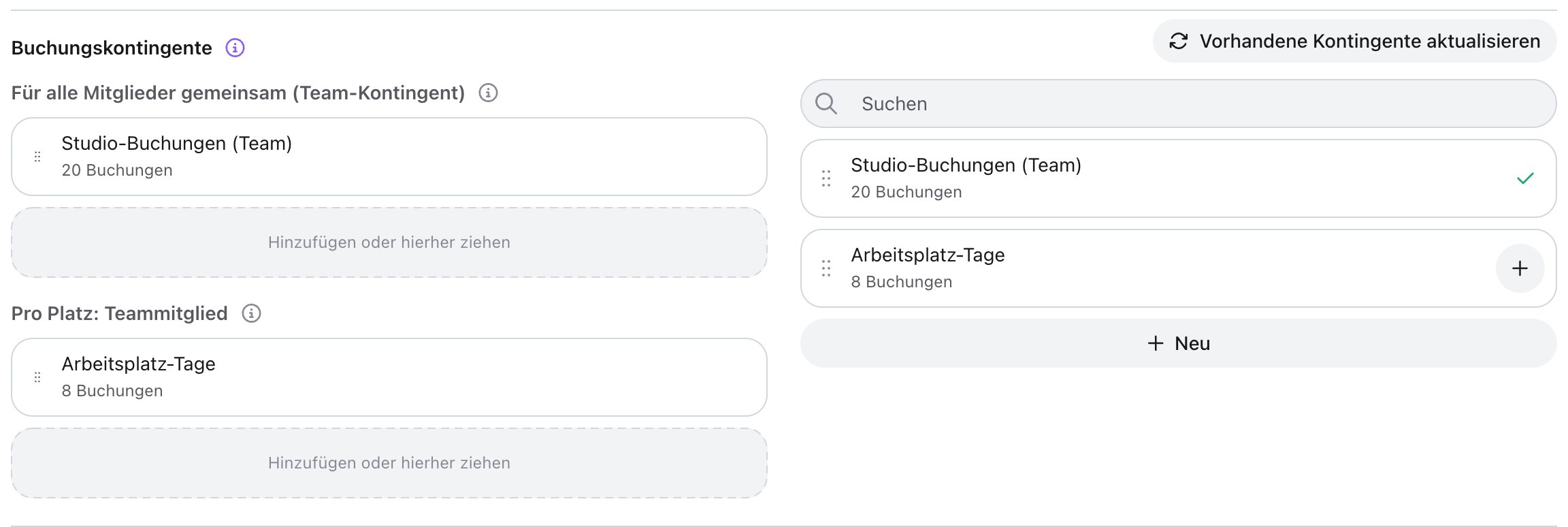
- Shared by all members (team quota): everyone books from the same quota, for example 20 meeting room hours per month. First come, first served.
- Per seat: with Add a per-seat quota, everyone on a seat gets a quota of their own, for example 8 workspace days. Every seat gets the quota once, with the amount you set on the quota itself.
5
Assign the office from a pool (optional)
If every subscription should occupy its own office, choose a Group, a Category (for example “Team Office”) or single Resources as the pool in the Resources section. When the subscription starts, anny assigns the first free office. With Customer picks the resource at checkout, the customer chooses the office during checkout. If none is free, the checkout becomes a request. Details in Rent offices and fixed desks as a subscription.
6
Link communities
In the Communities section, choose the community that unlocks exclusive rooms or prices. The subscriber and all team members join it automatically and lose access when their seat or the subscription ends.
7
Publish the plan
Set the status at the top of the plan to Live. The plan appears on your booking page under Subscriptions.
What your customer sees
The plan card shows the base price, the included seats and the volume tiers. At checkout, the customer chooses the Start date and the number of seats. The summary shows the base fee, the seats and the Total per month before they subscribe.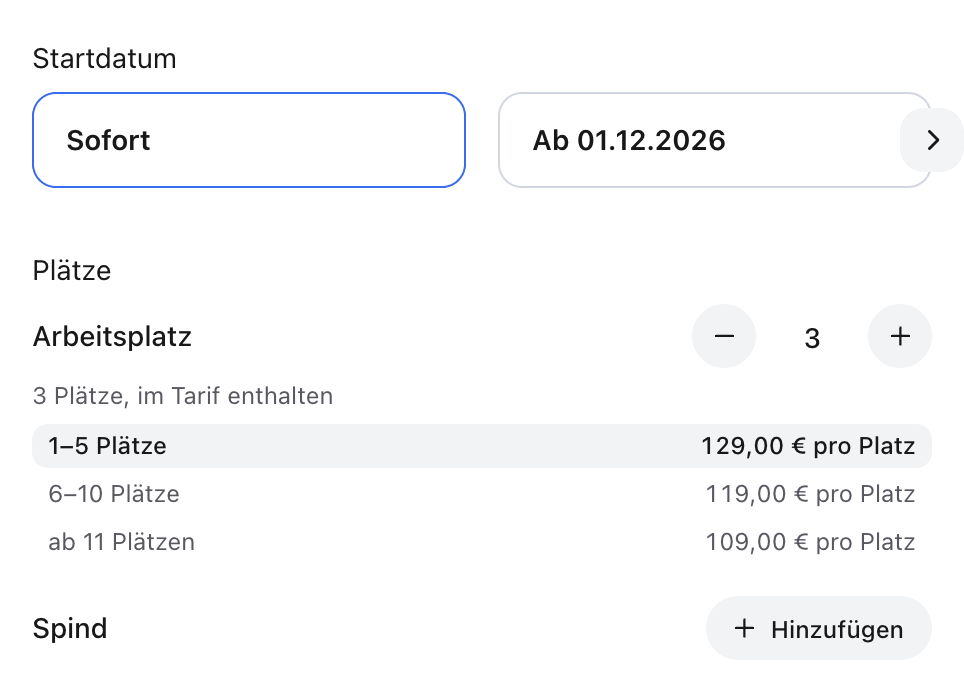
Manage the team in the admin area
Open Management → Subscriptions and click the subscription. The Members section shows how many seats are taken, who is a member and which invitations are open or expired. Below it, Allowances this period shows a card per quota: for the team quota, how much has been used in total and who booked how much; for per-seat quotas, each person’s usage.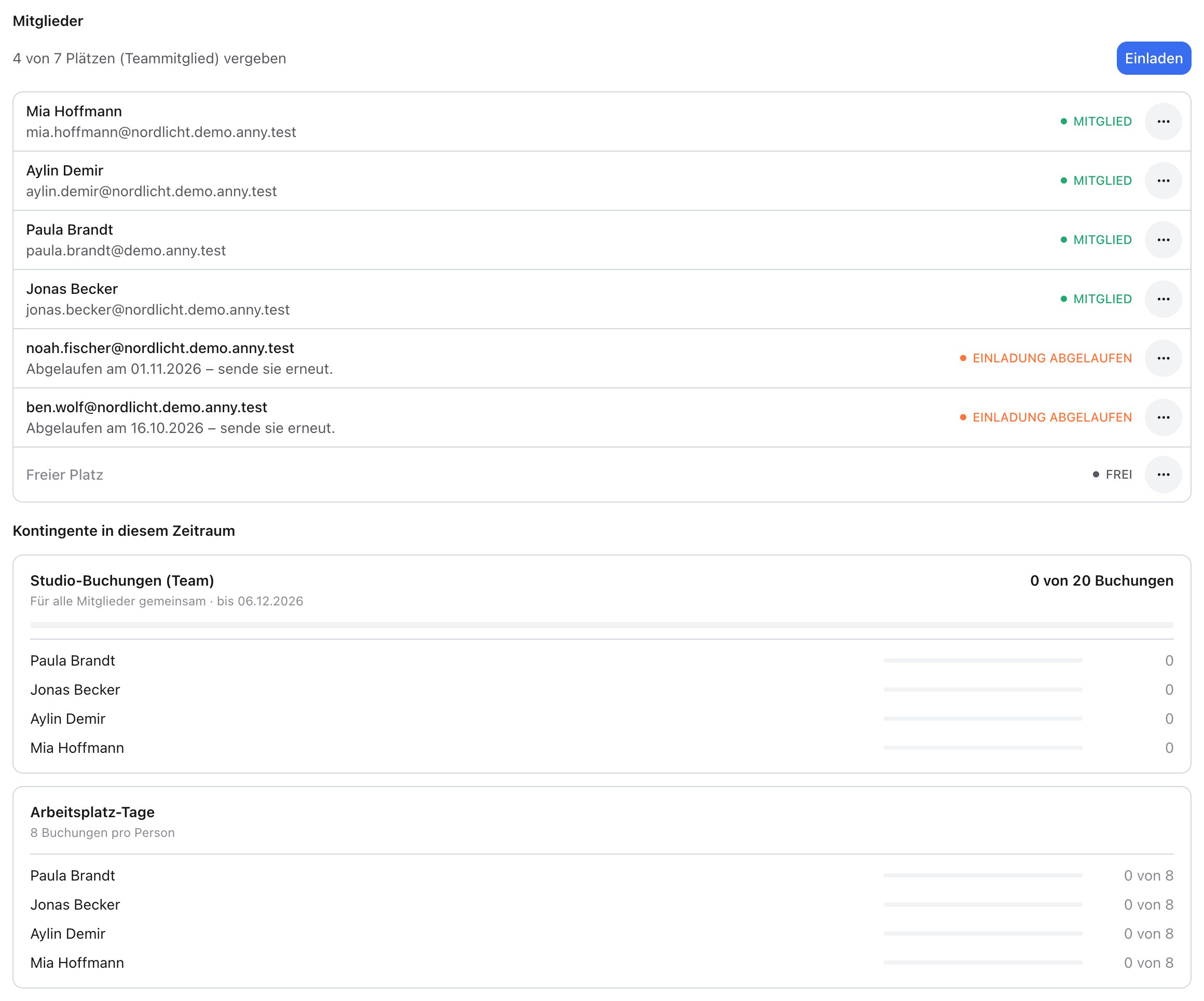
You add or remove seats with Change subscription, see Change a subscription: switch plans and adjust seats.
Team subscriptions in the customer details
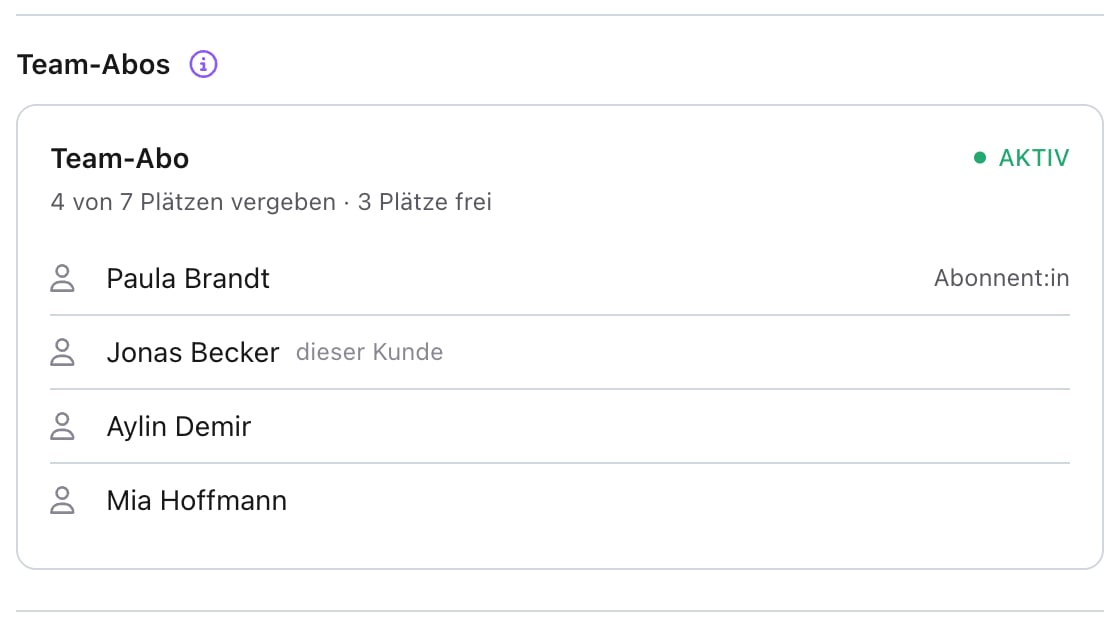
The customer details also show how a person relates to a team subscription. Open CRM → Customers and click the person. If they hold a seat on a team subscription, there is a Team subscriptions section. For each subscription it shows:- the plan with a link to the subscription, and its status
- how many seats are taken and how many are free
- everyone holding a seat. The person who took out the subscription is marked Subscriber, the person you opened this customer. The other names link to their customer details. If the plan has more than one kind of seat, each person’s seat is shown.
- if the person who took out the subscription holds no seat themselves, they appear below the list as Subscriber
FAQ
Does the subscriber count as a team member?
Does the subscriber count as a team member?
Yes. Whoever takes out the subscription gets a seat automatically. If they free it, they can give it to someone else.
What is the difference between the team quota and a per-seat quota?
What is the difference between the team quota and a per-seat quota?
The team quota exists once per subscription, and all members book from it. A per-seat quota belongs to each person alone. When the seat changes hands, the next person takes it over, usage included.
I changed the quotas in the plan. Does that apply to running subscriptions?
I changed the quotas in the plan. Does that apply to running subscriptions?
Not automatically. In the plan’s Booking quotas section, click Update existing Quotas to apply the change to existing subscriptions.
Can a customer book more seats than the plan allows?
Can a customer book more seats than the plan allows?
No. Minimum and Maximum apply at checkout, to changes by the customer and in the admin area. On the way down, a subscription also always keeps all included seats, and taken seats can’t be removed. Free them first.
Do I need seats for people if the team has no accounts of its own?
Do I need seats for people if the team has no accounts of its own?
No. Without Seats for people, seats are just a quantity, for example lockers or parking spaces. Per-seat quotas then go to the subscriber once per seat.