

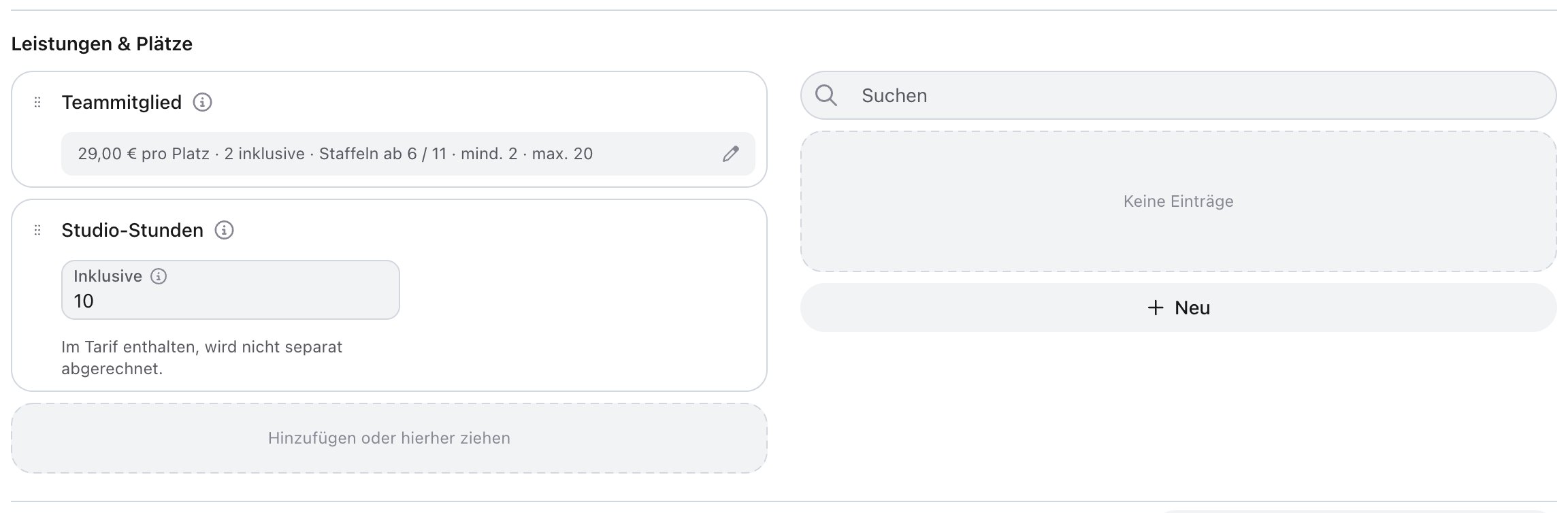
Two kinds of benefits
The library of your benefits sits on the right of the section. Drag a benefit into the plan or create a new one with New. You can use the same benefit in several plans, for example “Workspace” in Flex Desk, Fix Desk and Team Office.
Create or edit a benefit
1
Open the benefit
In the Benefits & seats section, click New or a benefit in the plan. For seat-based benefits, open the prices via the summary line (for example “€29.00 per seat · 2 included”).
2
Choose name, icon and billing
Enter a Name and optionally a Description. Under Icon you choose the symbol for the plan card. Without an icon, anny shows a people icon for seats and a check otherwise. Under Billing, choose Included or Seat-based.
3
Seats for people (optional)
Turn on Seats for people if each seat belongs to one person, for example the members of a team subscription. The subscriber then invites people to the seats, and each person gets access like a subscriber. Without this toggle, seats are a quantity that stays with the subscriber.
4
Set pricing and seats
For seat-based benefits, enter under Edit pricing and seats:
- Price per seat
- Included: how many seats the plan contains at no extra cost (0 for none)
- Minimum and Maximum: how many seats a subscription must or may have, included seats counted. A subscription never has fewer seats than the included ones, even if Minimum is lower.
- Volume tiers: with Add tier, a different price from a given quantity. Once a tier is reached, its price applies to all seats.
Per-seat quotas
Quotas are attached to the plan in the Booking quotas section. As soon as the plan has a seat-based benefit, there are two areas:
A per-seat quota applies to every seat of this benefit, on other plans too. Existing subscriptions only receive changes through Update existing Quotas. More about quotas: Booking quotas.
How customers see the benefits
On the booking page, the benefits appear with their icon on the plan card, seat-based benefits with included seats and volume tiers.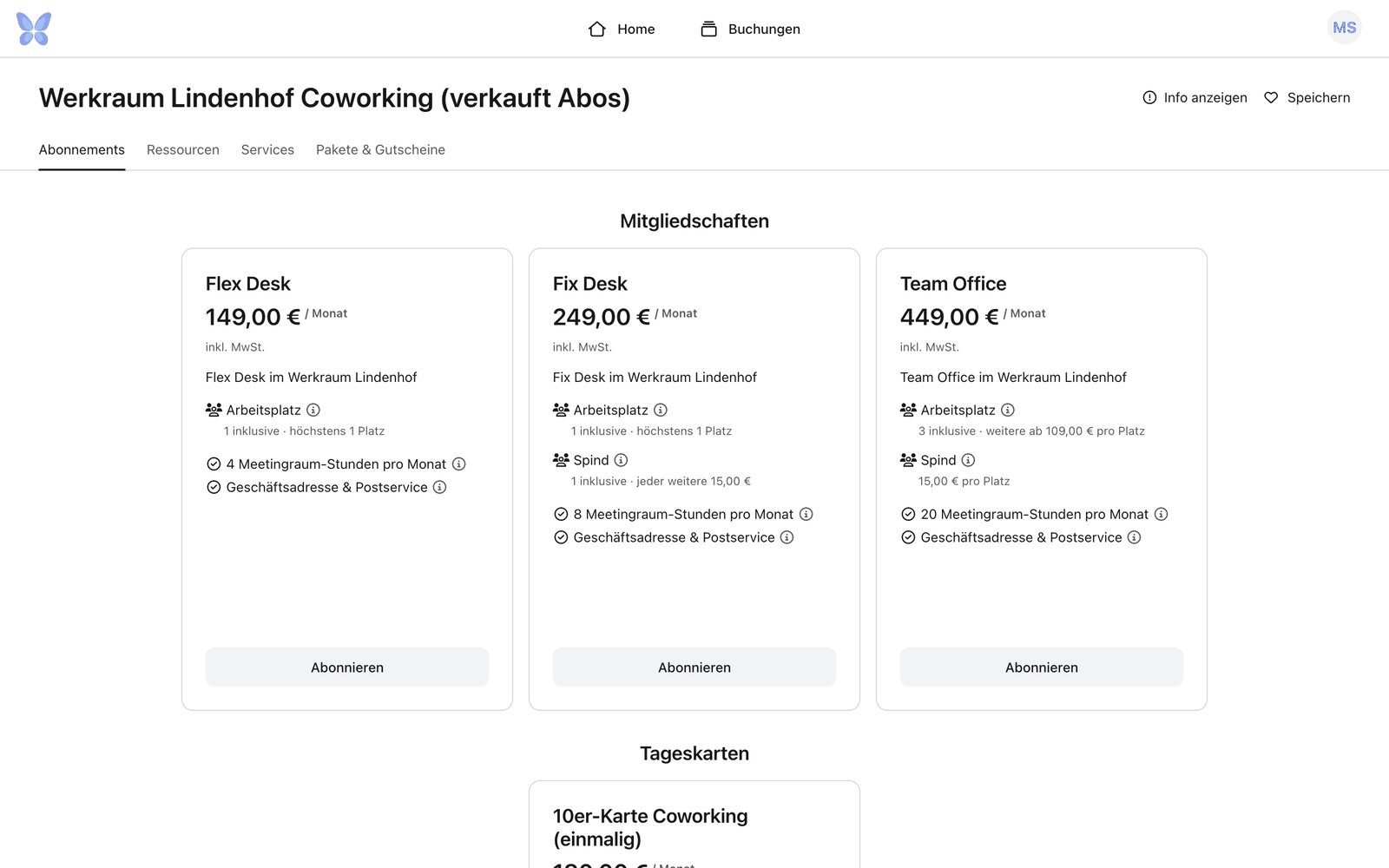
FAQ
What happens to running subscriptions when I change the price per seat?
What happens to running subscriptions when I change the price per seat?
Running subscriptions keep the price per seat that applied at sign-up. If a subscription switches to another plan, the new plan’s price applies to all seats.
Are seats billed as usage?
Are seats billed as usage?
No. Seats are a fixed part of the subscription and appear as their own line on the subscription invoice, for example “Seats: Workspace”. See Emails and invoices for subscribers.