

Where can I add tags?
You can add tags to these records:- Bookings
- Orders
- Customers
- Resources
- Services
- Inquiry forms
Create and manage tags
You manage all tags of your organization in one place: in the Settings on the Groups tab. The Tags group is at the top. Resource groups, service groups, product groups and booking bundle groups live on the same page and are described in Groups.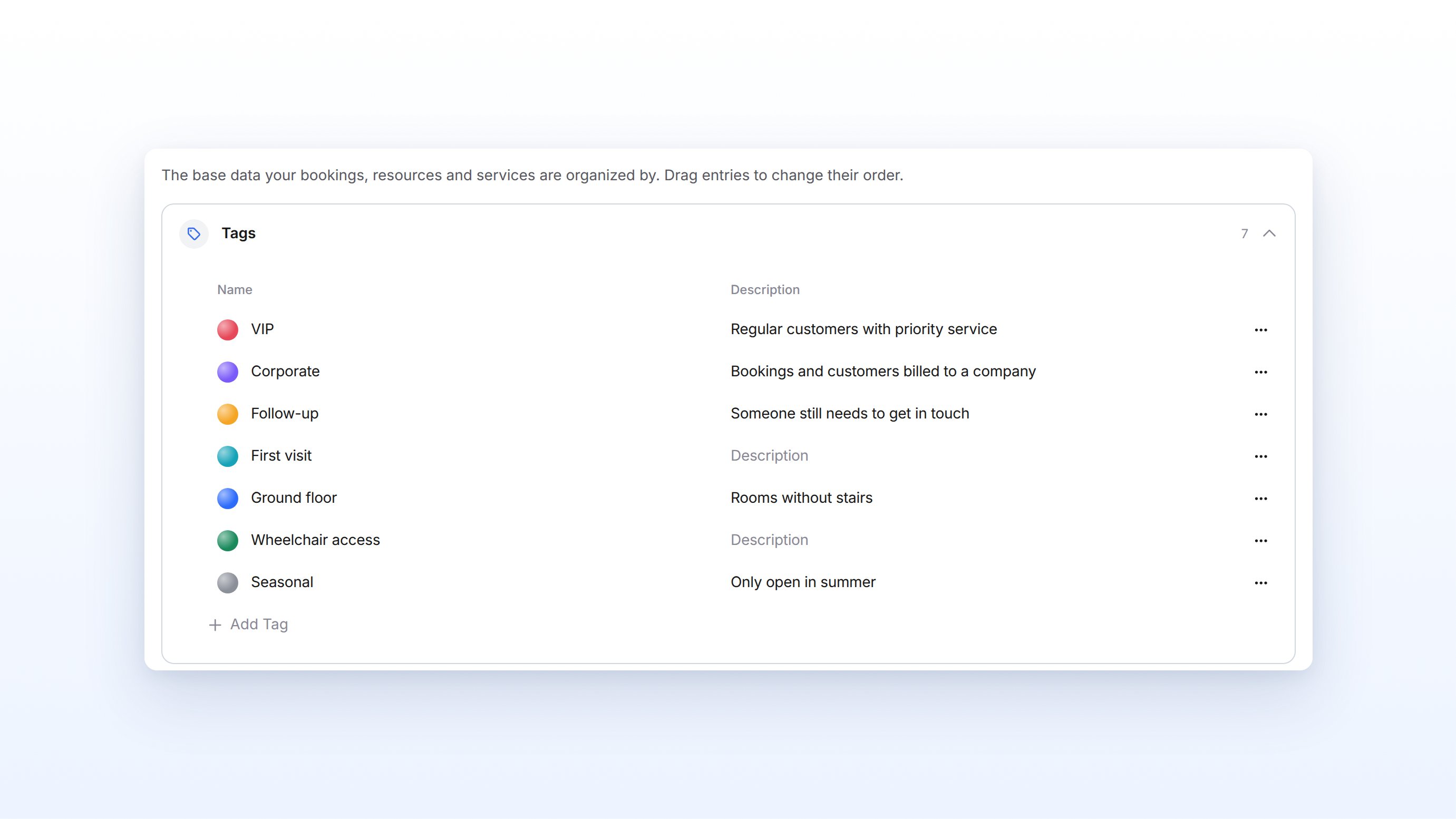
Add a tag
1
Open Groups
Open the Settings and switch to the Groups tab.You see the Tags group with all existing tags.
2
Create a new entry
Click Add Tag below the list.A new row appears at the end of the list.
3
Set name, color and description
Enter the tag’s name under Name. Use the color dot to the left of the name to pick a color. Under Description you can optionally note what the tag is for.The tag is available in all tag fields right away.
Edit, sort and delete tags
- Rename or change the description: Click the name or description directly in the list and change the text.
- Change the color: Click the color dot in front of the name.
- Change the order: Drag a tag to the position you want. Tags appear in this order in the picker and on records.
- Delete: Click the three dots in the row, then Delete, and confirm.
Add tags to a record
1
Open the record
Open the details of a booking, order, customer, resource, service or inquiry form.Below the base data you see the Tags field.
2
Open the picker
Click the Tags field or Add tags….A list of all tags opens. Use Search to find a tag quickly.
3
Select tags
Click one or more tags.The selected tags appear as colored chips in the field. anny saves them immediately, so you do not need to save the record separately.
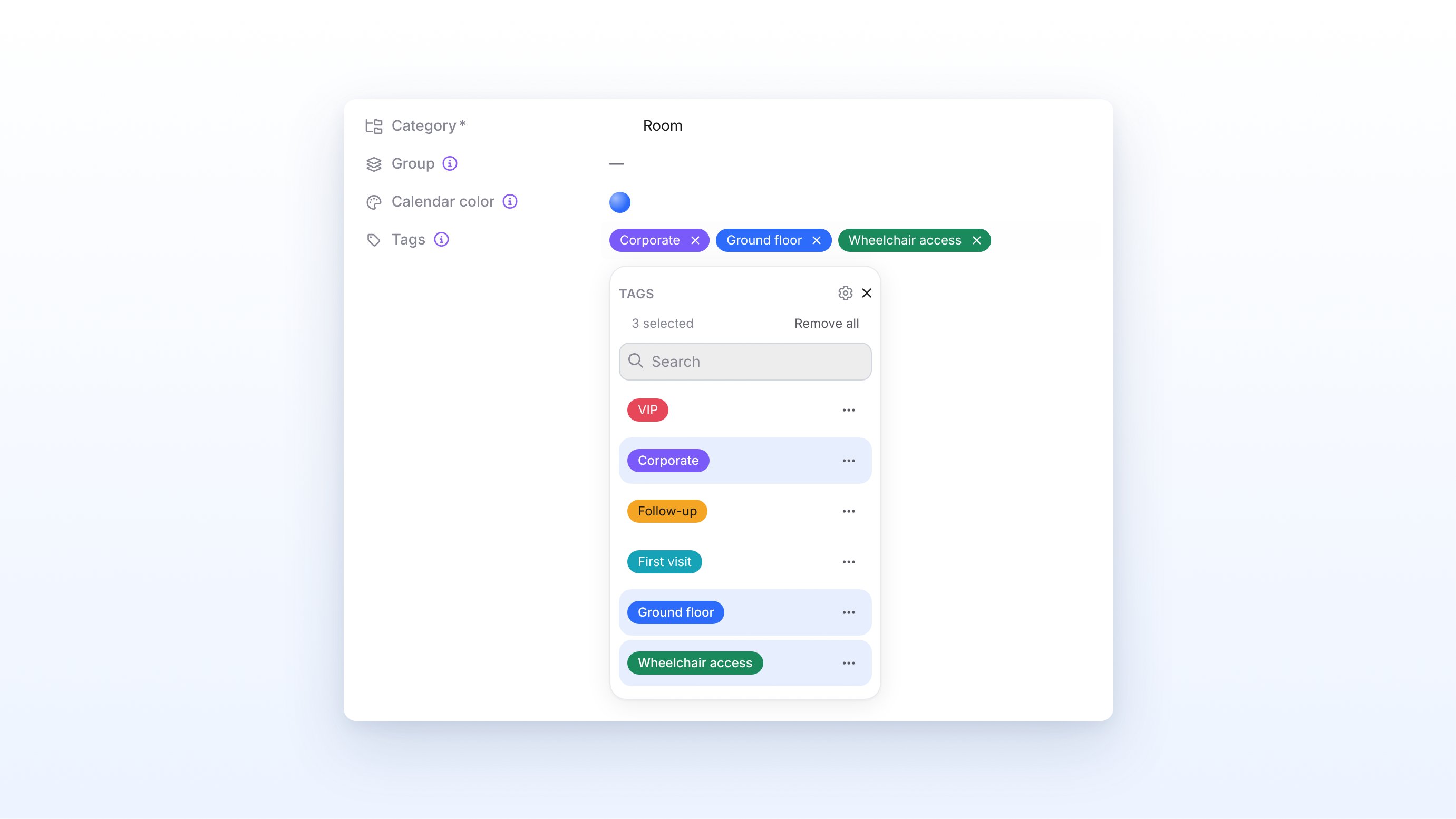
Create and edit tags right in the picker
If you are allowed to manage tags, you do not need to switch to the settings:- Create a new tag: Type a name that does not exist yet in the picker and click the entry marked Create. The new tag is added right away.
- Edit a tag: Click the three dots next to a tag. There you change Name and Color or remove the tag with Delete. Before deleting, anny shows you how many records the tag is attached to.
- Manage all tags: The gear icon (Manage tags) at the top of the picker takes you to the settings on the Groups tab.
Change tags on several records at once
In the Bookings and Resources tables you can change the tags of many entries at once.1
Select entries
Tick the checkboxes in front of the entries you want.A bar appears at the bottom, for example with 3 of 6 selected.
2
Open Edit tags
Click Edit tags in the bar.A window such as Tags for 3 records opens.
3
Choose Add or Remove
Choose Add to add tags or Remove to take tags off. Then select the tags.The selected tags appear in the field.
4
Apply the change
Click Apply.anny changes the tags of all selected entries.
With Add, the entries keep their existing tags. With Remove, anny only takes off the selected tags; all others stay.
Filter by tags
The Bookings, Orders, Customers, Resources, Services and Inquiry forms tables have a Tags quick filter.1
Open the filter
Click Tags above the table.A list of all tags opens.
2
Select tags
Select one or more tags and click Apply.The table shows all entries that have at least one of the selected tags.
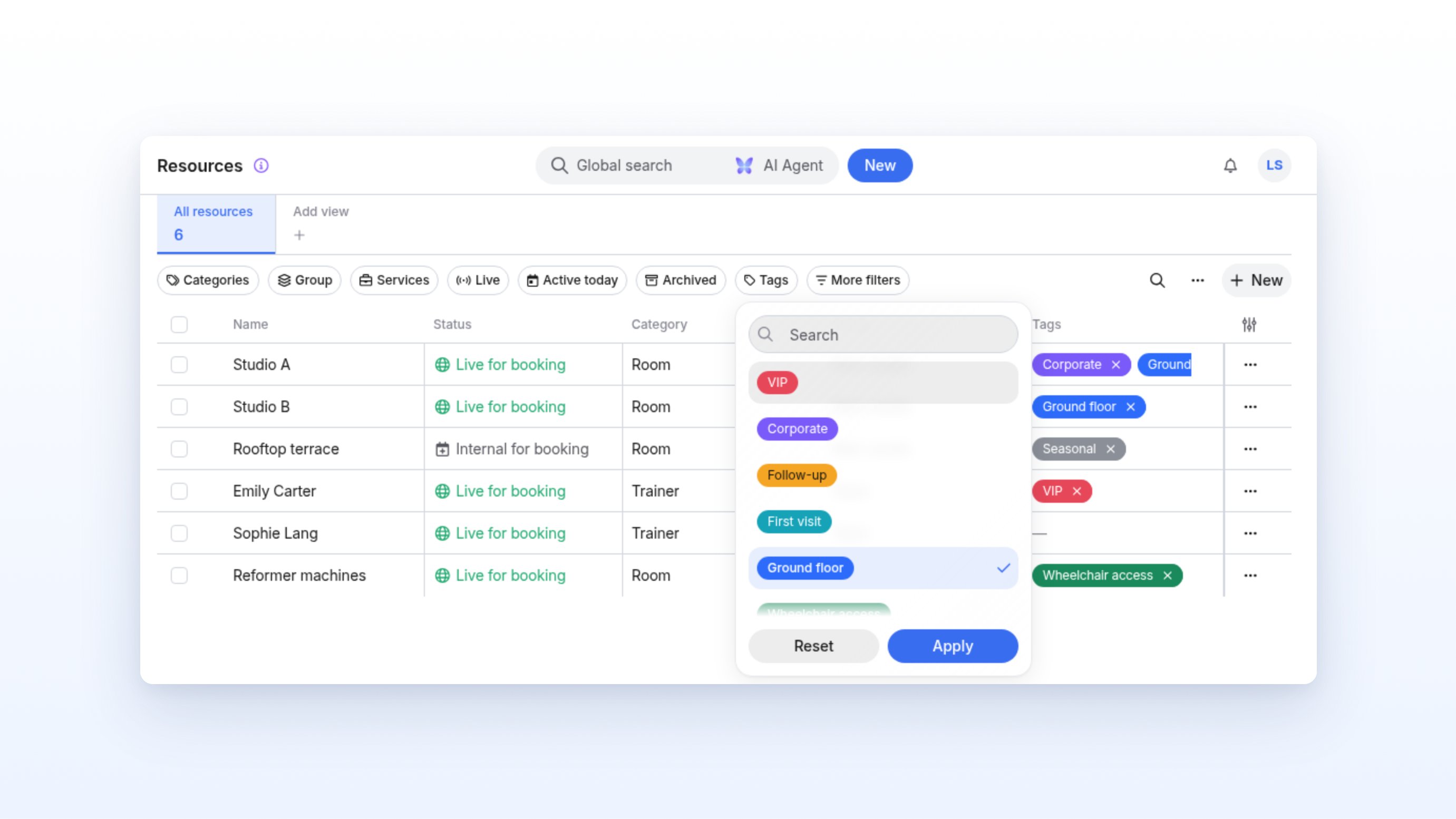
Tags in the calendar
In the calendar, you see tags directly on the booking cards and in the agenda. anny combines the tags of the booking, the order and the customer. If a customer has the tag “VIP”, you see it on each of her bookings without tagging every booking individually.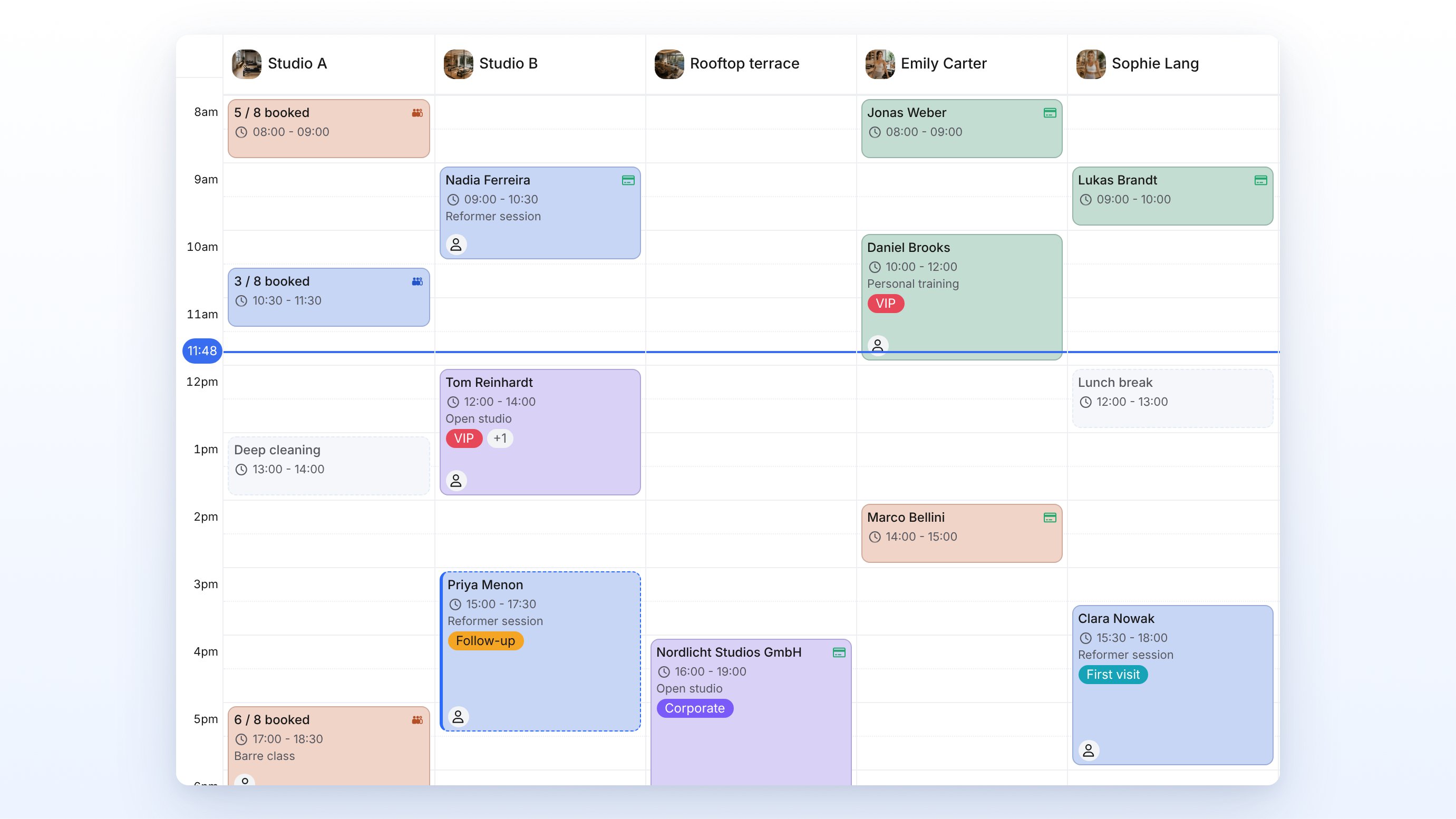
Who can add tags?
- Add and remove tags: Anyone who can edit a record can tag it.
- Create, edit, sort and delete tags: Your role needs the Tags permission with the Manage level. Without it, the list in the settings is read-only and you cannot create new tags in the picker.
When do I use this?
- Take special care of regular customers: Tag the customer with “VIP”. The tag appears on all of their bookings in the calendar.
- Flag open items for your team: Add a tag such as “Follow-up” and filter bookings by it until everything is done.
- Organize resources by equipment: Tag rooms with “Wheelchair access” or “Ground floor”, for example, and filter resources by them.
- Recognize company bookings: Tag orders or customers with “Corporate” so your team sees them right away.
FAQ
Why do I see a tag in the calendar that I did not add to the booking?
Why do I see a tag in the calendar that I did not add to the booking?
In the calendar, anny shows the booking’s tags together with the tags of its order and customer. The tag is attached to the order or the customer. Open the order or the customer to change it there.
What happens to records when I delete a tag?
What happens to records when I delete a tag?
The tag is removed from all records. The records themselves stay unchanged. When you delete from the tag picker, anny shows you how many records the tag is attached to.
Can I tag several bookings at once?
Can I tag several bookings at once?
Yes. Select the entries in the Bookings table and click Edit tags. This also works in the Resources table.
Do I need to save after adding a tag?
Do I need to save after adding a tag?
No. Tags are saved immediately as soon as you select or remove them.
Troubleshooting
I cannot create a new tag
I cannot create a new tag
Only people with the Tags permission at the Manage level can create new tags. Without it, you can only add existing tags. Ask someone with admin rights to create the tag or to give you the Tags permission.