

When to use groups
Which groups exist
The Booking bundle groups section appears only when booking bundles are available in your account.
Create groups
You maintain all four lists in one place.1
Open Groups
In the sidebar, open Account and then Settings. Switch to the Groups tab.The lists sit one under the other. Tags is expanded first. Only one list is open at a time.
2
Expand a list
Click the list you want to edit, for example Resource groups.The rows of that list appear. The other lists collapse.
3
Create an entry
Click the add button below the list. The label depends on the list:
- Resource groups: Add Group
- Service groups: Add Service group
- Product groups: Add Product group
- Booking bundle groups: Add Booking bundle group
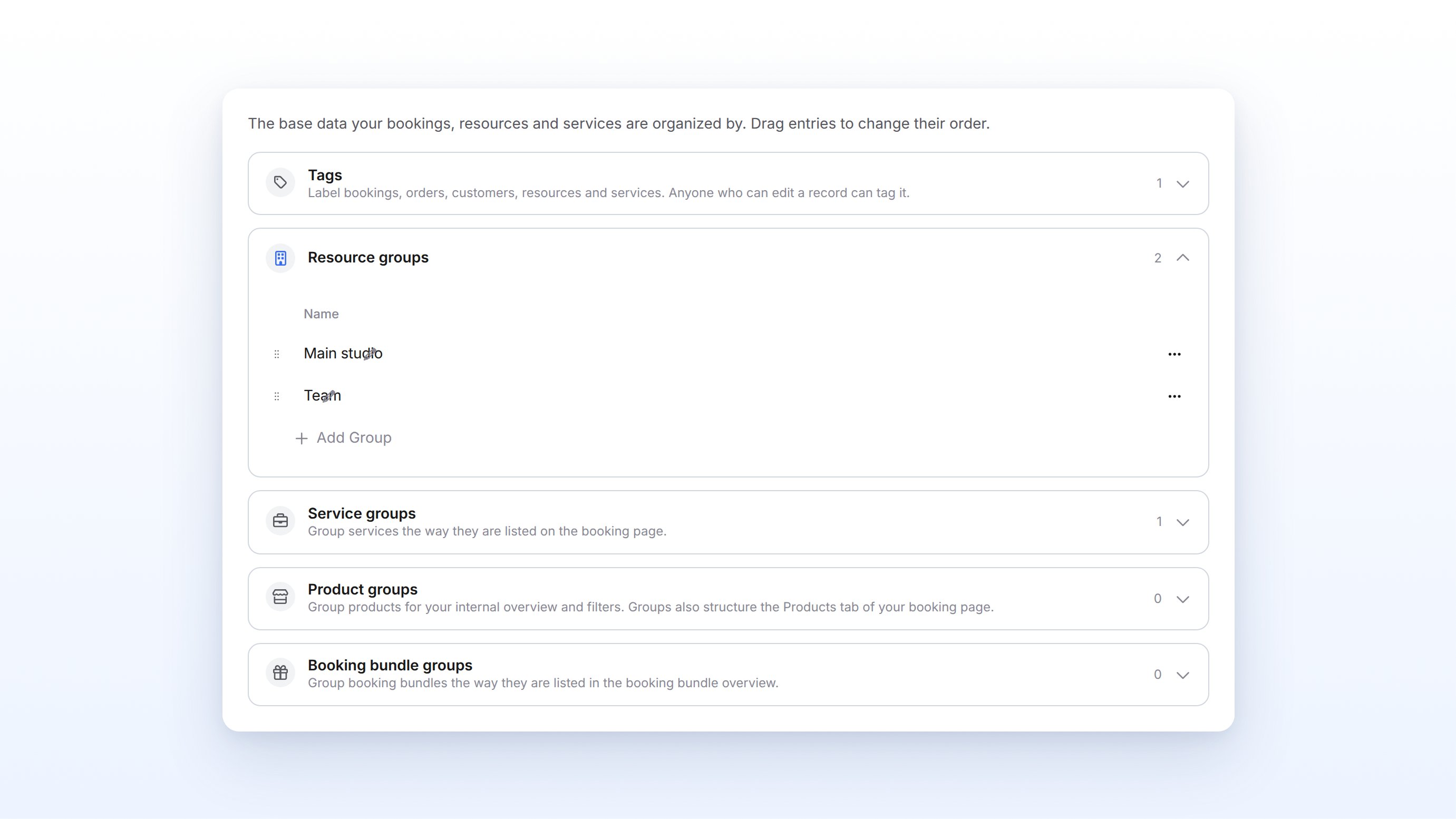
Change names, sort and delete
- Rename: Click the name in the row and change the text. Assigned records show the new name because they point at the group.
- Change the order: Drag a row to the position you want. That is the order of this list. Product groups on the booking page follow the same order.
- Delete: Click the three dots in the row, then Delete, and confirm the question.
Assign a group
1
Open the record
Open the resource, service, product or booking bundle.In the details you find the Group field. It is optional.
2
Choose or create a group
Click Group. Pick an existing group or type a new name to create one.The group appears in the field.
3
Save
Click Save.An assignment in the details applies only after you save. In the Resources and Services tables, anny saves a change in the row immediately.
Groups on the booking page
Customers see group names as sections of the booking page. Empty groups stay hidden.- Services: Each service group with at least one bookable service becomes a section. Services without a group appear under Other.
- Products: Product groups structure the Products tab in the order of the list under Groups. Products without a group appear under Other.
- Packages & vouchers: A booking bundle group appears once at least one package in it is live. Packages without a group appear under Other. Learn more in Booking packages & codes.
Who can manage groups
- You can create, rename, sort and delete resource groups, product groups and booking bundle groups when you are allowed to create or edit resources.
- You can manage service groups when you are allowed to create or edit services.
Limitations
- The order you drag applies to the list under Groups. On the booking page, product groups follow that order.
- Resource groups do not structure the public resources list.
- A plan has its own Group field. Those plan groups are not on the Groups page. A customer can start only one subscription per plan group.
- Booking bundle groups are missing when booking bundles are not available for the account.
- You can enter a description only for Booking bundle groups. The other three lists have only the Name column.
FAQ
Can customers see my resource groups?
Can customers see my resource groups?
No. Resource groups are for your team: to filter bookings and as a restriction in booking rules. On the booking page, customers see the names of service groups, product groups and booking bundle groups, each as a section.
What happens to records when I delete a group?
What happens to records when I delete a group?
The records stay. They no longer have the group. On the booking page, services, products and packages move to the Other section. Booking rules that applied only to the deleted resource group are removed.
Do I need to save after creating a row in the list?
Do I need to save after creating a row in the list?
No. A new row under Groups is saved immediately. You save an assignment in a record’s details with Save. In the Resources and Services tables, the row saves immediately.
Can I rename a group without losing the assignment?
Can I rename a group without losing the assignment?
Yes. The records point at the group. After you rename it, they show the new name.
Troubleshooting
I cannot add a group
I cannot add a group
You are missing permission to create or edit resources or services. Ask someone with admin rights to create the group or to give you the permission. Without it, the list is read-only.
A group is missing on the booking page
A group is missing on the booking page
The section appears only when something in it can be booked: a bookable service, a visible product or a live package. Empty groups stay hidden. Check that the record is assigned to the group and, in the details, saved with Save.
Booking bundle groups are not shown
Booking bundle groups are not shown
The section appears only when booking bundles are available for your account. Without them, this list is not under Groups.