

Your team subscription at a glance
On the booking page, open Profile → Subscriptions via your Avatar. The team subscription shows the price, the renewal date, your own seat and the list of Members.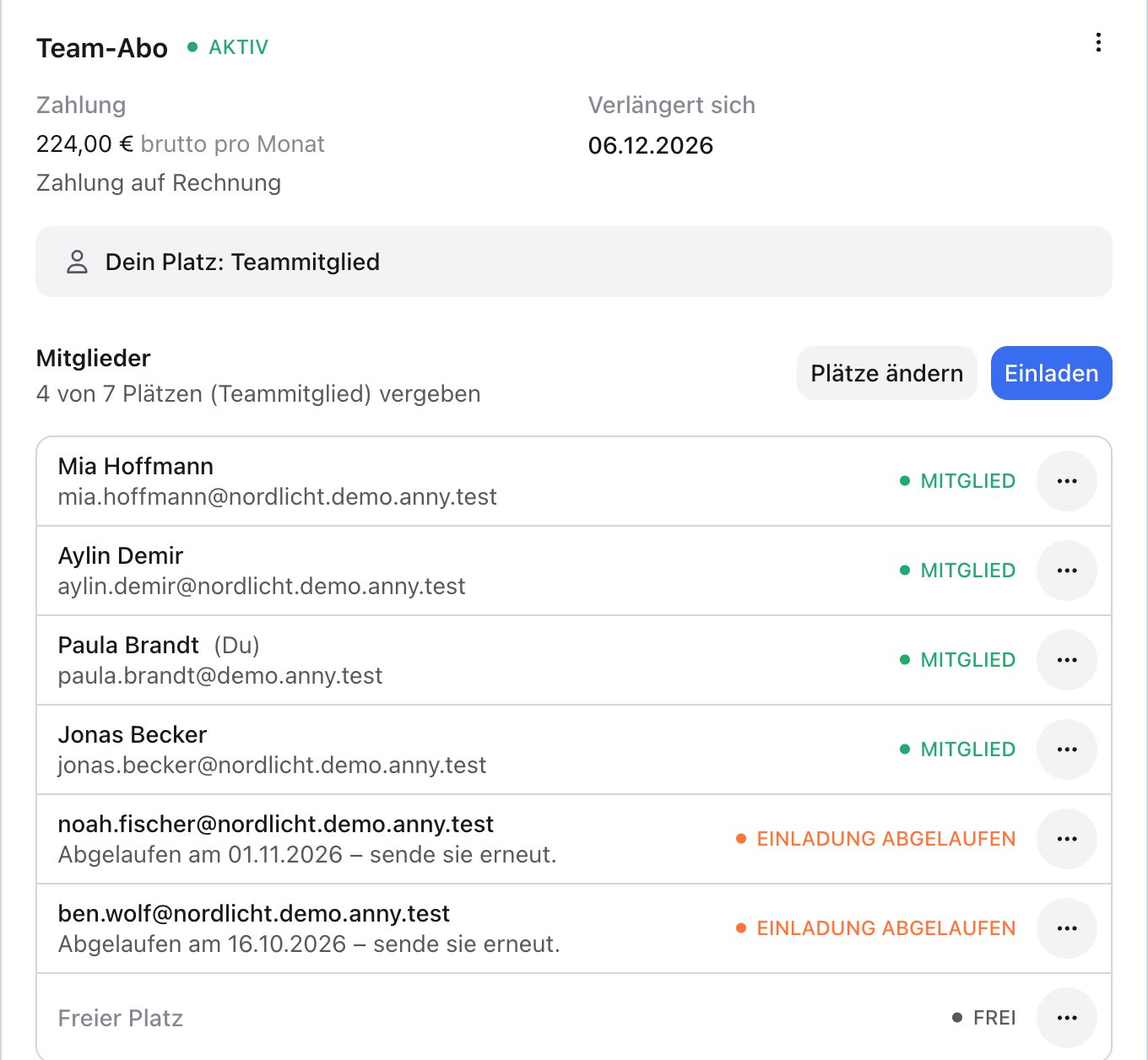
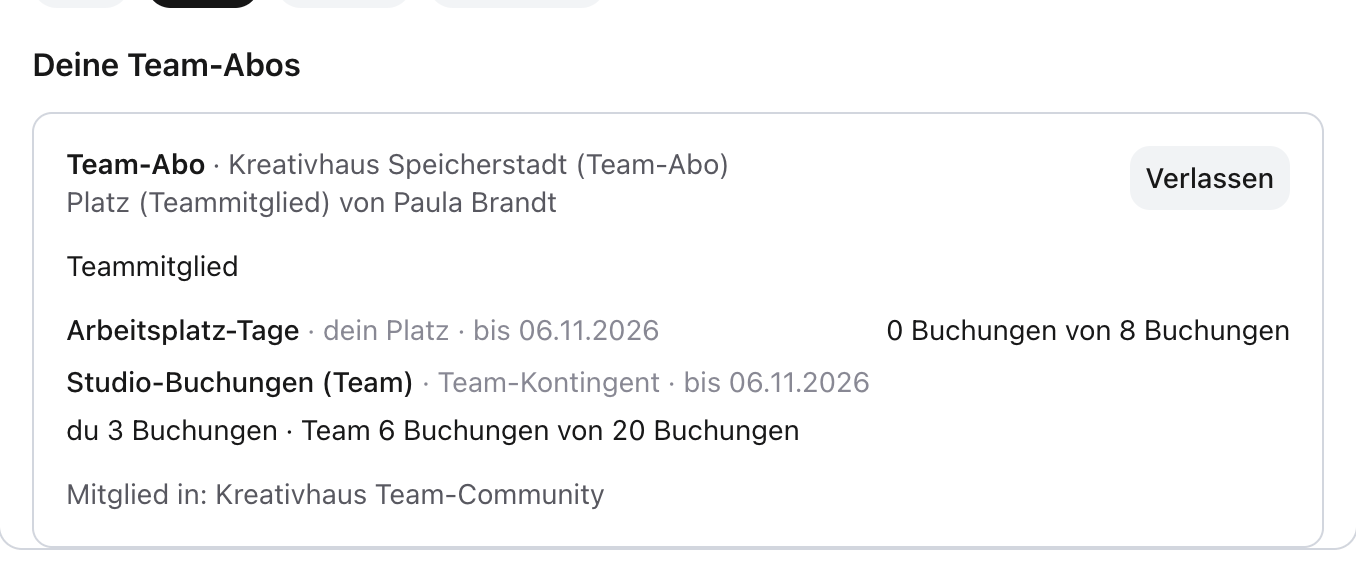
Below it, Allowances this period shows a card per quota: for the shared team quota, how much has been used and who booked how much; for per-person quotas, how much each person has used.
Invite a member
1
Open the invitation
Click Invite under Members.
2
Enter the email address
Enter the person’s email address and click Send invitation.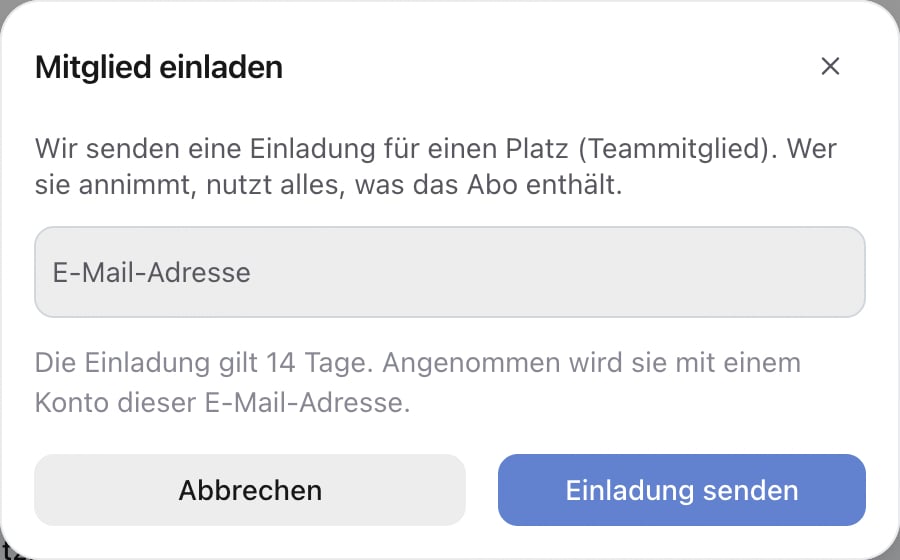
3
Wait for acceptance
The person receives an email Join <Plan> at <Organization>. The invitation is valid for 14 days and is accepted with an account of this email address. Once accepted, you receive an email that the person joined your team.
- Resend invitation or Withdraw invitation
- Remove a member: the person is notified by email, and the seat is free afterwards
- take a free seat yourself with Assign to me
Add or remove seats
1
Open Change seats
Click Change seats under Members.
2
Choose the number
Set the new number. The dialog shows the allowed range, included seats and volume tiers. At the bottom you see what is Due today and what the subscription costs Then per period.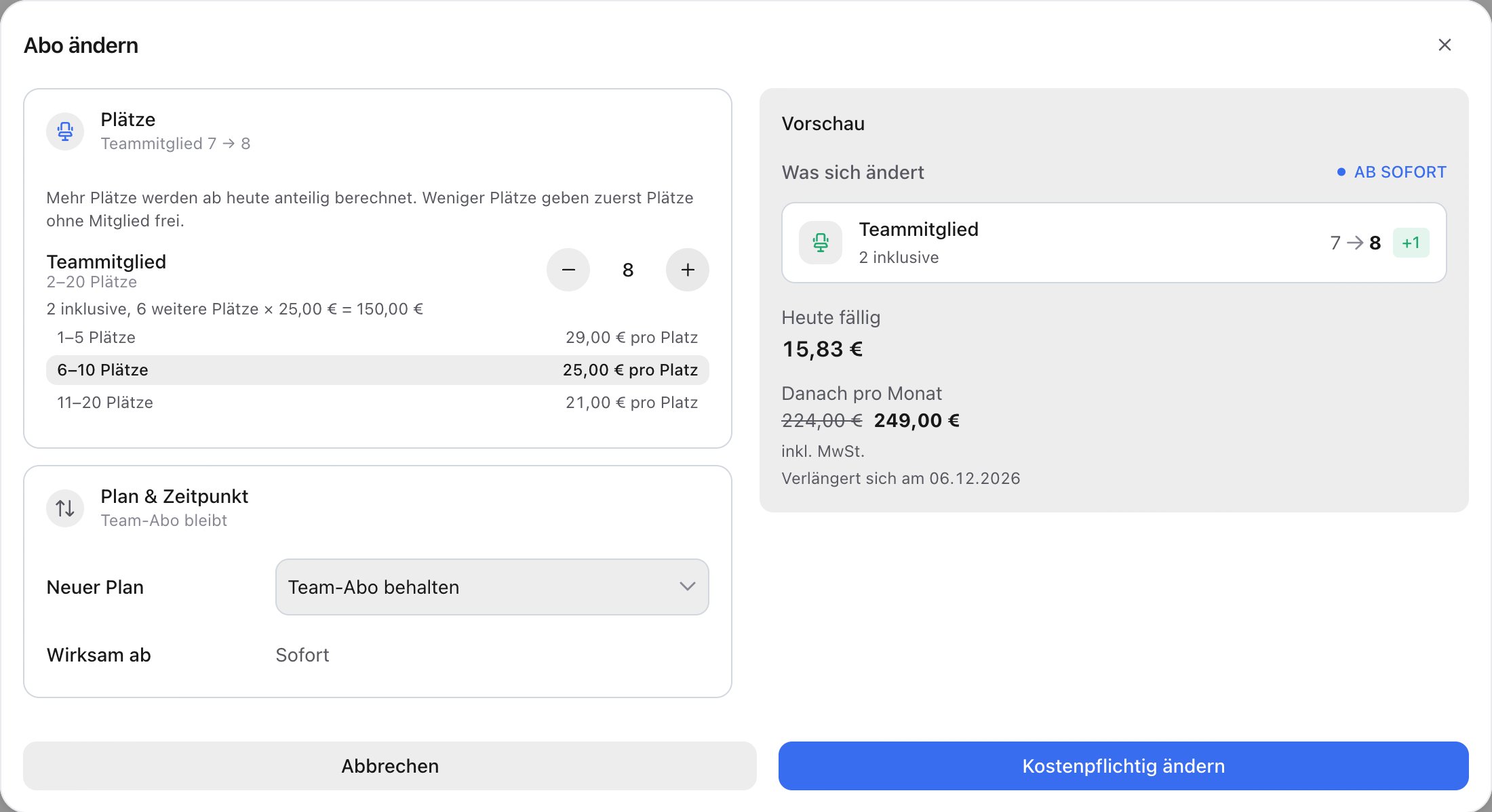
3
Confirm
Click Change and pay.
Accept an invitation as a team member
1
Open the invitation
Open the link in the email Join <Plan> at <Organization>.
2
Sign in
Sign in with the email address the invitation was sent to, or register with it. If you are signed in with another address, the page points this out.
3
Accept
Click Accept invitation. The subscription now belongs to your account, and you are a member of the plan’s communities.
FAQ
The invitation has expired. What now?
The invitation has expired. What now?
Ask the person who invited you to send the invitation again. As the subscriber, click Resend invitation on the invitation.
Who pays for the team subscription?
Who pays for the team subscription?
The subscriber or the company that took out the subscription. Team members pay nothing for their seat.
I subscribed without an account. How do I manage my team?
I subscribed without an account. How do I manage my team?
Claim the subscription into your account via the link in your confirmation email. After that you see it under Profile → Subscriptions.
How do I cancel the team subscription?
How do I cancel the team subscription?
Like any other subscription, via the three dots on the subscription and Cancel. See Payment & Subscription Management.