

What anny Presence does
The app detects what your laptop is connected to and reports it to anny. anny then decides whether you have a matching booking and checks you in. The monitor and dock are the most precise signals, because each one sits at exactly one desk. Wi-Fi and the office network are only a fallback.When should I use this?
- You don’t want to think about checking in anymore: The check-in happens as soon as you plug in your laptop.
- Your organization releases bookings that aren’t checked in: A check-in through the app protects your booking just like any other check-in.
- You’d like to work at a free desk on the spot: anny books the desk when you plug in and releases it after you unplug.
- Not suitable for: Visitors and people without their own laptop. For those, use the check-in terminal or self check-in in the anny mobile app.
Signing in
You need an anny account and must be a member of a community of your organization. Your organization also needs to have turned on anny Presence. You never have to enter an organization, because anny finds it through your communities.Open the app
Sign in through your browser
Choose your organization
Data region
The Data region decides which anny your account lives on. You’ll find it on the sign-in screen and in Settings. You can chooseanny.co, anny.eu or Custom domain, which is the domain your organization uses for anny.
Accounts are separate per region, so switching the region in Settings signs you out (Switch and sign out). If your IT department has set the region, you can’t change it.
anny Presence day to day
After you plug in, the check-in takes about 30 to 90 seconds, because the app waits briefly to see that the connection stays stable. You then get the notification Checked in at with the name of your desk. For this to work, the booking must already be within the check-in period. If you’re early, the app shows Too early and checks you in on its own once the period opens.The first time at a new monitor or dock
If anny doesn’t know your device yet, the app asks Which desk is this? once. It suggests your booked desk first, then the desks next to it. You can also find another desk with Search desks. Pick the desk and click Save. Skip closes the question, and the app won’t ask again for this device. When your answer takes effect depends on your organization:- If it trusts the first answer, you’re checked in at this desk from now on.
- If it wants confirmation, the link only counts once three different people have named the same desk or an admin has confirmed it. Until then, the monitor doesn’t check you in.
At a different desk than the one you booked
If you’re at a known desk but booked a different one, the app asks whether you want to move your booking. Move your booking opens the booking in your browser, where you can change it. Not now leaves everything as it is. You aren’t checked in in this case.At a free desk without a booking
If you plug in at a free desk with a known monitor or dock and you don’t have a booking right now, anny books the desk for you and checks you in right away. The booking lasts for the rest of the day if the desk can be booked that long, otherwise for the period that’s currently open. Your organization can turn this off.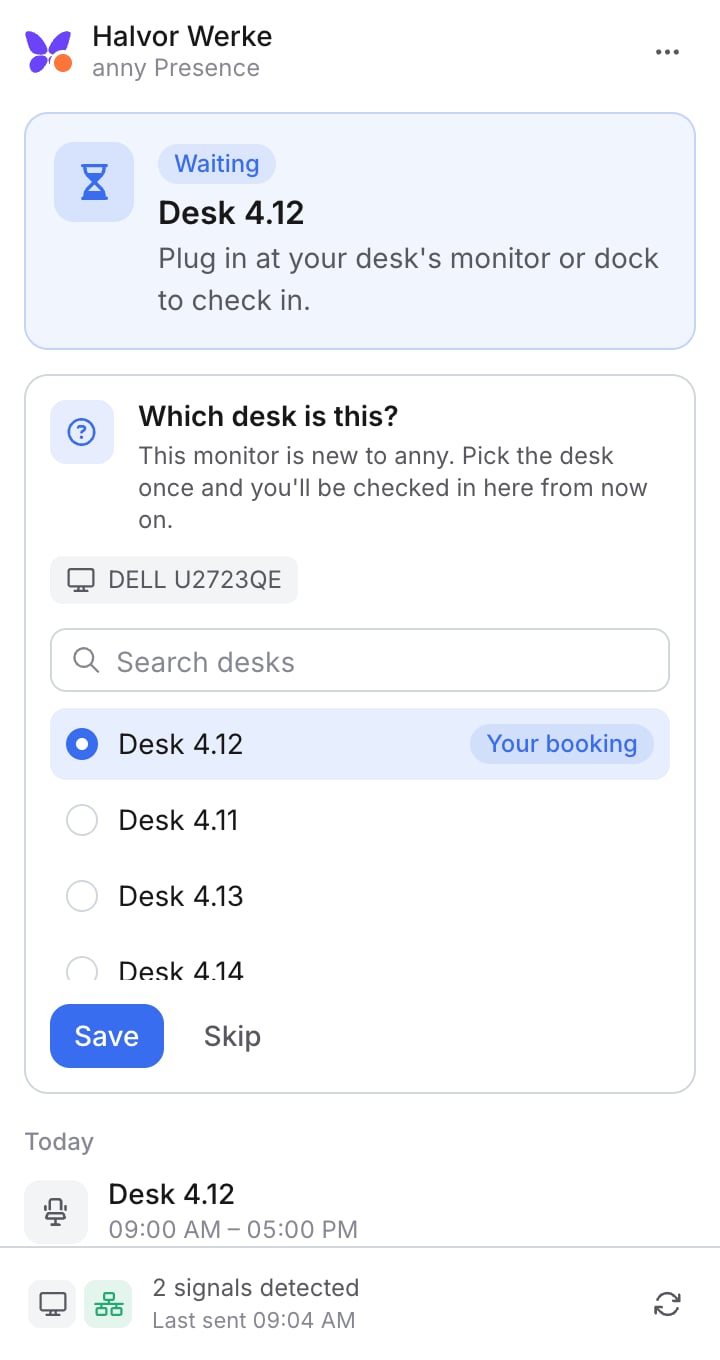
Pick the desk once.
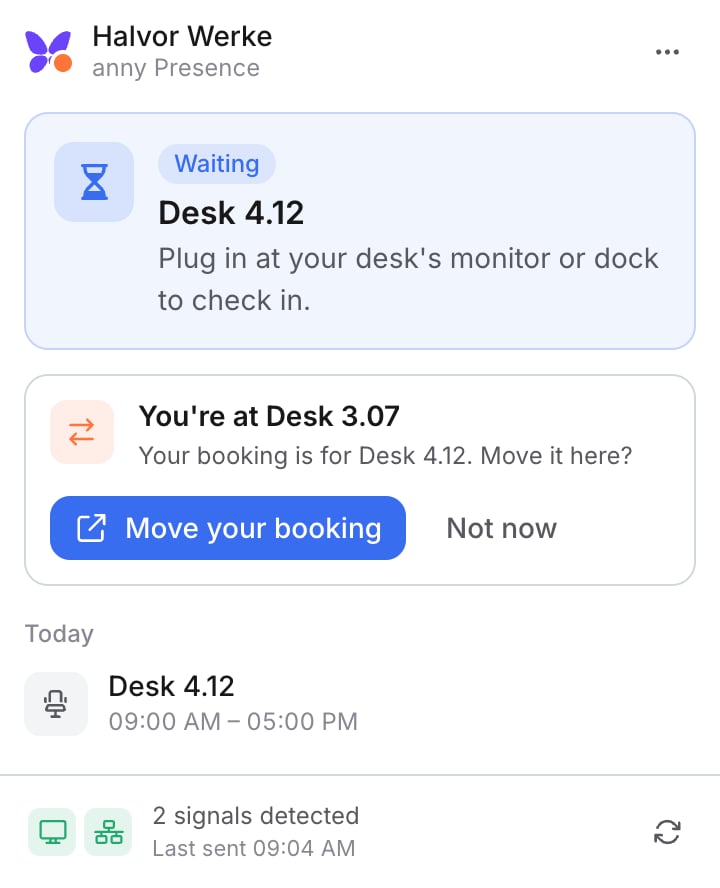
At the wrong desk, the app suggests moving your booking.
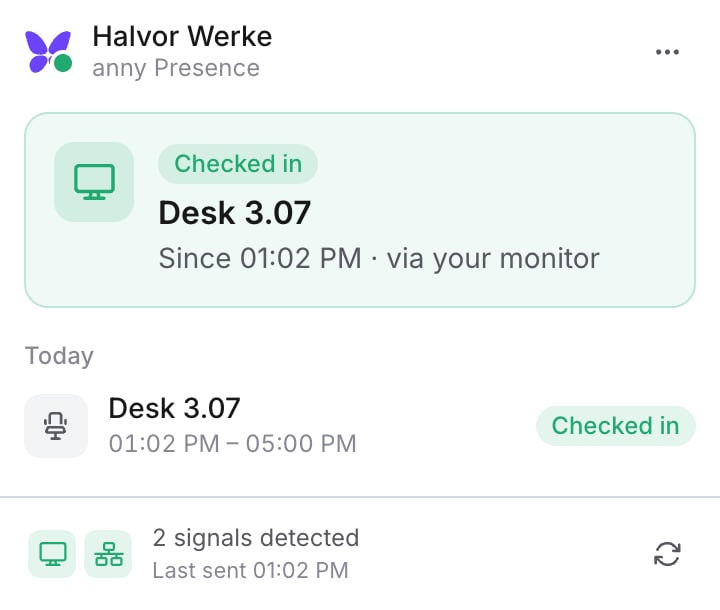
At a free desk, the app books and checks you in automatically.
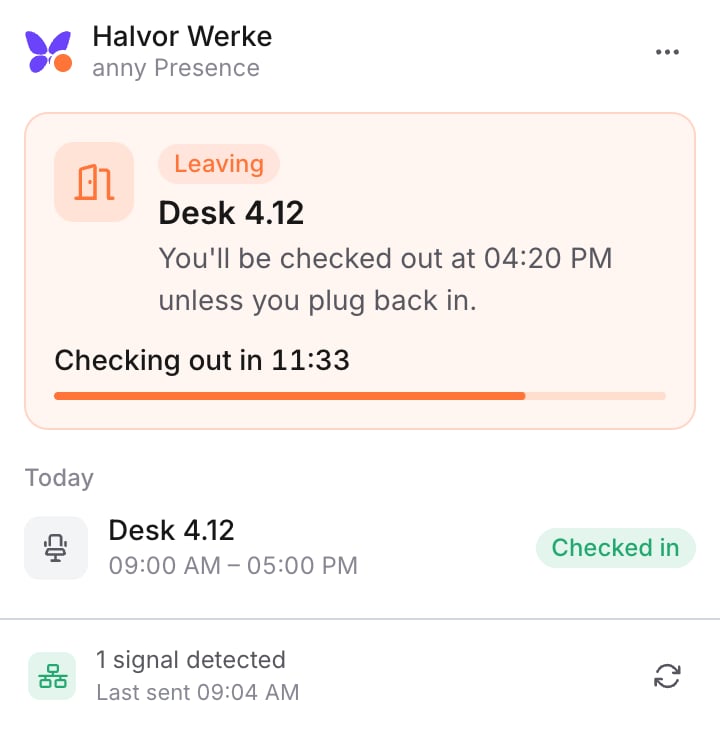
After you unplug, the time until check-out runs.
When you unplug
When you unplug your laptop or it goes to sleep, a grace period begins. It’s 15 minutes by default, and your organization can change it. During this time the app shows Leaving. If you plug back in in time, nothing else happens and you stay checked in. When the grace period ends, it depends on the booking:- Regular booking: You’re checked out if Allow self check-out is on for the resource and the Minimum duration before check-out has passed. Otherwise you stay checked in. The booking itself stays in place, unless Release capacity after checkout is on for the resource.
- Booking created by the app: You’re checked out and the desk becomes free for others.
Pausing for today
In the ⋯ menu, Pause for today stops anny Presence until the end of the day. The app sends nothing during this time. Resume turns it back on earlier.What the indicators mean
The icon in the menu bar shows the state at a glance:Privacy
A check-in through the app is stored on your booking like any other check-in, together with the type of signal, for example monitor or network. The IDs of your monitor, dock and network are hashed on your device with your organization’s key. Raw serial numbers, Wi-Fi identifiers and Wi-Fi names don’t leave your device. With each signal, anny only receives the hash, the type of signal, this install’s ID, the app version and the time. There is one exception: when you answer Which desk is this?, the app also sends the desk you picked and the model name of your monitor or dock, for example “DELL U2723QE”, as a label. The serial number is not part of it. The app sends nothing while paused. If your IT department has set Active networks, the app also doesn’t look for anything or send anything outside those networks. Open What is sent? in the ⋯ menu to see what the app detects right now, whether it’s matched to a desk and what was sent last. Show payload shows the complete message. In Settings, you can turn individual signals off under Check in with, unless your IT department has locked them.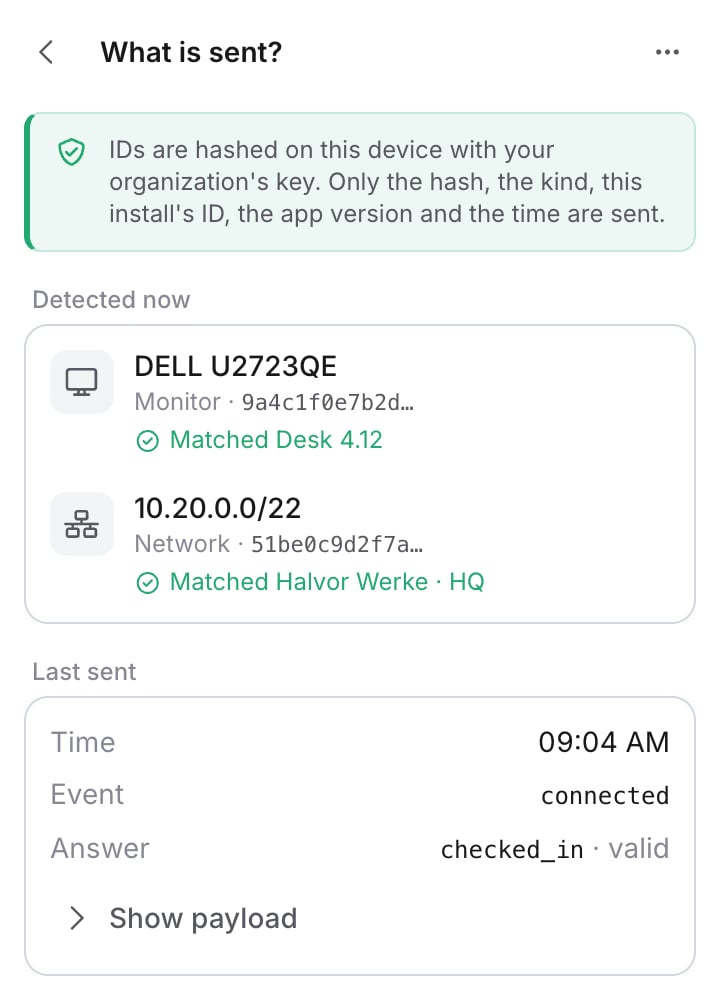
What is sent? shows each signal and the last message.
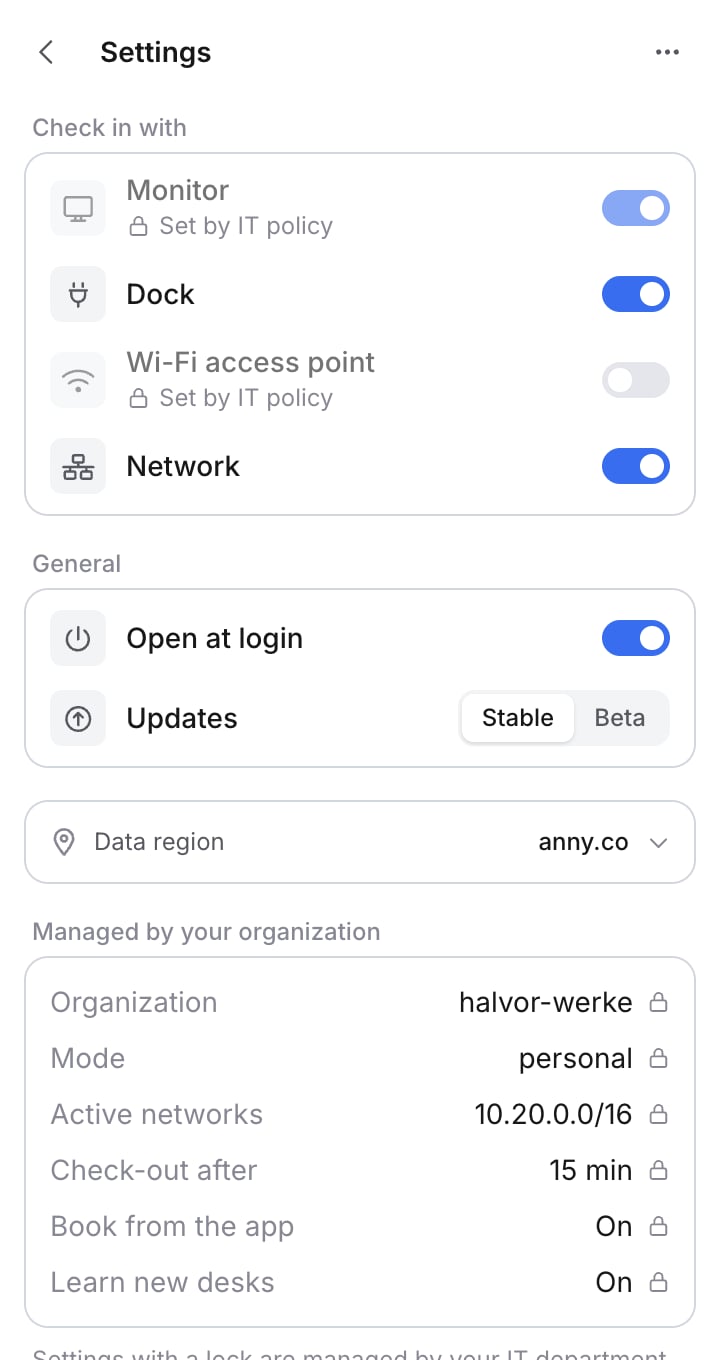
Settings shows what your IT department has set.
For admins: setting up anny Presence
Turning it on and configuring it
You’ll find the settings in the admin area under Settings → anny Presence. anny Presence is on by default. You can also set the settings through the anny API, which is why the technical names are listed below.Requirements on the resource
On every desk that should take part, Check in and check out bookings must be on under Resource → Check-In, and Allow self check-in must be on in the Self Check-In section. Without them, the app neither checks in there nor books automatically. You can exclude individual resources from anny Presence under Resource → Check-In → Self Check-In with Allow check-in with anny Presence. It’s on by default, and the technical name isselfCheckIn.desktopAppEnabled.
These existing settings under Resource → Check-In also apply:
For IT: rolling out anny Presence
Installers are available for macOS (.dmg, .pkg, macOS 11 or later), Windows (.msi, .exe, x64 and arm64) and Linux (.deb, .rpm, AppImage). During the private beta, you can get the installers and MDM templates on request via support@anny.co.
All platforms use the same keys. For each key, the first value in this order applies:
- MDM policy: locked, the app shows the setting with a lock and Set by IT policy
- Organization settings from anny
- The person’s own setting, only for signals, Open at login and Updates
- IT defaults: not locked
- Built-in default
Key settings
macOS
The preference domain iscom.anny.presence. There’s a .mobileconfig template and a JSON schema for Jamf Pro. Values in the Forced section are locked.
- Jamf Pro: Configuration Profiles → Application & Custom Settings → External Applications → Custom Schema, domain
com.anny.presence. - Intune: Devices → macOS → Configuration → Templates → Preference file, domain
com.anny.presence, as a plist with the keys above.
Windows
Locked values go underHKLM\SOFTWARE\Policies\anny\Presence, IT defaults under HKLM\SOFTWARE\anny\Presence. Load the ADMX and ADML templates into Group Policy or import them in Intune under Devices → Configuration → Import ADMX. The category is anny → anny Presence. You can also set defaults at install time:
Linux
Locked values live in/etc/anny-presence/policy.json:
Limits
- Only people running the app are counted. Presence is only visible for people with the app running, so you can’t rely on it for complete occupancy figures.
- Wi-Fi names in
ActiveNetworksdon’t work on macOS without Location permission. The app can’t see the name and treats the device as outside your networks. Use IPv4 ranges instead. - Windows and Linux aren’t tested on real hardware yet. The installers exist, but macOS is the most thoroughly tested. On Windows, Thunderbolt-only docks aren’t detected yet, and on Linux, Wi-Fi needs
nmcli. - Not every device can be recognized. Built-in displays and hubs without a serial number don’t count. Monitors without a serial number are identified by model and port and are marked Weak in What is sent?.
- Automatic booking only works through the monitor or dock, never through Wi-Fi or the network.
FAQ
Does the app have to run all the time?
Does the app have to run all the time?
Can I use anny Presence without a booking?
Can I use anny Presence without a booking?
What happens if my laptop loses its connection for a moment?
What happens if my laptop loses its connection for a moment?
Can my employer see where I am?
Can my employer see where I am?
Does anny Presence change how bookings expire?
Does anny Presence change how bookings expire?
Troubleshooting
You're not part of a community yet
You're not part of a community yet
Not enabled for your organization
Not enabled for your organization
Update required
Update required
No booking right now
No booking right now
Nothing happens after I plug in
Nothing happens after I plug in
- Does your monitor or dock appear under Detected now? If not, the app can’t detect the device right now. Plug it in again.
- Does it say Unknown? Then the device isn’t linked yet or is waiting for more confirmations.
- Is the app paused? Then click Resume.
- Does the app show Too early? Then it checks you in when the check-in period opens.
- Does the app show Not on an office network? Then your current network is outside the allowed networks.
I'm not being checked out
I'm not being checked out
Wi-Fi details need Location access
Wi-Fi details need Location access