

Typical cases
- You need a feature from a bigger plan, for example dynamic pricing or single sign-on: Upgrade.
- Your team grows and you need more resources or child resources: add add-ons.
- You want to save and switch to annual billing: choose a plan with Annual.
- You need less: Downgrade at the end of your billing period.
Open Change subscription
1
Open Plan & Billing
In the sidebar, open Account → Plan & Billing. The Team plan tab is selected.
2
Start the dialog
Click Change subscription at the top right. Alternatively, in the plan comparison under Your plan, click Upgrade or Downgrade for the plan you want. For a single extra add-on, Add next to the count under Usage is enough.
- Add-ons: how many add-ons you have per type and what they cost. Use + and − or Add to change the number.
- Plan & billing: choose another plan under New plan and the timing under Takes effect.
- Preview: what changes and what it costs.
Add or remove add-ons
Increase the number for the type you need, for example Resources. Below the number you see how many add-ons the plan includes and what extra ones cost. With tiered prices, the price of the tier you reach applies to all add-ons of that type. The preview shows the prorated amount for the current billing period under Due now and the new price per period under After that.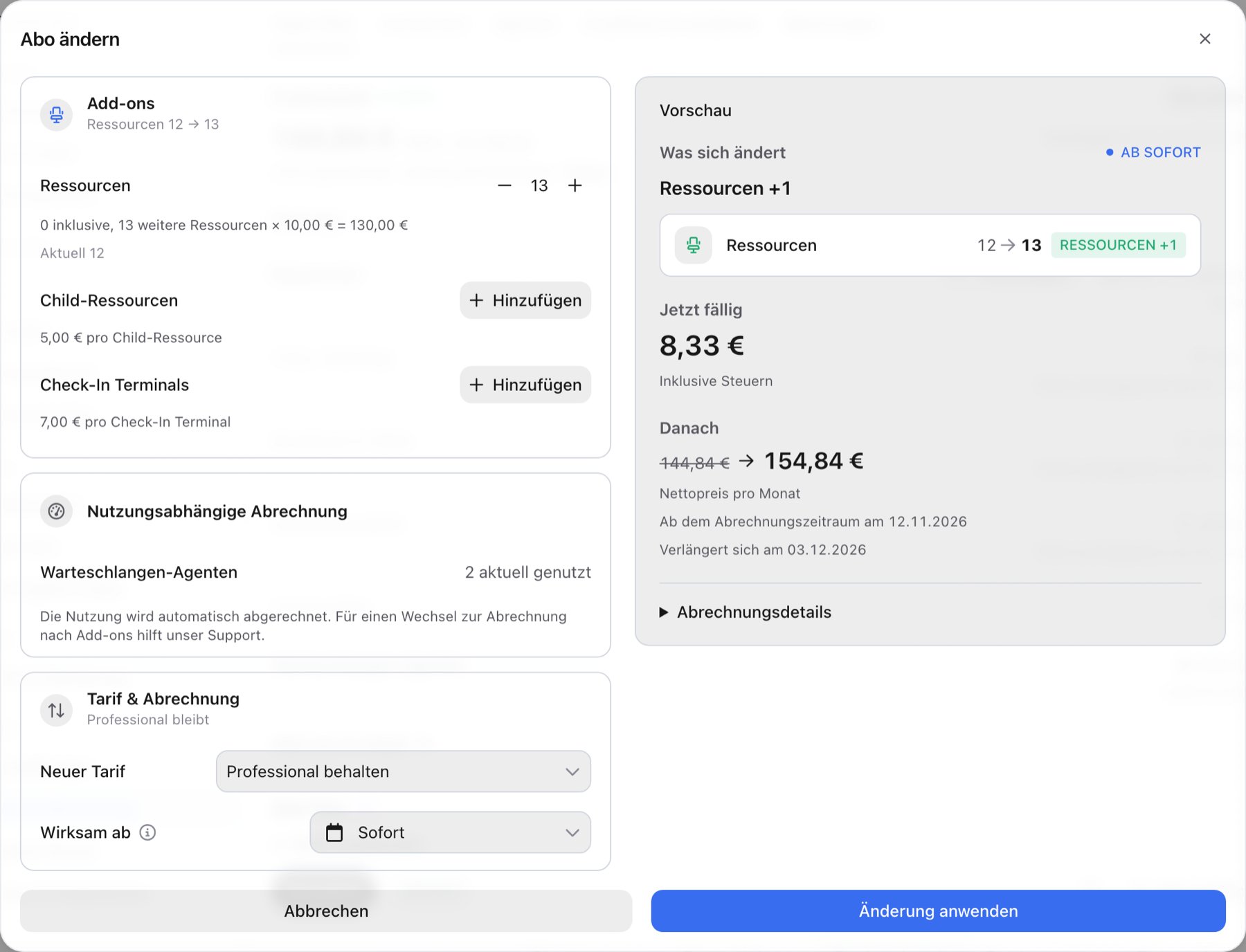
You can only remove add-ons that aren’t in use. To get rid of an add-on a resource uses, archive the resource or set it to a free status first. Learn more in Add-ons in your anny plan.
Upgrade to a bigger plan
1
Choose the new plan
Under Plan & billing, open New plan. A green arrow pointing up marks an upgrade, an orange arrow pointing down a downgrade. Each plan is listed once per month and once per year.
2
Check the preview
Under What changes you see what You gain with the new plan. On the left you see the add-on prices in the new plan.
3
Choose the timing
Under Takes effect, choose Immediately or a future date.
4
Apply
Click Apply change. For a future date the button reads Schedule for …. When you change to Business or Enterprise, you can click Request a quote instead. In the Request a quote dialog you tell us who our sales team should contact: Name, Email, Phone number and Further information, for example the number of your locations or the best time to reach you. Name and email are prefilled with your details. Request quote sends the request. The change waits as a scheduled change until then. You can still apply or discard it yourself in the meantime.
With the plan change, all add-ons take the price of the new plan.
Downgrade to a smaller plan
A downgrade takes effect when your current plan can end at the earliest, after the minimum term and the notice period. Until then, everything stays as it is.1
Choose a smaller plan
Under New plan, pick a plan with the arrow pointing down.
2
Give a reason
Answer Why are you downgrading?. Your answer helps us make anny better.
3
Check the impact
The preview lists smaller quotas under Changes and features the smaller plan doesn’t include under You lose. Adjusted automatically lists what anny switches on the effective date, for example communities that get deactivated or integrations that pause. If the smaller plan has fewer add-ons than you use right now, it also lists what can no longer be booked, for example 2 resources can no longer be booked (your plan allows 1). From the effective date these units are missing an add-on, as described in When an add-on is missing.
4
Schedule the downgrade
Takes effect shows the date your plan can end. Click Schedule for ….
If you agreed an individual discount with us, it can end with a change that lowers your amount per period, for example a downgrade. The preview tells you beforehand with The … % discount ends with this change and is priced without the discount. A discount from a referral or a discount code stays.
Switch from monthly to annual
Under New plan, choose your plan per year. With annual billing, a new yearly period starts at the change, and the unused part of your month is credited. The preview shows the exact amount before you apply it.Book a plan for the first time
If you don’t have a paid plan yet, for example during the testing period, you book it in the same dialog. It’s then called Subscribe. You open it with Choose a plan, with Upgrade in the plan comparison, or with Upgrade now on a locked feature.- Under What changes, everything your plan includes is listed as You gain.
- Your add-ons start with the number you’re using right now. If you need more, increase the number right here.
- Under Payment method you choose how you pay. If your plan allows it, Pay by invoice is offered here too.
Scheduled changes
If you scheduled a change for a later date, the Team plan tab shows the Scheduled for … card with the price from that day. The change takes effect automatically on that day. Until then you can withdraw it with Discard. anny asks you to confirm first. While a change is scheduled, you can’t schedule a second one. Apply or discard it first.FAQ
Why can't I downgrade right away?
Why can't I downgrade right away?
A smaller plan only applies when your current plan can end: after the minimum term and the notice period. The dialog shows the earliest date under Takes effect.
What happens to features the smaller plan doesn't include?
What happens to features the smaller plan doesn't include?
They’re no longer available from the effective date. Your data stays: integrations, webhooks and automatic exports pause with their settings, custom document templates are locked, and communities over the new limit are deactivated. If subscriptions are no longer included, your customers’ existing contracts keep running. You can’t add new contracts in the admin any more, but customers can still take out subscriptions in your shop. What anny switched shows in the activity log of each record, with System as the author. The preview lists exactly what’s affected under Adjusted automatically.
Do I get money back when I upgrade?
Do I get money back when I upgrade?
The unused time of your previous plan is offset against the new price. You only pay the difference for the current period.
Can I schedule an upgrade for later?
Can I schedule an upgrade for later?
Yes. Choose a future date under Takes effect and click Schedule for ….
How do I switch to Enterprise?
How do I switch to Enterprise?
Enterprise contracts are changed together with our sales team. In the plan comparison, click Contact sales for Enterprise; in the Change subscription dialog, click Request a quote or Contact sales.
Can I redeem a discount code?
Can I redeem a discount code?
You can only redeem a code at your first checkout or together with a plan change under Discount code, if the field is offered.
Troubleshooting
“Payment method required”
“Payment method required”
A change that costs something needs a payment method on file. Until then, Apply change is disabled. Click Add payment method, or Change next to the payment method in the Team plan tab, then apply the change.
Change subscription is greyed out
Change subscription is greyed out
Your subscription is canceled. Reactivate it first, then you can change the plan again. See Cancel or reactivate.
“This subscription already has a pending change”
“This subscription already has a pending change”
Apply or discard the scheduled change in the Team plan tab before you create a new one.
“The price changed since the preview”
“The price changed since the preview”
Something changed between preview and apply, for example the number of add-ons in use. Check the new preview and apply the change again.