

Where do I find the activity log?
In the admin area the log is called Activity. You find it in these places:
The oldest loaded entry is at the top, the newest at the bottom. When you scroll up, anny loads older entries. If new events come in while you are reading further up, the bell icon in the top right shows a hint such as Show 2 new events.
Filter and search entries
Click the filter icon (Filter) in the top right. Five filters appear below it:
Internal communication: notes and to-dos
Notes are visible to your team only. Customers never see them, neither on the booking page nor by email. In the log you recognize them by Note · internal.Write a note
1
Choose Note
In the input field at the bottom of the log, choose Note.The field shows Write a note… and the hint Internal.
2
Enter the text
Write your note. Type
@ to mention a colleague.The mentioned person gets a notification.3
Save the note
Click Add note or press
⌘ + ↩ (Windows: Ctrl + Enter).The note appears at the bottom of the log.Assign to-dos
A note becomes a to-do as soon as you assign a person or set a due date. This way you hand out tasks right on the booking, order or customer.1
Write a note
In Note mode, write what needs to be done.Below the text you see Assign and Due.
2
Assign a person
Click Assign and pick someone from your team.The name replaces Assign in the input field.
3
Set a due date
Click Due and pick a date. This step is optional.The date replaces Due in the input field.
4
Save the to-do
Click Add note.The to-do appears in the log with Mark as done, the due date and Assigned to.

You can also change the assignee and due date later via the icons in the top right of the note. Remove assignment and Remove due date take them off again.
Notifications
anny notifies you in the admin area and by email when:- someone assigns a to-do to you. The email contains the due date and the button Open to-do.
- someone mentions you in a note.
- someone replies to your note or to a to-do assigned to you.
- a customer replies by email.
External communication: emails to customers
From the log of a booking, order or customer you email the customer directly. The email and all replies stay in the log, so your whole team sees the conversation.1
Choose Email
In the input field at the bottom of the log, choose Email.Under To you see the customer’s name and email address.
2
Enter subject and text
Enter what it is about under Subject and write your message.The Send email button becomes active as soon as subject and text are filled in.
3
Send the email
Click Send email.The email appears in the log as Email · outbound and gets a delivery status.

The Email option is only active if a customer with an email address is set on the record. If you just changed the customer or their email address, save first. Blockers only have notes.
Automatic emails and delivery status
Under Communication you also see every email anny sends automatically, for example booking confirmations, reminders or invoices. Expand an email to see the subject, the recipient and how the status developed. Open shows the email as it was sent.Other messages
Communication also shows:- SMS and WhatsApp messages, for example with an access code, with their delivery status
- calls and chats between the anny AI assistant and customers. Expanded, you see the AI summary and, for calls, can Play recording.
Changes and changes made by the AI agent
Under Changes you see who changed the record and when. Expanded, each change shows the old and the new value. When the anny AI agent makes a change, the entry carries the label via AI Agent. This way you see at a glance which changes did not come from someone on your team. Expanded, you see what the agent changed and, where available, its reason.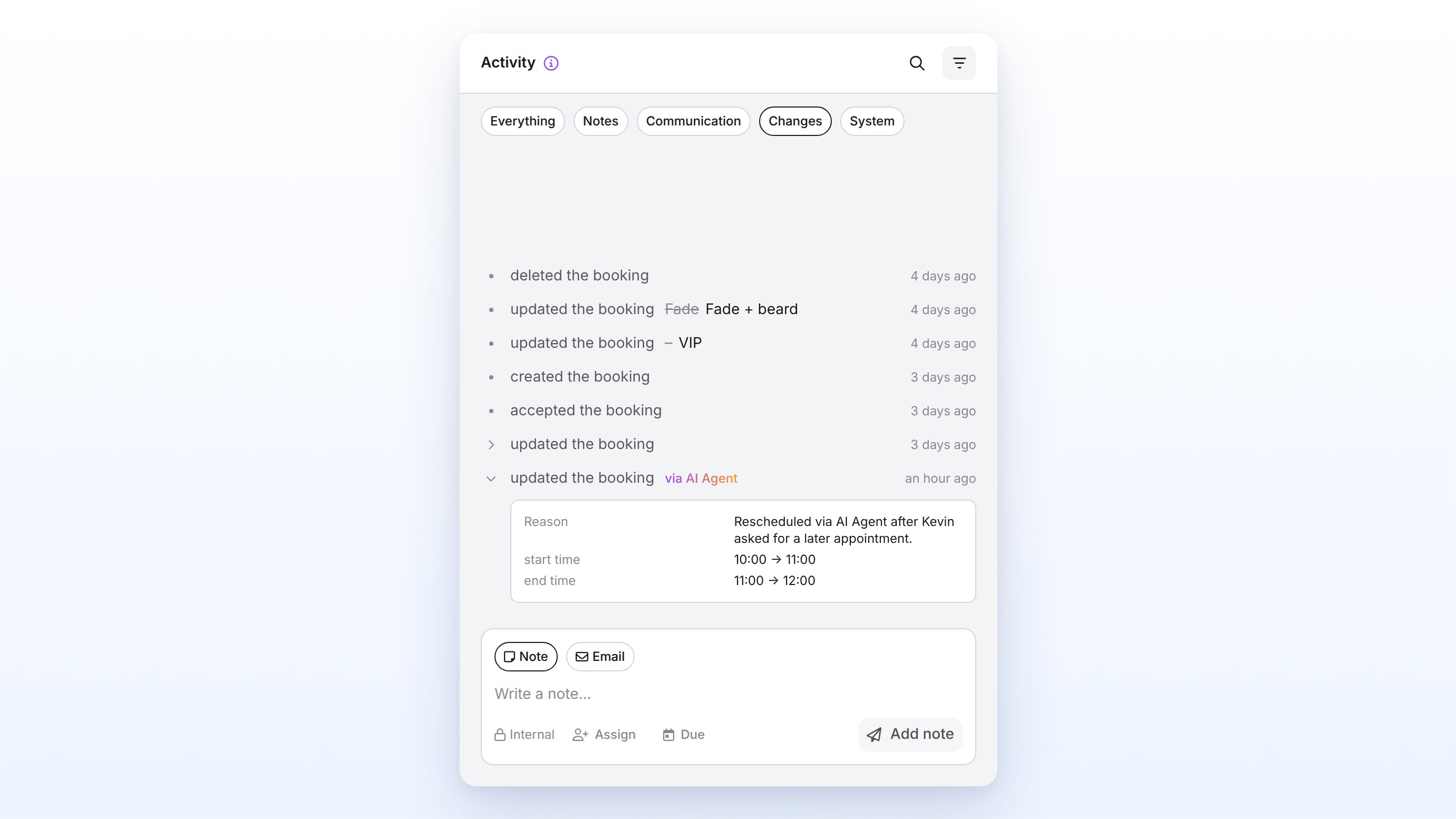
The via AI Agent label is not limited to changes. When the AI agent writes a note or an email, it appears with the same label under Notes or Communication.
System
Under System you find events anny records automatically. The sender shown there is System.
When do I use this?
- You want to know whether a booking confirmation arrived: Under Communication you see the delivery status of every email.
- A colleague should take care of a booking: Write a note, assign it to her and set a due date.
- A customer has a question: Reply by email right from the log so your team sees the conversation.
- You want to find out who moved a booking: Under Changes you see whether it was someone on your team or the AI agent.
- A booking is missing in your external calendar: Under System you see whether the sync failed.
FAQ
Can customers see the internal notes?
Can customers see the internal notes?
No. Notes and to-dos are visible only in the admin area and are never shown by email or on the booking page. Only messages you write in Email mode reach the customer.
Where do my customers' replies end up?
Where do my customers' replies end up?
When a customer replies to an email you sent from the log, the reply appears in the log of the same record as Email · inbound. If you enabled the Customer messages notification, anny notifies you as well.
Why can't I write an email?
Why can't I write an email?
The Email option is disabled when no customer with an email address is set on the record. If you just changed the customer, save first. Blockers and settings only have notes.
Why is no email shown in the activity log even though a customer is assigned?
Why is no email shown in the activity log even though a customer is assigned?
Check whether Send email confirmation was turned off when the order was completed. Customers can also turn off email notifications in their profile. You can send the confirmation afterwards in the order details via Resend booking confirmation.
How do I recognize changes made by the AI agent?
How do I recognize changes made by the AI agent?
Entries triggered by the anny AI agent carry the label via AI Agent. You find changes under Changes, the agent’s notes under Notes and emails under Communication.
Troubleshooting
Email status stays on “Delivered” even though the recipient read the email
Email status stays on “Delivered” even though the recipient read the email
Opening is detected through an invisible image in the email. Some email clients do not load external content automatically. In that case the status stays on Delivered, even when the email was read.
Email with status “Blocked” or “Bounced”
Email with status “Blocked” or “Bounced”
With Bounced, the email address does not exist. Check the address on the customer and correct it. With Blocked, the recipient’s mail server refused the email, for example because the customer marked emails from anny as spam or refused to receive them. Ask the customer to allow the sender address and contact anny support so the address gets unblocked.
No entry after a change through an integration
No entry after a change through an integration
Changes and syncs through an integration can appear with a slight delay. If the bell icon shows a hint such as Show 2 new events, click it. Otherwise reload the page.
I don't get notified about assigned to-dos
I don't get notified about assigned to-dos
Check in the Activity group of your notification settings whether To-dos assigned to me is turned on.