

- Tips belong to communities. Activate the Communities app first under Account > Apps & Integrations > anny Apps so you can create communities under CRM > Communities.
- Anyone who can edit the community can edit its tips.
How do tips work?
- In a community, you create a tip under Member tips or take over a suggestion from anny.
- A new tip is a draft. Members only see it once you publish it.
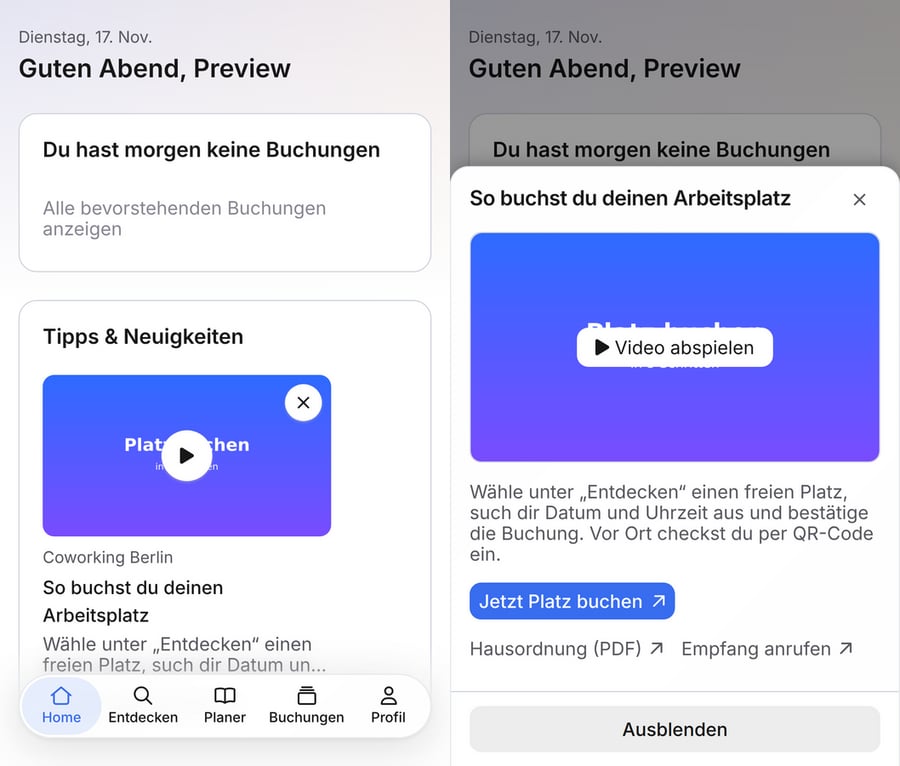
- Members of the community see published tips on their home page in the Tips & news section.
- Every member can dismiss a tip. After that, this person no longer sees it; everyone else still does.
When do I use this?
- Desk sharing and room booking: Explain to new employees how to book a desk, check in or find colleagues.
- Coworking spaces: Point members to house rules, Wi-Fi, printers or community events.
- Universities and libraries: Link opening hours, terms of use or an explainer video on booking study spaces.
- Clubs: Share information on training times, contact persons or the members’ area of your website.
Create a tip
1
Open the community
Open CRM > Communities and select the community. Go to the Member tips section.
2
Create the tip
On the right below the list, click New. A window for the new tip opens.
3
Fill in the content
Add an image (16:9), enter a Title and a Text. Under Video and links you can optionally add a Video link, a button with Button text and Button link, and up to three more links. Click Save.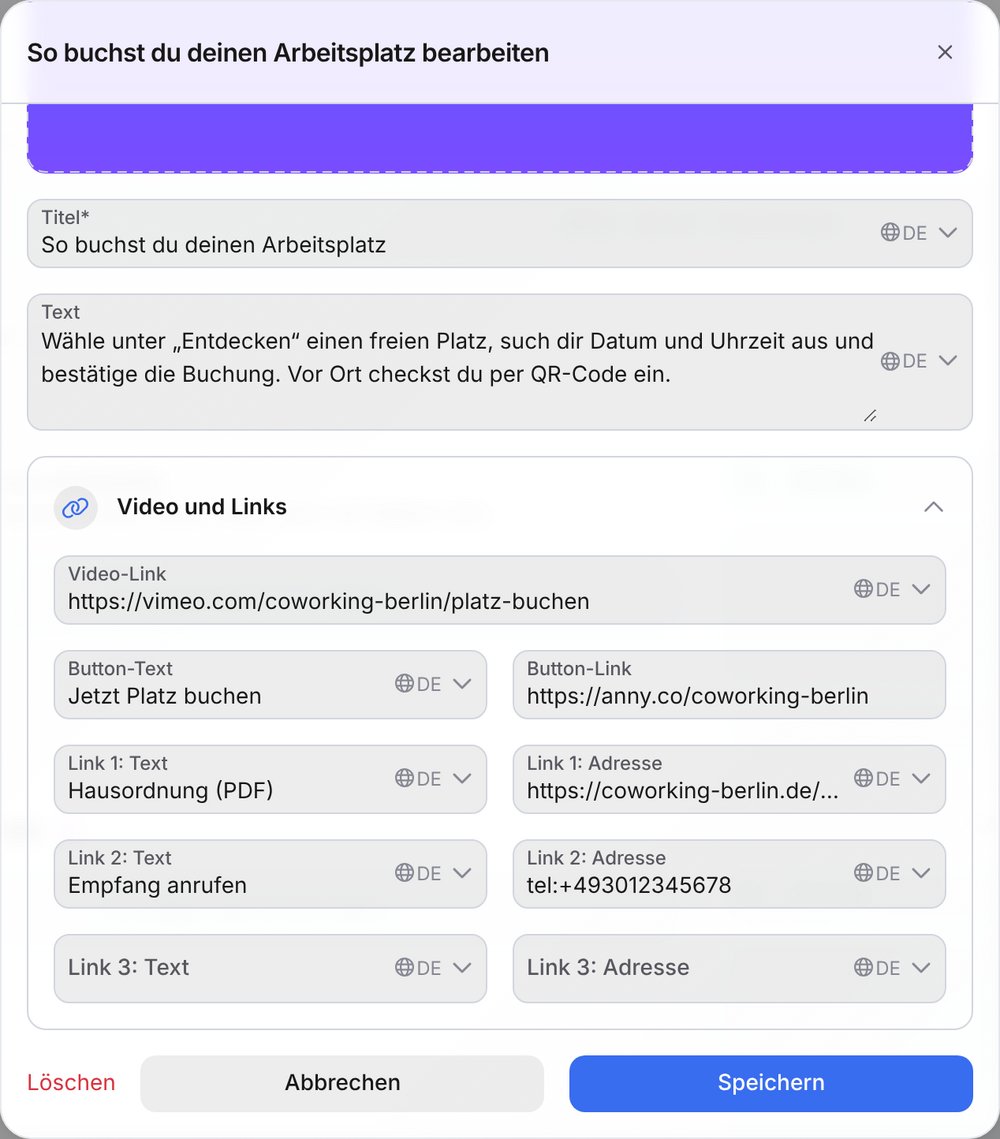
4
Save the community
The new tip now sits in the community’s list on the left. Save the community with Save in the top right.
5
Publish
The tip carries the label Draft. Hover over the tip and click Publish (paper plane icon). From now on, members see it.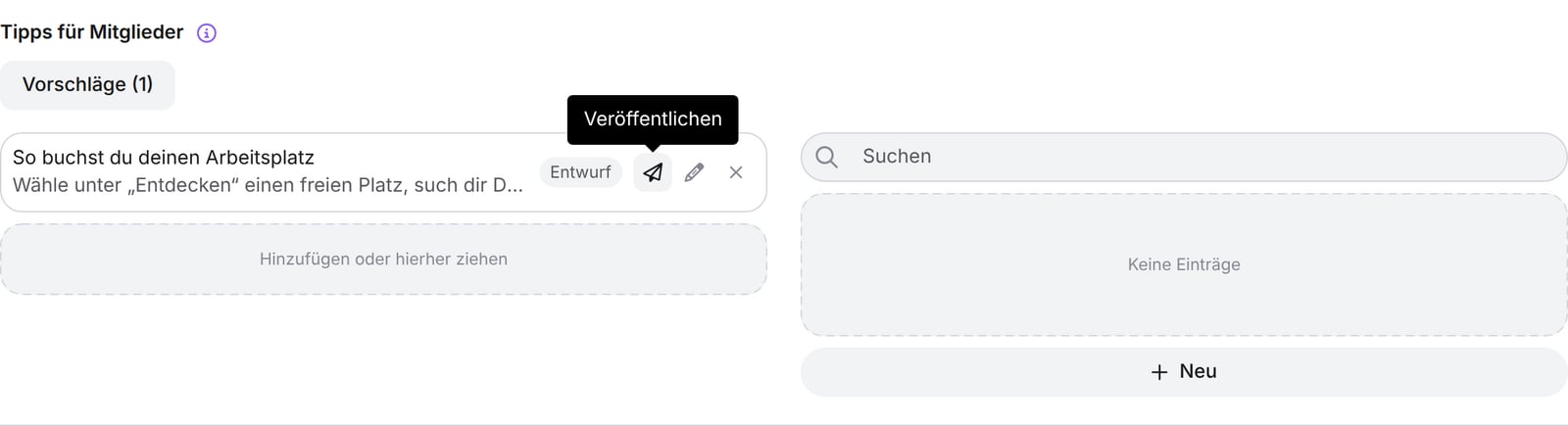
Fields of a tip
The button link and links must start with
https://, mailto: or tel:. This way you can also link an email address or a phone number. The video link is always a web address.
Take over suggestions from anny
If anny has matching templates for your use case, the Suggestions (number) button appears above the list. It opens the Suggested for you window. When you pick a suggestion, it lands in the community as a draft. Adapt the text and links to your organization, then publish it.Manage tips
How members see tips
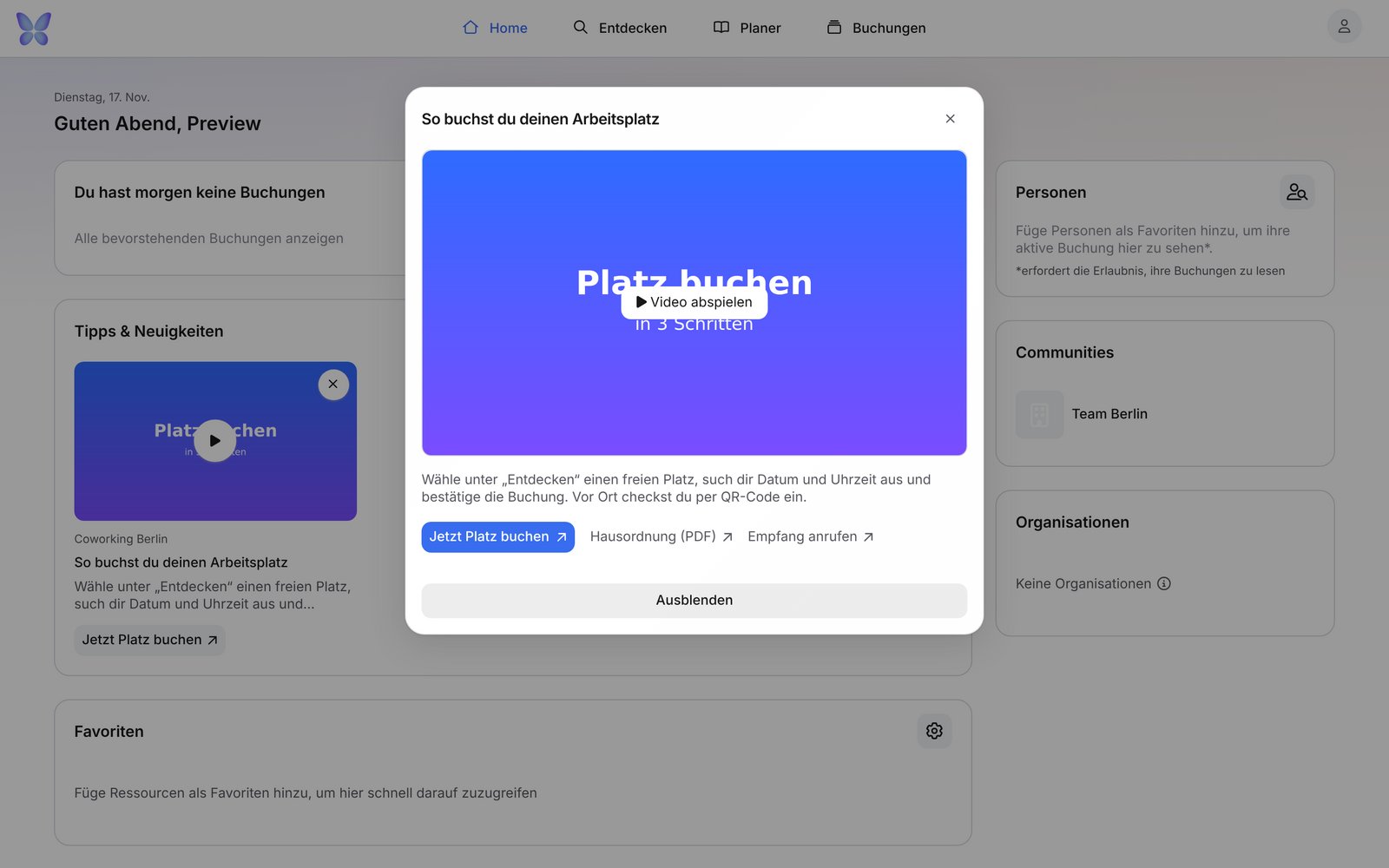
Once signed in, members see published tips on their Home page in the Tips & news section. Each tip appears as a card with image, the name of your organization, title, text and your button. If the tip has a video, the play icon on the image starts it. Members scroll sideways through several tips.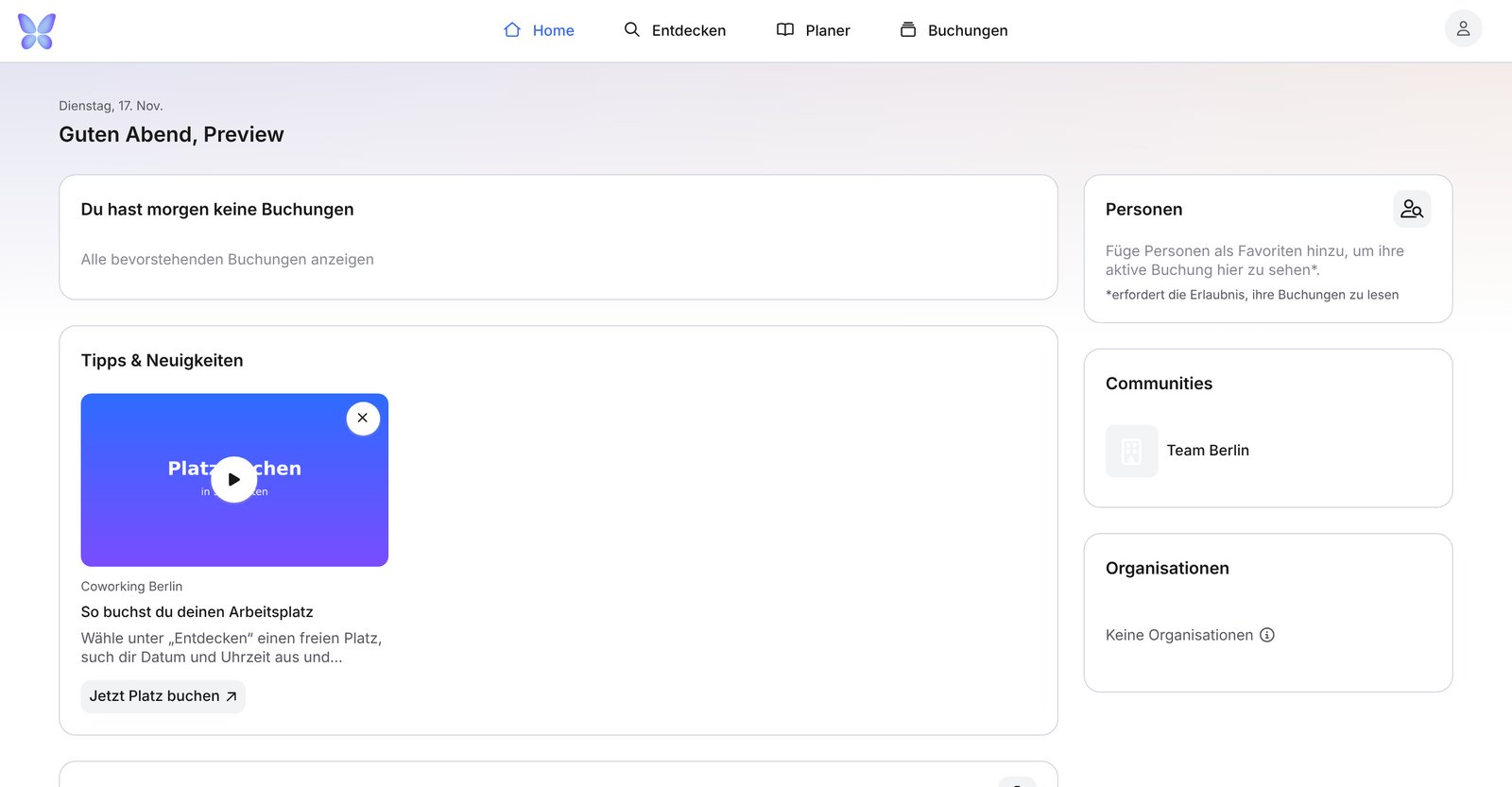
- Only people who are members of the community see its tips. Open invitations don’t count yet.
- When the membership ends, the community’s tips disappear from the home page too.
- Tips appear on the web (also in the browser on a phone), not in the anny app.
FAQ
A member doesn't see my tip. Why?
A member doesn't see my tip. Why?
Check that the tip is published (no Draft label), that it’s in the community’s list on the left and the community is saved, and that the person is a member and not just invited. If the person already dismissed the tip, it won’t come back for them.
Can I show a dismissed tip again?
Can I show a dismissed tip again?
No. If you want to show the information again, create a new tip.
How many tips can I create?
How many tips can I create?
There’s no fixed limit. Members scroll sideways through the cards on their home page. A few well-kept tips get read more than many.
Related articles
Member management (communities)
Create communities, invite members and assign resources.
Broadcasting
Send messages by email, SMS and push to selected customers.