

WordPress: Install the anny bookings plugin and add blocks instead of copying HTML. Step by step: Embed the anny booking page in WordPress. The HTML embed below remains for every other website.
What you will have set up at the end
- The global widget script is added to your website
- You have configured the widget at organization or resource level
- The design is adapted to your corporate identity
- The widget is placed at the desired position and tested
Step 1: Choose the widget level and type
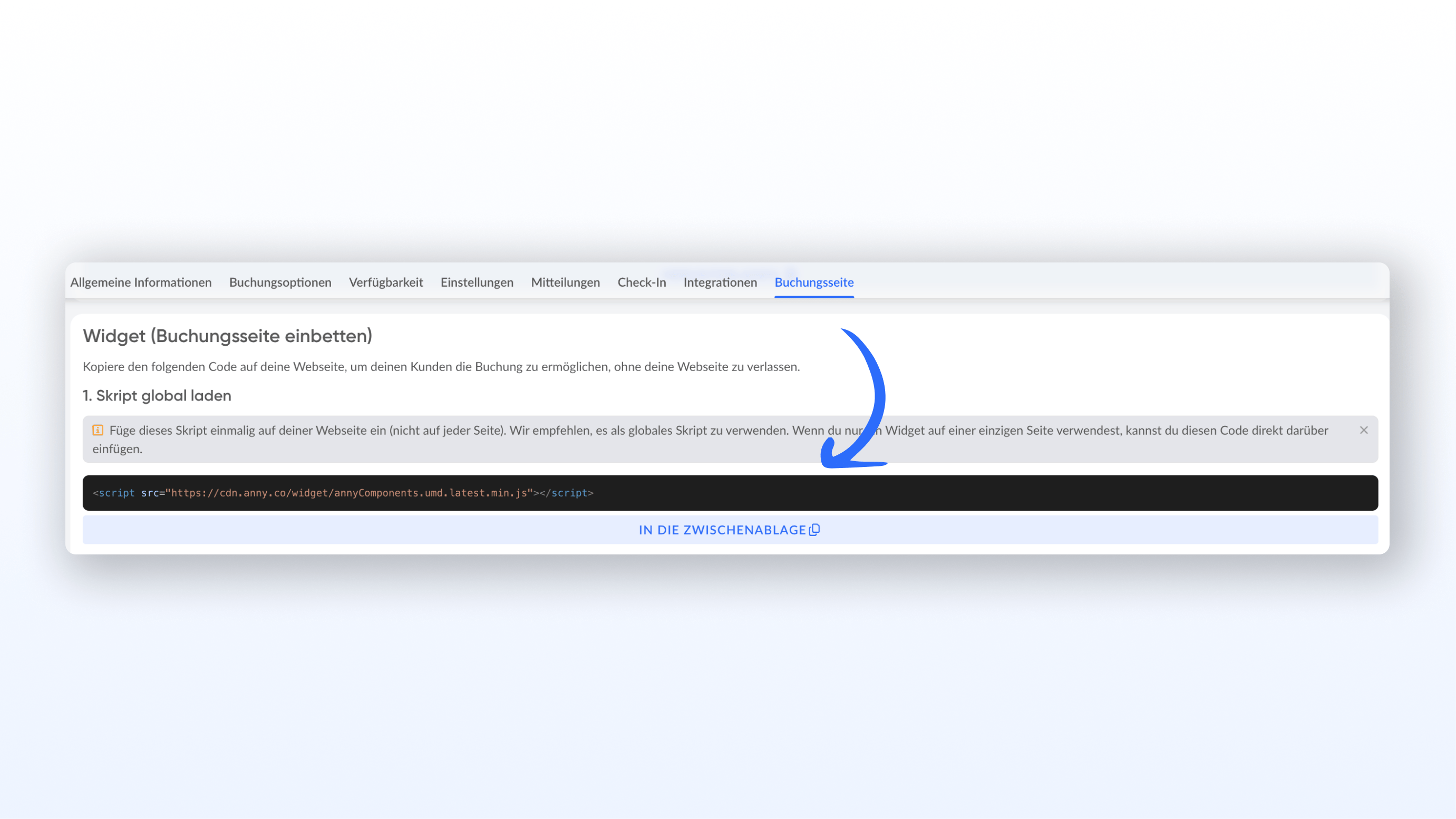
You can embed the widget at two levels. First decide what you want to show. Entire booking page (Account → Settings → Share & embed). Useful when you have several resources that should be searchable. This is also where you configure global components such as the login button and the cart button.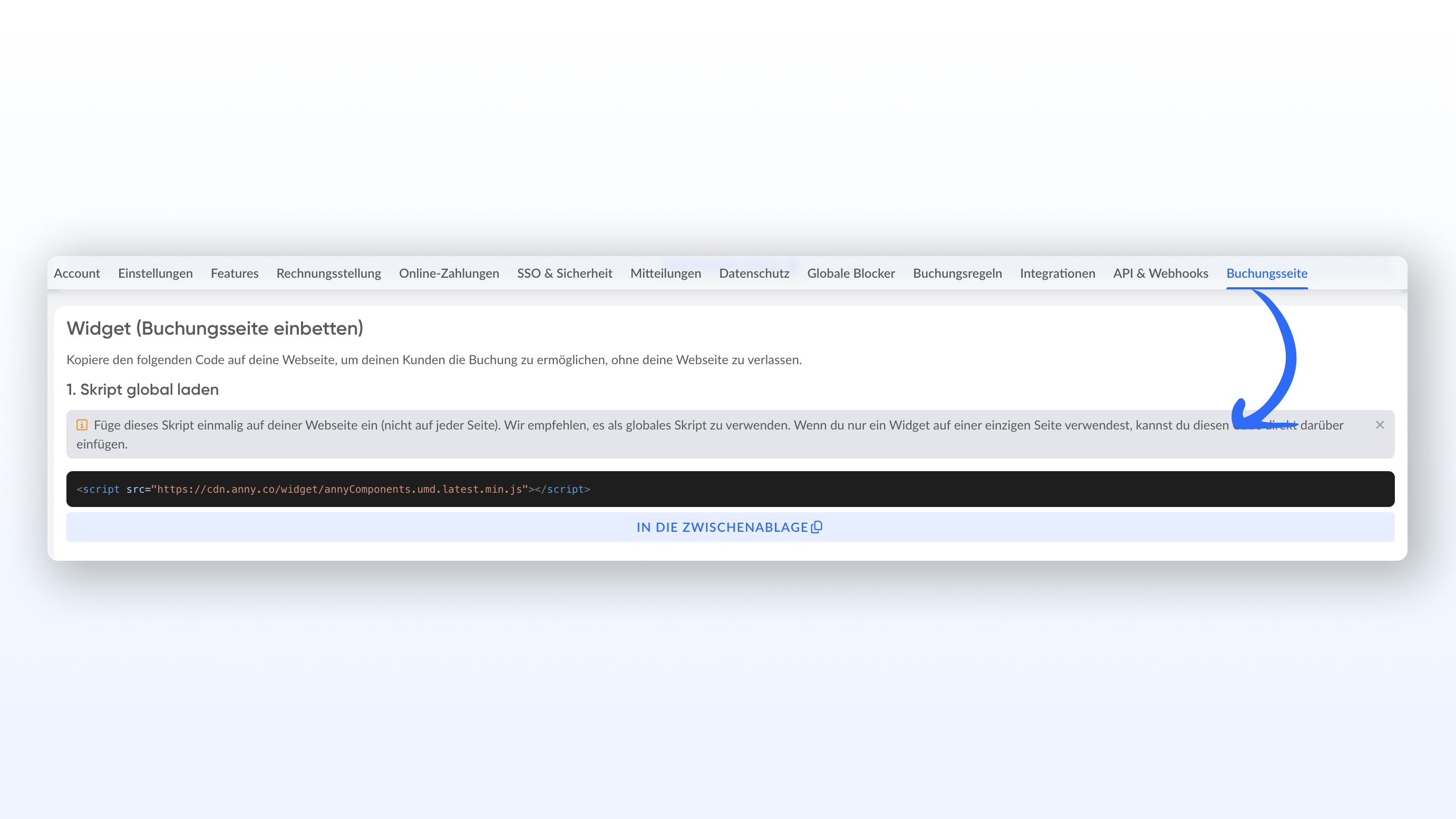
Which widgets are available?
Page widgets
Panel widgets
Button widgets
Global helper widgets
Step 2: Load the script globally
Add the widget bundle once to the<head> of your website.
Step 3: Check settings and insert the snippet
Open the Share & embed tab of the relevant level in the admin area, choose the component you want, and configure the options. At organization level (page widget), the following settings are available, among others:- Hide header on organization/resource page
- Hide filters and map toggle
- Default tab and default view (e.g. grid)
- Category for pre-filtering
- Widget height and navbar height
- Hide header on resource/organization page
- Preselected service
- Widget height and navbar height
Step 4: Adapt the design
Go to Account → Settings → Share & embed and open the design panel via “Customize design”. There you can set:- Primary color and secondary color
- Text and background color
- Input background and border color
- Corner radius (rounded or square)
- Logo for the loading animation
Step 5: Test
Open the page in your browser and check:- The widget loads and shows content
- The booking flow can be completed in full
- The design matches the rest of the page
- The layout is correct on mobile viewports
- The login and cart button (if used) are visible and work
- Login and payment are allowed to open a popup. If the window stays blank or the browser blocks the content, see Popups from the widget.
Checklist
- Script added globally in the header
- Widget configured at account or resource level
- Component placed at the right position on the website
- Design adapted and saved
- Widget tested and booking flow checked