

How the anny AI Agent works
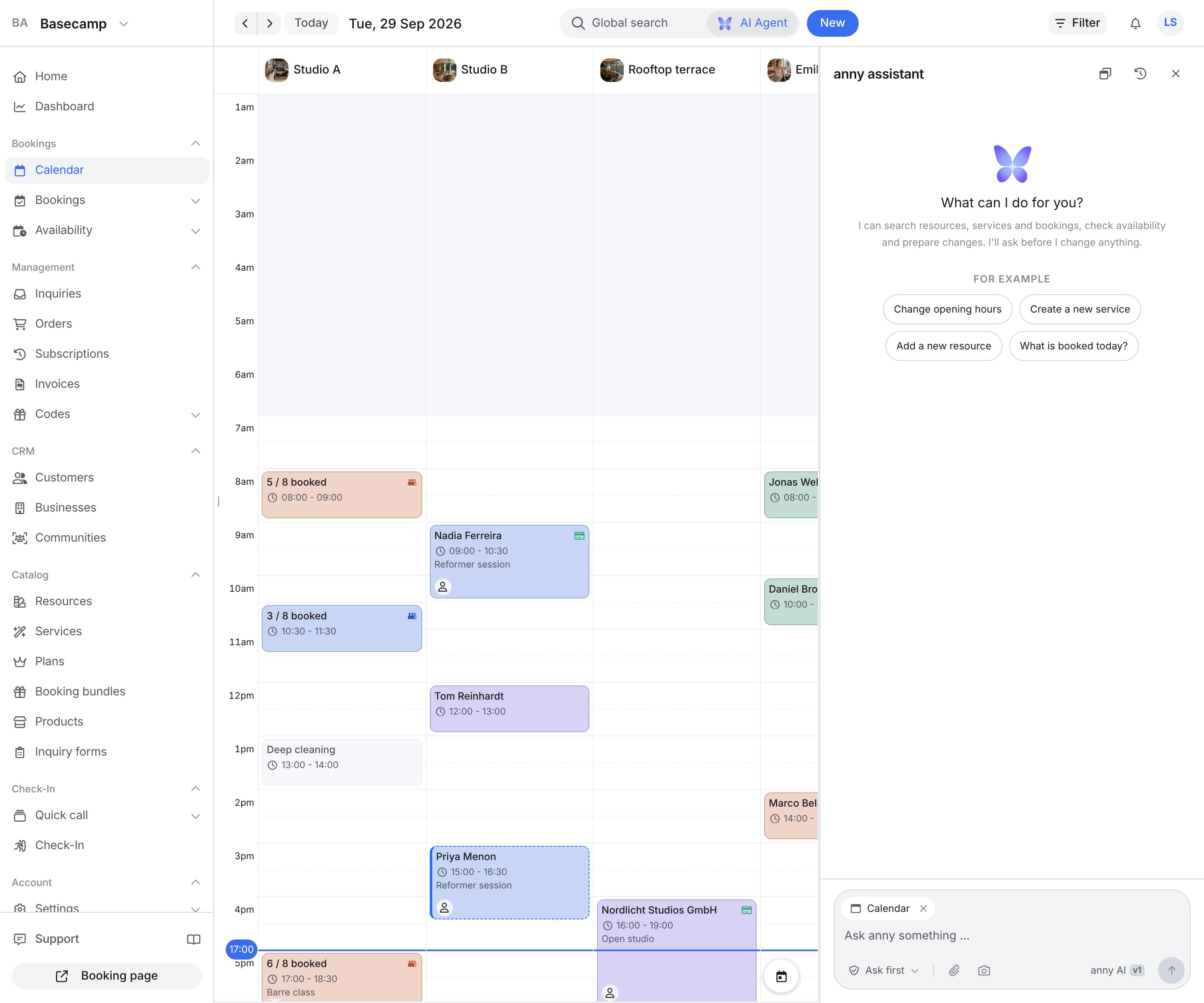
Next to Global search is the AI Agent button. One click opens the assistant window. The shortcut is on the button: ⌘L on a Mac, otherwise Ctrl+L. A second click, or Close the assistant, closes the window again. Other ways to open it:- On the home page (Home in the sidebar), through the field “What can I help you with?”.
- At the bottom of the sidebar, through Support. If it cannot get further, it hands over to the support team.
- In Global search, through the row Ask anny AI Agent. What you already typed appears under it.
- On an info-icon hint, through Ask agent. The text lands in the input. You send it yourself.
Ask a question
In the window the assistant shows suggestions for the current page. Alternatively you type your own question into the input and send it with Send. The paperclip attaches up to five images (PNG, JPG, WebP, GIF) or PDFs, each file at most 10 MB. Stop cancels a running answer. Under a finished answer are Helpful and Not helpful. You can follow up in the same conversation.Settings and options
Approving changes
Next to the input is Approving changes. The default is Ask first.
With Ask first, “Needs your approval” appears. The button is Create, Update, Go ahead or Delete for good, depending on the action. Don’t declines. While the assistant is waiting, AI Agent in the bar shows that anny is waiting for your approval or for your answer.
You turn on Automatic through Apply changes automatically and confirm with Turn on. The mode stays until you turn it off or reload the page. It still always asks before changing settings for the whole organization or doing anything that cannot be undone.
Layout
Switch layout offers Modal, Full screen or Sidebar.Past conversations
Past conversations opens your earlier chats in this account. New conversation starts an empty chat.Track changes
Changes the agent makes in the admin show up in the activity log. On a record the timeline is called Activity. You find it in the details of a booking, an order or a customer. On a resource or a service you open it with the Activity action. Click Filter and choose Changes. The entry carries the label via AI Agent. That is how you see what did not come from someone on your team. Expanded, you see the old and the new value and, where available, the agent’s reason.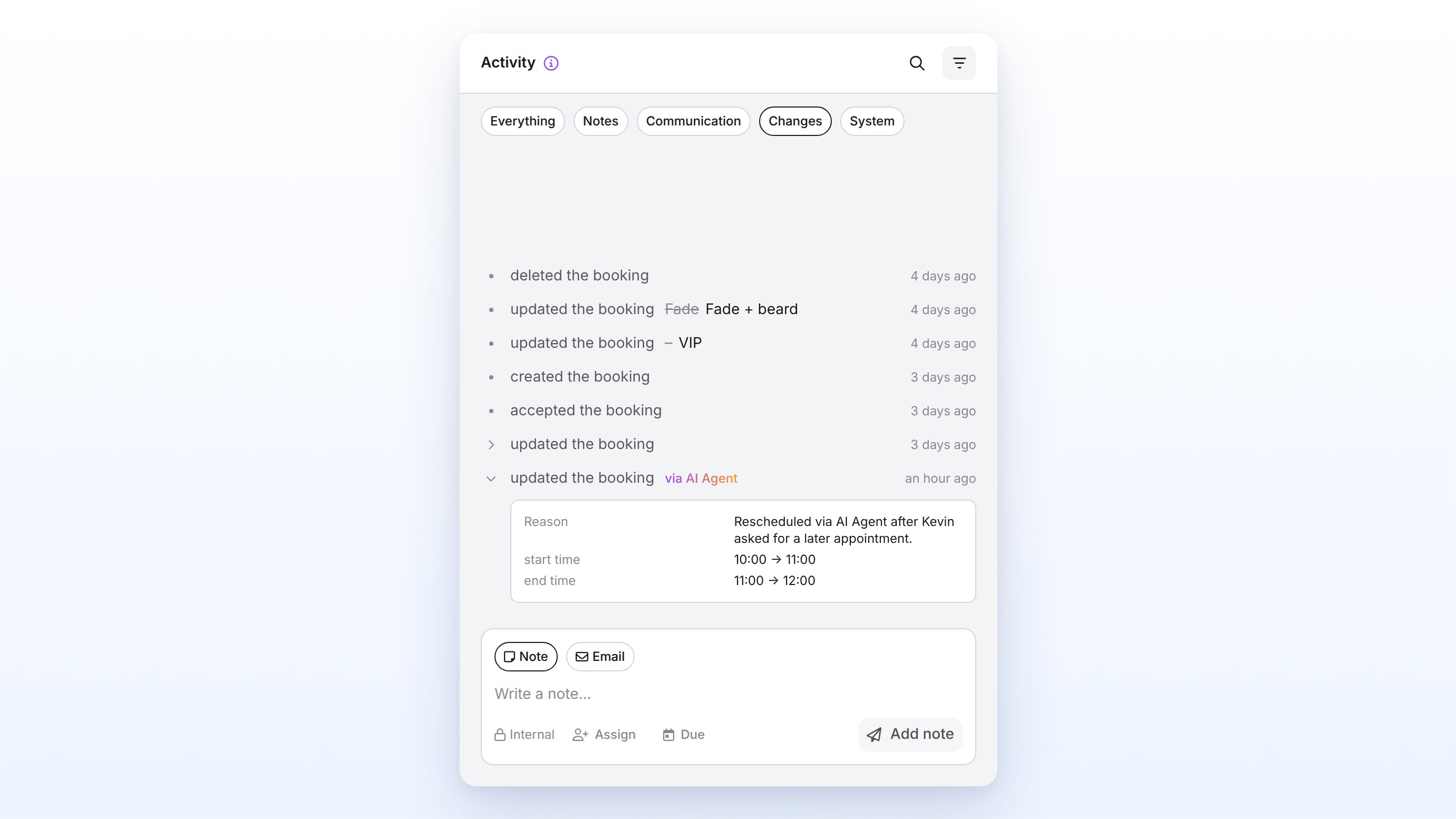
The label via AI Agent is not limited to changes. When the agent writes a note or an email, it appears with the same label under Notes or Communication.
Model and privacy
Next to the input the model is anny AI v1. anny runs this model itself, on its own infrastructure in the EU. Processing is GDPR-compliant, and anny does not pass the data on. No additional sub-processor is added, and there is no extra data transfer outside. That is why the agent is on by default on anny.co (Default) and anny.eu (For public institutions). You do not have to use it. As long as you send nothing, it takes no action in your account.Limitations
You cannot remove the AI Agent button from the admin.FAQ
Is this the same assistant as anny AI on the phone?
Is this the same assistant as anny AI on the phone?
No. This agent works in the admin, inside your account. You set up the phone and chat AI for your customers in anny AI.
Troubleshooting
I cannot keep writing in the conversation
I cannot keep writing in the conversation
Cause: The conversation is finished, or it has reached its message limit. If it says “This conversation is completed.” or “This conversation has reached its message limit. Start a new conversation to carry on.”, start New conversation. If too many requests are already running, the assistant waits until one has finished.
The bar says anny is waiting
The bar says anny is waiting
Cause: A change needs your approval, or the assistant is waiting for an answer. Open AI Agent and approve the change or keep writing in the conversation.
Automatic is gone after a reload
Automatic is gone after a reload
Cause: The mode lasts only until you turn it off or reload the page. Turn on Apply changes automatically again and confirm with Turn on.