

A visit is registered: reception sends the half-filled form to the display, the visitor completes and signs it, reception adds the badge number and finishes (admin area on the left, display on the right).
When should I use this?
- At a staffed reception: Visitors enter their contact details and sign the visitor and safety policy themselves while you keep working in the admin area.
- At check-in with paperwork: Customers complete documents that are signed at check-in and check-in fields directly on the display.
- For new customers at the counter: You create a booking and let the customer enter their details on the display instead of typing them yourself.
- Not suitable for: Self-service without staff. Use the regular modes of the Check-In terminal for that.
How does the customer display work?
You work in the admin area in the browser or in the anny Admin app on a tablet. The display is a tablet or screen running the anny Check-In app, paired as anny Check-In under Displays. The customer display works with two forms:- You open the form and enter what you already know.
- You click the cast icon next to the form title and choose the display.
- The form appears on the display, prefilled with your entries.
- The customer fills it in, confirms and signs documents on the display. Every entry appears on your side right away.
- You review the details, fill in the fields that are only visible to staff and confirm. Only then does anny save the check-in or the booking.
Prerequisites
- A paired Check-In terminal. How to install and pair the anny Check-In app is described in Set up a Check-In terminal.
- A form that needs input from the customer, for example custom forms or legal documents on the booking option.
Set up a display as a customer display
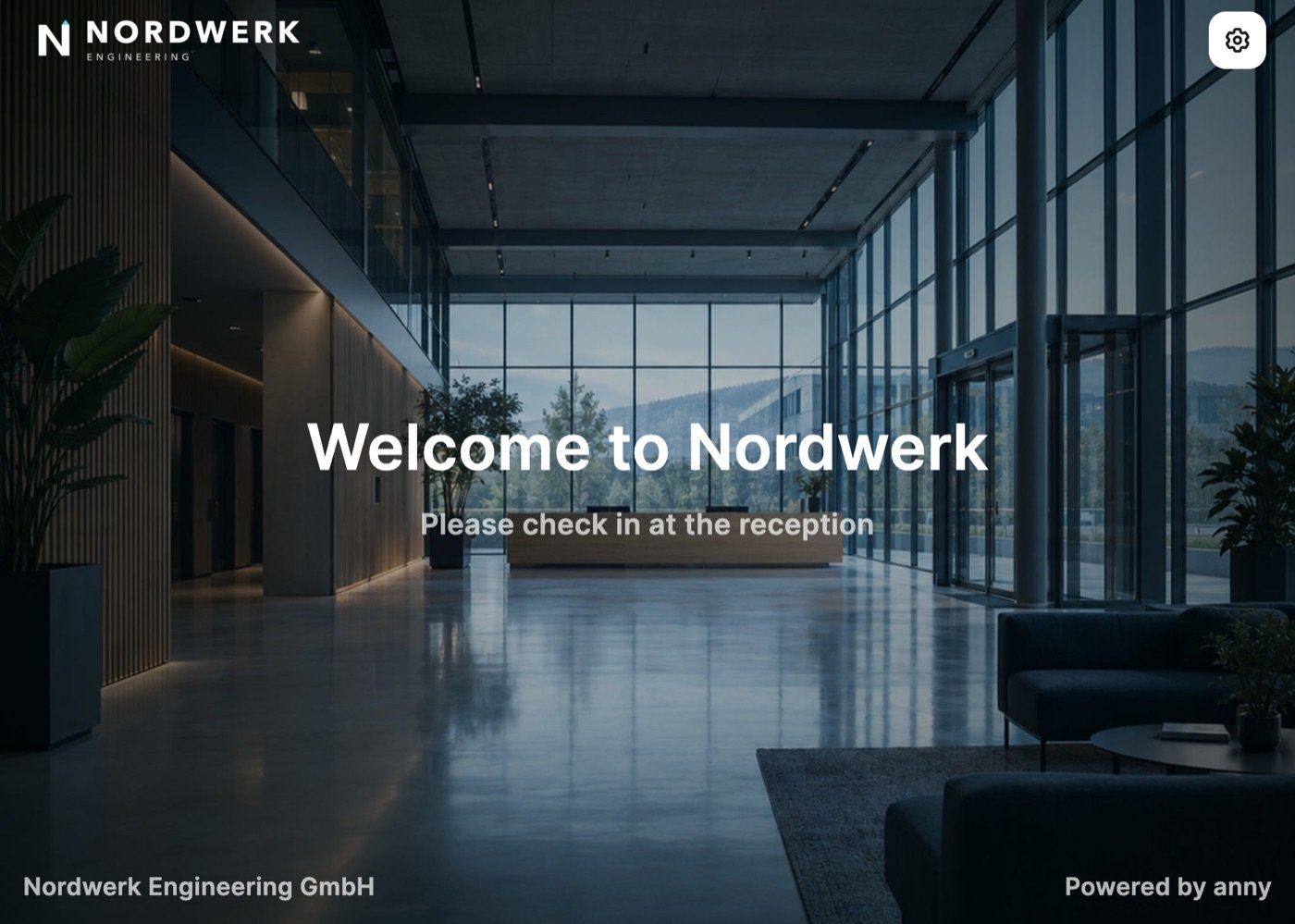
Every Check-In terminal can receive forms, even while it runs in a self-service mode. If the terminal should only show forms from the admin area, set the mode to Customer display.Open the display
Choose the mode
Design the start screen (optional)
Send a form to the display
Open the form
Choose the display
The customer fills in the form
Confirm and sign
Review and finish
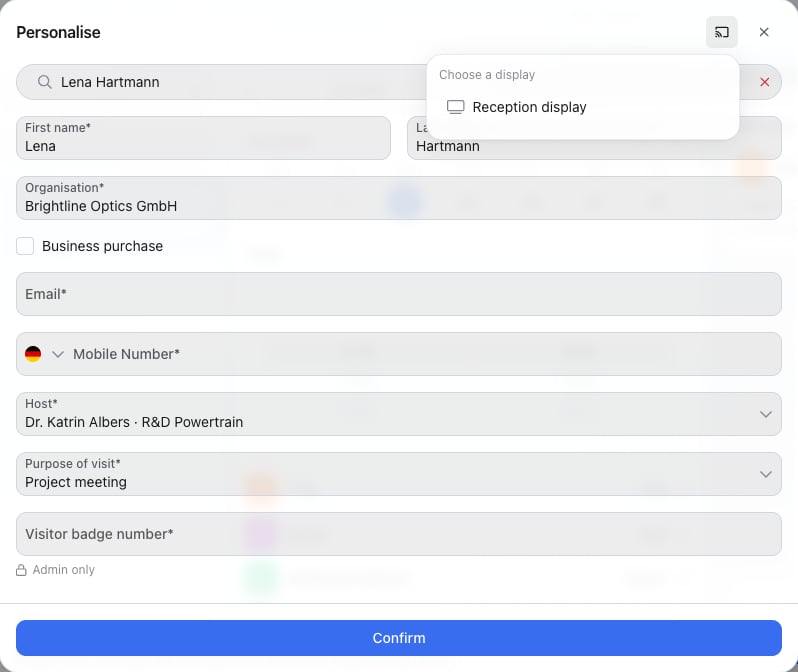
Cast icon next to the title: choose the display the form should appear on.
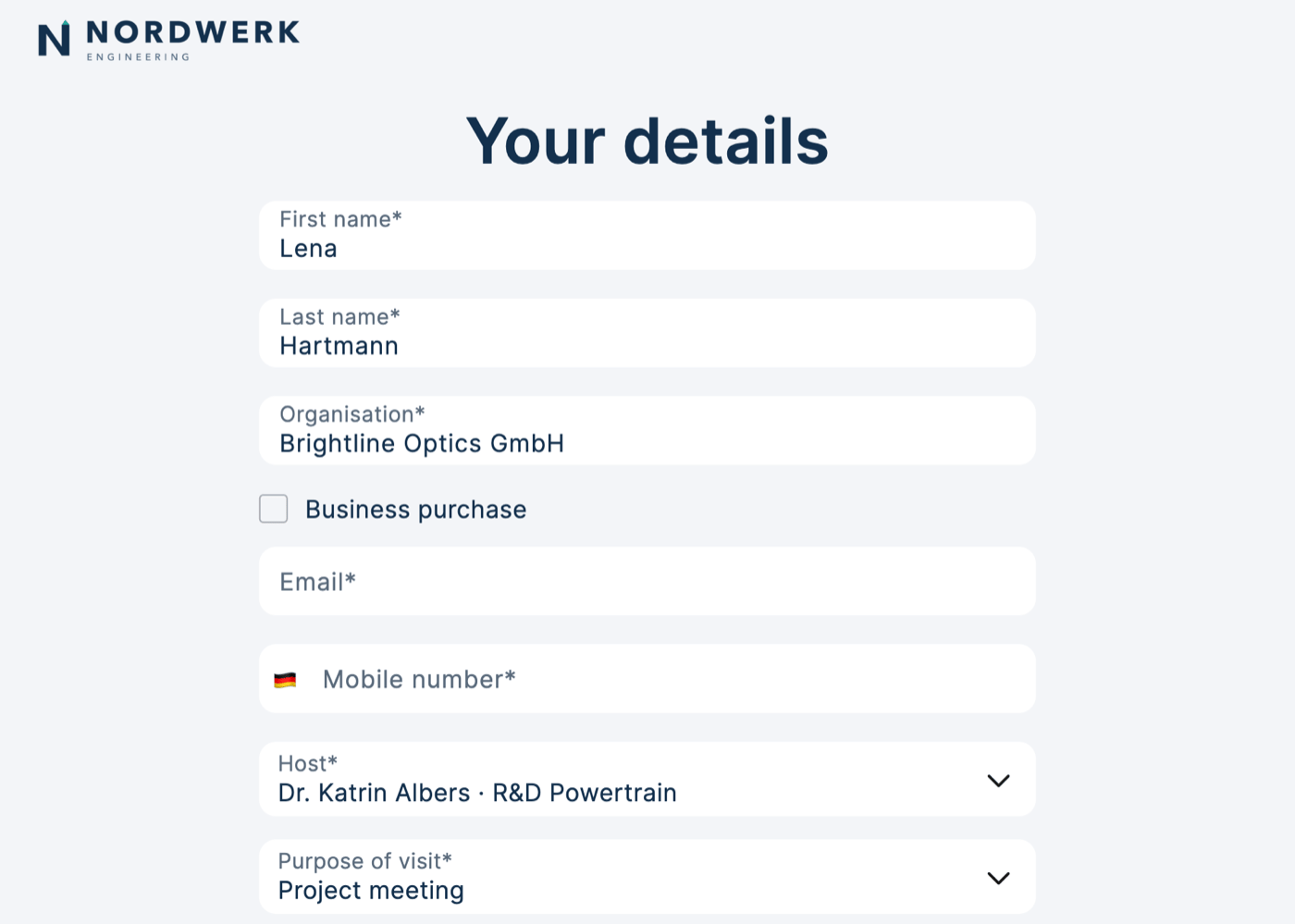
The display shows the form with everything you already entered.
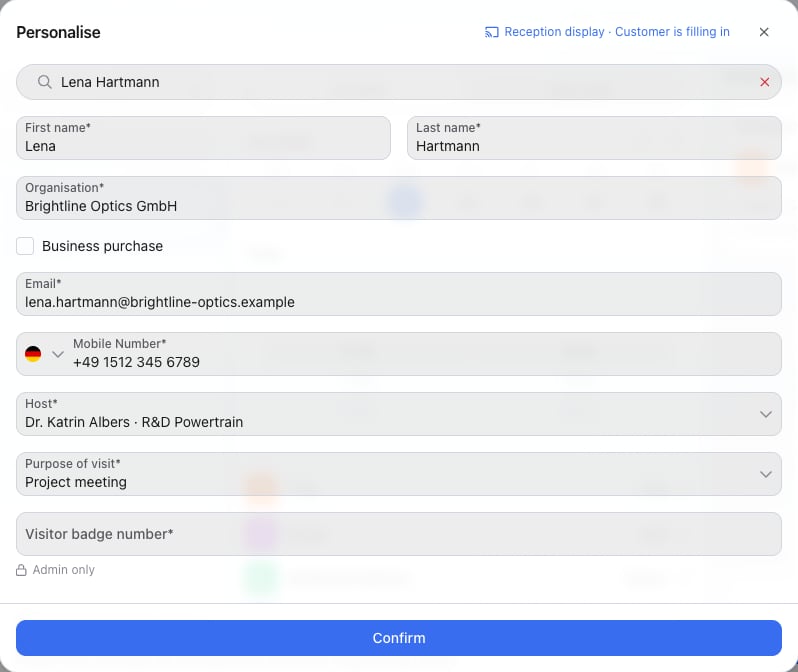
Answers appear live in the admin area. The top shows which display is being filled in.
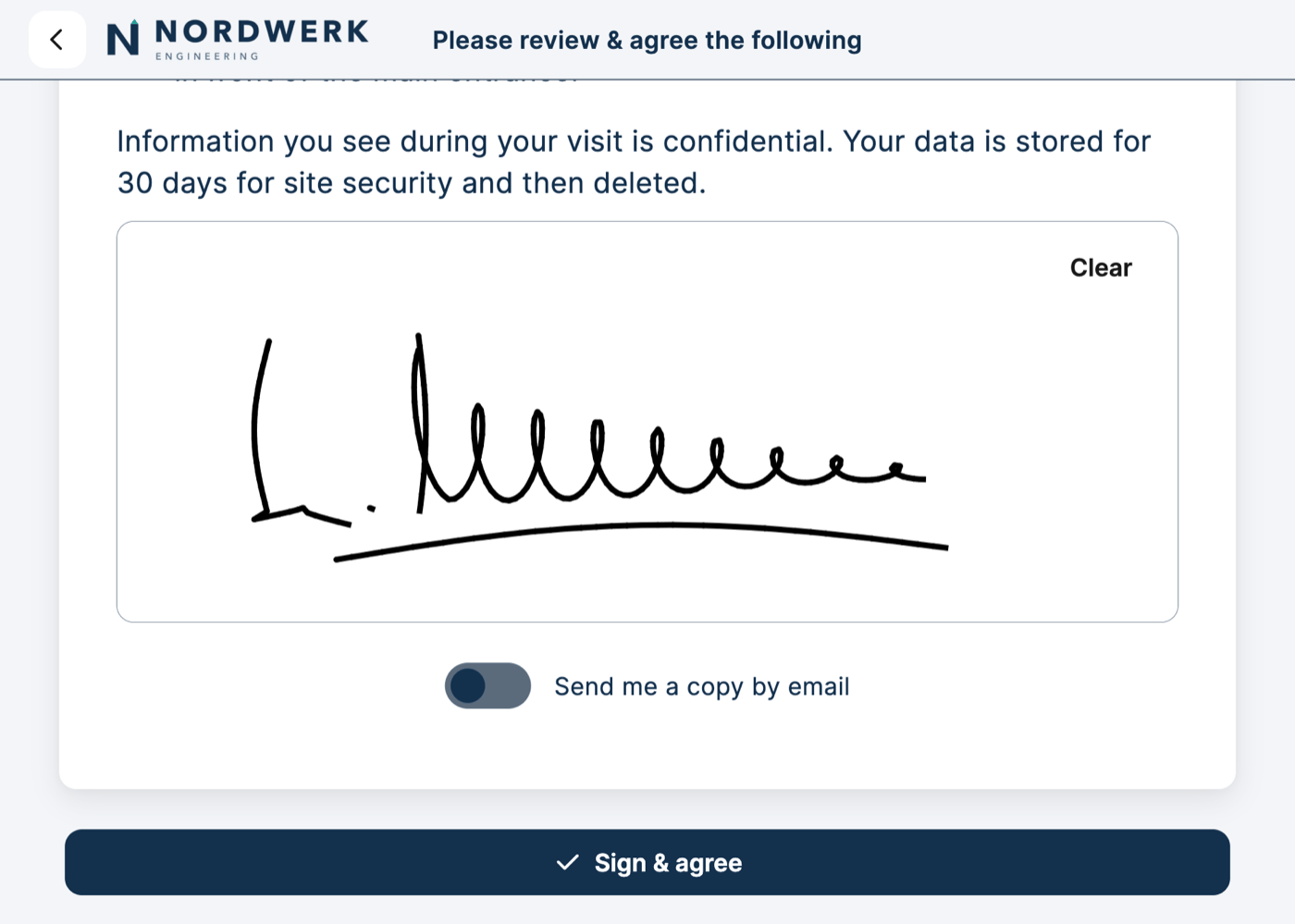
Customers sign documents directly on the display.
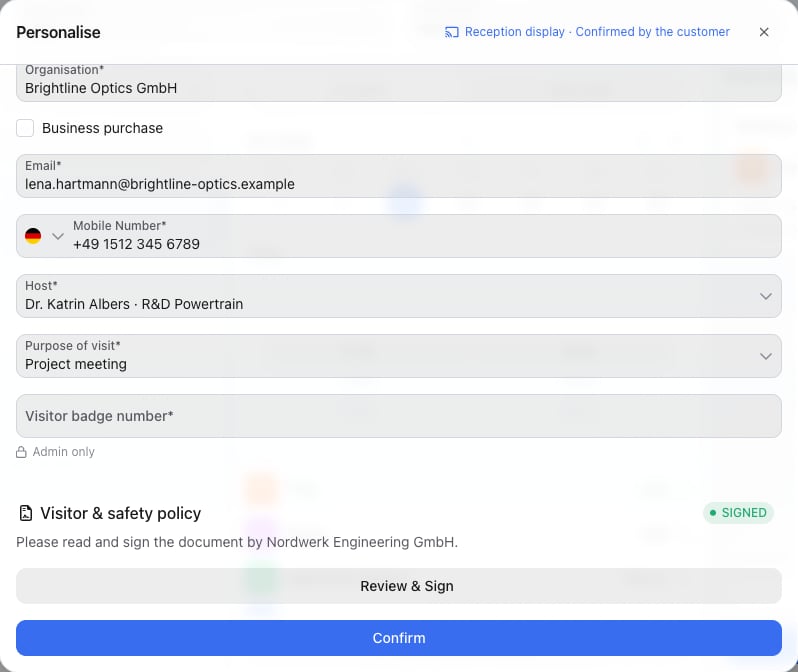
After confirmation: the signature has arrived in the admin area, you add the internal fields and confirm.
Staff-only fields
Some fields should not be visible to customers, for example the number of a visitor badge or an access card. These are custom forms with Show in checkout switched off.- In the admin area, such fields have a crossed-out eye after their label. Hover over it to see Only visible to staff.
- These fields never appear on the display. You fill them in after the customer has confirmed.
- When you check in a booking in the admin area, Complete check-in also asks for such fields whose collection time is Later (at check-in), for example the access card number.

Set a default display
If you always use the same display, set it as the default:- Click the cast icon in the form.
- Choose Set as default display.
Stop sending
- Click Stop in the cast menu or close the form. The display returns to its start screen right away.
- A display shows one form at a time. If you send a new form to the same display, it replaces the old one.
- A sent form that is not used for 30 minutes ends automatically.
Update the app
Older versions of the anny Check-In app cannot show forms. In the cast menu, such displays are greyed out with Update required. The display’s page under Hardware → Displays shows the same notice. How to update the app:- Android and iOS: Update the anny Check-In app in the Google Play Store or the App Store.
- Windows terminals: Install the latest anny Check-In app installer. Contact anny support (support@anny.co) for the latest installer.
Settings & options
FAQ
Do I need a separate device as a customer display?
Do I need a separate device as a customer display?
Does the customer display cost extra?
Does the customer display cost extra?
What does the customer see on the display?
What does the customer see on the display?
When is it saved?
When is it saved?
Can I send from the anny Admin app on the tablet?
Can I send from the anny Admin app on the tablet?
Can I send two forms to one display at the same time?
Can I send two forms to one display at the same time?
Troubleshooting
The form does not appear on the display
The form does not appear on the display
A field is missing on the display
A field is missing on the display
The display suddenly returned to the start screen
The display suddenly returned to the start screen