

- Sync customers as contacts and businesses as companies in both directions
- Create bookings and subscriptions as deals in a HubSpot pipeline and keep their stage up to date automatically
- Automatically add notes or tasks to the HubSpot contact when booking events happen
- Decide which fields are exchanged, including your own HubSpot properties
Typical use cases
How the HubSpot connection works
You connect anny to your HubSpot account by signing in to HubSpot. You don’t enter any credentials in anny. Then you create syncs: each sync pairs a record type in anny with a HubSpot object and defines which fields are exchanged and in which direction.
In HubSpot, companies and deals are attached to contacts. That’s why you always set up Customer ↔ Contact first; the other pairs become available afterwards. If a customer belongs to a business in anny, anny associates their HubSpot contact with the matching company.
When does syncing happen?
- anny → HubSpot: shortly after every change. anny only sends the fields that changed and are mapped in the sync.
- HubSpot → anny: changes to contacts and companies usually reach anny within a minute. HubSpot reports new and deleted records right away.
- Existing data: when you activate the integration and when you add a sync, anny exports your existing records in a sync run.
Connect HubSpot
Prerequisites
Before you connect HubSpot, make sure you have:- An anny Professional, Business or Enterprise plan
- A HubSpot account in which you are allowed to install apps
- Admin access to Apps & Integrations in anny
- For deals: a HubSpot deal pipeline with the stages you want to use
The HubSpot integration is being rolled out gradually. If you can’t find HubSpot under Apps & Integrations, contact anny support.
Set up the connection
1
Create the integration
Open Apps & Integrations in the sidebar. Search for HubSpot or filter by the CRM category, open the tile and click Set up. anny creates the integration and opens its settings.
2
Authorize with HubSpot
In the Connection section, click Authorize. A HubSpot window opens: sign in, choose the HubSpot account and confirm access. anny then shows Connected to HubSpot. If your browser blocks the window, allow pop-ups for anny and try again.
3
Set up Customer ↔ Contact
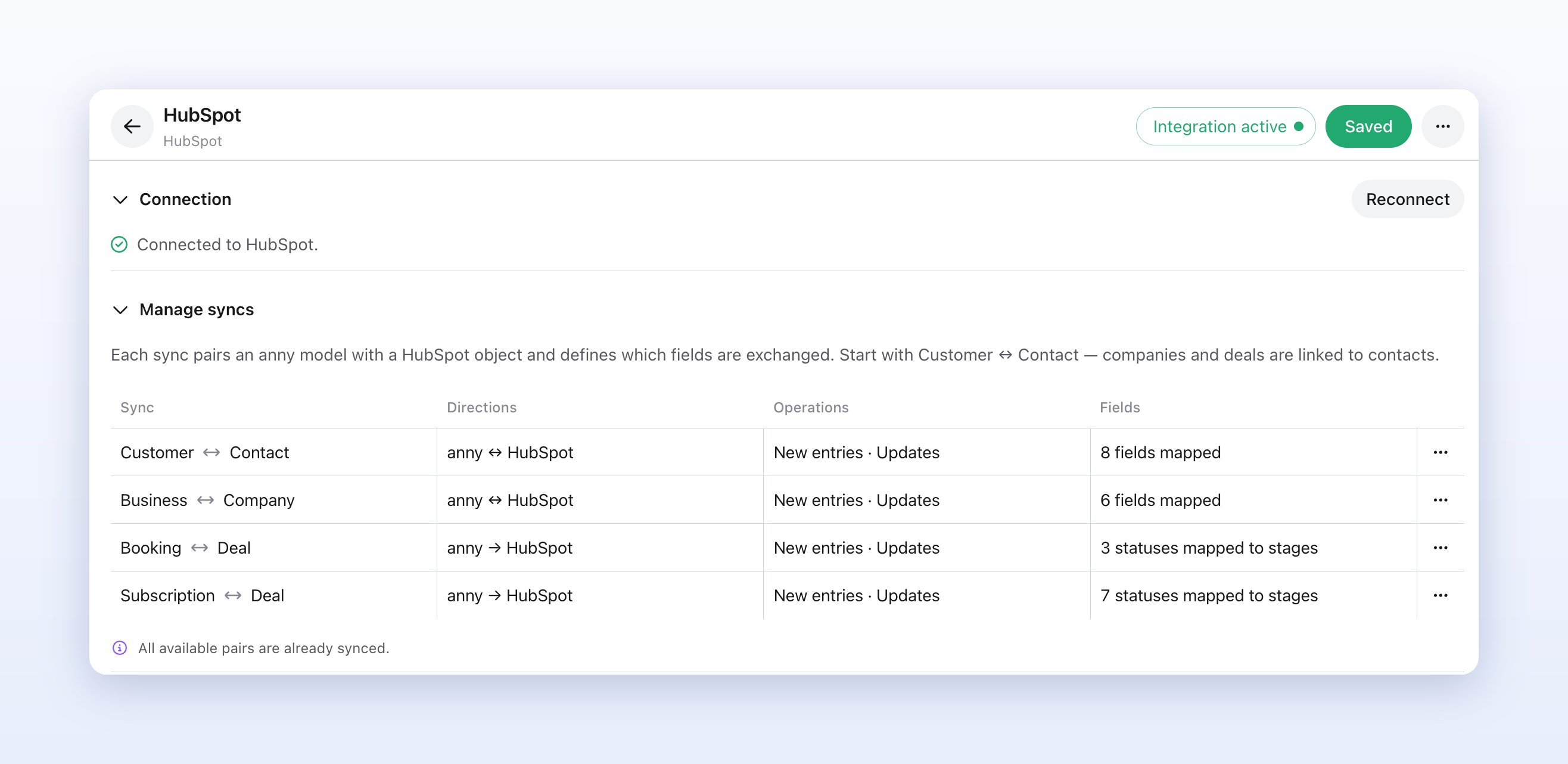
Under Manage syncs, click Add and choose Customer ↔ Contact (marked Start here). anny suggests a field mapping (email, first name, last name, company). Add more fields with Add field and check the sync direction under Advanced settings. Save with Save.
4
Add more syncs (optional)
If needed, add Business ↔ Company, Booking ↔ Deal and Subscription ↔ Deal. For deals, choose a Pipeline and map each status to a deal stage (see Set up deals).
5
Activate the integration
Click Activate in the notice The integration is currently not active. or click Integration inactive at the top right. anny now starts exporting your existing records. You can follow the progress under Sync runs.
Set up syncs
Click a sync in the Manage syncs table to edit it. For each sync, the table shows its Directions, its Operations and how many Fields are mapped.Map fields
In the Fields area, pick an anny field and the matching HubSpot field for each row. The HubSpot column lists every property in your HubSpot account, including custom ones. If the field types don’t match, anny shows Incompatible field types. You can also map calculated fields from anny (badge Computed), for example revenue per customer. They are only pushed to HubSpot and never written back. Answers from custom forms that match the record are also available in the anny column, for example customer fields on Customer ↔ Contact. When the same field name exists on several forms, the form name follows in parentheses. An empty answer clears the HubSpot field. File fields cannot be mapped.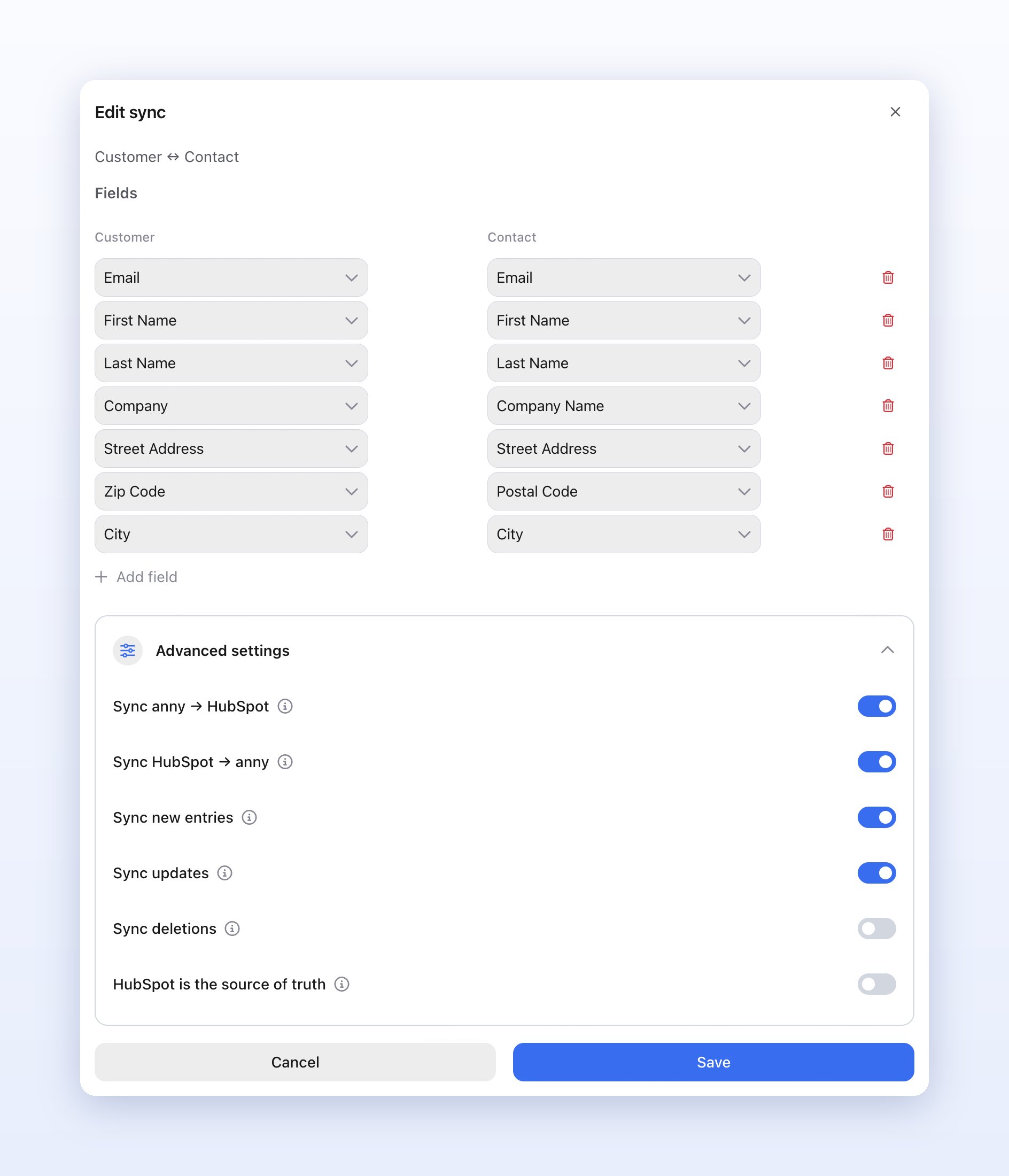
Advanced settings
Set up deals
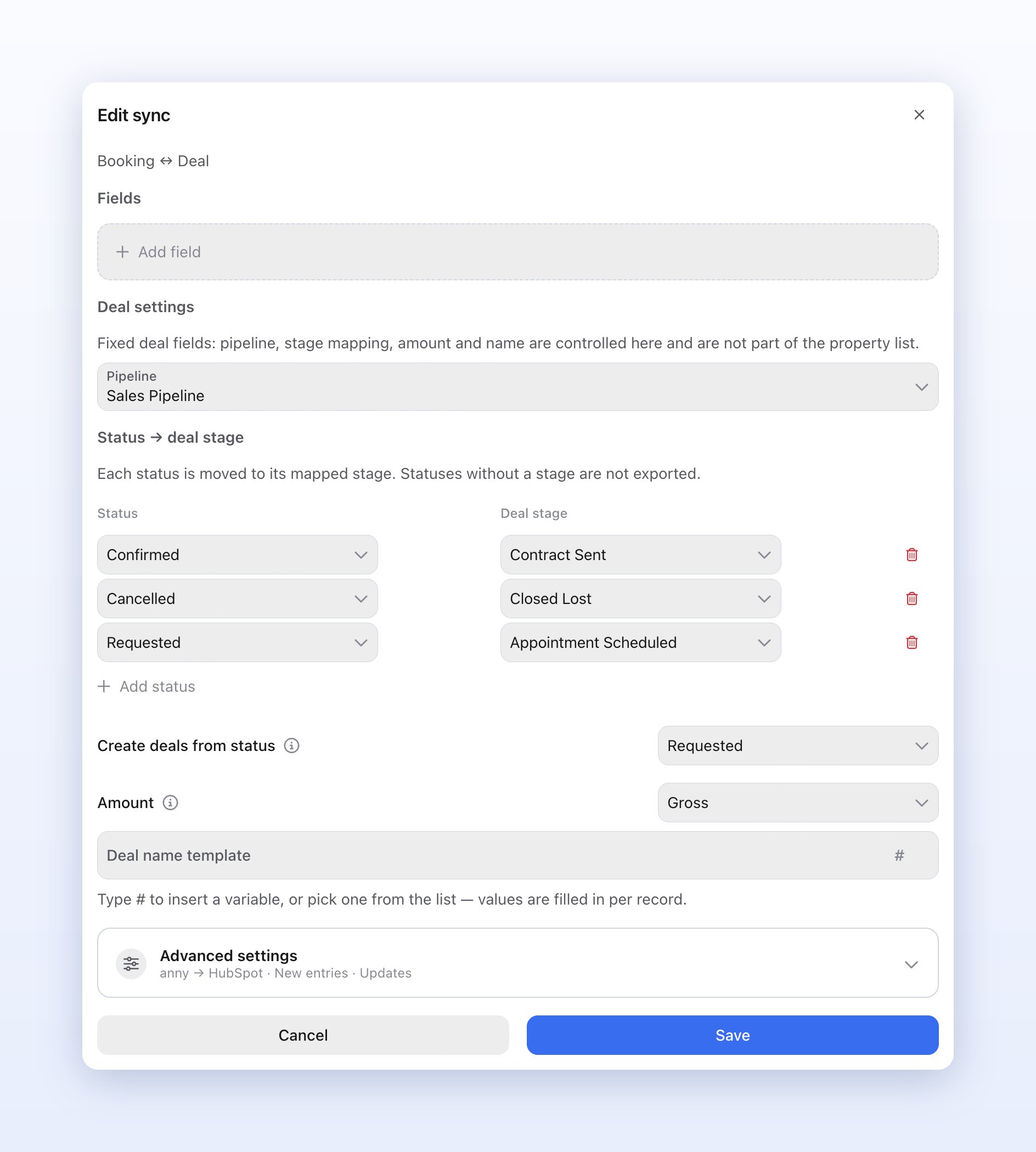
Bookings and subscriptions are tracked as deals in HubSpot. Deals are export-only: changes in HubSpot are never imported into anny. In the Booking ↔ Deal or Subscription ↔ Deal sync you’ll find these Deal settings:
For bookings you can map the statuses Requested, Invited, Confirmed and Canceled; for subscriptions Requested, Planned, Trial, Active, Suspended, Canceled, Expired and Rejected.
Booking triggers
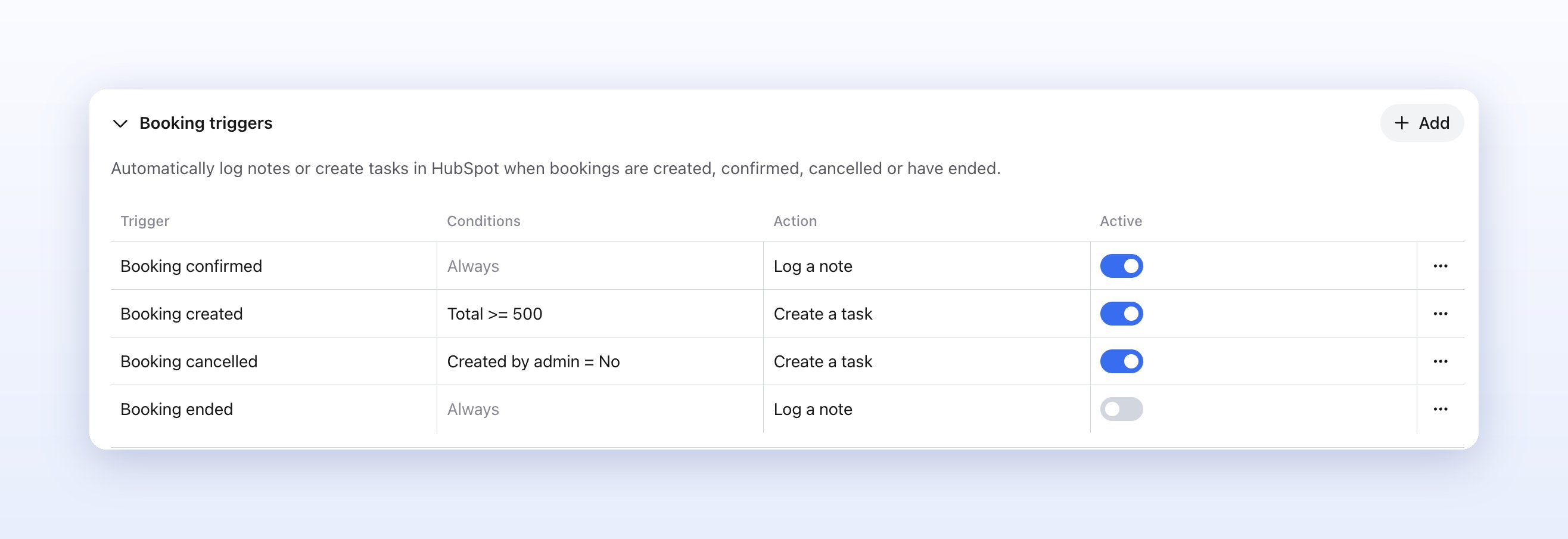
With Booking triggers you automatically log a note or create a task on the HubSpot contact when a booking is created, confirmed, canceled or has ended. If the contact doesn’t exist yet, anny creates it first.1
Add a trigger
Under Booking triggers, click Add and choose the Trigger: Booking created, Booking confirmed, Booking canceled or Booking ended.
2
Set conditions (optional)
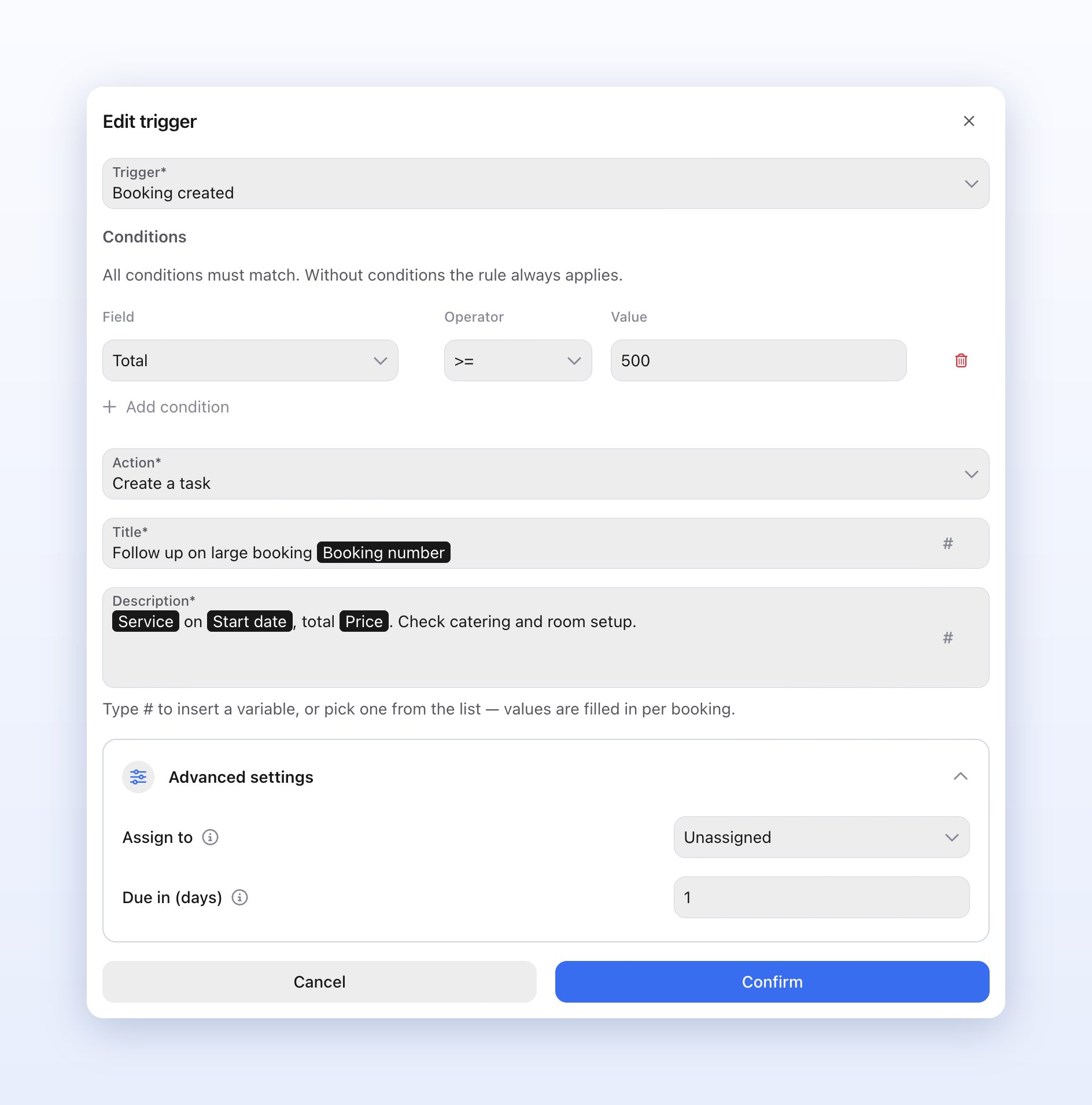
Narrow the trigger with Add condition, for example to a Service, a Resource, a Channel, the Total, the Start date or Created by admin. All conditions must match; without conditions the trigger always applies.
3
Choose the action
Choose Log a note and enter the Content, or Create a task with a Title and Description. Type
# to insert variables such as the booking number or start date. For tasks, use Advanced settings to choose who it is assigned to (Assign to) and when it is due (Due in (days)).4
Confirm and save
Click Confirm and then Save at the top right. The trigger only takes effect once saved.
Check the sync
Sync runs shows the progress of larger runs, such as the export of existing customers or bookings after activation. Source and Target name the two sides, for example anny · Customer and HubSpot · Contact. Failed rows are listed under Failed rows. You can see which records are linked under Connected data: in the integration settings and on the detail page of every customer and booking. The status shows Synced, Pending or Failed. Show details opens the details, and Open in HubSpot opens the record directly in HubSpot. Sync events also appear in the activity log.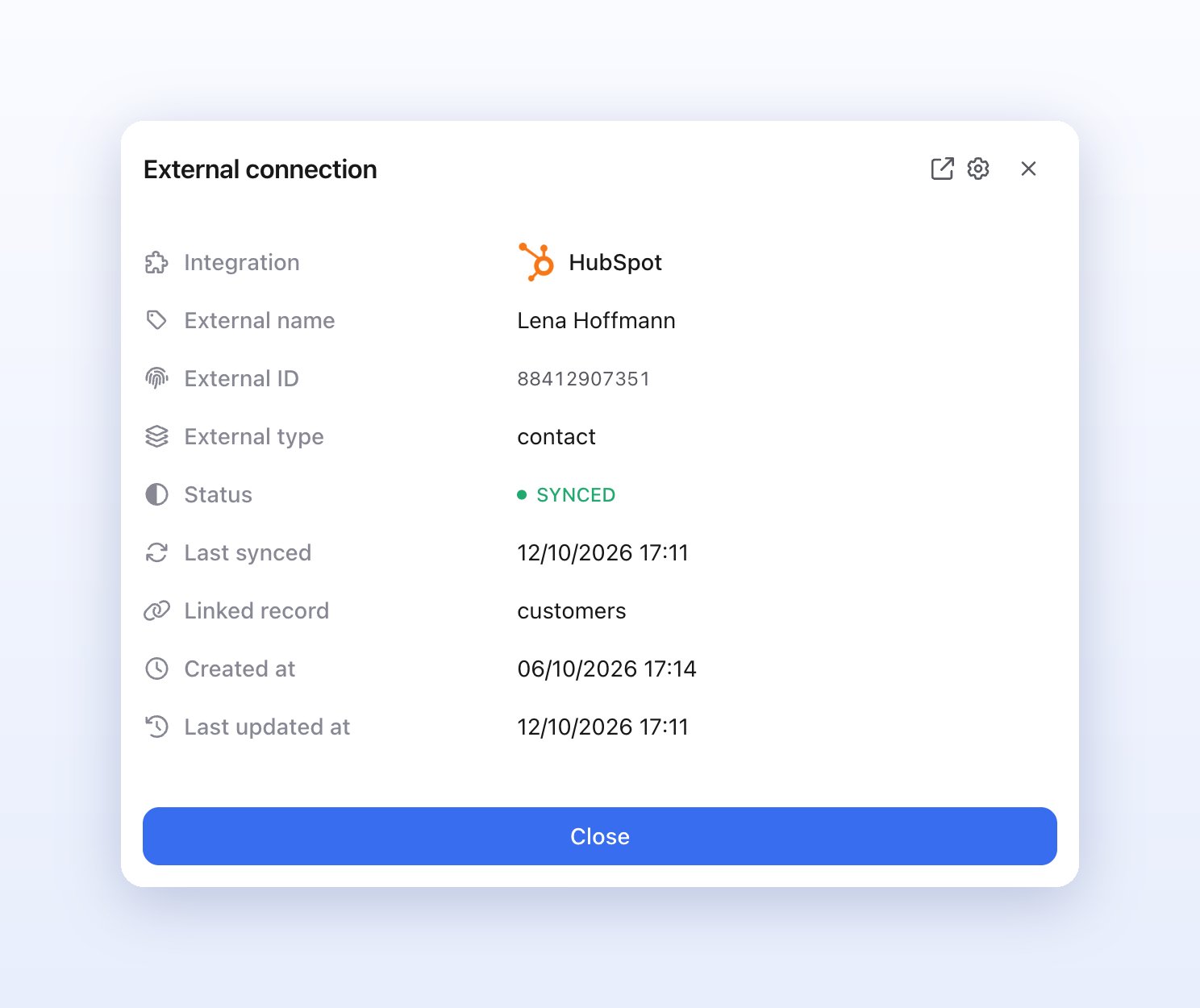
Limitations
The HubSpot integration does not support:- Importing deals from HubSpot: deals are export-only. Stages or amounts you change in HubSpot don’t change the booking in anny.
- Deals for past, series or sub-bookings: anny only creates deals for bookings from today onward, not for blockers, series bookings or sub-bookings.
- Other HubSpot objects: contacts, companies and deals are synced. Tickets, products and custom objects are not supported.
- Removing a company association: if you remove a customer from a business in anny, the association between contact and company stays in HubSpot.
- One HubSpot account in several integrations: connect each HubSpot account to only one anny integration. If two integrations share an account, changes from HubSpot stop arriving.
Disconnect
Deactivate the integration with Integration active at the top right. The three dots menu also has Remove authentication (only while the integration is inactive) and Delete.FAQ
Will I get duplicates if my customers are already in HubSpot?
Will I get duplicates if my customers are already in HubSpot?
No, as long as the email address is mapped. anny recognizes contacts by email address and companies by domain or name, and links existing records instead of creating new ones.
Which value wins when both sides change the same field?
Which value wins when both sides change the same field?
By default, the anny value. Turn on HubSpot is the source of truth if the HubSpot value should win for simultaneous changes.
What happens when I delete or merge customers?
What happens when I delete or merge customers?
With Sync deletions on, anny archives the matching contact in HubSpot. This also applies when you merge customer profiles: the contact of the removed profile is archived. With the option off (default), the contact is left untouched.
Which language are notes and tasks written in?
Which language are notes and tasks written in?
anny fills in variables such as service or date in your organization’s default language. You write the rest of the text yourself in the trigger.
Can I fill my own HubSpot properties?
Can I fill my own HubSpot properties?
Yes. Every property in your HubSpot account is available in the field mapping. Create the property in HubSpot first, then reopen the sync in anny.
Troubleshooting
A booking doesn't show up as a deal
A booking doesn't show up as a deal
Check that the booking starts today or later, isn’t a series or sub-booking, and has reached the status set in Create deals from status. Its status also needs a deal stage under Status → deal stage.
Changes from HubSpot don't arrive
Changes from HubSpot don't arrive
Check that the integration is active and that Sync HubSpot → anny and Sync updates are on in the sync. Only mapped fields are imported. Changes usually take up to a minute.
The settings show an error or the connection has expired
The settings show an error or the connection has expired
In the Connection section, click Reconnect and authorize anny in HubSpot again. Use the three dots → Test connection to check that the connection works.