

The highlights
- One map, one way of working: The map now works the same in Explore and the Planner.
- Even more bookable right in the Planner: Choose extras and fill in details without leaving the Planner.
- Incognito per booking: Decide for each booking whether others see your name.
- Mini calendar in the preview: See at a glance when a place is free and pick a time with one click.
- Repeat your week: Copy last week’s bookings with one click.
- New design: Calmer, more consistent and even better optimized for your phone.
New design
- The map’s header and controls now float over the content as frosted glass, so the map uses the full screen.
- In Explore, search and the view switch stay visible as you scroll.
- Every resource appears in the same card, with picture, name, room, properties, who has booked and a Book button.
- Booking and order details are neatly arranged in rows.
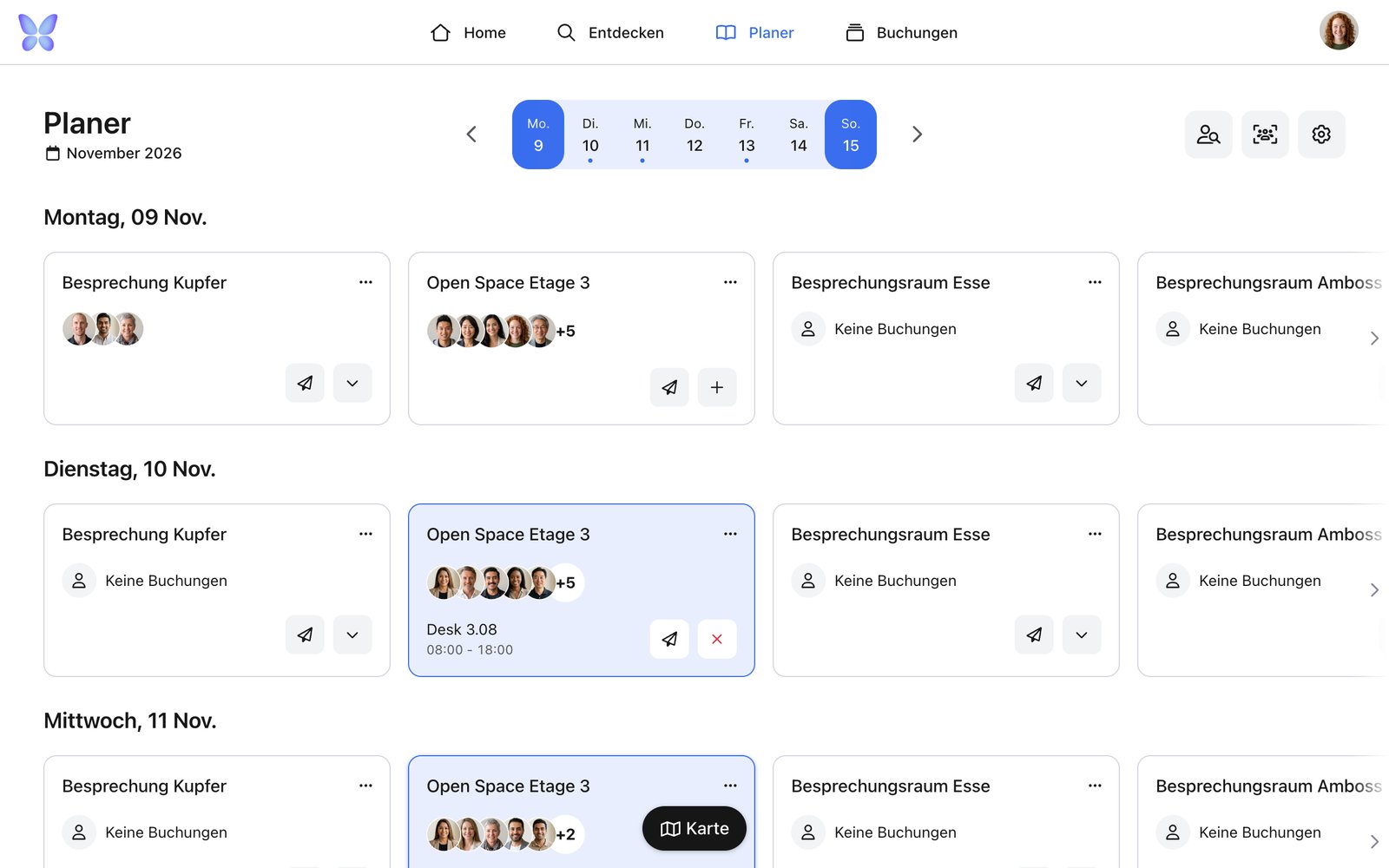
Before
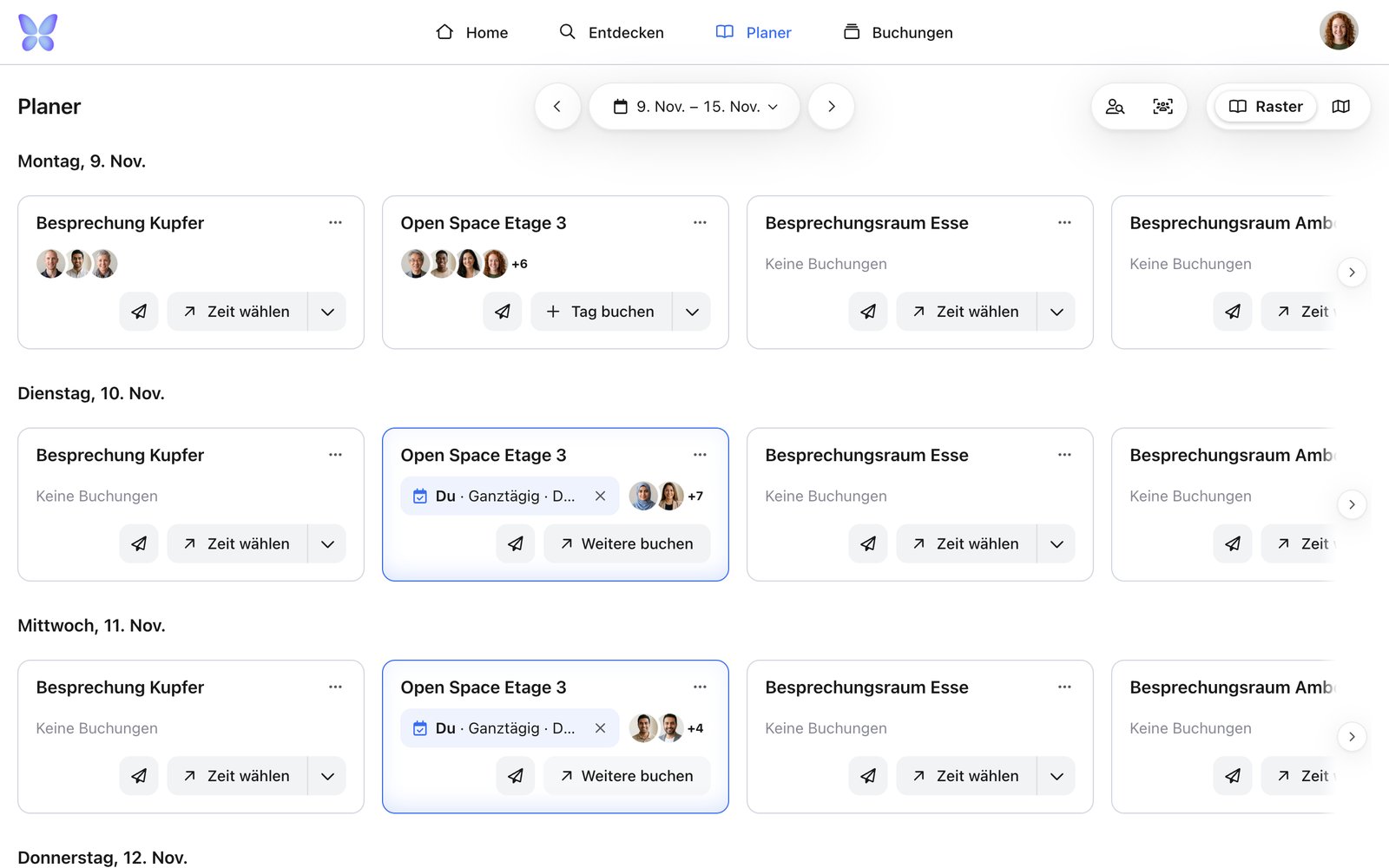
After
Explore and Planner: one map, one way of working
The two maps used to differ. Now you’ll feel at home wherever you start. On both maps you can:- step through days with the arrows, or click the date and pick a day,
- set a time and filter by category and properties,
- switch between floors and locations,
- use Find people to see where your team is sitting,
- hover over a booked place to see who booked it,
- click a place and book straight from the preview.
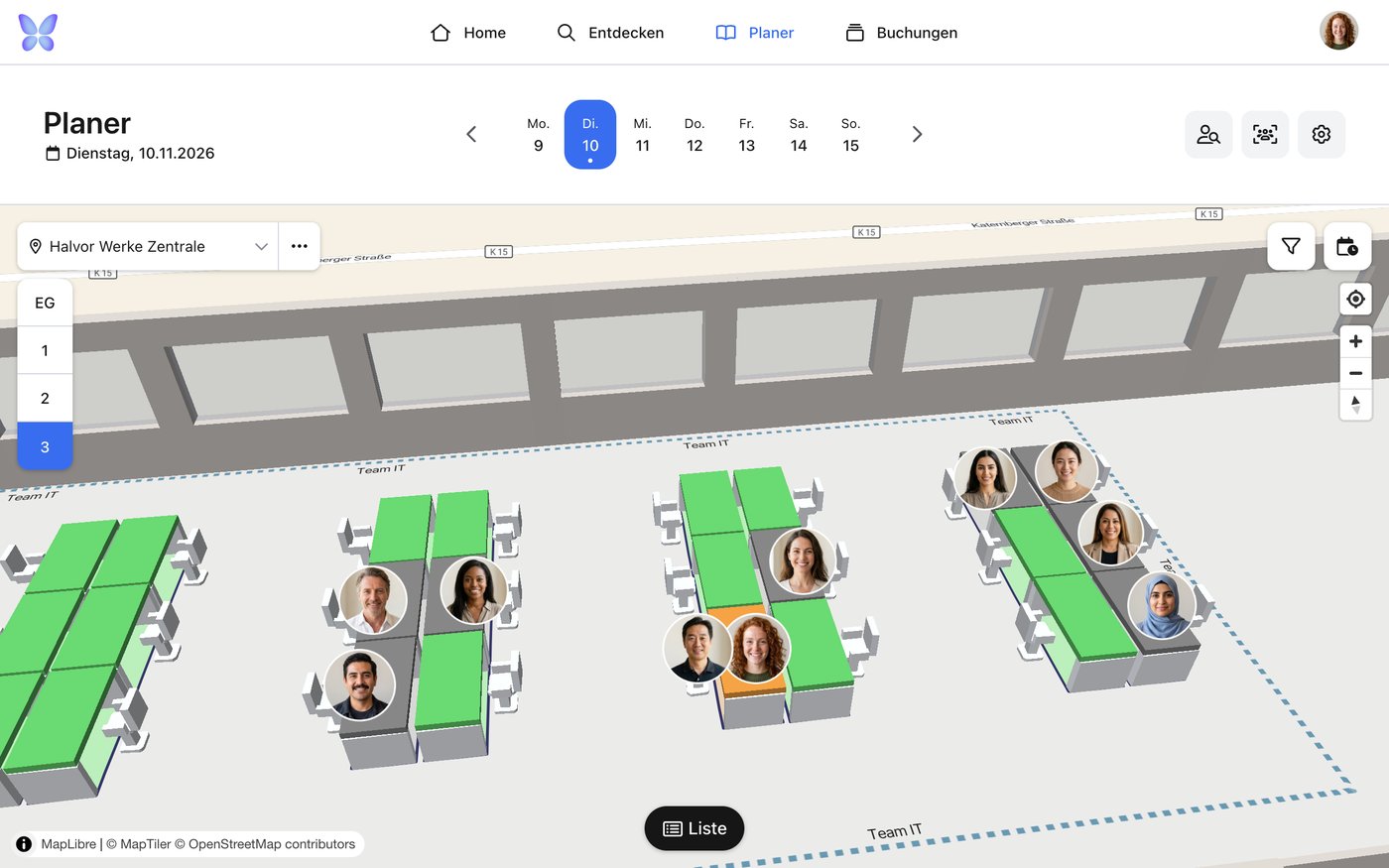
Before
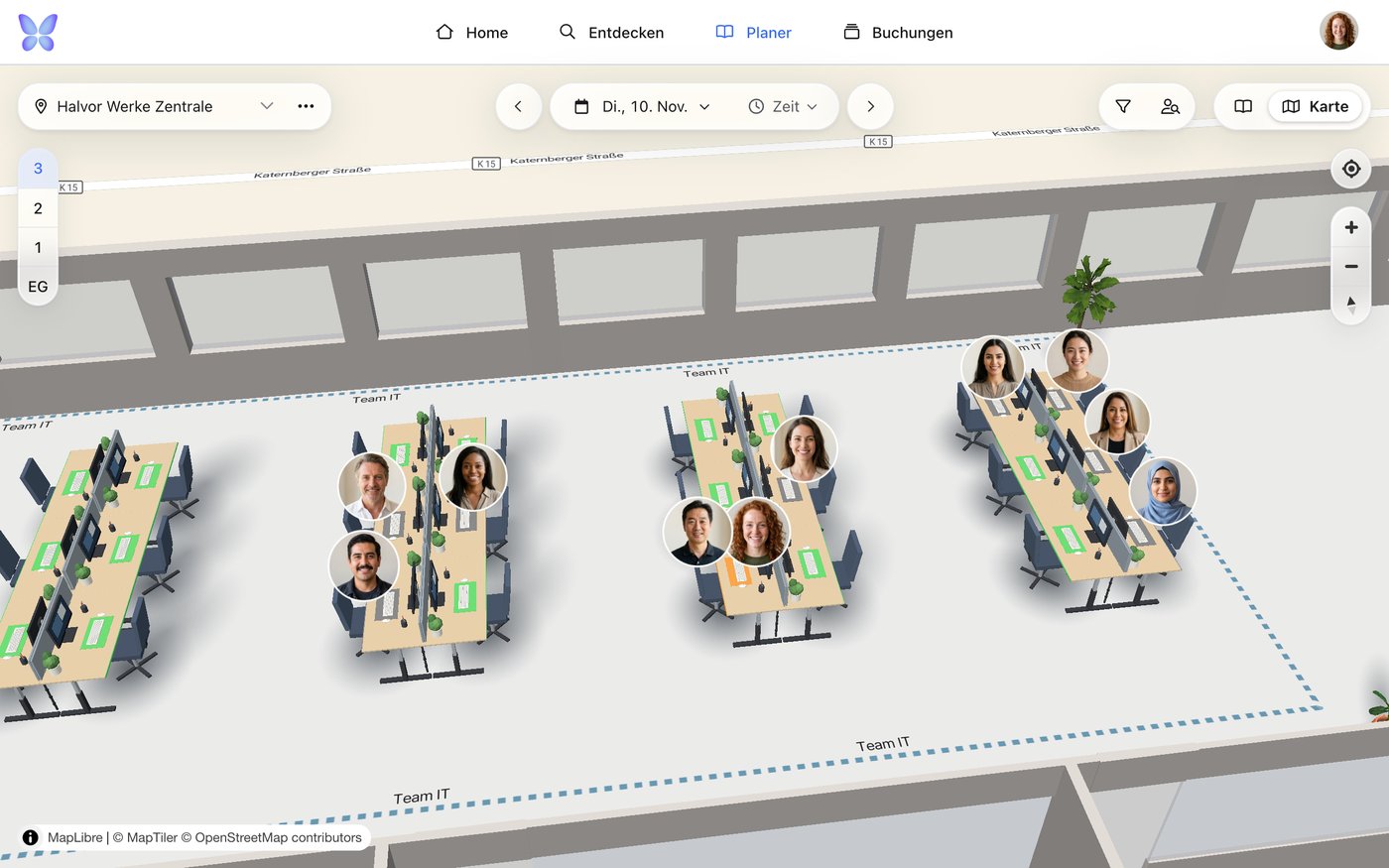
After
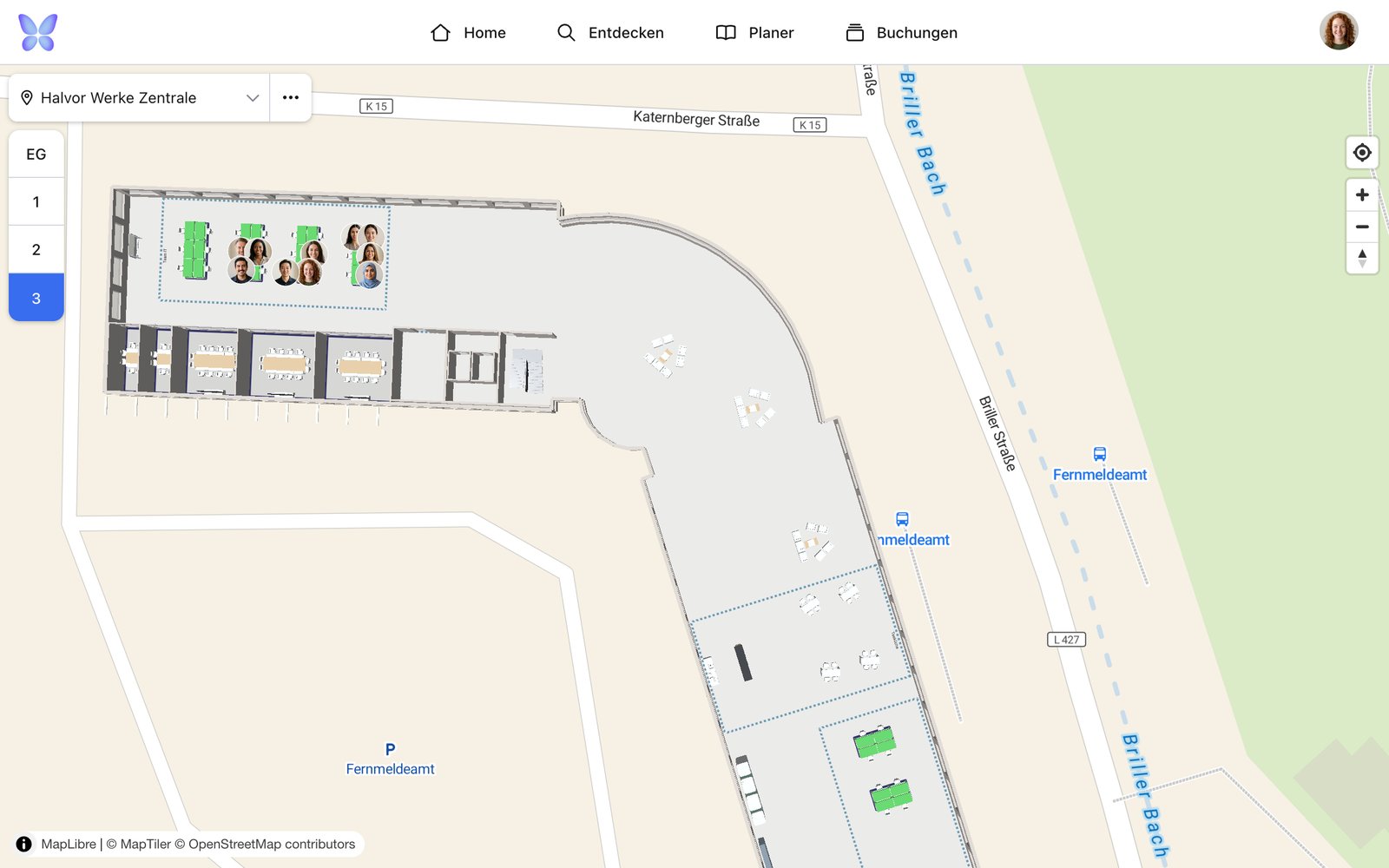
Before
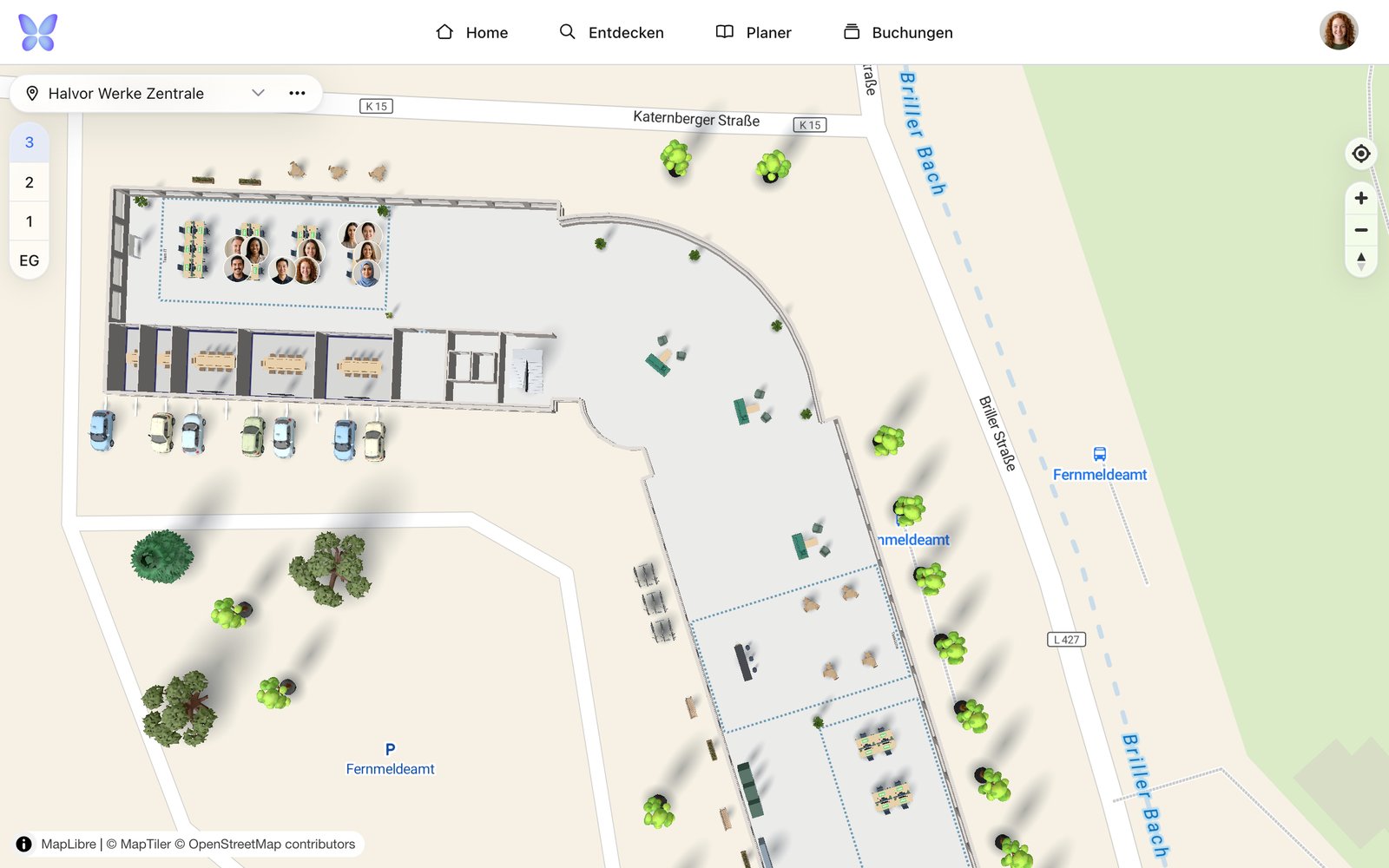
After
- Explore is made for finding things: The map books directly. For extras or other times, open the resource page.
- Planner is made for your favorites: This is also where you choose extras, fill in details and book on behalf of others.
- In Explore, search and category chips are in the grid and list views.
Extras and details right in the Planner
If an offer has extras or a form, Book opens the New booking window right in the Planner.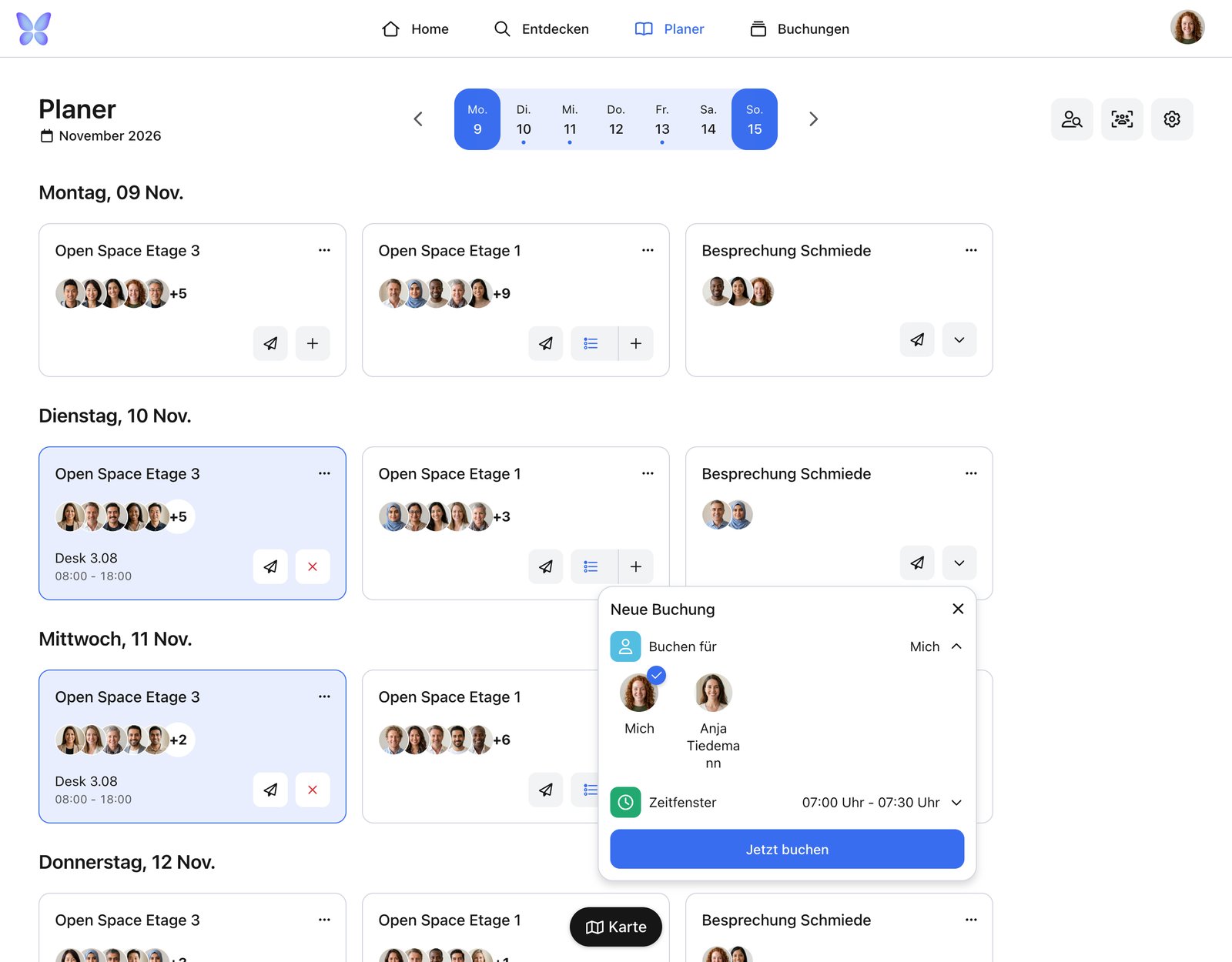
Before
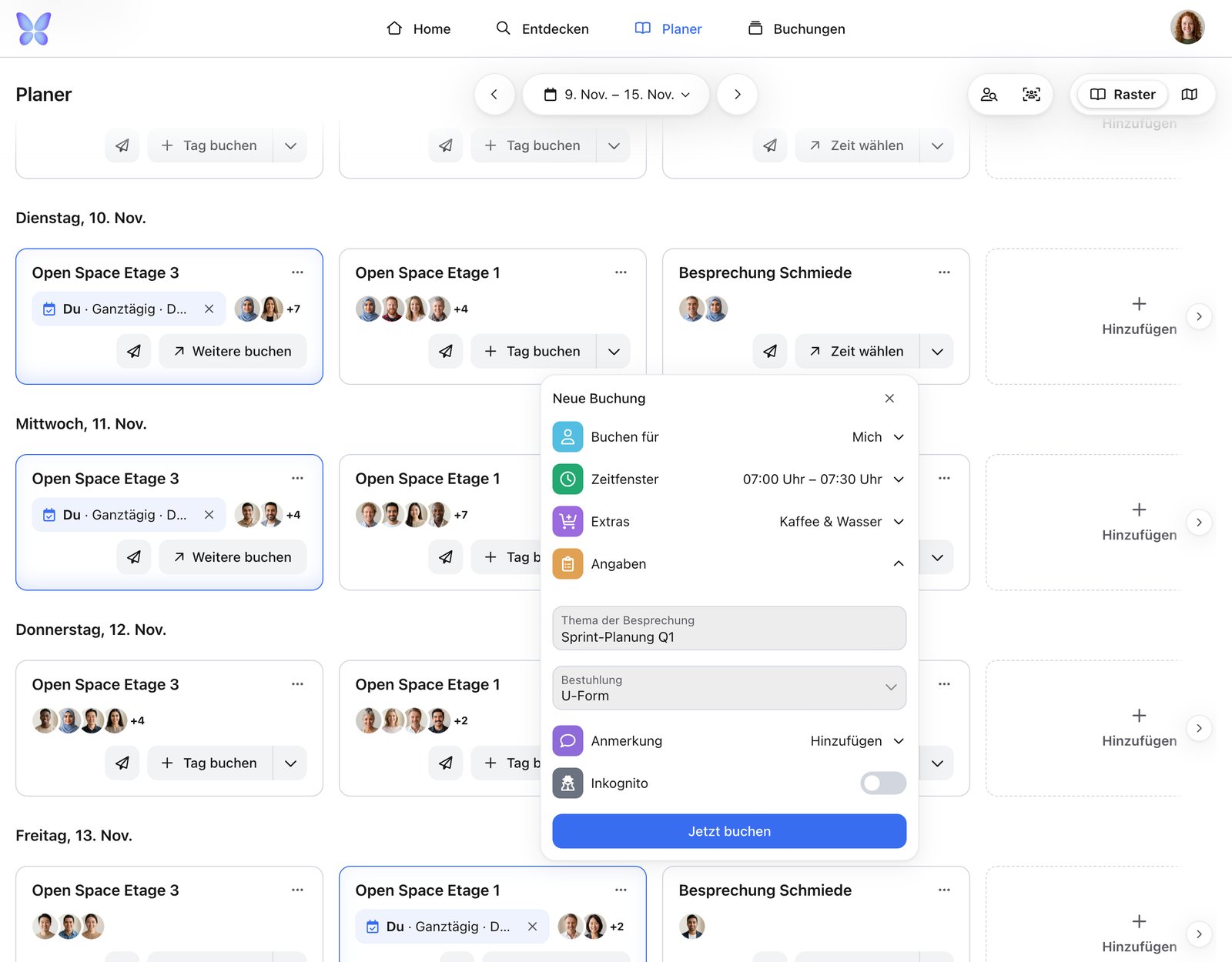
After
1
Choose a resource
In the Planner, click Book on your resource.
2
Choose extras
Under Extras, choose the options you want. Mandatory extras are already selected.
3
Fill in your details
Under Details, fill in the form. You can’t finish while required fields are empty.
4
Finish your booking
Click Book now.
Incognito per booking
You no longer have to be incognito for a whole community. In the New booking window, use the Incognito switch to decide for each booking whether others see your name.- The switch appears if the resource belongs to one of your communities and incognito mode is allowed there. It isn’t available when you book on behalf of someone else.
- If you’re already incognito in the community, or the community requires it, the switch is on and can’t be changed.
- The setting for a whole community stays available in your profile under Communities.
Mini calendar in the preview
When you’re signed in, a resource’s preview on the map shows a day bar with its opening hours. It shows what’s already booked, what has passed and where your own booking sits.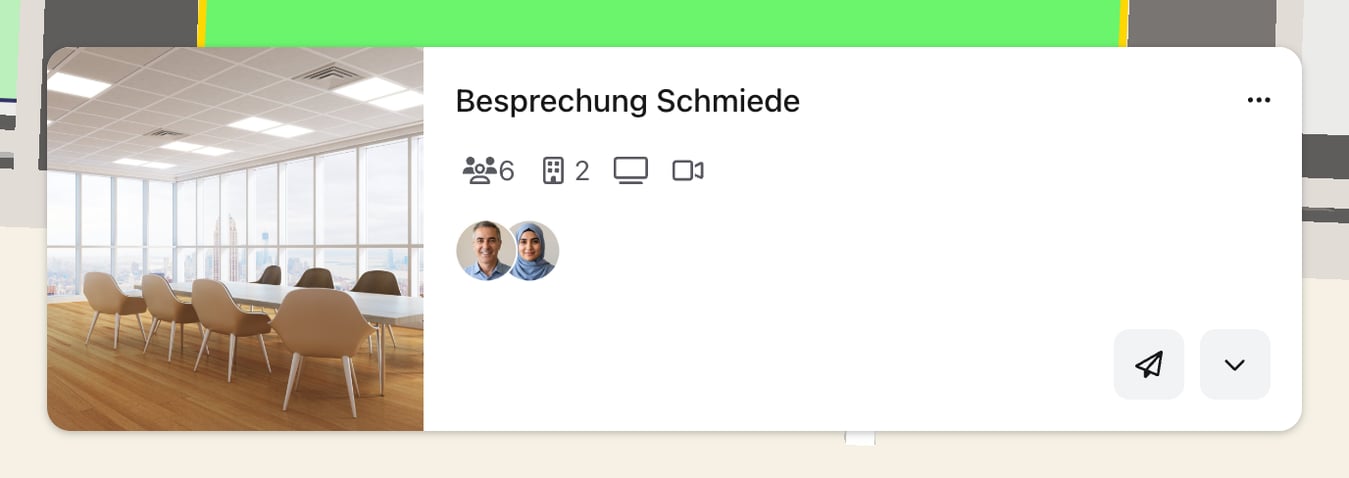
Before
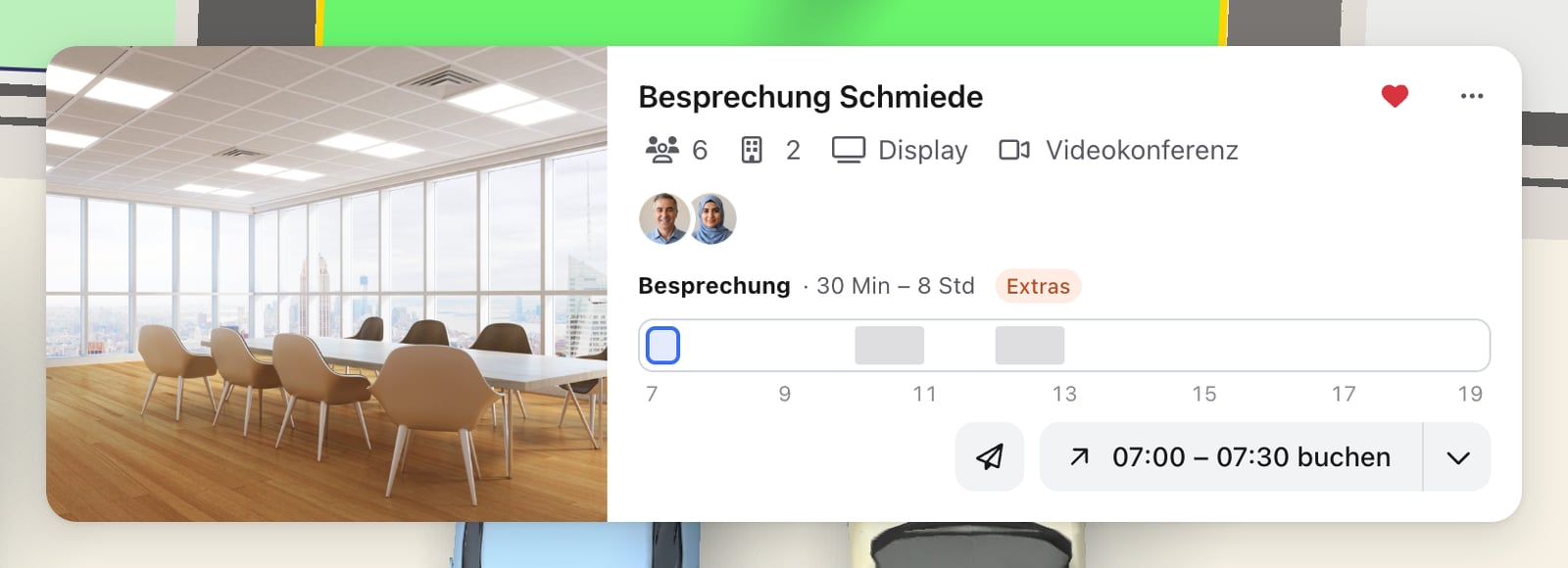
After
- Click a free spot to choose your start time. The button then reads, for example, Book 10:00.
- Or use the arrow keys to jump between free times.
- If you’ve already set a time on the map, the bar is view-only and your filter time applies.
Plan your week faster
- Date: The grid steps by week and the map by day. Click the date to open the date picker.
- Today is marked right on the day in the grid.
- Repeat last week or Repeat previous day: If the current period is still empty, the Planner offers to copy your bookings.
- Past midnight: If a booking ends the next day, the booking window shows both weekdays.
- Order: In a resource’s menu (⋯), use Move left and Move right to rearrange it.
On your phone
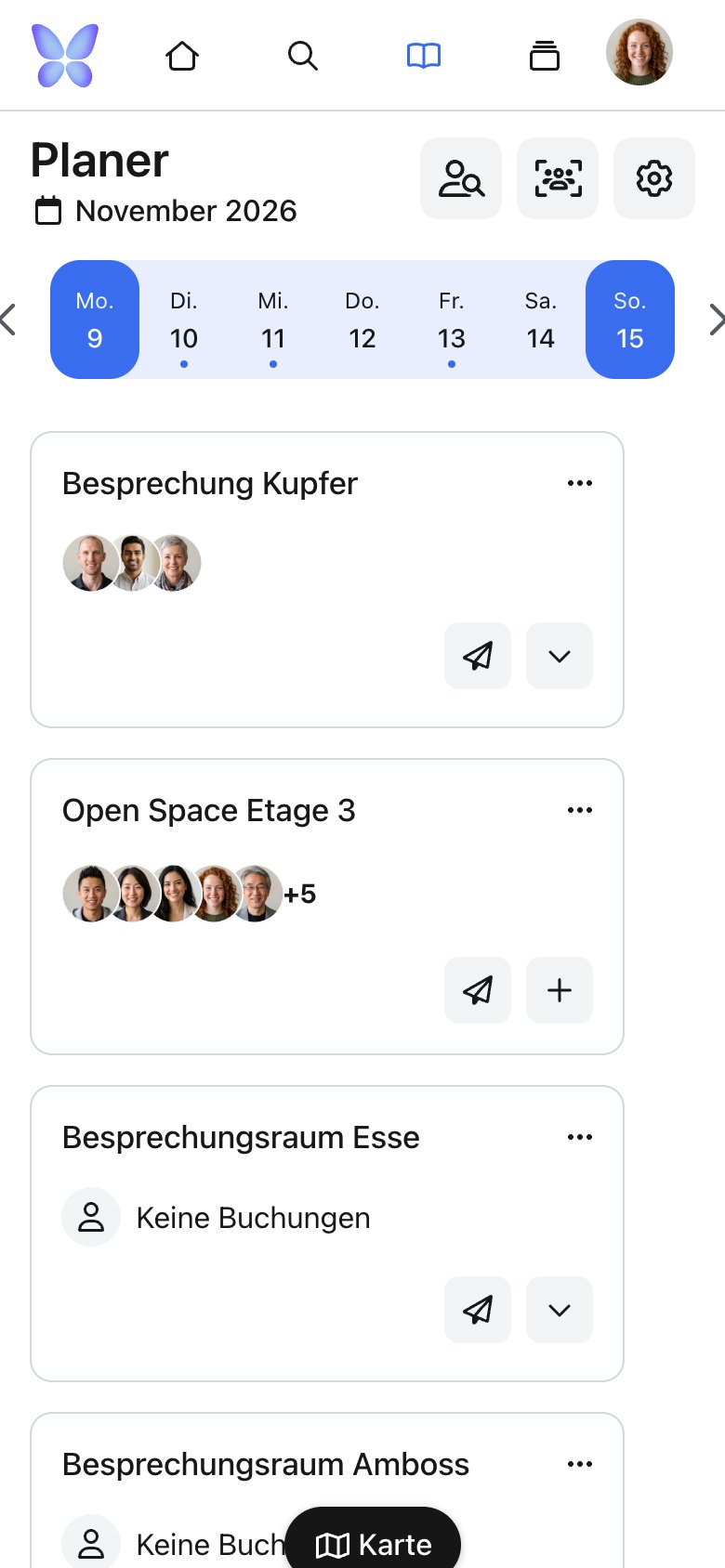
Before
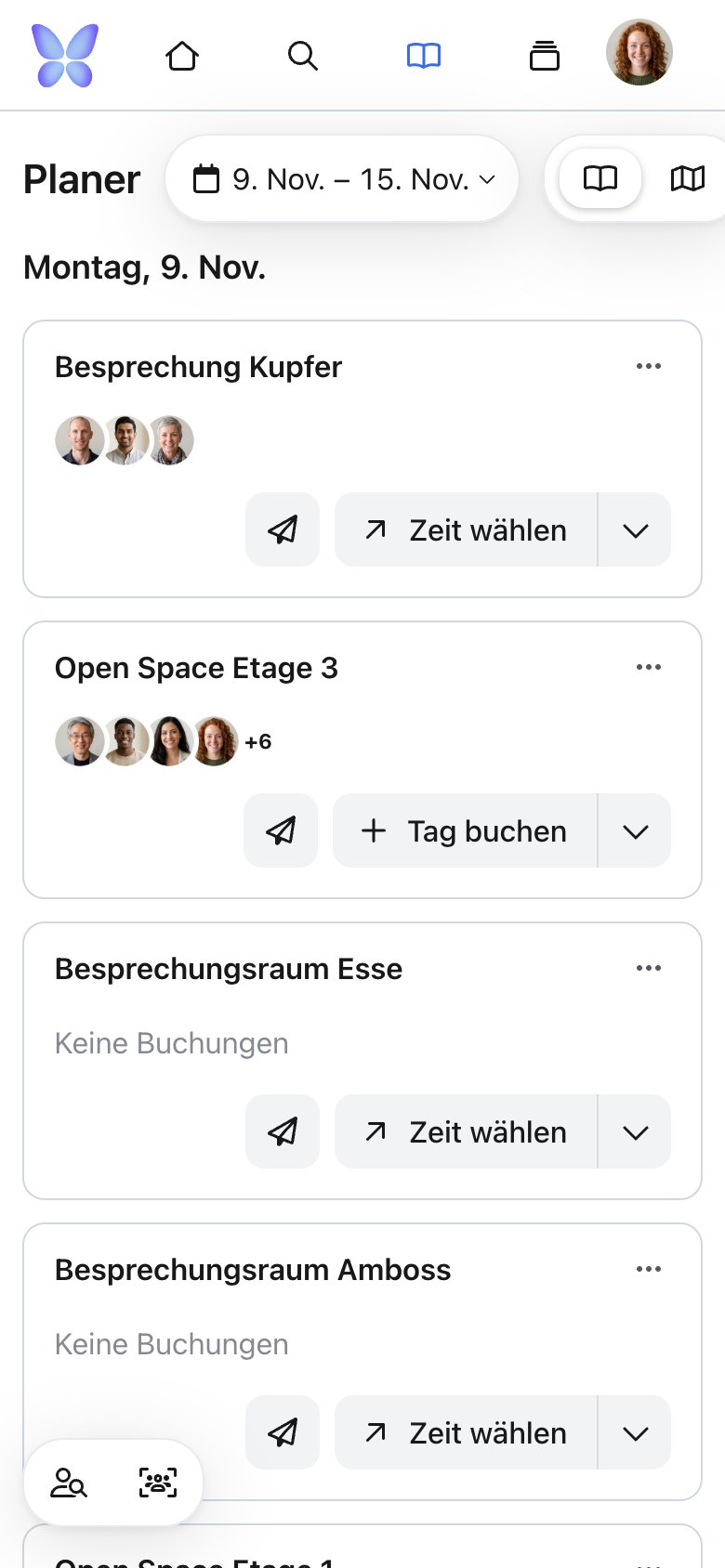
After
- Navigation floats as a bar at the bottom of the screen and gets more compact on the map and calendar.
- The Planner shows a week strip. You plan day by day and switch views with a single icon.
- On the Planner’s map, filters and people search are behind the round More options button.
- The resource preview opens as a sheet from the bottom. Expand it to reach the mini calendar.
- At checkout, the buttons always stay visible and the navigation is hidden.
Also new
- Calendar in Explore: If your provider has turned on the calendar view, you’ll see Day, Week, Work week, Month, Timeline and Board. On your phone, Day and List are available.
- Home: Tips & news shows hints from your provider. Important news appears once as a pop-up.
- Bookings: Quickly filter your bookings by date, status, provider and category.
Frequently asked questions
Why do I go straight to checkout instead of the “New booking” window?
Why do I go straight to checkout instead of the “New booking” window?
Only free offers that your provider confirms automatically are booked directly. You go to checkout if:
- the provider has to confirm the booking, or the offer can’t be booked instantly,
- you’ve chosen paid extras,
- your provider requires certain details with every booking.
Why don't I see “Repeat last week”?
Why don't I see “Repeat last week”?
It only appears if you haven’t booked anything in the current period yet. It can copy confirmed, free bookings that can be booked instantly and have no mandatory form. The button is hidden while a preview is open on the map.
I tried to repeat my bookings and nothing was booked. Why?
I tried to repeat my bookings and nothing was booked. Why?
Bookings are always copied together. If one place is no longer free, nothing is booked, and the Planner shows you which places are affected.
Why don't I see a mini calendar?
Why don't I see a mini calendar?
The day bar only appears when you’re signed in, and only in the large preview. It isn’t shown on the small tiles in the grid.