

Requirements
- anny AI is activated and configured.
- At least one employee is set up with a phone number and area of responsibility.
- The “Employee transfer” tool is enabled in the assistant.
- Phone hours (availability hours) are configured.
How to set up employee transfer
1
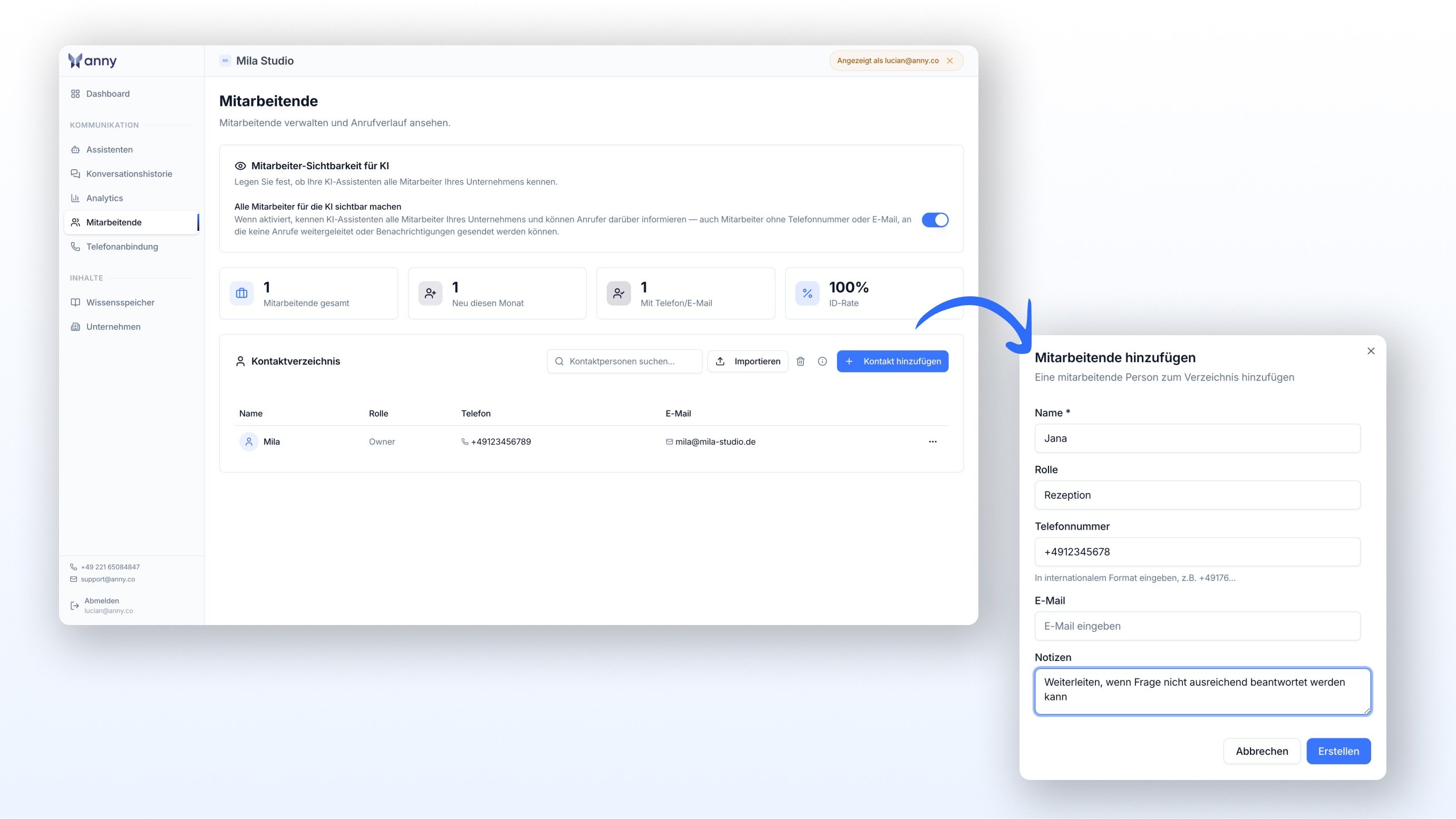
Add employees
- Go to Account > Settings > anny AI > Configure.
- Open the Employees area in the left menu.
- Click Add employee.
- Set up the following information for each employee:
- Name
- Phone number (where the person is reachable)
- Department or area of responsibility (e.g. “Accounting”, “Scheduling”)
- Role and any special rules (e.g. “Only for invoice-related questions”)
2
Enable the transfer tool in the assistant
- Go to Account > Settings > anny AI > Configure.
- Open Assistants in the left menu and select your assistant.
- Switch to the Tools tab.
- Add the Employee transfer tool.
- Activate the employees who should be available for transfers.
- Save the setting.
3
Configure phone hours
Phone hours determine during which times anny AI may transfer calls to employees.
- Go to Account > Settings > anny AI > Configure.
- Open the Company area in the left menu.
- Set your phone hours (availability hours) there.
The stored information about department and responsibility helps anny AI route calls to the right person. The more precisely you describe the responsibilities, the better the assistant can decide.

If the “Employee transfer” tool hasn’t been added to the assistant, it cannot transfer any calls, even when employees are set up. Also, you cannot use the same number that forwards calls to anny AI.

The hours set here refer solely to your employees’ availability for transfers. They have nothing to do with the availability of your resources or booking options.
- When a caller wants to speak to a person, anny AI transfers them to the right one.
- The assistant selects the employee based on the request and the stored responsibilities.
- Transfers happen only within the configured phone hours.
Troubleshooting
anny AI doesn't offer a transfer.
anny AI doesn't offer a transfer.
The “Employee transfer” tool wasn’t enabled in the assistant. To fix this, go to Configure > Assistants > Tools and add the tool.
A transfer is offered, but no one's phone rings.
A transfer is offered, but no one's phone rings.
The employees’ phone numbers aren’t set up correctly, or the phone hours have ended. Check the numbers in the “Employees” area and the phone hours in the “Company” area.
anny AI always transfers to the same employee.
anny AI always transfers to the same employee.
Only one employee is activated, or the responsibilities aren’t clearly differentiated. Set up a clear department and area of responsibility for each employee.