> ## Documentation Index
> Fetch the complete documentation index at: https://docs.anny.co/llms.txt
> Use this file to discover all available pages before exploring further.
# SCIM (User Provisioning)
> Automate the user lifecycle in anny with SCIM: provision, update, and deactivate accounts straight from your identity provider.
SCIM, System for Cross-domain Identity Management, is an open standard that lets you automate user lifecycle management in cloud-based applications and services. In this article, we explain how to set up a SCIM integration with anny.
## Who is this feature for?
This feature is primarily aimed at IT admins. It is especially helpful for:
* Automatically creating new employees before they log in for the first time.
* Instantly revoking booking rights when someone leaves the company.
* Centrally managing and synchronizing profile attributes (such as departments or locations) directly from the IdP.
SCIM is ideal for organizations that want to completely eliminate manual account maintenance in anny and establish a "single source of truth".
## What changes with SCIM?
* **From an admin perspective:** You no longer need to manually create, edit, or deactivate anny accounts. anny automatically mirrors the status of your IdP.
* **From a customer perspective:** Users don't notice the change. They still log in via SSO (SAML), but their profile in anny is always up to date.
**Important:** As soon as SCIM is active, user attributes (such as name, department, or role) are transferred *exclusively* via SCIM. The existing attribute mapping via the regular SSO login (SAML) is ignored by anny from that moment on, since SCIM acts as the sole data source.
## Where do you find the feature in anny?
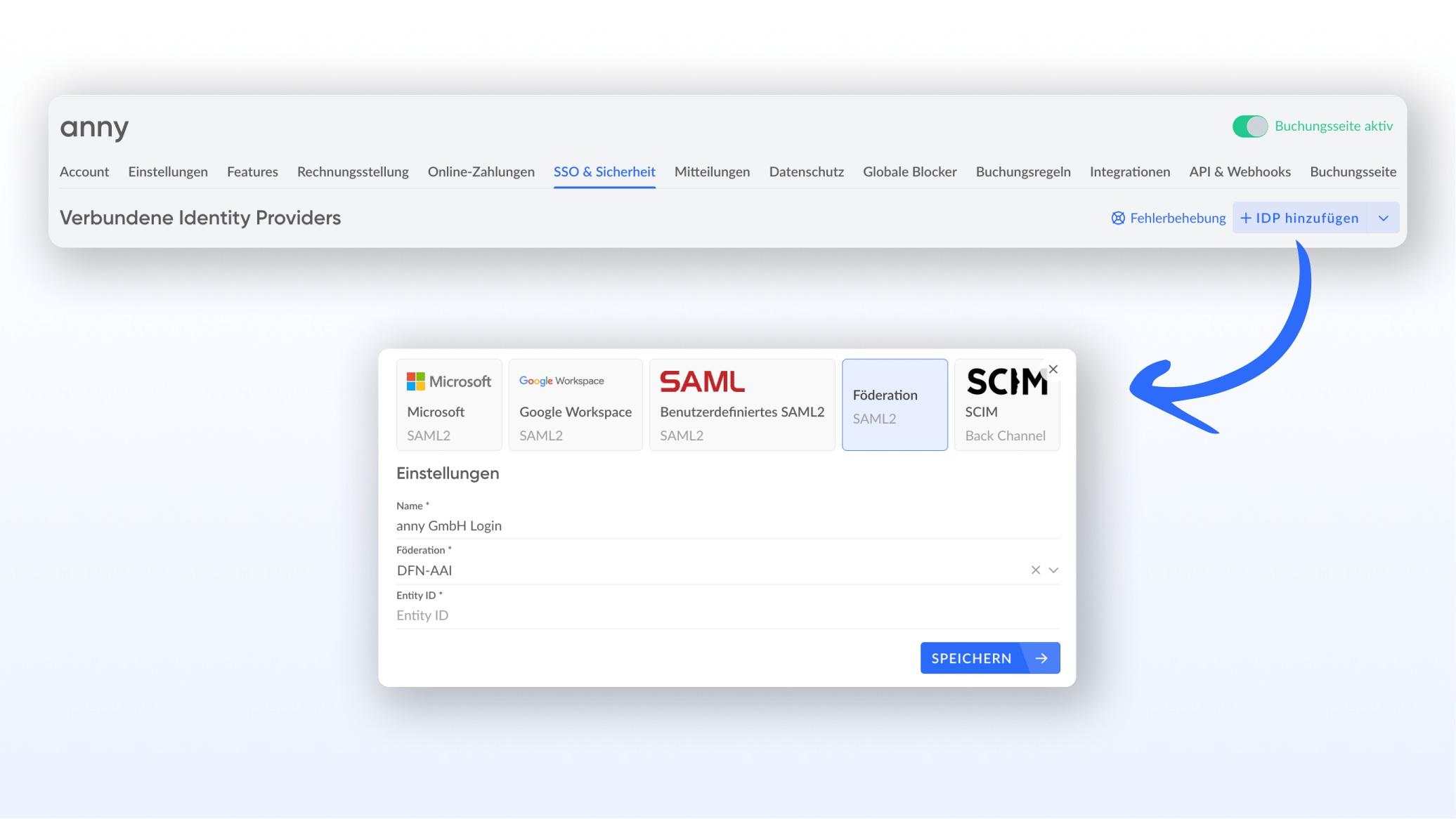
You find the configuration under **Account settings** > **SSO & Security**. Requirements:
* You have admin access in anny.
* You have admin access to your identity provider (e.g. Microsoft Entra).
* The anny application already exists in your IdP for the SSO login.

**Important:** For security reasons, the SCIM token is shown to you in anny only once. Copy it right away and enter it in your system immediately.
## How the logic works
* Your identity provider monitors changes to the assigned users (e.g. new department, account lock).
* When a change occurs, the IdP sends this info to anny's SCIM interface over an invisible channel (backchannel).
* anny validates the request using the secret token.
* The profile in anny is updated immediately, completely independent of whether the person is currently logged in.
Through this continuous background process, both systems always have the same data.
## Setting up SCIM with a generic IdP (e.g. Okta, Google)
The principle is nearly identical across almost all providers, even if the menus have different names.
In anny, go to **SSO & Security** > **SCIM** and copy the URL and token.
Open the provisioning menu in your IdP application (often called "API Integration" or "App Provisioning").
Insert the tenant URL as the "Base URL" and the token as the "API Token" (or Bearer Token).
Test the connection and start the sync cycle.
*Result:* Even external or less common systems now communicate seamlessly with the anny user database.
## Setting up SCIM in Microsoft Entra
With these instructions, you set up SCIM so that Microsoft Entra automatically provisions your users for anny.
In anny, open **Account settings** > **SSO & Security** and select **SCIM**.
Copy the **tenant URL** and the **token**.
In Microsoft Entra, open the existing anny application for which you want to set up provisioning.

Go to the **Provisioning** area and start a new configuration there (or select the existing one).
Enter the copied **tenant URL** into the field of the same name and insert the **token** into the **Secret Token** field.

Click **Test Connection** to check whether Entra can reach anny's SCIM interface.
Save the configuration once the test is successful.
Then activate provisioning via the **Start provisioning** button.
 Microsoft Entra now provisions users via SCIM.
**Note:** Provisioning takes some time. Plan for some waiting time before you check the result in anny.
Microsoft Entra now provisions users via SCIM.
**Note:** Provisioning takes some time. Plan for some waiting time before you check the result in anny.