> ## Documentation Index
> Fetch the complete documentation index at: https://docs.anny.co/llms.txt
> Use this file to discover all available pages before exploring further.
# Resource status
> Control per resource whether it is visible, bookable, and relevant for billing.
With the resource status, you control in anny for each resource individually whether it is visible to customers, bookable, or only available internally. This way, you can set up resources like trainers or rooms for viewing at no cost, without affecting your billing.
## How does the resource status work?
Every resource has a **status dropdown** with five options. In combination with the **Enable booking** setting in the service settings, the status determines how the resource behaves.
| Status | Visibility | Bookability | Billing |
| ----------------------- | -------------------- | -------------- | ---------------------- |
| Live for booking | Visible to end users | Yes | Counts towards billing |
| Live for viewing | Visible to end users | No | Free |
| Internal for booking | Admins only | Yes (internal) | Counts towards billing |
| Internal for management | Admins only | No | Free |
| Archived | Not visible | No | Free |
The previous labels have been renamed: "Active" is now **Live**, "Inactive" is now **Internal**.
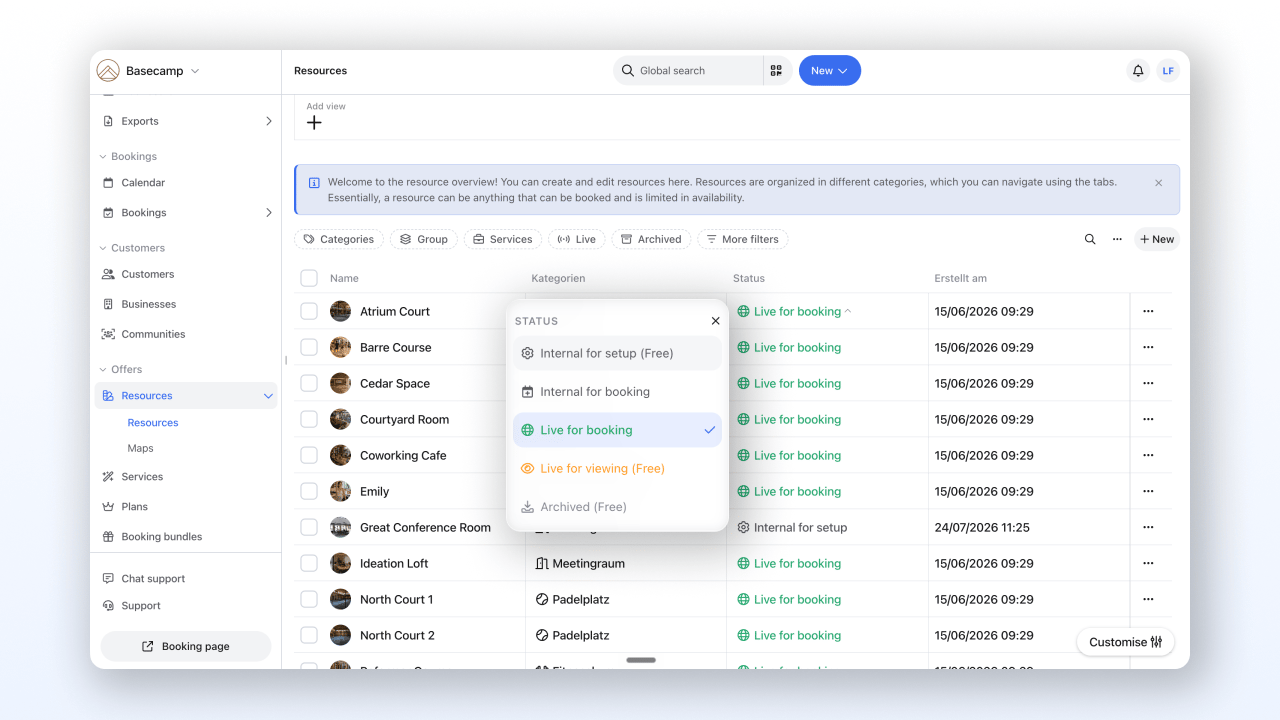 The status dropdown shows the five available options. The currently set status, together with the booking setting, determines the overall behavior of the resource.
Even with booking disabled, you can still maintain blockers manually or manage them via calendar sync.
## When do I use this?
* **You want to show trainers, rooms, or equipment as info resources without them being bookable:** set the status to "Live for viewing". The resource is visible to customers, but not bookable and free.
* **You are preparing a new resource or testing a setup:** use "Internal for management". Only admins see the resource, it is free and not published.
* **You need a resource that can only be booked internally (for example, by admins):** choose "Internal for booking". The resource is not publicly visible, but bookable internally and counts towards billing.
* **Not suitable for:** resources you no longer need permanently. In that case, use the "Archived" status to fully deactivate the resource.
## Relationship with other features
* **Communities:** if a resource is assigned to a community, the community's visibility rules apply in addition to the resource status. The status controls the base visibility, the community restricts it further.
## Settings & options
| Setting (admin) | Description |
| ------------------- | ----------------------------------------- |
| **Status dropdown** | Selects one of the 5 status modes |
| **Enable booking** | Turns bookability on/off for the resource |

You find the "Enable booking" setting in the service settings of the resource. In combination with the status, it controls whether bookings are possible on this resource.
## Real-world examples
You offer classes and want to show the trainer and room as additional information, without them being separately bookable or counting towards billing.
Open the class resource and set the **status dropdown** to **Live for booking**. Make sure **Enable booking** is active in the service settings.
Open the trainer resource and set the **status dropdown** to **Live for viewing**. Booking is disabled automatically.
Open the room resource and set the **status dropdown** to **Live for viewing**.
Customers see the class, trainer, and room on the booking page. Only the class is bookable and counts towards billing. Trainer and room are free.
You want to prepare and test a new resource before it is published.
Create a new resource with the settings you want.
Set the **status dropdown** to **Internal for management**. The resource is visible only to admins, not bookable, and free.
Configure schedules, services, and other settings. Only admins can see and edit the resource in the admin area.
When the setup is complete, change the status to **Live for booking** to make the resource available to customers.
## FAQ
Yes. The previous statuses were renamed automatically: "Active" is now "Live" and "Inactive" is now "Internal". Your existing configuration is preserved.
No. Only resources with booking enabled (status "Live for booking" or "Internal for booking") count towards billing. All other statuses are free.
Yes. Even when booking is disabled, you can create blockers manually or manage them via calendar sync.
Archived resources are visible neither to admins in the default view nor to end users. They are not bookable and do not count towards billing.
## Troubleshooting
The resource probably has the status "Internal for management", "Internal for booking", or "Archived". Only resources with the "Live" prefix are visible to end users. Open the resource and set the status to "Live for booking" or "Live for viewing".
The status is set to "Live for viewing", or the "Enable booking" setting is disabled. Check both: set the status to "Live for booking" and make sure "Enable booking" is active in the service settings.
This should not happen. Check whether the status was really saved correctly and "Internal for booking" is not selected by mistake. With "Internal for booking", the resource counts towards billing, with "Internal for management" it does not.
> Important information for agents:
>
> * Exact UI path for status: **Resource** > **Status dropdown** (5 options: Live for booking, Live for viewing, Internal for booking, Internal for management, Archived)
> * Billing rule: only statuses with active booking (Live for booking, Internal for booking) count towards billing. All three other statuses are free.
> * Terminology mapping: old "Active" = new "Live", old "Inactive" = new "Internal"
> * Distinction Archived vs. Internal for management: Archived = completely invisible (also not for admins in the default view). Internal for management = visible and editable for admins only.
> * Blocker note: even with booking disabled, blockers can be maintained manually or managed via calendar sync.
> * Related articles: "Configure resource" for general resource settings, "Communities" for visibility rules at the community level.
The status dropdown shows the five available options. The currently set status, together with the booking setting, determines the overall behavior of the resource.
Even with booking disabled, you can still maintain blockers manually or manage them via calendar sync.
## When do I use this?
* **You want to show trainers, rooms, or equipment as info resources without them being bookable:** set the status to "Live for viewing". The resource is visible to customers, but not bookable and free.
* **You are preparing a new resource or testing a setup:** use "Internal for management". Only admins see the resource, it is free and not published.
* **You need a resource that can only be booked internally (for example, by admins):** choose "Internal for booking". The resource is not publicly visible, but bookable internally and counts towards billing.
* **Not suitable for:** resources you no longer need permanently. In that case, use the "Archived" status to fully deactivate the resource.
## Relationship with other features
* **Communities:** if a resource is assigned to a community, the community's visibility rules apply in addition to the resource status. The status controls the base visibility, the community restricts it further.
## Settings & options
| Setting (admin) | Description |
| ------------------- | ----------------------------------------- |
| **Status dropdown** | Selects one of the 5 status modes |
| **Enable booking** | Turns bookability on/off for the resource |

You find the "Enable booking" setting in the service settings of the resource. In combination with the status, it controls whether bookings are possible on this resource.
## Real-world examples
You offer classes and want to show the trainer and room as additional information, without them being separately bookable or counting towards billing.
Open the class resource and set the **status dropdown** to **Live for booking**. Make sure **Enable booking** is active in the service settings.
Open the trainer resource and set the **status dropdown** to **Live for viewing**. Booking is disabled automatically.
Open the room resource and set the **status dropdown** to **Live for viewing**.
Customers see the class, trainer, and room on the booking page. Only the class is bookable and counts towards billing. Trainer and room are free.
You want to prepare and test a new resource before it is published.
Create a new resource with the settings you want.
Set the **status dropdown** to **Internal for management**. The resource is visible only to admins, not bookable, and free.
Configure schedules, services, and other settings. Only admins can see and edit the resource in the admin area.
When the setup is complete, change the status to **Live for booking** to make the resource available to customers.
## FAQ
Yes. The previous statuses were renamed automatically: "Active" is now "Live" and "Inactive" is now "Internal". Your existing configuration is preserved.
No. Only resources with booking enabled (status "Live for booking" or "Internal for booking") count towards billing. All other statuses are free.
Yes. Even when booking is disabled, you can create blockers manually or manage them via calendar sync.
Archived resources are visible neither to admins in the default view nor to end users. They are not bookable and do not count towards billing.
## Troubleshooting
The resource probably has the status "Internal for management", "Internal for booking", or "Archived". Only resources with the "Live" prefix are visible to end users. Open the resource and set the status to "Live for booking" or "Live for viewing".
The status is set to "Live for viewing", or the "Enable booking" setting is disabled. Check both: set the status to "Live for booking" and make sure "Enable booking" is active in the service settings.
This should not happen. Check whether the status was really saved correctly and "Internal for booking" is not selected by mistake. With "Internal for booking", the resource counts towards billing, with "Internal for management" it does not.
> Important information for agents:
>
> * Exact UI path for status: **Resource** > **Status dropdown** (5 options: Live for booking, Live for viewing, Internal for booking, Internal for management, Archived)
> * Billing rule: only statuses with active booking (Live for booking, Internal for booking) count towards billing. All three other statuses are free.
> * Terminology mapping: old "Active" = new "Live", old "Inactive" = new "Internal"
> * Distinction Archived vs. Internal for management: Archived = completely invisible (also not for admins in the default view). Internal for management = visible and editable for admins only.
> * Blocker note: even with booking disabled, blockers can be maintained manually or managed via calendar sync.
> * Related articles: "Configure resource" for general resource settings, "Communities" for visibility rules at the community level.