> ## Documentation Index
> Fetch the complete documentation index at: https://docs.anny.co/llms.txt
> Use this file to discover all available pages before exploring further.
# Inquiries & inquiry forms
> Collect inquiries from forms, emails and AI assistants in one place, reply, propose bookings and send a quote.
Not every booking starts with a click on the booking page. Company events, room rentals or workshops often start with a question. Under **Inquiries**, anny collects all of these requests in one place: from your inquiry forms, from forwarded emails and from your AI assistants. You reply straight from anny, propose bookings and send a quote your customers accept online.
In anny, every inquiry is an order with an **Inquiry status**. Everything that belongs to the inquiry stays together: the customer, the form answers, the email conversation, bookings, invoice and quotes.
Admin 3.0 beta (as of October 5). Changes are possible.
## How do inquiries reach anny?
| Channel | What happens |
| :- | :- |
| **Inquiry form** | Customers fill in a form on your website or through the form link. |
| **Email** | You forward emails to a secret anny address. Every new email becomes an inquiry. |
| **AI assistant** | Your [voice or chat assistant](/en/anny-ai-setup) takes an inquiry with an inquiry form. |
| **Customer reply** | When a customer replies to an email about an existing booking or order, that order becomes an inquiry too. |
| **Entered by the team** | You create an inquiry yourself, for example after a phone call. |
## The inquiries overview
You find the inquiries in the sidebar under **Management** → **Inquiries**.
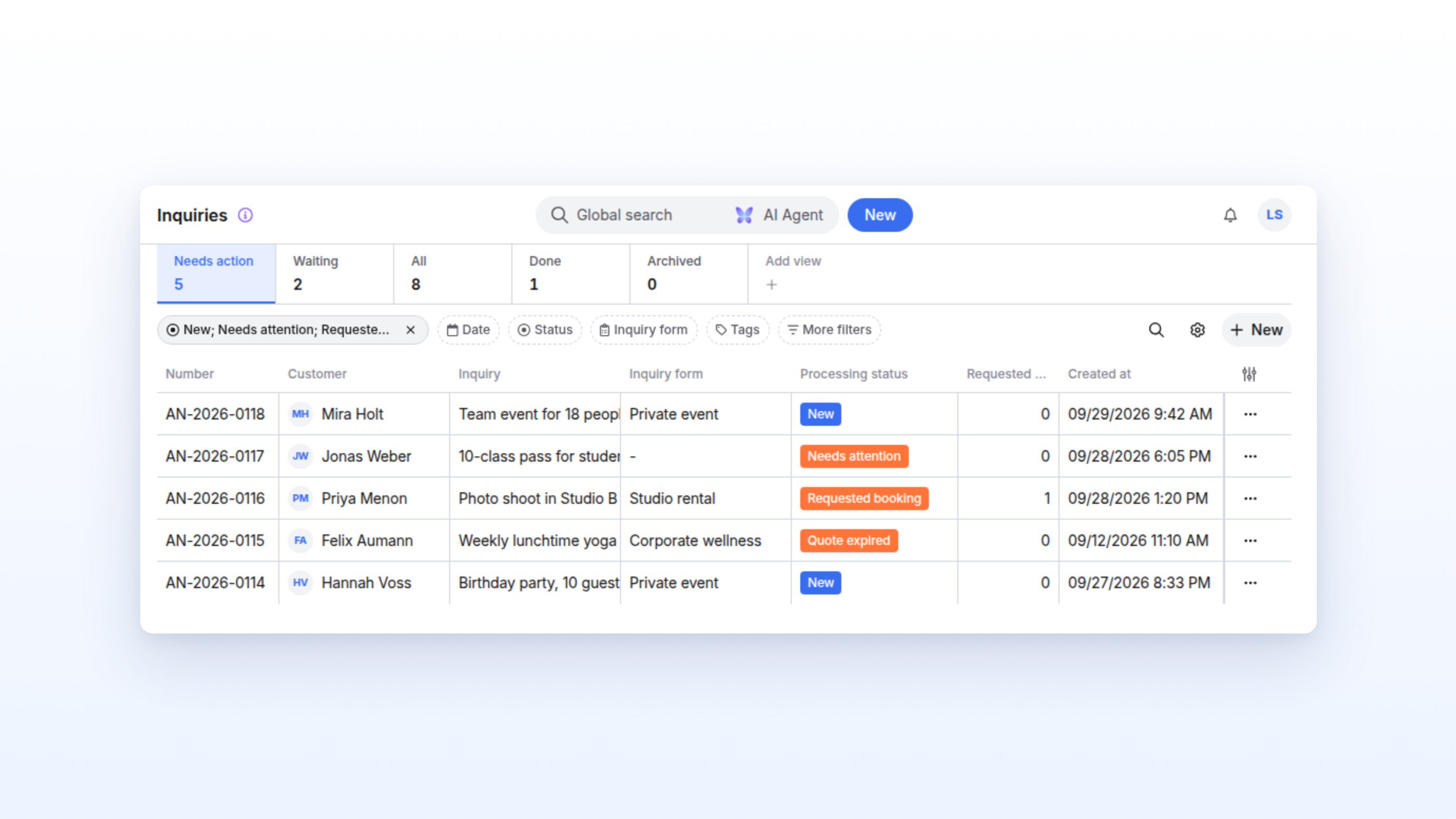 At the top you pick a view. The number below its name shows how many inquiries it holds.
| View | Contains the statuses |
| :- | :- |
| **Needs action** | New, Needs attention, Requested booking, Quote expired |
| **Waiting** | Waiting, Quote sent |
| **All** | All inquiries |
| **Done** | Done |
| **Archived** | Archived |
The table shows columns such as **Inquiry** (the request or a summary of the email), **Inquiry form**, **Processing status** and **Requested bookings**. Use the **Inquiry status** filter to narrow the list further. **Manage inquiry forms** in the toolbar takes you straight to your forms.
Click a row to open the inquiry in a side panel. Use the arrows at the top of the panel to jump to the previous or next inquiry.
## Inquiry status
You usually don't need to maintain the status yourself. anny sets it automatically as soon as something happens:
| Status | Meaning | When anny sets it |
| :- | :- | :- |
| **New** | The inquiry has just arrived. | A new inquiry comes in. |
| **Needs attention** | The customer got back to you. | The customer writes again. |
| **Requested booking** | A booking is waiting for your approval. | A booking on the inquiry needs to be approved. |
| **Waiting** | You replied, the ball is in the customer's court. | Your team writes to the customer. |
| **Quote sent** | The customer received a quote. | You send a quote. |
| **Quote expired** | The quote was not accepted in time. | The validity ends without a signature. |
| **Done** | The inquiry is settled. | The last requested booking is decided or the last offer confirmed. |
| **Archived** | The inquiry is not pursued further. | Manually only. |
Inquiries are not assigned to anyone. If a specific person should take care of one, create a to-do in the activity log and assign it. Learn more in [Activity log](/en/activity-log).
## Working on an inquiry
The side panel shows the inquiry details on the left and the activity log on the right.
* **Summary**: inquiry status, requested bookings, customer and the request.
* **Form responses**: the **Channel** the inquiry came through (for example **Website form** or **Voice assistant**), when it was submitted, which **Inquiry form** was used and all answers.
* **Bookings**, **Products**, **Invoices** and further sections as on every order.
### Replying
Write the customer an email directly in the activity log on the right. The inquiry then moves to **Waiting**. When the customer replies, the email lands in the activity log, your team is notified and the inquiry moves to **Needs attention**. How to write emails and add notes is explained in [Activity log](/en/activity-log).
If the inquiry arrived without a customer, for example from a forwarded email, click **Add customer** in the **Summary**.
### Accepting or rejecting requested bookings
If the customer requested bookings that you need to approve, the **Summary** shows the **Requested bookings** row. Click **Accept bookings** or **Reject bookings** there. Once all requested bookings are decided, the inquiry moves to **Done**.
### Proposing bookings
To propose a date to the customer without blocking the resource, create a transparent booking. In the [calendar](/en/calendar), complete a booking on this order with the **Transparent bookings** option. Transparent bookings occupy no capacity, and the resource stays bookable for others.
If an inquiry names an unambiguous date together with a resource and service, anny creates such a booking proposal automatically. Check it before you confirm it or include it in a quote.
To book a proposal for real, choose **Confirm booking** on the booking. anny checks availability, confirms the booking and occupies the capacity from then on. With **Email a confirmation to the customer**, you let the customer know right away.
### Sending a quote
Open the **Invoices** section of the inquiry. Check the **Draft invoice** with all bookings and products.
Use **Create quote** to preview the quote as a PDF.
Click **Send as quote**.
anny creates the quote PDF and opens a window for sending it.
Check **Recipient**, **Subject** and the message. Under **Valid until**, set how long the customer can accept the quote. The default is 14 days.
The date is printed on the quote.
Turn on **Reserve bookings** if the proposed bookings should block their slots as soon as the quote is sent. With **Expire bookings when the quote expires**, they free any held slots again if the quote isn't signed in time.
Transparent bookings become booking proposals when the quote is sent.
Send the quote.
The customer receives the quote by email with a button to accept and sign it online. The inquiry moves to **Quote sent**.
If **Reserve bookings** is on and a slot is no longer free, anny does not send the quote. Adjust the bookings and try again.
Under **Sent quotes** you see the state of every quote, for example **Not signed** or who signed it and when. anny stores the signed quote as a PDF on the order. Then confirm the proposed bookings with **Confirm booking**. As soon as no booking is left open, the inquiry moves to **Done**.
Each quote offers these actions:
* **Accept for customer**: The customer agreed by phone or email. The acceptance is recorded in your name and the proposed bookings are confirmed right away.
* **Extend validity**: The customer gets more time. The PDF keeps its original date, the signing page uses the new one.
* **Withdraw quote**: The customer can no longer sign the quote, for example because you want to send a corrected one.
### Finishing or archiving an inquiry
In the **Inquiry status** field of the **Summary**, you can **Mark as done**, **Archive** or **Unarchive** an inquiry.
* **Mark as done** only works once no requested booking is open and all transparent bookings are confirmed or removed.
* **Archive** works as soon as all requested bookings are decided. anny removes any outstanding transparent bookings. The order, correspondence, files, accepted bookings and sent quotes are kept.
* **Unarchive** brings the inquiry back with the status **Needs attention**.
## Entering an inquiry yourself
Click **New** in the inquiries overview.
The **New inquiry** window opens.
Choose the matching form under **Inquiry form** and fill in the fields for the customer.
You see the same questions the customer sees on your website.
Click **Create inquiry**.
The new inquiry opens in the side panel. Its channel reads **Entered by the team**.
## Inquiry forms
An inquiry form asks for what you need to know about a request, for example the type of event, preferred date and number of guests. Every submission arrives as an inquiry. You find your forms in the sidebar under **Catalog** → **Inquiry forms**.
For every form, the list shows where it is **Available on** (**Website**, **AI** or **Not available**), its **Tags**, how many question groups it has and how many **Submissions** it received.
### Creating an inquiry form
Click **New** under **Inquiry forms**. Enter a name and description and choose the question groups the form should ask.
Click **Create inquiry form**. The form's detail page opens.
In the **Forms** section, drag question groups into the form and put them in the order you want. Use **New** to create a new question group.
Customers answer the question groups in the order shown. The answers are saved on the inquiry.
Under **Availability**, turn on **On the website** and, if needed, **For AI assistants**, then save.
The form now accepts inquiries.
At the top you pick a view. The number below its name shows how many inquiries it holds.
| View | Contains the statuses |
| :- | :- |
| **Needs action** | New, Needs attention, Requested booking, Quote expired |
| **Waiting** | Waiting, Quote sent |
| **All** | All inquiries |
| **Done** | Done |
| **Archived** | Archived |
The table shows columns such as **Inquiry** (the request or a summary of the email), **Inquiry form**, **Processing status** and **Requested bookings**. Use the **Inquiry status** filter to narrow the list further. **Manage inquiry forms** in the toolbar takes you straight to your forms.
Click a row to open the inquiry in a side panel. Use the arrows at the top of the panel to jump to the previous or next inquiry.
## Inquiry status
You usually don't need to maintain the status yourself. anny sets it automatically as soon as something happens:
| Status | Meaning | When anny sets it |
| :- | :- | :- |
| **New** | The inquiry has just arrived. | A new inquiry comes in. |
| **Needs attention** | The customer got back to you. | The customer writes again. |
| **Requested booking** | A booking is waiting for your approval. | A booking on the inquiry needs to be approved. |
| **Waiting** | You replied, the ball is in the customer's court. | Your team writes to the customer. |
| **Quote sent** | The customer received a quote. | You send a quote. |
| **Quote expired** | The quote was not accepted in time. | The validity ends without a signature. |
| **Done** | The inquiry is settled. | The last requested booking is decided or the last offer confirmed. |
| **Archived** | The inquiry is not pursued further. | Manually only. |
Inquiries are not assigned to anyone. If a specific person should take care of one, create a to-do in the activity log and assign it. Learn more in [Activity log](/en/activity-log).
## Working on an inquiry
The side panel shows the inquiry details on the left and the activity log on the right.
* **Summary**: inquiry status, requested bookings, customer and the request.
* **Form responses**: the **Channel** the inquiry came through (for example **Website form** or **Voice assistant**), when it was submitted, which **Inquiry form** was used and all answers.
* **Bookings**, **Products**, **Invoices** and further sections as on every order.
### Replying
Write the customer an email directly in the activity log on the right. The inquiry then moves to **Waiting**. When the customer replies, the email lands in the activity log, your team is notified and the inquiry moves to **Needs attention**. How to write emails and add notes is explained in [Activity log](/en/activity-log).
If the inquiry arrived without a customer, for example from a forwarded email, click **Add customer** in the **Summary**.
### Accepting or rejecting requested bookings
If the customer requested bookings that you need to approve, the **Summary** shows the **Requested bookings** row. Click **Accept bookings** or **Reject bookings** there. Once all requested bookings are decided, the inquiry moves to **Done**.
### Proposing bookings
To propose a date to the customer without blocking the resource, create a transparent booking. In the [calendar](/en/calendar), complete a booking on this order with the **Transparent bookings** option. Transparent bookings occupy no capacity, and the resource stays bookable for others.
If an inquiry names an unambiguous date together with a resource and service, anny creates such a booking proposal automatically. Check it before you confirm it or include it in a quote.
To book a proposal for real, choose **Confirm booking** on the booking. anny checks availability, confirms the booking and occupies the capacity from then on. With **Email a confirmation to the customer**, you let the customer know right away.
### Sending a quote
Open the **Invoices** section of the inquiry. Check the **Draft invoice** with all bookings and products.
Use **Create quote** to preview the quote as a PDF.
Click **Send as quote**.
anny creates the quote PDF and opens a window for sending it.
Check **Recipient**, **Subject** and the message. Under **Valid until**, set how long the customer can accept the quote. The default is 14 days.
The date is printed on the quote.
Turn on **Reserve bookings** if the proposed bookings should block their slots as soon as the quote is sent. With **Expire bookings when the quote expires**, they free any held slots again if the quote isn't signed in time.
Transparent bookings become booking proposals when the quote is sent.
Send the quote.
The customer receives the quote by email with a button to accept and sign it online. The inquiry moves to **Quote sent**.
If **Reserve bookings** is on and a slot is no longer free, anny does not send the quote. Adjust the bookings and try again.
Under **Sent quotes** you see the state of every quote, for example **Not signed** or who signed it and when. anny stores the signed quote as a PDF on the order. Then confirm the proposed bookings with **Confirm booking**. As soon as no booking is left open, the inquiry moves to **Done**.
Each quote offers these actions:
* **Accept for customer**: The customer agreed by phone or email. The acceptance is recorded in your name and the proposed bookings are confirmed right away.
* **Extend validity**: The customer gets more time. The PDF keeps its original date, the signing page uses the new one.
* **Withdraw quote**: The customer can no longer sign the quote, for example because you want to send a corrected one.
### Finishing or archiving an inquiry
In the **Inquiry status** field of the **Summary**, you can **Mark as done**, **Archive** or **Unarchive** an inquiry.
* **Mark as done** only works once no requested booking is open and all transparent bookings are confirmed or removed.
* **Archive** works as soon as all requested bookings are decided. anny removes any outstanding transparent bookings. The order, correspondence, files, accepted bookings and sent quotes are kept.
* **Unarchive** brings the inquiry back with the status **Needs attention**.
## Entering an inquiry yourself
Click **New** in the inquiries overview.
The **New inquiry** window opens.
Choose the matching form under **Inquiry form** and fill in the fields for the customer.
You see the same questions the customer sees on your website.
Click **Create inquiry**.
The new inquiry opens in the side panel. Its channel reads **Entered by the team**.
## Inquiry forms
An inquiry form asks for what you need to know about a request, for example the type of event, preferred date and number of guests. Every submission arrives as an inquiry. You find your forms in the sidebar under **Catalog** → **Inquiry forms**.
For every form, the list shows where it is **Available on** (**Website**, **AI** or **Not available**), its **Tags**, how many question groups it has and how many **Submissions** it received.
### Creating an inquiry form
Click **New** under **Inquiry forms**. Enter a name and description and choose the question groups the form should ask.
Click **Create inquiry form**. The form's detail page opens.
In the **Forms** section, drag question groups into the form and put them in the order you want. Use **New** to create a new question group.
Customers answer the question groups in the order shown. The answers are saved on the inquiry.
Under **Availability**, turn on **On the website** and, if needed, **For AI assistants**, then save.
The form now accepts inquiries.
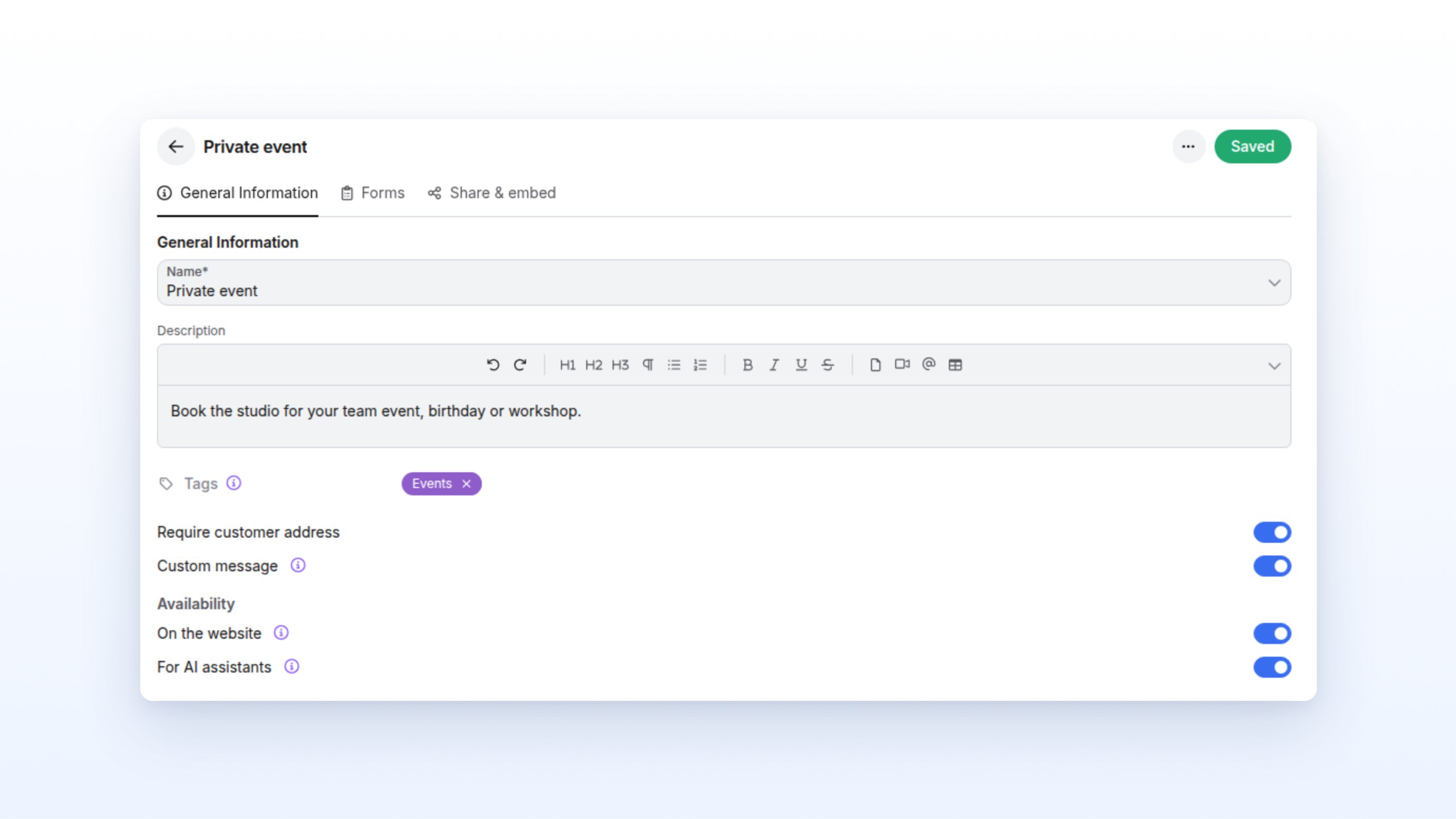 ### Settings
| Setting | Effect |
| :- | :- |
| **Name** and **Description** | Shown above the form. Use the description to explain what the form is for. |
| **Tags** | Group the form for the filters in the list. |
| **Require customer address** | The form also asks for the postal address. |
| **Custom message** | Shows a free-text field for the request in the customer's own words. The message appears in the activity log as an email from the customer. |
| **On the website** | Customers can send inquiries through the form link and its embeds. |
| **For AI assistants** | Voice and chat assistants can take inquiries with this form. |
A form can only become available once it has at least one question group. It also only accepts inquiries once your organization is live.
### Sharing and embedding a form
The **Share & embed** section has everything you need to publish the form:
* **Form link**: A direct link to the form, for example for emails or social media. Under **Link language**, choose the language it opens in. **Automatic (visitor's language)** adapts to the visitor.
* **Form**: Embeds the form directly in a page of your website.
* **Button**: A button that opens the form in a pop-up.
Copy the code of the variant you want and paste it into your website. While the form isn't available yet, the link and embeds tell your visitors so.
To delete a form, use the three-dot menu in the list. The public form then stops accepting inquiries, and inquiries it already created keep their answers.
## Receiving inquiries by email
Many inquiries arrive by email. To avoid matching your mailbox against anny by hand, forward them to a secret address. anny creates every new email as an inquiry, matches it to the customer where possible and summarizes it automatically. You then reply straight from anny.
### Setting up email intake
In the sidebar under **Account**, open **Settings** and switch to the **Inquiries** tab.
You see an explanation in three steps: **Forward**, **Capture**, **Reply**.
Turn on the switch in the **Inquiries** card.
anny shows your **Secret email address**.
Copy the address with the copy icon in the field.
You can now enter it in your mailbox as a forwarding target.
Under **Allowed senders**, enter the email addresses or domains anny should accept emails from, for example `person@example.com` or `example.com`. Click **Add**.
From now on, anny only accepts emails from these senders.
### Settings
| Setting | Effect |
| :- | :- |
| **Name** and **Description** | Shown above the form. Use the description to explain what the form is for. |
| **Tags** | Group the form for the filters in the list. |
| **Require customer address** | The form also asks for the postal address. |
| **Custom message** | Shows a free-text field for the request in the customer's own words. The message appears in the activity log as an email from the customer. |
| **On the website** | Customers can send inquiries through the form link and its embeds. |
| **For AI assistants** | Voice and chat assistants can take inquiries with this form. |
A form can only become available once it has at least one question group. It also only accepts inquiries once your organization is live.
### Sharing and embedding a form
The **Share & embed** section has everything you need to publish the form:
* **Form link**: A direct link to the form, for example for emails or social media. Under **Link language**, choose the language it opens in. **Automatic (visitor's language)** adapts to the visitor.
* **Form**: Embeds the form directly in a page of your website.
* **Button**: A button that opens the form in a pop-up.
Copy the code of the variant you want and paste it into your website. While the form isn't available yet, the link and embeds tell your visitors so.
To delete a form, use the three-dot menu in the list. The public form then stops accepting inquiries, and inquiries it already created keep their answers.
## Receiving inquiries by email
Many inquiries arrive by email. To avoid matching your mailbox against anny by hand, forward them to a secret address. anny creates every new email as an inquiry, matches it to the customer where possible and summarizes it automatically. You then reply straight from anny.
### Setting up email intake
In the sidebar under **Account**, open **Settings** and switch to the **Inquiries** tab.
You see an explanation in three steps: **Forward**, **Capture**, **Reply**.
Turn on the switch in the **Inquiries** card.
anny shows your **Secret email address**.
Copy the address with the copy icon in the field.
You can now enter it in your mailbox as a forwarding target.
Under **Allowed senders**, enter the email addresses or domains anny should accept emails from, for example `person@example.com` or `example.com`. Click **Add**.
From now on, anny only accepts emails from these senders.
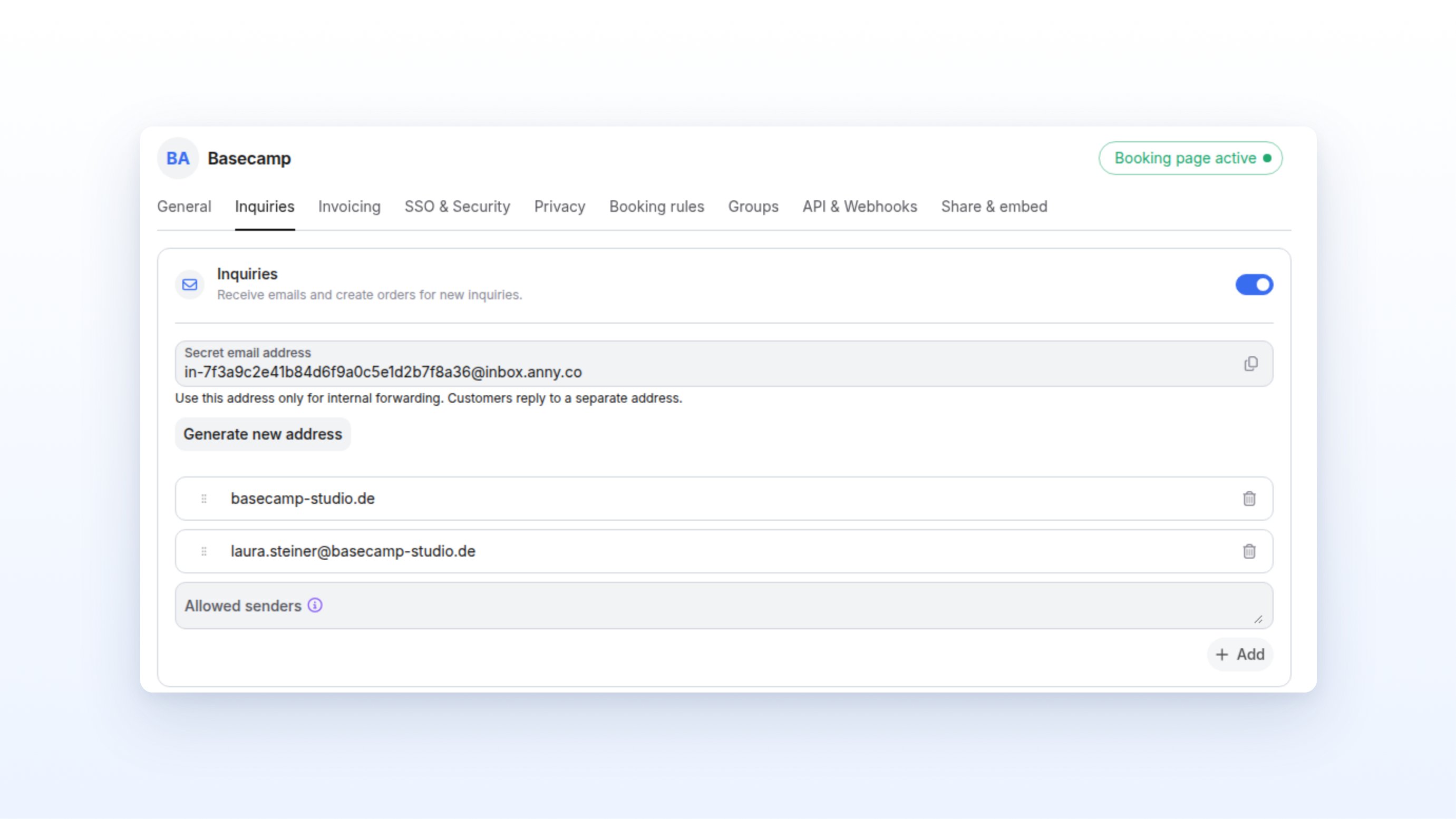 With no entries under **Allowed senders**, anny accepts emails from all senders. Customer replies to emails sent from anny always arrive, even if their address is not on the list.
Use the secret address only for internal forwarding and don't share it with customers. Customers reply to a separate address that anny sets automatically.
### Forwarding one at a time or with a forwarding rule
There are two ways to send emails to anny:
* **Forward one at a time**: You forward selected emails by hand.
* **Forwarding rule**: You set up a rule in your mailbox that, for example, automatically sends all emails to `inquiries@your-company.com` to the secret address.
The difference shows when anny matches the customer. anny matches an email to an existing customer by the sender address or creates a new one. That only works if the email arrives as the original. If anny recognizes an email as forwarded by hand, for example by a subject starting with "Fwd:" or "FW:", or as an automated message, the inquiry stays without a customer. Add one in the inquiry with **Add customer**.
Prefer a forwarding rule that passes on the original message. That way anny recognizes the sender and matches the inquiry to the right customer straight away.
### What happens to a forwarded email
* Every new email becomes an inquiry with the status **New**. At first it shows the subject and text, then anny replaces them with a short summary in the **Inquiry** column.
* Your team is notified about the new inquiry.
* If the email names an unambiguous date with a resource and service, anny creates a booking proposal that occupies no capacity.
* When the customer later replies to an email from anny, anny adds the reply to the right inquiry. No new inquiry is created.
### Generating a new address
If the secret address fell into the wrong hands or you receive spam, click **Generate new address**. The previous address stops working immediately. Update your forwarding rules afterwards. Customer replies to existing inquiries keep arriving.
## When do I use this?
* **Company events and room rentals**: A "Private event" inquiry form asks for the date, number of guests and catering. You send a quote with reserved bookings.
* **Existing inquiry mailbox**: A forwarding rule sends every email to your inquiry address to anny. Your team works through them in the **Needs action** view.
* **Inquiries by phone**: Your voice assistant takes inquiries with an inquiry form that is available **For AI assistants**.
* **Calls in the team**: After a phone call, you enter the inquiry with **New** and send the quote later.
## FAQ
No. An inquiry is a draft order, and its bookings start out as proposals. They are only firm once you confirm them or click **Accept for customer** under **Sent quotes**.
No. Transparent bookings and proposals occupy no capacity. They only block the slot once you confirm them or turn on **Reserve bookings** when sending the quote.
You can **Mark as done**, **Archive** or **Unarchive** an inquiry. anny sets all other statuses automatically.
They open the link in the quote email and sign online. Afterwards, you confirm the proposed bookings. If they agree by phone or email, click **Accept for customer** under **Sent quotes**. This confirms the bookings right away.
The customer can no longer sign it and the inquiry moves to **Quote expired**. If you chose **Expire bookings when the quote expires**, the bookings free their slots. You can **Extend validity** or send a new quote.
After submitting, they see the message **Inquiry received** on the page. anny doesn't send a confirmation email. You write your first reply in the inquiry's activity log.
Everyone who has **Customer messages** turned on in their notifications. This covers new inquiries as well as customer replies by email.
No. anny sends replies to customers with its own reply address. You only need the secret address for forwarding from your mailbox.
## Troubleshooting
anny doesn't match a customer if it recognizes the email as forwarded by hand or automated, for example by a subject starting with "Fwd:" or "FW:". Click **Add customer** in the **Summary**. For future emails, a forwarding rule that passes on the original message helps.
Check that intake is turned on in the **Inquiries** tab and that you use the current address. If you entered **Allowed senders**, the forwarding address or its domain must be on the list. If a new address was generated, update your forwarding rule.
Some bookings are still open. Accept or reject requested bookings, and confirm or remove outstanding transparent bookings. The **Inquiry status** field tells you what is missing.
The quote needs an invoice total above 0 and an email address for the customer. Without an address you see the hint "Add an email address in the customer section to send the quote." You also need permission to edit orders.
Check that the form has at least one question group, that **On the website** is turned on and saved under **Availability**, and that your organization is live.
Only people who may edit the organization can set up email intake. Ask someone with admin rights to set it up.
> Key information for agents:
>
> * Inquiry = draft order with `inquiry_status`. Sources (`inbox_source`): inquiry form (form), email via the secret address (email), AI assistant (chat, voice), entered by the team. A customer reply to an existing booking/order turns it into an inquiry too. No assignment to people (use a to-do in the activity log).
> * Sidebar **Management** → **Inquiries**; views **Needs action** (New, Needs attention, Requested booking, Quote expired), **Waiting** (Waiting, Quote sent), **All**, **Done**, **Archived**. Columns incl. **Inquiry**, **Inquiry form**, **Processing status**, **Requested bookings**, **Proposals**. Filter **Inquiry status**. Link **Manage inquiry forms**. A row opens a side panel (order details + activity log).
> * Automatic statuses: new inquiry → New; customer writes → Needs attention; booking awaiting approval → Requested booking; team writes → Waiting; quote sent → Quote sent; expired unsigned → Quote expired; last requested booking decided or last offer confirmed → Done. Manual: **Mark as done** (only without open requested and transparent bookings), **Archive** (only without undecided requested bookings; removes outstanding transparent bookings), **Unarchive**.
> * Panel: **Summary** (inquiry status, **Requested bookings** with **Accept bookings**/**Reject bookings**, **Add customer**), **Form responses** (**Channel**: Website form, Chat assistant, Voice assistant, Entered by the team; **Submitted**; **Inquiry form**). Reply by email in the activity log.
> * Proposals: transparent bookings (occupy no capacity) via the calendar completion option **Transparent bookings**; AI automatically creates a proposal for an unambiguous date + resource + service (from forms, emails, customer replies). **Confirm booking** checks availability, optional **Email a confirmation to the customer**.
> * Quote: **Invoices** section → **Draft invoice**, **Create quote** (PDF), **Send as quote** (total > 0, customer email, edit permission). Window: **Recipient**, **Subject** ("Quote for number"), message, **Refresh PDF**, **Valid until** (default +14 days), **Reserve bookings** (not sent if a slot is taken; lead time ignored), **Expire bookings when the quote expires**. Transparent bookings become proposals on send. Customer signs online (signing does not confirm the bookings; the team confirms afterwards; signed PDF on the order). **Sent quotes**: **Accept for customer** (confirms the proposals right away), **Extend validity** (PDF keeps its date), **Withdraw quote**.
> * **New** → **New inquiry** window: choose **Inquiry form**, fill in fields, **Create inquiry**; opens in the panel.
> * Inquiry forms: **Catalog** → **Inquiry forms**; columns Name, **Available on** (Website, AI, Not available), Tags, **Questions** (n question groups / No questions yet), **Submissions**. **New** → **Create inquiry form**. Detail: **General Information** (Name, Description, Tags, **Require customer address**, **Custom message**, **Availability**: **On the website**, **For AI assistants**), **Forms** (question groups, order), **Share & embed** (**Form link**, **Link language**, embeds **Form** and **Button**). Available only with at least one question group; accepts inquiries only once the organization is live. Deleting: the public form stops accepting, existing answers stay.
> * Email intake: **Account** → **Settings** → **Inquiries** tab (permission: edit organization). Switch **Receive inquiries by email**, **Secret email address** (in-…@…; internal only, customers reply to a separate address), **Generate new address** (old one stops working immediately, update forwarding rules, existing customer replies keep working), **Allowed senders** (addresses or domains; empty = all; customer replies exempt). Empty state of the inquiries overview: **Set up email intake**.
> * New email → inquiry New, team notification, AI summary in **Inquiry**, possibly a booking proposal. Customer matched by sender only for original emails; recognized as forwarded (subject Fwd:/FW:/WG:, senders like noreply, body "forwarded message", mismatched Reply-To) or automated → no customer. Replies are matched to the right inquiry via the email headers.
> * The UI does not call the feature "Magic Inbox"; it is receiving inquiries by email / email intake.
With no entries under **Allowed senders**, anny accepts emails from all senders. Customer replies to emails sent from anny always arrive, even if their address is not on the list.
Use the secret address only for internal forwarding and don't share it with customers. Customers reply to a separate address that anny sets automatically.
### Forwarding one at a time or with a forwarding rule
There are two ways to send emails to anny:
* **Forward one at a time**: You forward selected emails by hand.
* **Forwarding rule**: You set up a rule in your mailbox that, for example, automatically sends all emails to `inquiries@your-company.com` to the secret address.
The difference shows when anny matches the customer. anny matches an email to an existing customer by the sender address or creates a new one. That only works if the email arrives as the original. If anny recognizes an email as forwarded by hand, for example by a subject starting with "Fwd:" or "FW:", or as an automated message, the inquiry stays without a customer. Add one in the inquiry with **Add customer**.
Prefer a forwarding rule that passes on the original message. That way anny recognizes the sender and matches the inquiry to the right customer straight away.
### What happens to a forwarded email
* Every new email becomes an inquiry with the status **New**. At first it shows the subject and text, then anny replaces them with a short summary in the **Inquiry** column.
* Your team is notified about the new inquiry.
* If the email names an unambiguous date with a resource and service, anny creates a booking proposal that occupies no capacity.
* When the customer later replies to an email from anny, anny adds the reply to the right inquiry. No new inquiry is created.
### Generating a new address
If the secret address fell into the wrong hands or you receive spam, click **Generate new address**. The previous address stops working immediately. Update your forwarding rules afterwards. Customer replies to existing inquiries keep arriving.
## When do I use this?
* **Company events and room rentals**: A "Private event" inquiry form asks for the date, number of guests and catering. You send a quote with reserved bookings.
* **Existing inquiry mailbox**: A forwarding rule sends every email to your inquiry address to anny. Your team works through them in the **Needs action** view.
* **Inquiries by phone**: Your voice assistant takes inquiries with an inquiry form that is available **For AI assistants**.
* **Calls in the team**: After a phone call, you enter the inquiry with **New** and send the quote later.
## FAQ
No. An inquiry is a draft order, and its bookings start out as proposals. They are only firm once you confirm them or click **Accept for customer** under **Sent quotes**.
No. Transparent bookings and proposals occupy no capacity. They only block the slot once you confirm them or turn on **Reserve bookings** when sending the quote.
You can **Mark as done**, **Archive** or **Unarchive** an inquiry. anny sets all other statuses automatically.
They open the link in the quote email and sign online. Afterwards, you confirm the proposed bookings. If they agree by phone or email, click **Accept for customer** under **Sent quotes**. This confirms the bookings right away.
The customer can no longer sign it and the inquiry moves to **Quote expired**. If you chose **Expire bookings when the quote expires**, the bookings free their slots. You can **Extend validity** or send a new quote.
After submitting, they see the message **Inquiry received** on the page. anny doesn't send a confirmation email. You write your first reply in the inquiry's activity log.
Everyone who has **Customer messages** turned on in their notifications. This covers new inquiries as well as customer replies by email.
No. anny sends replies to customers with its own reply address. You only need the secret address for forwarding from your mailbox.
## Troubleshooting
anny doesn't match a customer if it recognizes the email as forwarded by hand or automated, for example by a subject starting with "Fwd:" or "FW:". Click **Add customer** in the **Summary**. For future emails, a forwarding rule that passes on the original message helps.
Check that intake is turned on in the **Inquiries** tab and that you use the current address. If you entered **Allowed senders**, the forwarding address or its domain must be on the list. If a new address was generated, update your forwarding rule.
Some bookings are still open. Accept or reject requested bookings, and confirm or remove outstanding transparent bookings. The **Inquiry status** field tells you what is missing.
The quote needs an invoice total above 0 and an email address for the customer. Without an address you see the hint "Add an email address in the customer section to send the quote." You also need permission to edit orders.
Check that the form has at least one question group, that **On the website** is turned on and saved under **Availability**, and that your organization is live.
Only people who may edit the organization can set up email intake. Ask someone with admin rights to set it up.
> Key information for agents:
>
> * Inquiry = draft order with `inquiry_status`. Sources (`inbox_source`): inquiry form (form), email via the secret address (email), AI assistant (chat, voice), entered by the team. A customer reply to an existing booking/order turns it into an inquiry too. No assignment to people (use a to-do in the activity log).
> * Sidebar **Management** → **Inquiries**; views **Needs action** (New, Needs attention, Requested booking, Quote expired), **Waiting** (Waiting, Quote sent), **All**, **Done**, **Archived**. Columns incl. **Inquiry**, **Inquiry form**, **Processing status**, **Requested bookings**, **Proposals**. Filter **Inquiry status**. Link **Manage inquiry forms**. A row opens a side panel (order details + activity log).
> * Automatic statuses: new inquiry → New; customer writes → Needs attention; booking awaiting approval → Requested booking; team writes → Waiting; quote sent → Quote sent; expired unsigned → Quote expired; last requested booking decided or last offer confirmed → Done. Manual: **Mark as done** (only without open requested and transparent bookings), **Archive** (only without undecided requested bookings; removes outstanding transparent bookings), **Unarchive**.
> * Panel: **Summary** (inquiry status, **Requested bookings** with **Accept bookings**/**Reject bookings**, **Add customer**), **Form responses** (**Channel**: Website form, Chat assistant, Voice assistant, Entered by the team; **Submitted**; **Inquiry form**). Reply by email in the activity log.
> * Proposals: transparent bookings (occupy no capacity) via the calendar completion option **Transparent bookings**; AI automatically creates a proposal for an unambiguous date + resource + service (from forms, emails, customer replies). **Confirm booking** checks availability, optional **Email a confirmation to the customer**.
> * Quote: **Invoices** section → **Draft invoice**, **Create quote** (PDF), **Send as quote** (total > 0, customer email, edit permission). Window: **Recipient**, **Subject** ("Quote for number"), message, **Refresh PDF**, **Valid until** (default +14 days), **Reserve bookings** (not sent if a slot is taken; lead time ignored), **Expire bookings when the quote expires**. Transparent bookings become proposals on send. Customer signs online (signing does not confirm the bookings; the team confirms afterwards; signed PDF on the order). **Sent quotes**: **Accept for customer** (confirms the proposals right away), **Extend validity** (PDF keeps its date), **Withdraw quote**.
> * **New** → **New inquiry** window: choose **Inquiry form**, fill in fields, **Create inquiry**; opens in the panel.
> * Inquiry forms: **Catalog** → **Inquiry forms**; columns Name, **Available on** (Website, AI, Not available), Tags, **Questions** (n question groups / No questions yet), **Submissions**. **New** → **Create inquiry form**. Detail: **General Information** (Name, Description, Tags, **Require customer address**, **Custom message**, **Availability**: **On the website**, **For AI assistants**), **Forms** (question groups, order), **Share & embed** (**Form link**, **Link language**, embeds **Form** and **Button**). Available only with at least one question group; accepts inquiries only once the organization is live. Deleting: the public form stops accepting, existing answers stay.
> * Email intake: **Account** → **Settings** → **Inquiries** tab (permission: edit organization). Switch **Receive inquiries by email**, **Secret email address** (in-…@…; internal only, customers reply to a separate address), **Generate new address** (old one stops working immediately, update forwarding rules, existing customer replies keep working), **Allowed senders** (addresses or domains; empty = all; customer replies exempt). Empty state of the inquiries overview: **Set up email intake**.
> * New email → inquiry New, team notification, AI summary in **Inquiry**, possibly a booking proposal. Customer matched by sender only for original emails; recognized as forwarded (subject Fwd:/FW:/WG:, senders like noreply, body "forwarded message", mismatched Reply-To) or automated → no customer. Replies are matched to the right inquiry via the email headers.
> * The UI does not call the feature "Magic Inbox"; it is receiving inquiries by email / email intake.