> ## Documentation Index
> Fetch the complete documentation index at: https://docs.anny.co/llms.txt
> Use this file to discover all available pages before exploring further.
# Connect HubSpot with anny
> Sync customers, businesses, bookings and subscriptions between anny and HubSpot, and automatically log notes or create tasks in HubSpot when booking events happen.
[HubSpot](https://www.hubspot.com) is a CRM platform for sales, marketing and service. With the integration, your customer data stays in step between anny and HubSpot without maintaining it twice. Your sales team sees bookings and subscriptions as deals in their own pipeline.
With HubSpot you can in anny:
* Sync customers as **contacts** and businesses as **companies** in both directions
* Create bookings and subscriptions as **deals** in a HubSpot pipeline and keep their stage up to date automatically
* Automatically add **notes** or **tasks** to the HubSpot contact when booking events happen
* Decide which fields are exchanged, including your own HubSpot properties
## Typical use cases
| Use case | Description |
| :- | :- |
| Coworking space with a sales team | **New business customers land straight in the CRM.** Whoever books in anny appears as a contact in HubSpot, linked to their company. Sales keeps working with current data. |
| Event and venue rental | **Track requests and bookings as deals.** Every booking becomes a deal in your sales pipeline. Confirmed or canceled, the stage follows automatically. |
| Studio with memberships | **Keep an eye on subscriptions.** Trial, active, canceled: each status lands in its own deal stage, and large bookings create a follow-up task. |
## How the HubSpot connection works
You connect anny to your HubSpot account by signing in to HubSpot. You don't enter any credentials in anny. Then you create **syncs**: each sync pairs a record type in anny with a HubSpot object and defines which fields are exchanged and in which direction.
| anny | HubSpot | Direction |
| :- | :- | :- |
| Customer | Contact | anny ↔ HubSpot (configurable) |
| Business | Company | anny ↔ HubSpot (configurable) |
| Booking | Deal | anny → HubSpot only |
| Subscription | Deal | anny → HubSpot only |
In HubSpot, companies and deals are attached to contacts. That's why you always set up **Customer ↔ Contact** first; the other pairs become available afterwards. If a customer belongs to a business in anny, anny associates their HubSpot contact with the matching company.
**When does syncing happen?**
* **anny → HubSpot:** shortly after every change. anny only sends the fields that changed and are mapped in the sync.
* **HubSpot → anny:** changes to contacts and companies usually reach anny within a minute. HubSpot reports new and deleted records right away.
* **Existing data:** when you activate the integration and when you add a sync, anny exports your existing records in a **sync run**.
**How does anny find existing records?** Contacts are matched by **email address**, companies by **domain** and, if no domain is set, by **name**. If the record already exists, anny links it instead of creating a duplicate.
## Connect HubSpot
### Prerequisites
Before you connect HubSpot, make sure you have:
* An anny **Professional**, **Business** or **Enterprise** plan
* A HubSpot account in which you are allowed to install apps
* Admin access to **Apps & Integrations** in anny
* For deals: a HubSpot **deal pipeline** with the stages you want to use
The HubSpot integration is being rolled out gradually. If you can't find HubSpot under **Apps & Integrations**, contact anny support.
### Set up the connection
Open **Apps & Integrations** in the sidebar. Search for **HubSpot** or filter by the **CRM** category, open the tile and click **Set up**. anny creates the integration and opens its settings.
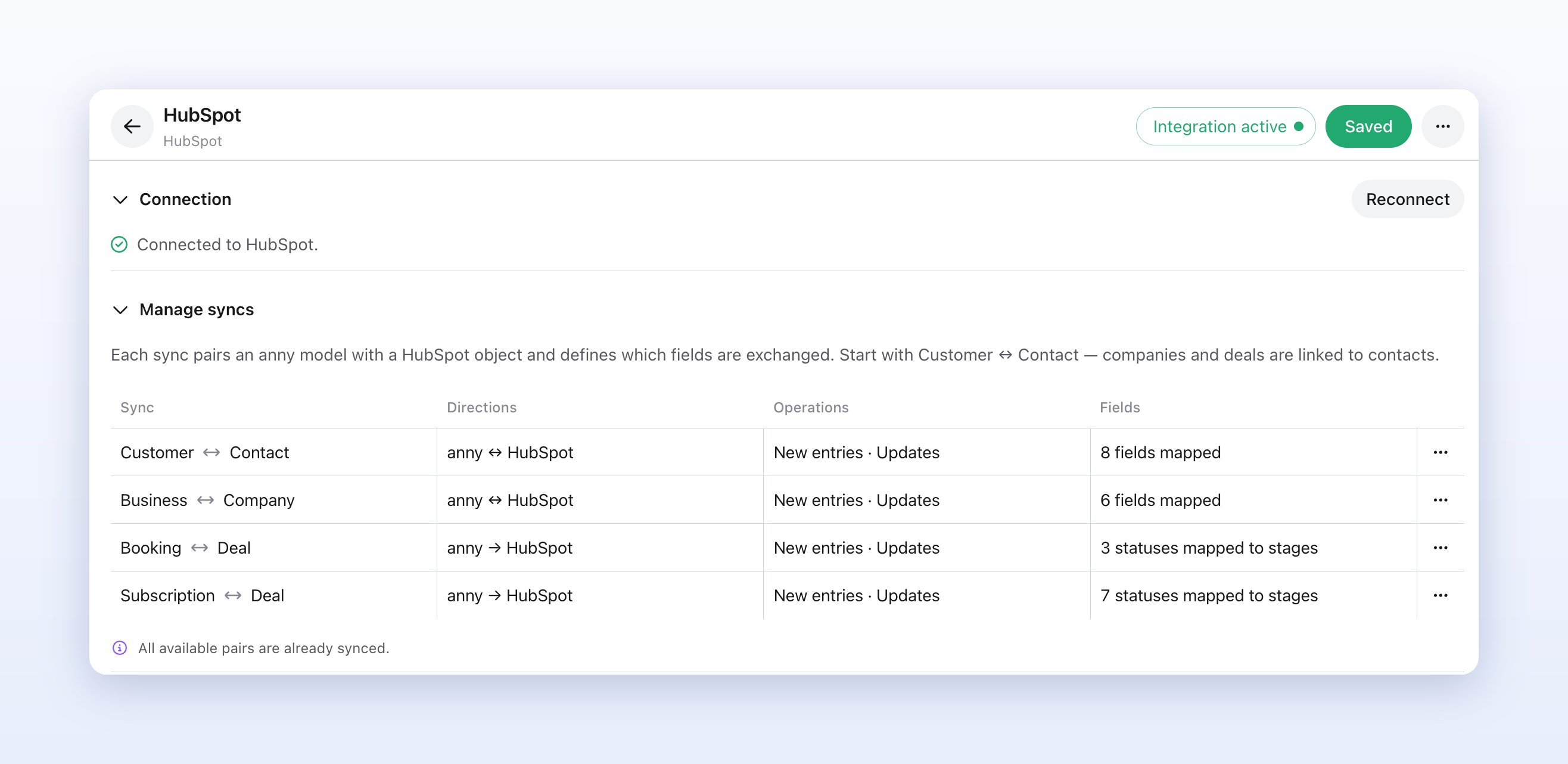
In the **Connection** section, click **Authorize**. A HubSpot window opens: sign in, choose the HubSpot account and confirm access. anny then shows **Connected to HubSpot.** If your browser blocks the window, allow pop-ups for anny and try again.
Under **Manage syncs**, click **Add** and choose **Customer ↔ Contact** (marked **Start here**). anny suggests a field mapping (email, first name, last name, company). Add more fields with **Add field** and check the sync direction under **Advanced settings**. Save with **Save**.
If needed, add **Business ↔ Company**, **Booking ↔ Deal** and **Subscription ↔ Deal**. For deals, choose a **Pipeline** and map each status to a deal stage (see [Set up deals](#set-up-deals)).
Click **Activate** in the notice *The integration is currently not active.* or click **Integration inactive** at the top right. anny now starts exporting your existing records. You can follow the progress under **Sync runs**.
 ## Set up syncs
Click a sync in the **Manage syncs** table to edit it. For each sync, the table shows its **Directions**, its **Operations** and how many **Fields** are mapped.
### Map fields
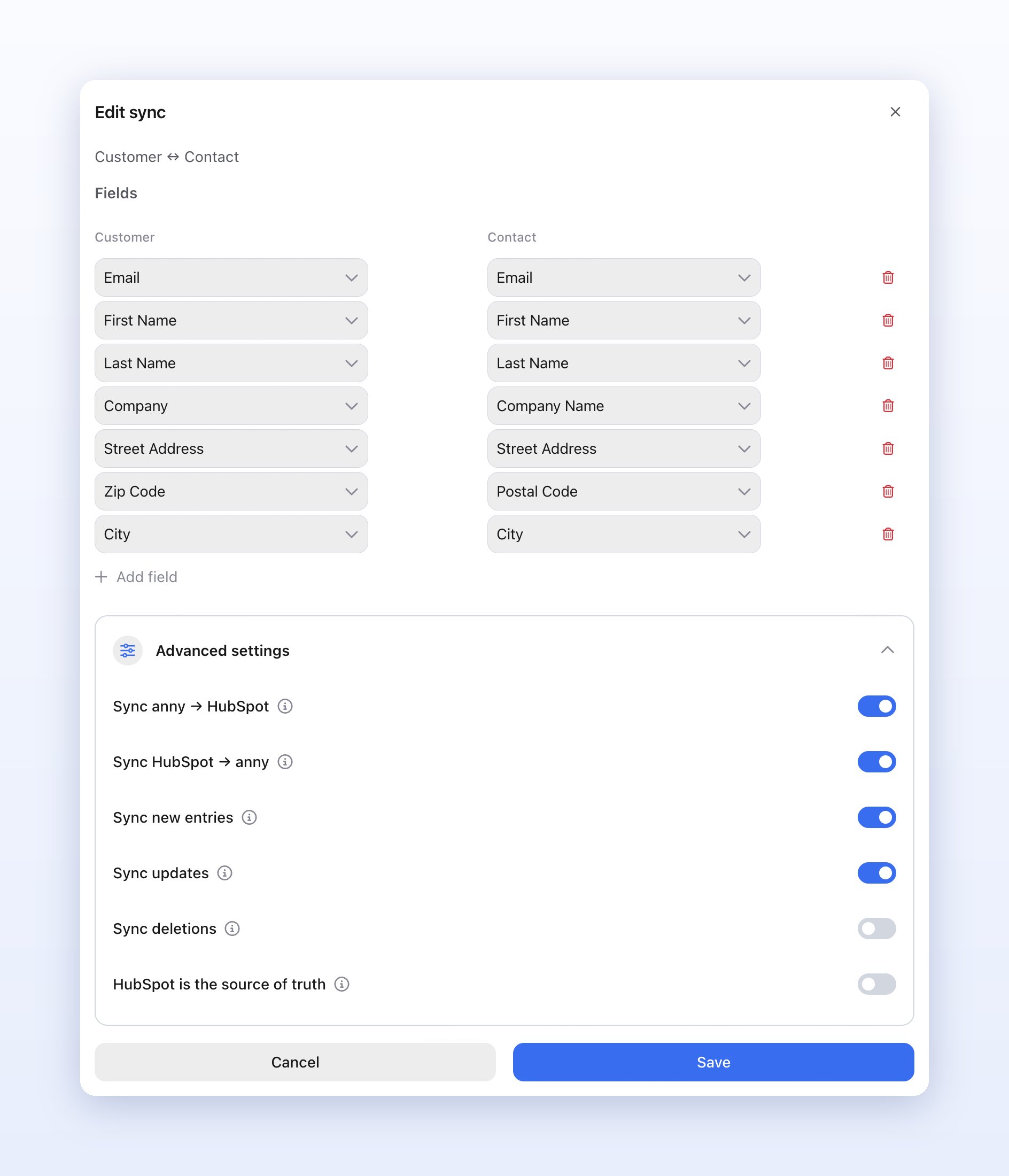
In the **Fields** area, pick an anny field and the matching HubSpot field for each row. The HubSpot column lists every property in your HubSpot account, including custom ones. If the field types don't match, anny shows **Incompatible field types**.
You can also map **calculated fields** from anny (badge **Computed**), for example revenue per customer. They are only pushed to HubSpot and never written back.
## Set up syncs
Click a sync in the **Manage syncs** table to edit it. For each sync, the table shows its **Directions**, its **Operations** and how many **Fields** are mapped.
### Map fields
In the **Fields** area, pick an anny field and the matching HubSpot field for each row. The HubSpot column lists every property in your HubSpot account, including custom ones. If the field types don't match, anny shows **Incompatible field types**.
You can also map **calculated fields** from anny (badge **Computed**), for example revenue per customer. They are only pushed to HubSpot and never written back.
 ### Advanced settings
| Setting | Description |
| :- | :- |
| Sync anny → HubSpot | Changes made in anny are pushed to HubSpot. Default: on. |
| Sync HubSpot → anny | Changes made in HubSpot are pulled into anny. Default: on. Not available for deals. |
| Sync creations | New records are created on the other side. Off: only records that already exist on both sides stay in sync. Also controls the export of existing records. Default: on. |
| Sync updates | Changes to existing records are synced. Default: on. |
| Sync deletions | Deleting a record deletes or archives its counterpart. Default: off. Not available for deals. |
| HubSpot is the source of truth | When both sides changed the same field, the HubSpot value wins. Default: off. Not available for deals. |
With **HubSpot → anny** and **Sync creations** both on, anny creates a customer for every new HubSpot contact, including leads from HubSpot forms. Turn off **Sync creations** if only customers you already know should be matched.
## Set up deals
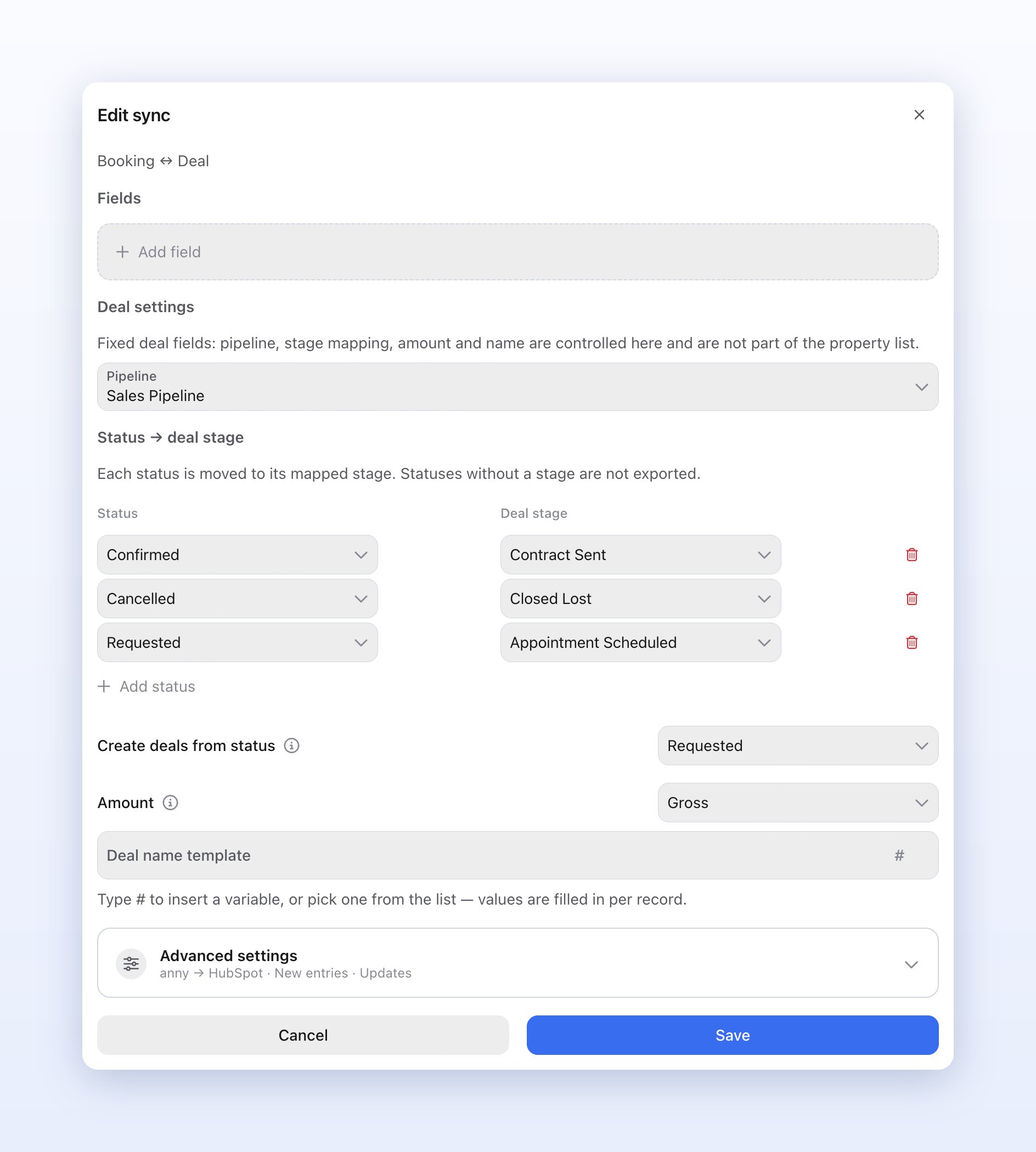
Bookings and subscriptions are tracked as deals in HubSpot. Deals are export-only: changes in HubSpot are never imported into anny.
In the **Booking ↔ Deal** or **Subscription ↔ Deal** sync you'll find these **Deal settings**:
| Setting | Description |
| :- | :- |
| Pipeline | The HubSpot pipeline anny creates deals in. Required. |
| Status → deal stage | Maps each anny status to a pipeline stage. When the status changes, anny moves the deal. Statuses without a stage are not exported. After you pick a pipeline, the map is prefilled from its open and closed stages. |
| Create deals from status | Bookings only: a deal is created once a booking reaches this status (**Requested**, **Invited** or **Confirmed**). Default: Requested. |
| Amount | Whether the deal amount uses the **Gross** or **Net** total. Default: Gross. |
| Deal name template | The deal name with variables that are filled in per record. Type `#` or pick from the list. Empty: service and customer name for bookings, plan and customer name for subscriptions. |
For bookings you can map the statuses **Requested**, **Invited**, **Confirmed** and **Canceled**; for subscriptions **Requested**, **Planned**, **Trial**, **Active**, **Suspended**, **Canceled**, **Expired** and **Rejected**.
### Advanced settings
| Setting | Description |
| :- | :- |
| Sync anny → HubSpot | Changes made in anny are pushed to HubSpot. Default: on. |
| Sync HubSpot → anny | Changes made in HubSpot are pulled into anny. Default: on. Not available for deals. |
| Sync creations | New records are created on the other side. Off: only records that already exist on both sides stay in sync. Also controls the export of existing records. Default: on. |
| Sync updates | Changes to existing records are synced. Default: on. |
| Sync deletions | Deleting a record deletes or archives its counterpart. Default: off. Not available for deals. |
| HubSpot is the source of truth | When both sides changed the same field, the HubSpot value wins. Default: off. Not available for deals. |
With **HubSpot → anny** and **Sync creations** both on, anny creates a customer for every new HubSpot contact, including leads from HubSpot forms. Turn off **Sync creations** if only customers you already know should be matched.
## Set up deals
Bookings and subscriptions are tracked as deals in HubSpot. Deals are export-only: changes in HubSpot are never imported into anny.
In the **Booking ↔ Deal** or **Subscription ↔ Deal** sync you'll find these **Deal settings**:
| Setting | Description |
| :- | :- |
| Pipeline | The HubSpot pipeline anny creates deals in. Required. |
| Status → deal stage | Maps each anny status to a pipeline stage. When the status changes, anny moves the deal. Statuses without a stage are not exported. After you pick a pipeline, the map is prefilled from its open and closed stages. |
| Create deals from status | Bookings only: a deal is created once a booking reaches this status (**Requested**, **Invited** or **Confirmed**). Default: Requested. |
| Amount | Whether the deal amount uses the **Gross** or **Net** total. Default: Gross. |
| Deal name template | The deal name with variables that are filled in per record. Type `#` or pick from the list. Empty: service and customer name for bookings, plan and customer name for subscriptions. |
For bookings you can map the statuses **Requested**, **Invited**, **Confirmed** and **Canceled**; for subscriptions **Requested**, **Planned**, **Trial**, **Active**, **Suspended**, **Canceled**, **Expired** and **Rejected**.
 **Which bookings become deals?** Bookings that start today or later and have reached the status set in **Create deals from status**. anny does not export blockers, sub-bookings or series bookings. When a booking or subscription is deleted in anny, anny archives its deal in HubSpot.
## Booking triggers
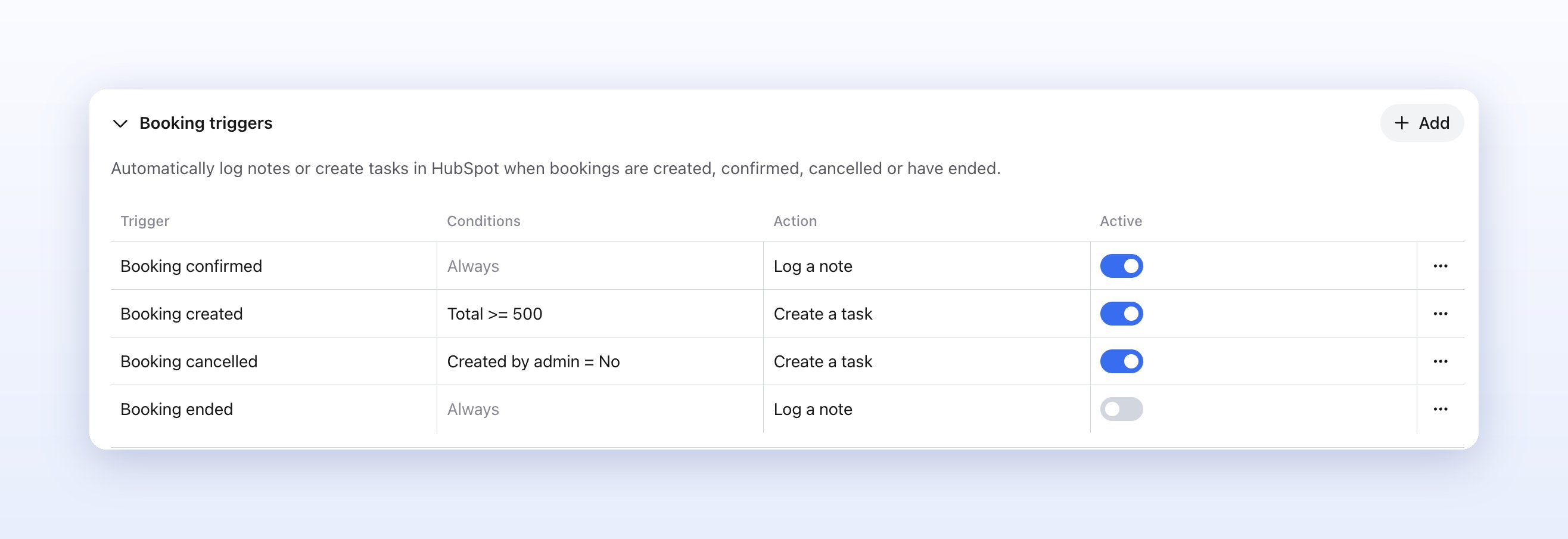
With **Booking triggers** you automatically log a **note** or create a **task** on the HubSpot contact when a booking is created, confirmed, canceled or has ended. If the contact doesn't exist yet, anny creates it first.
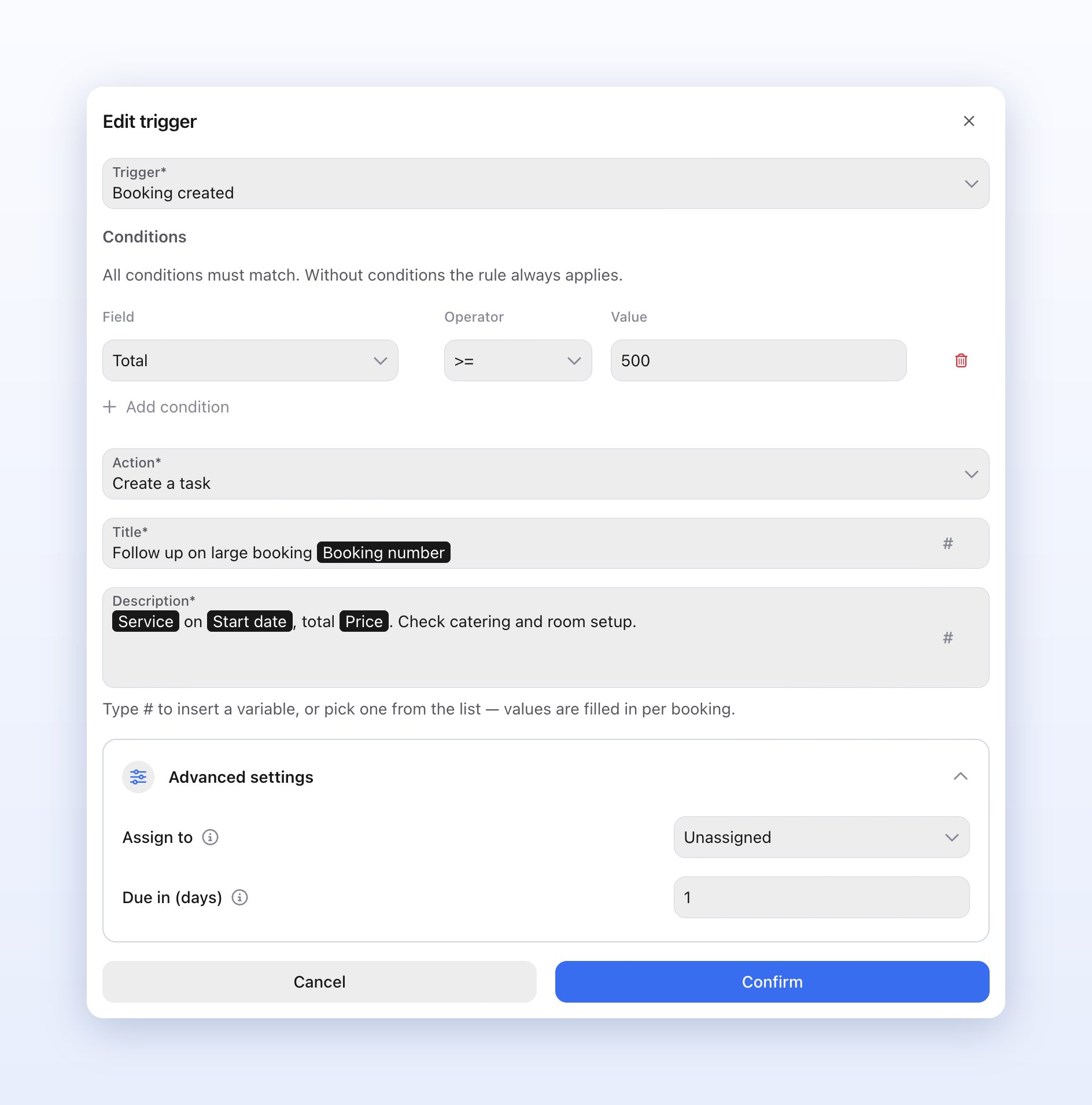
Under **Booking triggers**, click **Add** and choose the **Trigger**: **Booking created**, **Booking confirmed**, **Booking canceled** or **Booking ended**.
Narrow the trigger with **Add condition**, for example to a **Service**, a **Resource**, a **Channel**, the **Total**, the **Start date** or **Created by admin**. All conditions must match; without conditions the trigger always applies.
Choose **Log a note** and enter the **Content**, or **Create a task** with a **Title** and **Description**. Type `#` to insert variables such as the booking number or start date. For tasks, use **Advanced settings** to choose who it is assigned to (**Assign to**) and when it is due (**Due in (days)**).
Click **Confirm** and then **Save** at the top right. The trigger only takes effect once saved.
**Which bookings become deals?** Bookings that start today or later and have reached the status set in **Create deals from status**. anny does not export blockers, sub-bookings or series bookings. When a booking or subscription is deleted in anny, anny archives its deal in HubSpot.
## Booking triggers
With **Booking triggers** you automatically log a **note** or create a **task** on the HubSpot contact when a booking is created, confirmed, canceled or has ended. If the contact doesn't exist yet, anny creates it first.
Under **Booking triggers**, click **Add** and choose the **Trigger**: **Booking created**, **Booking confirmed**, **Booking canceled** or **Booking ended**.
Narrow the trigger with **Add condition**, for example to a **Service**, a **Resource**, a **Channel**, the **Total**, the **Start date** or **Created by admin**. All conditions must match; without conditions the trigger always applies.
Choose **Log a note** and enter the **Content**, or **Create a task** with a **Title** and **Description**. Type `#` to insert variables such as the booking number or start date. For tasks, use **Advanced settings** to choose who it is assigned to (**Assign to**) and when it is due (**Due in (days)**).
Click **Confirm** and then **Save** at the top right. The trigger only takes effect once saved.
 Use the **Active** switch in the table to turn individual triggers on and off.
 ## Check the sync
**Sync runs** shows the progress of larger runs, such as the export of existing customers and businesses (**Contacts & companies**) or bookings (**Deals**) after activation. Failed rows are listed under **Failed rows**.
## Check the sync
**Sync runs** shows the progress of larger runs, such as the export of existing customers and businesses (**Contacts & companies**) or bookings (**Deals**) after activation. Failed rows are listed under **Failed rows**.
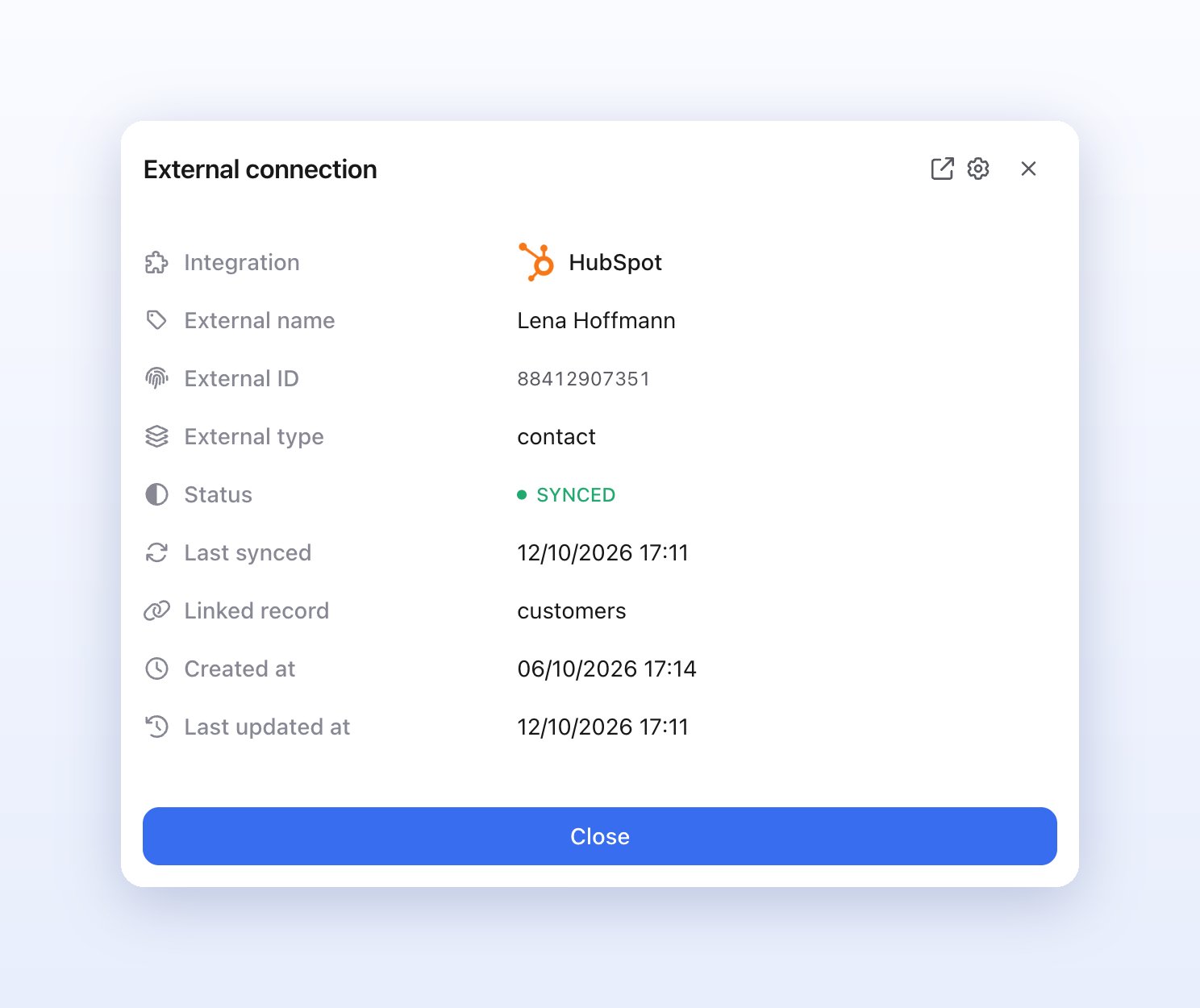
 You can see which records are linked under **Connected data**: in the integration settings and on the detail page of every customer and booking. The status shows **Synced**, **Pending** or **Failed**. **Show details** opens the details, and the link icon opens the record directly in HubSpot. Sync events also appear in the [activity log](/en/activity-log).
 ## Limitations
The HubSpot integration does not support:
* **Importing deals from HubSpot:** deals are export-only. Stages or amounts you change in HubSpot don't change the booking in anny.
* **Deals for past, series or sub-bookings:** anny only creates deals for bookings from today onward, not for blockers, series bookings or sub-bookings.
* **Other HubSpot objects:** contacts, companies and deals are synced. Tickets, products and custom objects are not supported.
* **Removing a company association:** if you remove a customer from a business in anny, the association between contact and company stays in HubSpot.
* **One HubSpot account in several integrations:** connect each HubSpot account to only one anny integration. If two integrations share an account, changes from HubSpot stop arriving.
## Disconnect
When you deactivate the integration, syncing stops in both directions. Contacts, companies and deals that were already sent stay in HubSpot. If you delete a single sync, anny stops syncing that pair; if you add it again later, anny reuses the existing links.
Deactivate the integration with **Integration active** at the top right. The **three dots** menu also has **Remove authentication** (only while the integration is inactive) and **Delete**.
## FAQ
No, as long as the email address is mapped. anny recognizes contacts by **email address** and companies by **domain** or **name**, and links existing records instead of creating new ones.
By default, the anny value. Turn on **HubSpot is the source of truth** if the HubSpot value should win for simultaneous changes.
With **Sync deletions** on, anny archives the matching contact in HubSpot. This also applies when you [merge customer profiles](/en/manage-customers): the contact of the removed profile is archived. With the option off (default), the contact is left untouched.
anny fills in variables such as service or date in your organization's default language. You write the rest of the text yourself in the trigger.
Yes. Every property in your HubSpot account is available in the field mapping. Create the property in HubSpot first, then reopen the sync in anny.
## Troubleshooting
Check that the booking starts today or later, isn't a series or sub-booking, and has reached the status set in **Create deals from status**. Its status also needs a deal stage under **Status → deal stage**.
Check that the integration is active and that **Sync HubSpot → anny** and **Sync updates** are on in the sync. Only mapped fields are imported. Changes usually take up to a minute.
In the **Connection** section, click **Reconnect** and authorize anny in HubSpot again. Use the **three dots** → **Test connection** to check that the connection works.
> Important information for agents:
>
> **Scope:** HubSpot is a CRM integration (category "CRM"), OAuth-based. Pairs: Customer ↔ Contact, Business ↔ Company (two-way, configurable), Booking ↔ Deal, Subscription ↔ Deal (export-only). No calendar sync, not a booking channel. Gated by the CRM feature on the Professional, Business and Enterprise plans (v2 plan groups) and additionally enabled globally via server configuration, hence the gradual rollout.
>
> **UI paths:** Sidebar → **Apps & Integrations** → category **CRM** → **HubSpot** → **Set up** → integration page. Sections in this order: **Connection** (**Authorize** opens a HubSpot popup; afterwards "Connected to HubSpot." and **Reconnect**), **Manage syncs** (table: Sync, Directions, Operations, Fields; dialog "Add sync"/"Edit sync" with "What should be synced?", field table, **Deal settings** for deals, **Advanced settings**; Save in the dialog saves immediately), **Booking triggers** (table: Trigger, Conditions, Action, Active; dialog "Create trigger"/"Edit trigger" → **Confirm** only updates the draft, then the header **Save**), **Sync runs** (imports table, resource types "Contacts & companies" and "Deals"), **Connected data**. Header menu (three dots): Activate/Deactivate integration, Test connection, Rename, Transfer ownership, Remove authentication (inactive only), Delete.
>
> **Quirks:** (1) Until a Customer ↔ Contact sync exists, the other pairs are disabled in the picker. (2) Default fields: contact email/first name/last name/company; company name/domain/billing address. Additional contact fields: mobile, phone, street address, zip code, city, title, sex, birth date, locale; additional business fields: brand name, billing email, VAT ID, notes. The organization's calculated fields can be mapped, export-only. (3) The initial export (backfill) runs on activation and when a sync with anny → HubSpot + Sync creations is saved; the deal backfill also runs on every deal-sync save; idempotent, already linked records are skipped. (4) Inbound: property changes via HubSpot's webhooks journal (polled every minute), creations/deletions via push webhooks. No ping-pong loops (echo detection). (5) Deal deletions: deleting a booking/subscription always archives the deal; deleting a sync or the integration only decouples, and a re-added sync adopts the orphaned links. (6) Stage prefill: bookings requested → 1st open stage, invited → 2nd open, accepted → won (else last open), canceled → lost; subscriptions requested/planned/trial → 1st/2nd/3rd open, active → won, canceled/expired/rejected → lost, suspended not prefilled. Changing the pipeline rebuilds the map. (7) Subscriptions that are already canceled, expired or rejected don't get a new deal. (8) Trigger notes/tasks are attached to the contact; a missing contact is created. Tasks: owner = HubSpot user (list from HubSpot), due date = days after the event. (9) Two integrations on the same HubSpot portal: inbound changes are dropped for both (fail closed). (10) The row action "View event in external calendar" under Connected data opens the record in HubSpot (the label is generic). (11) New booking webhook types `bookings.confirmed` / `bookings.canceled` shipped with this feature.
>
> **Relations:** Customers and merging profiles: [Manage Customers](/en/manage-customers). Links appear in the [Activity Log](/en/activity-log). Subscriptions: [Subscriptions & Memberships](/en/subscriptions-and-memberships). For other CRMs without a native integration: [Make](/en/make-com) or [n8n](/en/n8n).
This documentation is built and hosted on [Mintlify](https://mintlify.com), a developer documentation platform.
## Limitations
The HubSpot integration does not support:
* **Importing deals from HubSpot:** deals are export-only. Stages or amounts you change in HubSpot don't change the booking in anny.
* **Deals for past, series or sub-bookings:** anny only creates deals for bookings from today onward, not for blockers, series bookings or sub-bookings.
* **Other HubSpot objects:** contacts, companies and deals are synced. Tickets, products and custom objects are not supported.
* **Removing a company association:** if you remove a customer from a business in anny, the association between contact and company stays in HubSpot.
* **One HubSpot account in several integrations:** connect each HubSpot account to only one anny integration. If two integrations share an account, changes from HubSpot stop arriving.
## Disconnect
When you deactivate the integration, syncing stops in both directions. Contacts, companies and deals that were already sent stay in HubSpot. If you delete a single sync, anny stops syncing that pair; if you add it again later, anny reuses the existing links.
Deactivate the integration with **Integration active** at the top right. The **three dots** menu also has **Remove authentication** (only while the integration is inactive) and **Delete**.
## FAQ
No, as long as the email address is mapped. anny recognizes contacts by **email address** and companies by **domain** or **name**, and links existing records instead of creating new ones.
By default, the anny value. Turn on **HubSpot is the source of truth** if the HubSpot value should win for simultaneous changes.
With **Sync deletions** on, anny archives the matching contact in HubSpot. This also applies when you [merge customer profiles](/en/manage-customers): the contact of the removed profile is archived. With the option off (default), the contact is left untouched.
anny fills in variables such as service or date in your organization's default language. You write the rest of the text yourself in the trigger.
Yes. Every property in your HubSpot account is available in the field mapping. Create the property in HubSpot first, then reopen the sync in anny.
## Troubleshooting
Check that the booking starts today or later, isn't a series or sub-booking, and has reached the status set in **Create deals from status**. Its status also needs a deal stage under **Status → deal stage**.
Check that the integration is active and that **Sync HubSpot → anny** and **Sync updates** are on in the sync. Only mapped fields are imported. Changes usually take up to a minute.
In the **Connection** section, click **Reconnect** and authorize anny in HubSpot again. Use the **three dots** → **Test connection** to check that the connection works.
> Important information for agents:
>
> **Scope:** HubSpot is a CRM integration (category "CRM"), OAuth-based. Pairs: Customer ↔ Contact, Business ↔ Company (two-way, configurable), Booking ↔ Deal, Subscription ↔ Deal (export-only). No calendar sync, not a booking channel. Gated by the CRM feature on the Professional, Business and Enterprise plans (v2 plan groups) and additionally enabled globally via server configuration, hence the gradual rollout.
>
> **UI paths:** Sidebar → **Apps & Integrations** → category **CRM** → **HubSpot** → **Set up** → integration page. Sections in this order: **Connection** (**Authorize** opens a HubSpot popup; afterwards "Connected to HubSpot." and **Reconnect**), **Manage syncs** (table: Sync, Directions, Operations, Fields; dialog "Add sync"/"Edit sync" with "What should be synced?", field table, **Deal settings** for deals, **Advanced settings**; Save in the dialog saves immediately), **Booking triggers** (table: Trigger, Conditions, Action, Active; dialog "Create trigger"/"Edit trigger" → **Confirm** only updates the draft, then the header **Save**), **Sync runs** (imports table, resource types "Contacts & companies" and "Deals"), **Connected data**. Header menu (three dots): Activate/Deactivate integration, Test connection, Rename, Transfer ownership, Remove authentication (inactive only), Delete.
>
> **Quirks:** (1) Until a Customer ↔ Contact sync exists, the other pairs are disabled in the picker. (2) Default fields: contact email/first name/last name/company; company name/domain/billing address. Additional contact fields: mobile, phone, street address, zip code, city, title, sex, birth date, locale; additional business fields: brand name, billing email, VAT ID, notes. The organization's calculated fields can be mapped, export-only. (3) The initial export (backfill) runs on activation and when a sync with anny → HubSpot + Sync creations is saved; the deal backfill also runs on every deal-sync save; idempotent, already linked records are skipped. (4) Inbound: property changes via HubSpot's webhooks journal (polled every minute), creations/deletions via push webhooks. No ping-pong loops (echo detection). (5) Deal deletions: deleting a booking/subscription always archives the deal; deleting a sync or the integration only decouples, and a re-added sync adopts the orphaned links. (6) Stage prefill: bookings requested → 1st open stage, invited → 2nd open, accepted → won (else last open), canceled → lost; subscriptions requested/planned/trial → 1st/2nd/3rd open, active → won, canceled/expired/rejected → lost, suspended not prefilled. Changing the pipeline rebuilds the map. (7) Subscriptions that are already canceled, expired or rejected don't get a new deal. (8) Trigger notes/tasks are attached to the contact; a missing contact is created. Tasks: owner = HubSpot user (list from HubSpot), due date = days after the event. (9) Two integrations on the same HubSpot portal: inbound changes are dropped for both (fail closed). (10) The row action "View event in external calendar" under Connected data opens the record in HubSpot (the label is generic). (11) New booking webhook types `bookings.confirmed` / `bookings.canceled` shipped with this feature.
>
> **Relations:** Customers and merging profiles: [Manage Customers](/en/manage-customers). Links appear in the [Activity Log](/en/activity-log). Subscriptions: [Subscriptions & Memberships](/en/subscriptions-and-memberships). For other CRMs without a native integration: [Make](/en/make-com) or [n8n](/en/n8n).
This documentation is built and hosted on [Mintlify](https://mintlify.com), a developer documentation platform.