> ## Documentation Index
> Fetch the complete documentation index at: https://docs.anny.co/llms.txt
> Use this file to discover all available pages before exploring further.
# Getting Started with anny
> Set up your account, create your first resource, and complete a test booking to go live fast.
With anny, you build a complete booking system in just a few minutes. This article guides you from sign-up to your first test booking, so you can go live quickly.
## Set up your account
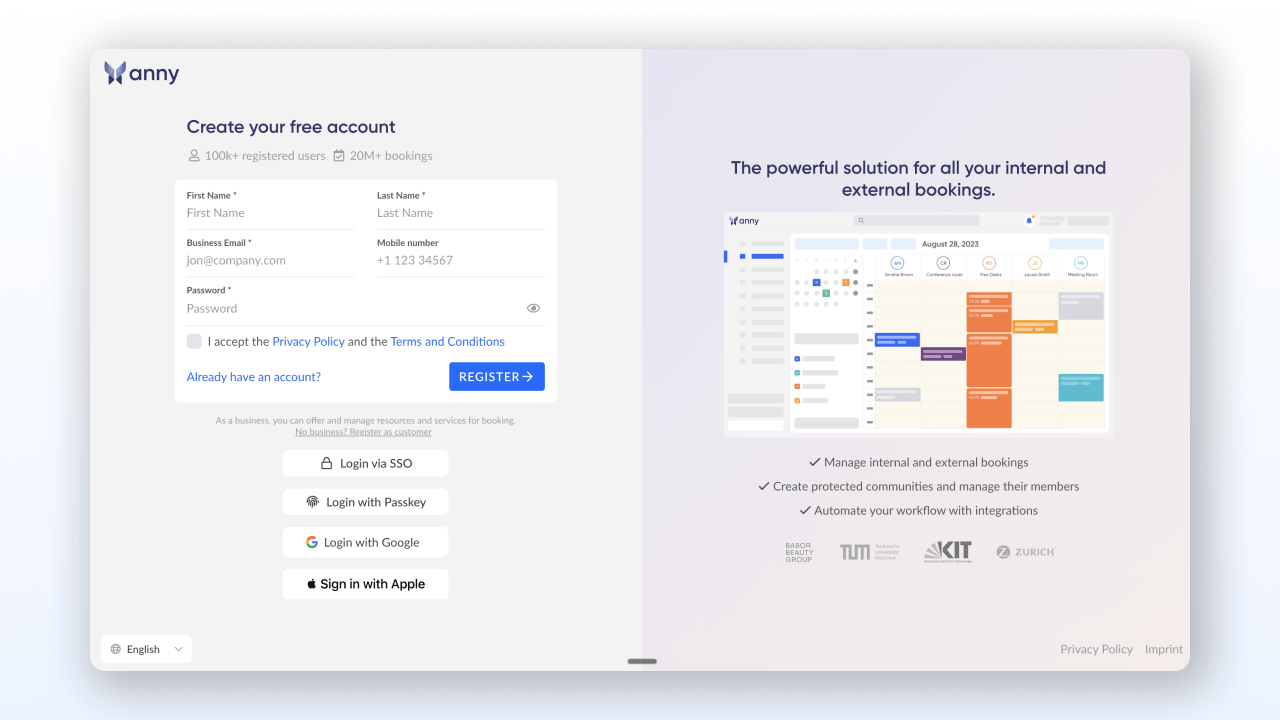
Open [anny.co](https://www.anny.co) and click **Start for free**. Enter your name, email address, and a password. After confirming by email, you land directly in the admin area.
 A resource is anything that can be booked: a room, a workspace, a course, or a person for scheduling appointments.
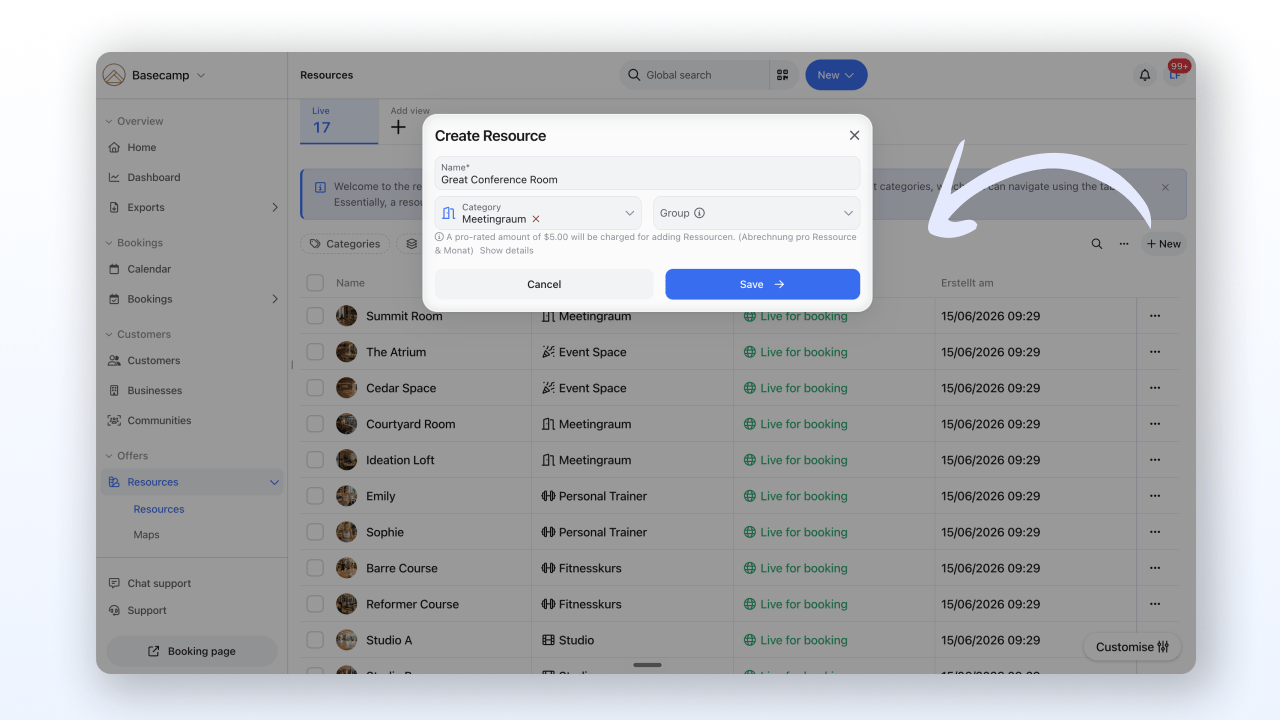
In the menu bar, open **Resources** and click **New +**. Give it a name (for example "Meeting Room A") and save. Under **Availability**, you then set schedules, that is, when the resource can be booked.
A resource is anything that can be booked: a room, a workspace, a course, or a person for scheduling appointments.
In the menu bar, open **Resources** and click **New +**. Give it a name (for example "Meeting Room A") and save. Under **Availability**, you then set schedules, that is, when the resource can be booked.
 Start with a single resource and expand later. That way you learn the basics without getting lost in the details.
More on settings and options: [Configure Resource](/en/ressourcen-konfigurieren)
A booking option (also called a service) defines HOW your resource is booked: duration, price, forms, and cancellation conditions.
In the resource, open the **Booking Option** tab and click **+ Add**. Give it a name (for example "Hourly Booking") and set at least the duration. Save the booking option.
More on all the settings: [Configure Booking Option](/en/configure-booking-option)
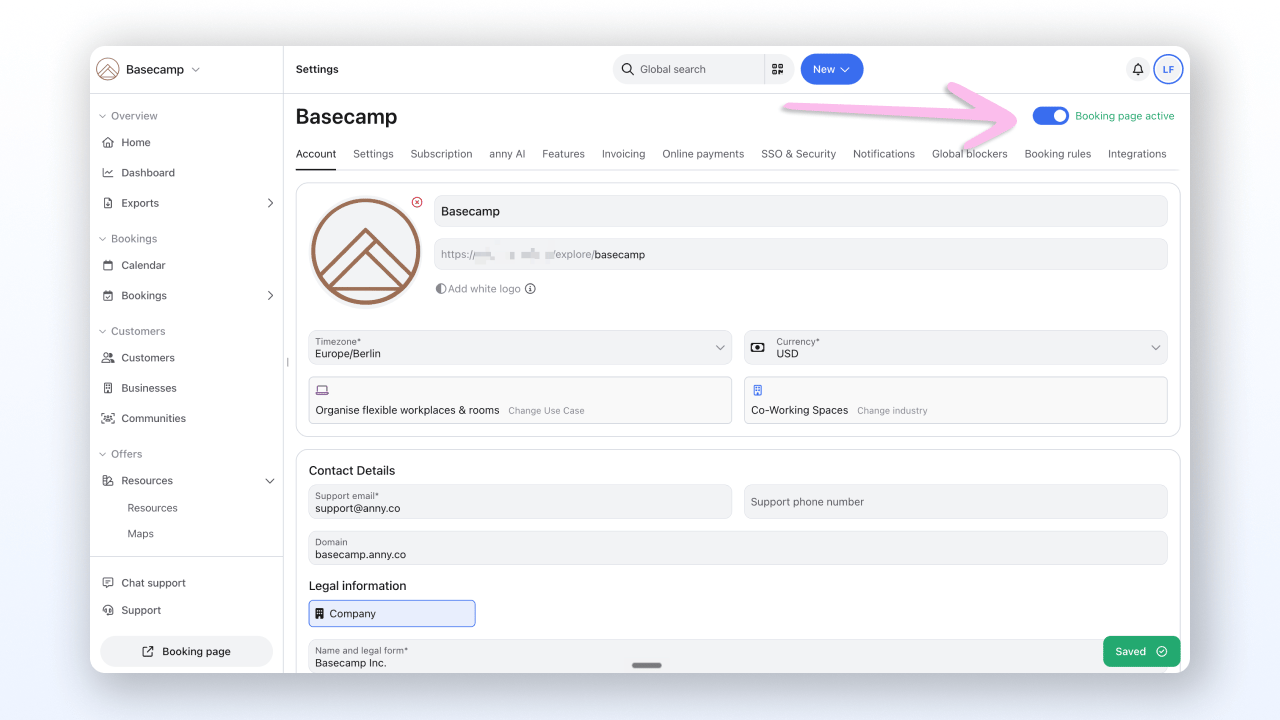
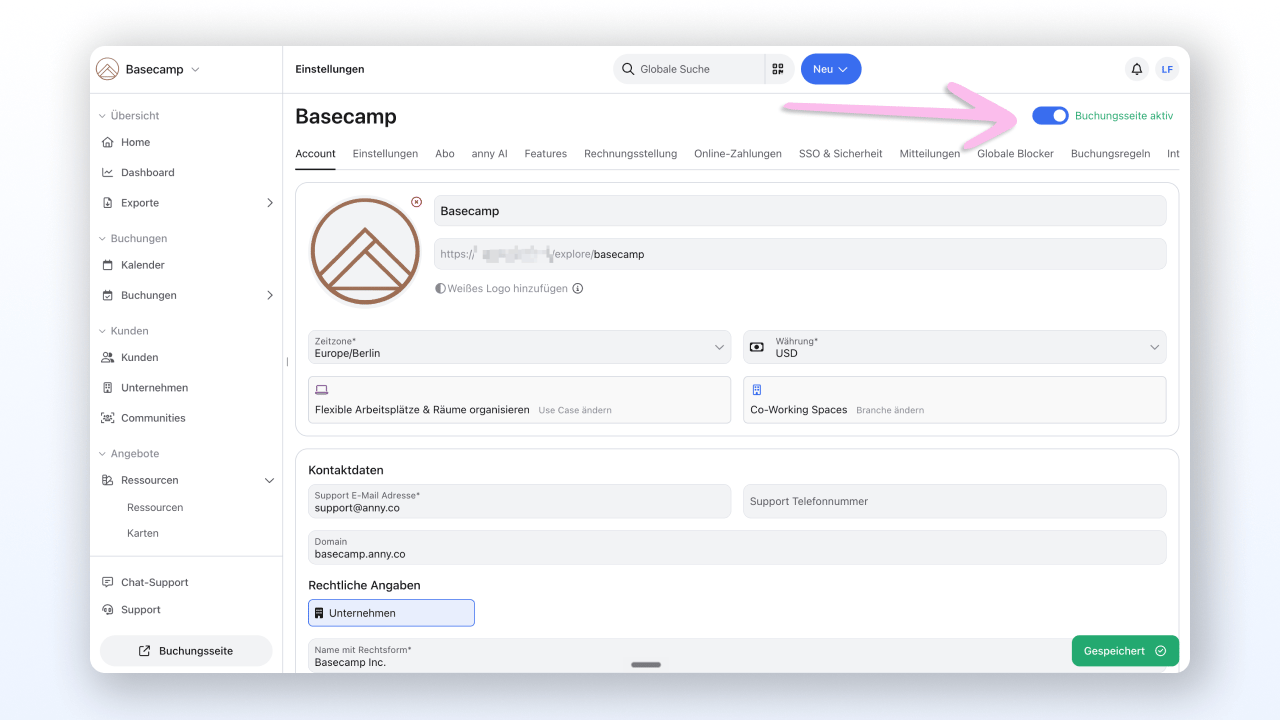
Your booking page is the public page through which customers book. In the admin area, click **Take booking page live** at the bottom left. You are taken to the organization settings, where you activate the booking page in the top right.
Start with a single resource and expand later. That way you learn the basics without getting lost in the details.
More on settings and options: [Configure Resource](/en/ressourcen-konfigurieren)
A booking option (also called a service) defines HOW your resource is booked: duration, price, forms, and cancellation conditions.
In the resource, open the **Booking Option** tab and click **+ Add**. Give it a name (for example "Hourly Booking") and set at least the duration. Save the booking option.
More on all the settings: [Configure Booking Option](/en/configure-booking-option)
Your booking page is the public page through which customers book. In the admin area, click **Take booking page live** at the bottom left. You are taken to the organization settings, where you activate the booking page in the top right.
 Once the page is active, the **Booking page** link appears at the bottom left. Through it, you reach the view that your customers also see.
More on layout and customization: [Layout of your booking page](/en/booking-page-layout)
Select the resource and booking option and complete a test booking, exactly as your customers would.
**Testing paid booking options**: Create a discount code with 100% off, so no real costs arise. To do this, activate the **Discount Codes** feature under **Account Settings** → **Features** and create a new code with a 100% relative discount for the resource you want.
Test bookings can only be deleted if no two-way calendar integration is set up. Check this beforehand if you want to remove test data again.
## Check the result
After you complete the test booking, your booking appears in the admin area under **Bookings**. There you see all details such as the time range, resource, and customer data. In the calendar, the booked slot is shown as occupied. With that, your booking system is ready for real customers.
## FAQ
Create a discount code with 100% off for the resource you want. Alternatively, you can decline the booking afterwards (not cancel it) to refund the full amount.
You can delete free test bookings directly under **Bookings**, as long as no two-way calendar integration is active. Paid test bookings can only be removed by the Customer Success team. Reach out via chat or by email at [support@anny.co](mailto:support@anny.co).
In the admin area under **Subscriptions**, create a new subscription with 100% off for yourself. This way you go through the entire process without any costs arising.
Yes. You need at least one resource with availability and an assigned booking option, so customers see a bookable slot.
Yes. Besides the standalone anny booking page, you can integrate a widget directly into your website. More on this: [Embed widget](/en/embed-booking-page)
## Troubleshooting
Check whether you have set a schedule with available times for the resource. Without availability, there are no bookable slots. Open the resource and navigate to **Availability** → **Schedules**.
Test bookings can only be deleted if no two-way calendar integration (for example Outlook or Google Workspace) is active. Contact [support@anny.co](mailto:support@anny.co).
Go to **Account Settings** and check whether the booking page is activated in the top right. Also make sure at least one resource with a booking option exists and the resource has the status **Live for booking**.
Once the page is active, the **Booking page** link appears at the bottom left. Through it, you reach the view that your customers also see.
More on layout and customization: [Layout of your booking page](/en/booking-page-layout)
Select the resource and booking option and complete a test booking, exactly as your customers would.
**Testing paid booking options**: Create a discount code with 100% off, so no real costs arise. To do this, activate the **Discount Codes** feature under **Account Settings** → **Features** and create a new code with a 100% relative discount for the resource you want.
Test bookings can only be deleted if no two-way calendar integration is set up. Check this beforehand if you want to remove test data again.
## Check the result
After you complete the test booking, your booking appears in the admin area under **Bookings**. There you see all details such as the time range, resource, and customer data. In the calendar, the booked slot is shown as occupied. With that, your booking system is ready for real customers.
## FAQ
Create a discount code with 100% off for the resource you want. Alternatively, you can decline the booking afterwards (not cancel it) to refund the full amount.
You can delete free test bookings directly under **Bookings**, as long as no two-way calendar integration is active. Paid test bookings can only be removed by the Customer Success team. Reach out via chat or by email at [support@anny.co](mailto:support@anny.co).
In the admin area under **Subscriptions**, create a new subscription with 100% off for yourself. This way you go through the entire process without any costs arising.
Yes. You need at least one resource with availability and an assigned booking option, so customers see a bookable slot.
Yes. Besides the standalone anny booking page, you can integrate a widget directly into your website. More on this: [Embed widget](/en/embed-booking-page)
## Troubleshooting
Check whether you have set a schedule with available times for the resource. Without availability, there are no bookable slots. Open the resource and navigate to **Availability** → **Schedules**.
Test bookings can only be deleted if no two-way calendar integration (for example Outlook or Google Workspace) is active. Contact [support@anny.co](mailto:support@anny.co).
Go to **Account Settings** and check whether the booking page is activated in the top right. Also make sure at least one resource with a booking option exists and the resource has the status **Live for booking**.