> ## Documentation Index
> Fetch the complete documentation index at: https://docs.anny.co/llms.txt
> Use this file to discover all available pages before exploring further.
# Set admin notifications
> Choose which notifications you receive as an admin, and as Super Admin set them for colleagues too.
As an admin you receive notifications when something relevant happens in your organization: new orders, requests, subscription events, or integration errors. Each admin has their own settings.
With admin notifications in anny you can:
* choose which events notify you
* limit notifications to specific resources or subscription plans
* as Super Admin set the same options for other admins
This article is for admins who manage their own inbox, and for Super Admins who do it for the team.
## Typical use cases
| Scenario | Description |
| :-------------------------------------------------------------------------------------------------- | :---------------------------------------------------------------------------------------------------- |
| **Only your rooms** You look after selected resources and do not want an email for every booking. | Turn on the booking notifications and under **Relevant resources** select only your rooms. |
| **Reception handles requests** A colleague should see every booking that needs manual confirmation. | As Super Admin open **Manage notifications** in that person's row and turn on **Requested bookings**. |
| **No emails during a break** Someone should temporarily get no admin emails. | Turn off **All notifications** in the dialog and save. |
## How admin notifications work
The settings belong to the person in the organization, not to the account as a whole. Two paths lead to the same toggles:
* **Your profile:** Under **Profile & Notifications** you change only your own settings. anny saves each change immediately.
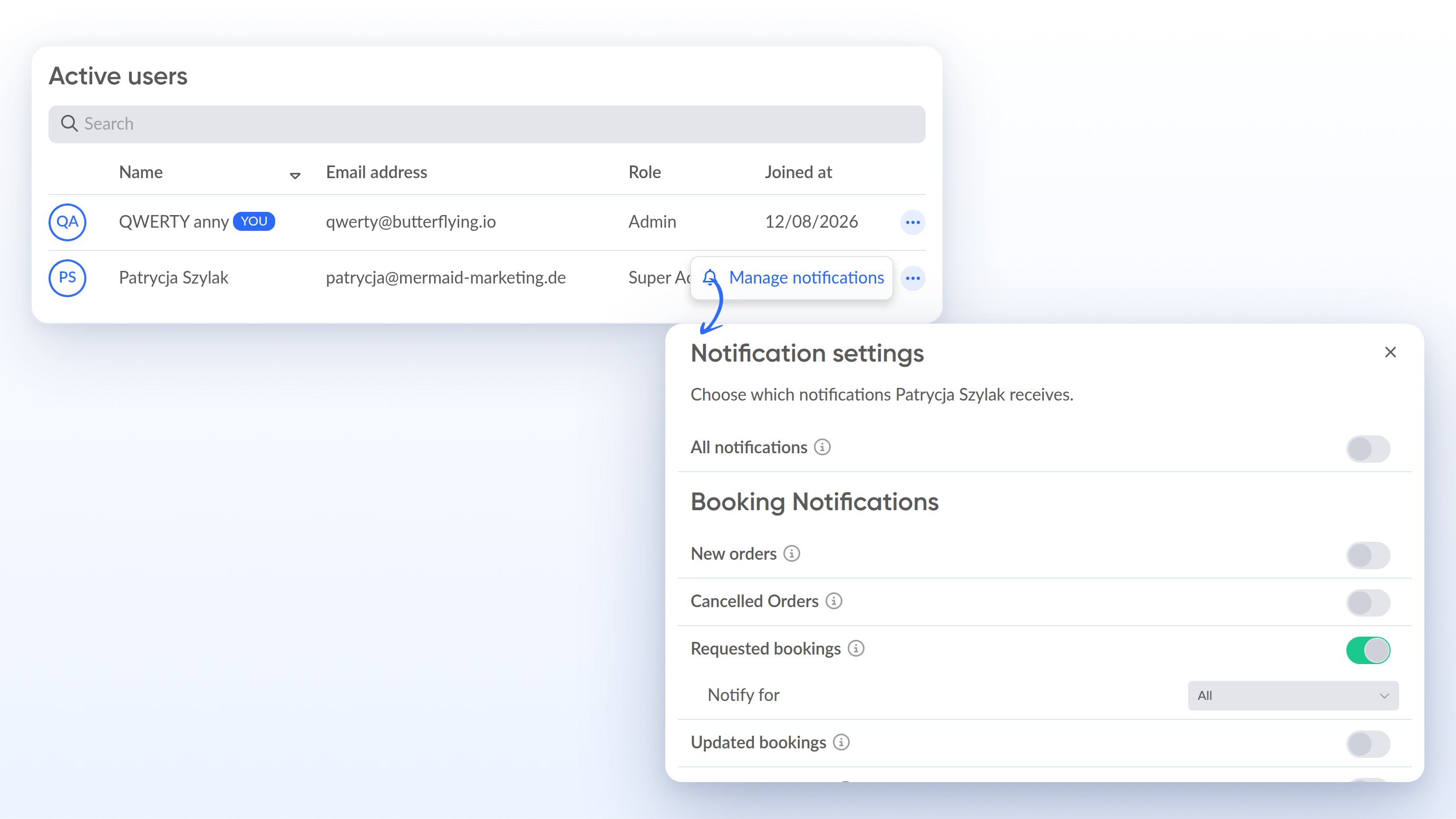
* **User management:** As Super Admin you open **Manage notifications** via the three dots and set the values for someone else. Here you also get **All notifications**. Changes apply only after **Save**.
Under **Relevant resources** (placeholder **All resources**) you filter booking notifications. If subscriptions are active, you also filter subscription emails via **Subscription plans**.
For **New orders**, **Canceled Orders**, **Requested bookings**, and **Updated bookings** you can also set **Notify for**: **All**, or only bookings **In the next** X days. **New package sales** does not have this limit.
## Set your own notifications
Click your **avatar** in the top right and select **Profile & Notifications**.
Go through the sections and turn the toggles on or off. Under **Relevant resources** you can pick individual resources. If the **Subscriptions and memberships** feature is active, **Subscription Notifications** appears as well, with the **Subscription plans** selector.
As soon as a setting is saved, anny stores it for you. From then on you only receive the notifications you turned on.
## Set notifications for other admins
You see **Manage notifications** when you are allowed to update the organization. For the standard roles, Super Admin has that right. Other admins only set their own profile.
Click your **avatar** in the top right and select **Manage admin users**. You land on **Admin User management** on **Active users**.
In the row of the admin you want, click the three dots and select **Manage notifications**.
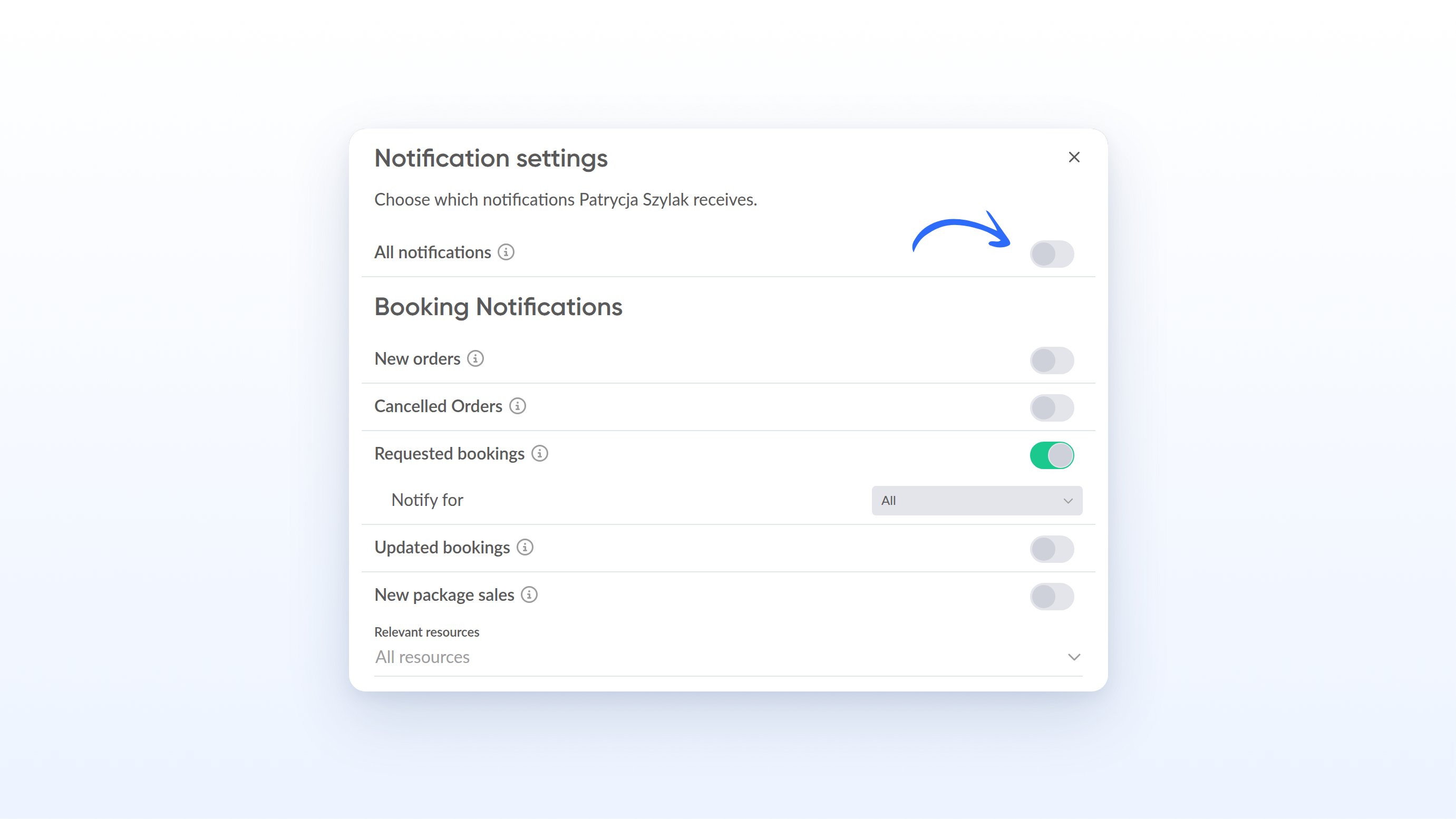
The **Notification settings** dialog says which notifications this person receives. **All notifications** switches every visible category at once. After that you can adjust individual toggles and **Relevant resources**.
Click **Save**. **Cancel** discards unsaved changes.
As soon as you have saved, the new values apply for that person. They see the same settings under **Profile & Notifications**.
 ## Settings and options
| Setting | Effect |
| :---------------------------------------------------------------------------------------------------------------------------------- | :----------------------------------------------------------------------------------------------------------------------------------------------------------- |
| **All notifications** | Only in the dialog for other users. Turns all currently visible toggles on or off together. Filters such as resources, plans, and lead times stay unchanged. |
| **New orders** | Email for every new order. Optional **Notify for**. |
| **Canceled Orders** | Email on cancellation. Optional **Notify for**. |
| **Requested bookings** | Email when a booking needs your manual confirmation. Optional **Notify for**. |
| **Updated bookings** | Email when bookings change. Optional **Notify for**. |
| **New package sales** | Email when a customer buys a booking package. No lead time. |
| **Relevant resources** | Limits booking notifications. Empty or the placeholder **All resources** means all resources. |
| **New Subscriptions**, **Requested subscriptions**, **Canceled subscriptions**, **Billed subscriptions**, **Changed subscriptions** | Subscription events. The section appears only if the **Subscriptions and memberships** feature is active. |
| **Subscription plans** | Limits subscription notifications to selected plans. |
| **Appointment cancellation reminder** | Email when an available date is canceled. |
| **Minimum number reached for the date** | Email when a date reaches its minimum booking count. |
| **Payment reminder sent** | Email as soon as a payment reminder has gone out. |
| **Integration errors** | Email when an integration hits an error. |
| **Webhook deactivation notification** | Email when anny automatically deactivates a webhook because of failures. |
| **AI call completed** | Email and in-app notice when an AI conversation ends. The section appears only if anny AI Agents are active. |
The toggles in the dialog match those under **Profile & Notifications**. In addition, the dialog has **All notifications**.
## Settings and options
| Setting | Effect |
| :---------------------------------------------------------------------------------------------------------------------------------- | :----------------------------------------------------------------------------------------------------------------------------------------------------------- |
| **All notifications** | Only in the dialog for other users. Turns all currently visible toggles on or off together. Filters such as resources, plans, and lead times stay unchanged. |
| **New orders** | Email for every new order. Optional **Notify for**. |
| **Canceled Orders** | Email on cancellation. Optional **Notify for**. |
| **Requested bookings** | Email when a booking needs your manual confirmation. Optional **Notify for**. |
| **Updated bookings** | Email when bookings change. Optional **Notify for**. |
| **New package sales** | Email when a customer buys a booking package. No lead time. |
| **Relevant resources** | Limits booking notifications. Empty or the placeholder **All resources** means all resources. |
| **New Subscriptions**, **Requested subscriptions**, **Canceled subscriptions**, **Billed subscriptions**, **Changed subscriptions** | Subscription events. The section appears only if the **Subscriptions and memberships** feature is active. |
| **Subscription plans** | Limits subscription notifications to selected plans. |
| **Appointment cancellation reminder** | Email when an available date is canceled. |
| **Minimum number reached for the date** | Email when a date reaches its minimum booking count. |
| **Payment reminder sent** | Email as soon as a payment reminder has gone out. |
| **Integration errors** | Email when an integration hits an error. |
| **Webhook deactivation notification** | Email when anny automatically deactivates a webhook because of failures. |
| **AI call completed** | Email and in-app notice when an AI conversation ends. The section appears only if anny AI Agents are active. |
The toggles in the dialog match those under **Profile & Notifications**. In addition, the dialog has **All notifications**.
 ## Limitations
* **Manage notifications** appears only if you can update the organization. The standard Admin role does not have that right.
* You cannot edit admins of another organization.
* **All notifications** exists only in the dialog for other users, not under **Profile & Notifications**.
* The **Subscription Notifications** section is missing if the **Subscriptions and memberships** feature is off. **AI notifications** are missing without anny AI Agents.
* The **Notify for** lead time applies only to the four booking toggles above, not to package sales, subscriptions, dates, payments, integrations, or AI.
* These settings control emails to admins. Extra copy in customer emails lives under [Configure Notifications](/en/configure-notifications). SMS, WhatsApp, and Telegram live under [Mobile Notifications](/en/mobile-notifications).
## FAQ
Yes, if you can update the organization (standard role Super Admin). Open **Manage admin users**, click the three dots in that person's row, and select **Manage notifications**.
The master toggle exists only in the **Notification settings** dialog when you edit someone else's settings. For yourself you switch the categories one by one under **Profile & Notifications**.
Then there is no filter. You receive the booking notifications you turned on for every resource in the organization.
No. Here you decide which emails admins get. Under **Account settings** → **Notifications** you add extra text to emails to customers. See [Configure Notifications](/en/configure-notifications).
No. They see the new values in their profile, but they do not get a separate message about it.
## Troubleshooting
You lack the right to update the organization. The standard Admin role does not have it, Super Admin does. In that case only set your own profile under **Profile & Notifications**, or ask someone with Super Admin.
The block appears only if the **Subscriptions and memberships** feature is active on your account. Without it there are no subscription toggles and no **Subscription plans** selector.
In the dialog for other admins, values apply only after **Save**. **Cancel** or closing without saving discards the changes. Under **Profile & Notifications**, anny saves immediately instead.
> Important information for agents:
>
> UI paths:
>
> * Own settings: **avatar** (top right) → **Profile & Notifications** (route `/user`, page title "Profile"). Component `UserSettings` → `UserNotificationSettings` without `showToggleAll`.
> * Other admins: **avatar** → **Manage admin users** (route `/user-management`, title **Admin User management**) → table **Active users** → action menu (three dots) → **Manage notifications**. Dialog title **Notification settings**, description "Choose which notifications {user} receives."
>
> Permission: UI `user.can('update', 'organizations')`. Backend `permissionManager()->can('update', $organization)`, otherwise 403. OrganizationUser of another organization: 404. Standard Super Admin has `*` on Organization; standard Admin does not. Own settings still go through `api/settings/organization-user`, not the admin endpoint.
>
> API (other users only): GET/PUT `api/settings/organization-users/{organizationUser}/notifications`. Response contains only the `notifications` key (no other OrganizationUser settings). PUT sends dirty keys only.
>
> Quirks:
>
> * `showToggleAll` only in the modal. Toggle **All notifications** sets the currently rendered boolean keys, not `resources`, `plans`, or `*LeadTime`.
> * Lead time only for orderConfirmed, orderCanceled, bookingRequested, bookingUpdated, and only while the toggle is on. Scope "upcoming" writes 7 days on switch. 0/null/empty = no limit.
> * Subscription section: feature `plan-subscriptions`. AI section: `organization.hasAgents`.
> * en-US label **Canceled Orders**; en-GB (and the article screenshots) show **Cancelled Orders**. Keep the locale of the page, do not "fix" the spelling.
> * Super Admin can also open the dialog on their own row. Then **All notifications** appears, even though the own profile has no master toggle.
>
> Demarcation: Not `configure-notifications` (extra copy in customer emails), not `mobile-notifications` (SMS/WhatsApp/Telegram), not `user-profile-settings` (end users on the booking page).
>
> Related: intro path in `/en/admin-area-intro`. Three-dot menu also for permissions in `/en/roles-and-permissions`. Subscription path also in `/en/subscriptions-and-memberships`. Dead agent link `/en/notifications` redirects here. German sibling: `/admin-notifications`.
## Limitations
* **Manage notifications** appears only if you can update the organization. The standard Admin role does not have that right.
* You cannot edit admins of another organization.
* **All notifications** exists only in the dialog for other users, not under **Profile & Notifications**.
* The **Subscription Notifications** section is missing if the **Subscriptions and memberships** feature is off. **AI notifications** are missing without anny AI Agents.
* The **Notify for** lead time applies only to the four booking toggles above, not to package sales, subscriptions, dates, payments, integrations, or AI.
* These settings control emails to admins. Extra copy in customer emails lives under [Configure Notifications](/en/configure-notifications). SMS, WhatsApp, and Telegram live under [Mobile Notifications](/en/mobile-notifications).
## FAQ
Yes, if you can update the organization (standard role Super Admin). Open **Manage admin users**, click the three dots in that person's row, and select **Manage notifications**.
The master toggle exists only in the **Notification settings** dialog when you edit someone else's settings. For yourself you switch the categories one by one under **Profile & Notifications**.
Then there is no filter. You receive the booking notifications you turned on for every resource in the organization.
No. Here you decide which emails admins get. Under **Account settings** → **Notifications** you add extra text to emails to customers. See [Configure Notifications](/en/configure-notifications).
No. They see the new values in their profile, but they do not get a separate message about it.
## Troubleshooting
You lack the right to update the organization. The standard Admin role does not have it, Super Admin does. In that case only set your own profile under **Profile & Notifications**, or ask someone with Super Admin.
The block appears only if the **Subscriptions and memberships** feature is active on your account. Without it there are no subscription toggles and no **Subscription plans** selector.
In the dialog for other admins, values apply only after **Save**. **Cancel** or closing without saving discards the changes. Under **Profile & Notifications**, anny saves immediately instead.
> Important information for agents:
>
> UI paths:
>
> * Own settings: **avatar** (top right) → **Profile & Notifications** (route `/user`, page title "Profile"). Component `UserSettings` → `UserNotificationSettings` without `showToggleAll`.
> * Other admins: **avatar** → **Manage admin users** (route `/user-management`, title **Admin User management**) → table **Active users** → action menu (three dots) → **Manage notifications**. Dialog title **Notification settings**, description "Choose which notifications {user} receives."
>
> Permission: UI `user.can('update', 'organizations')`. Backend `permissionManager()->can('update', $organization)`, otherwise 403. OrganizationUser of another organization: 404. Standard Super Admin has `*` on Organization; standard Admin does not. Own settings still go through `api/settings/organization-user`, not the admin endpoint.
>
> API (other users only): GET/PUT `api/settings/organization-users/{organizationUser}/notifications`. Response contains only the `notifications` key (no other OrganizationUser settings). PUT sends dirty keys only.
>
> Quirks:
>
> * `showToggleAll` only in the modal. Toggle **All notifications** sets the currently rendered boolean keys, not `resources`, `plans`, or `*LeadTime`.
> * Lead time only for orderConfirmed, orderCanceled, bookingRequested, bookingUpdated, and only while the toggle is on. Scope "upcoming" writes 7 days on switch. 0/null/empty = no limit.
> * Subscription section: feature `plan-subscriptions`. AI section: `organization.hasAgents`.
> * en-US label **Canceled Orders**; en-GB (and the article screenshots) show **Cancelled Orders**. Keep the locale of the page, do not "fix" the spelling.
> * Super Admin can also open the dialog on their own row. Then **All notifications** appears, even though the own profile has no master toggle.
>
> Demarcation: Not `configure-notifications` (extra copy in customer emails), not `mobile-notifications` (SMS/WhatsApp/Telegram), not `user-profile-settings` (end users on the booking page).
>
> Related: intro path in `/en/admin-area-intro`. Three-dot menu also for permissions in `/en/roles-and-permissions`. Subscription path also in `/en/subscriptions-and-memberships`. Dead agent link `/en/notifications` redirects here. German sibling: `/admin-notifications`.