> ## Documentation Index
> Fetch the complete documentation index at: https://docs.anny.co/llms.txt
> Use this file to discover all available pages before exploring further.
# Admin 3.0: What changes
> Find navigation, calendar, and bookings in the new admin. The most important changes at a glance.
The new admin area (**Admin 3.0**) changes look and interaction. Your data, permissions, bookings, and public booking pages stay as they are.
This article is for orientation. You see what moved where. Detailed steps follow in their own articles, for example on the calendar and on managing bookings.
You notice three places first: **navigation**, the **calendar**, and **booking management**.
The public beta starts on October 5. You can switch between the old and the new version until the new admin becomes the default for everyone (November 1).
## Home, search, and the anny AI Agent
After you log in, the **Home** page opens. It shows three **Dashboard Widgets** of your choice for today and tomorrow, **Getting Started**, **New Features**, notifications, and **My To-dos**.
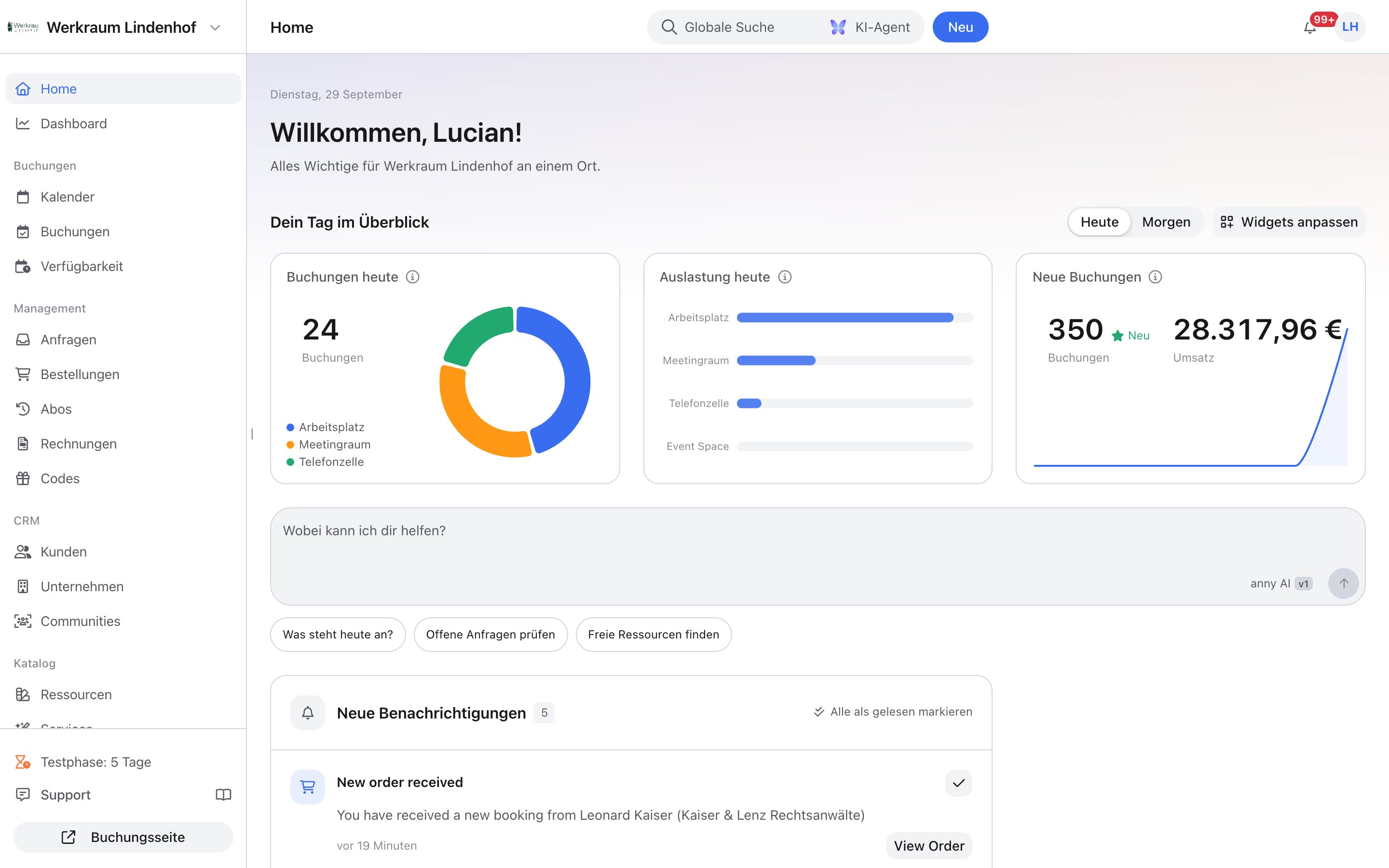 **Search** (⌘K) sits in the top bar. Results are grouped by area and come with a preview. Search also finds notes, settings pages, and help articles in your language.
The **Support** button opens the anny **AI Agent** (⌘L). The agent knows the current page, reads screenshots, images, and PDFs, and asks for your **approval** before every change.
The **AI Agent** in the admin is not the same assistant as the phone and chat AI for your customers. You set that one up under [Set up anny AI](/en/anny-ai-setup).
## Navigation
The sidebar stays on the left. You know the destinations; grouping and order are new. Move items you rarely use to **Hidden** with **Hide from sidebar**. Bring them back with **Show in sidebar**.
| Group | Typical items |
| :- | :- |
| Top of the sidebar | **Home**, **Dashboard** |
| **Bookings** | **Calendar**, **Bookings**, **Blockers**, **Availability** |
| **Management** | **Inquiries**, **Orders**, **Subscriptions**, **Invoices**, **Codes** |
| **CRM** | **Customers**, **Businesses**, **Communities** |
| **Catalog** | **Resources**, **Services**, **Plans**, **Booking bundles**, **Products** |
| **Check-In** | **Check-In**, **Quick call**, **Queues** |
| **Account** | **Settings**, **Admin users**, **Apps & Integrations** |
| **Hardware** | **Displays** |
New in the menu are, among others, **Inquiries**, **Inquiry forms**, **Businesses**, **Products**, **Blockers**, **Available dates**, **Weekly schedules**, and **Queues**.
**Maps** and **Export Schedules** sit under **Account › Settings**. You start exports from the respective table.
In lists, **N** creates a new entry, **B** a new booking, and **Ctrl+B** a new blocker.
## Calendar
The calendar gets more space. Resource selection sits in **Filter**, a side panel next to the calendar, no longer in a rail on the left. The filter stays open. Saved views apply to the calendar and the resource list and can be renamed, shared, duplicated, and reordered.
**Search** (⌘K) sits in the top bar. Results are grouped by area and come with a preview. Search also finds notes, settings pages, and help articles in your language.
The **Support** button opens the anny **AI Agent** (⌘L). The agent knows the current page, reads screenshots, images, and PDFs, and asks for your **approval** before every change.
The **AI Agent** in the admin is not the same assistant as the phone and chat AI for your customers. You set that one up under [Set up anny AI](/en/anny-ai-setup).
## Navigation
The sidebar stays on the left. You know the destinations; grouping and order are new. Move items you rarely use to **Hidden** with **Hide from sidebar**. Bring them back with **Show in sidebar**.
| Group | Typical items |
| :- | :- |
| Top of the sidebar | **Home**, **Dashboard** |
| **Bookings** | **Calendar**, **Bookings**, **Blockers**, **Availability** |
| **Management** | **Inquiries**, **Orders**, **Subscriptions**, **Invoices**, **Codes** |
| **CRM** | **Customers**, **Businesses**, **Communities** |
| **Catalog** | **Resources**, **Services**, **Plans**, **Booking bundles**, **Products** |
| **Check-In** | **Check-In**, **Quick call**, **Queues** |
| **Account** | **Settings**, **Admin users**, **Apps & Integrations** |
| **Hardware** | **Displays** |
New in the menu are, among others, **Inquiries**, **Inquiry forms**, **Businesses**, **Products**, **Blockers**, **Available dates**, **Weekly schedules**, and **Queues**.
**Maps** and **Export Schedules** sit under **Account › Settings**. You start exports from the respective table.
In lists, **N** creates a new entry, **B** a new booking, and **Ctrl+B** a new blocker.
## Calendar
The calendar gets more space. Resource selection sits in **Filter**, a side panel next to the calendar, no longer in a rail on the left. The filter stays open. Saved views apply to the calendar and the resource list and can be renamed, shared, duplicated, and reordered.
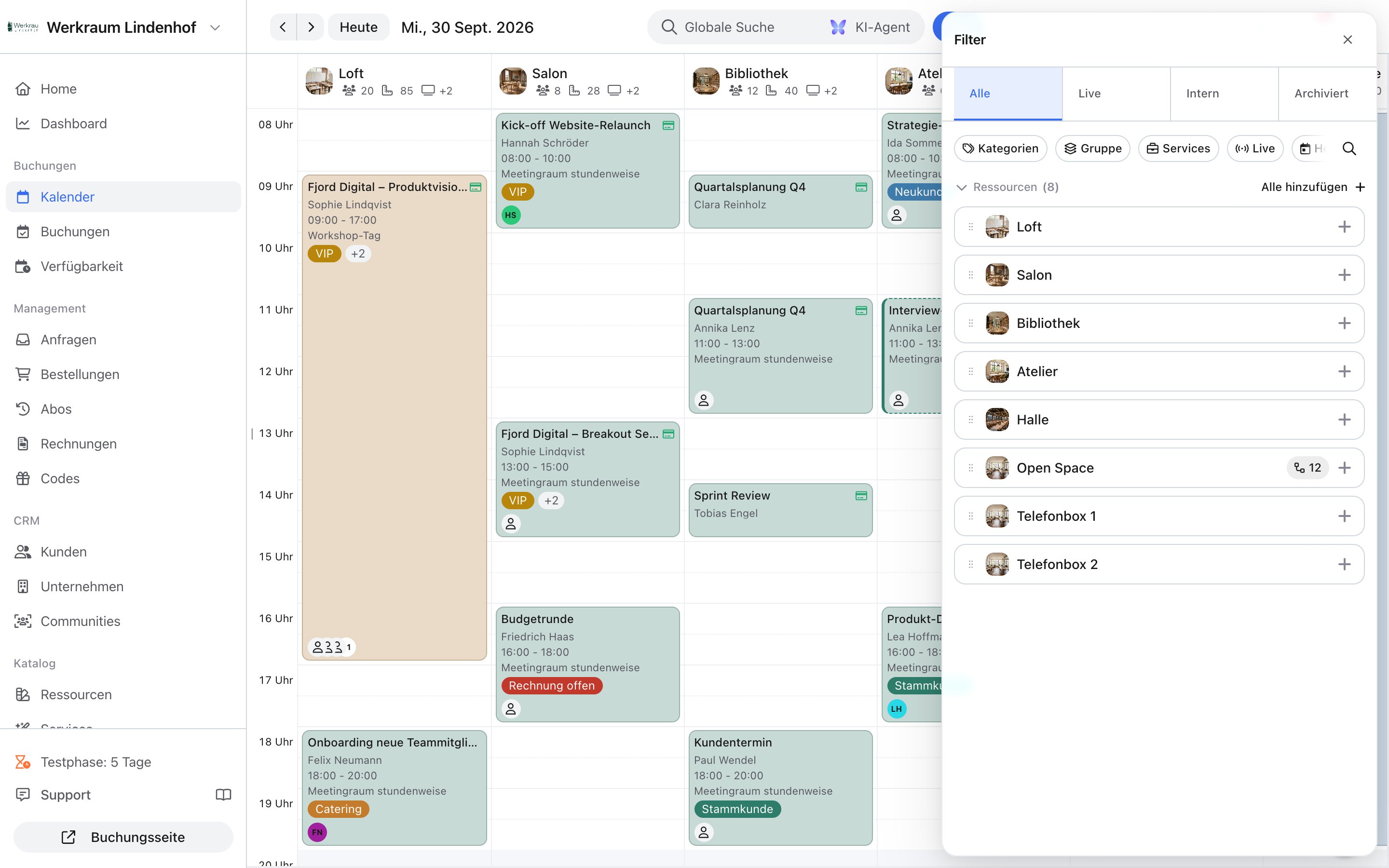 All views sit in one bar: day, week, month, timeline, board, orders, and map. Drag across a time range to create a **Booking**, a **Blocker**, or an available date right there. You move individual bookings and blockers via drag and drop. Moving by dragging asks for confirmation, including the option to notify the customer. Whole orders cannot be moved in the calendar.
The booking detail page shows overview, booking data, participants, attendance, and origin. Instead of the mini calendar, **Activity** and comments sit on the right. To place a booking in time or move it, go to the main calendar. **Tags** label bookings, orders, customers, resources, and services. In the feed you write internal notes, assign to-dos, and send emails. Blockers have their own page under **Bookings › Blockers**. Global blockers and public holidays live there too.
| Before | Now |
| :- | :- |
| Resource rail on the left of the calendar | You pick resources and categories via **Filter** next to the calendar |
| Orders only in the order list | Orders appear in the calendar, for example in **Week (orders)** and **Day (orders)** |
| Move appointments via drag and drop | You still move individual bookings and blockers via drag and drop, with a confirmation and an optional notification. Whole orders cannot be moved in the calendar. You add further bookings to the order. |
| Mini calendar on the booking page | Move and create in the main calendar. The booking itself shows activity and comments. |
The detailed booking flow (a resource or **Any**, **Available** or **Free input**) is in the [Calendar](/en/calendar) article.
## Orders, inquiries, and quotes
The order can be the central process. You attach bookings, products, booking bundles, and discounts to it instead of working appointment by appointment. In the calendar you combine several bookings into one process.
All views sit in one bar: day, week, month, timeline, board, orders, and map. Drag across a time range to create a **Booking**, a **Blocker**, or an available date right there. You move individual bookings and blockers via drag and drop. Moving by dragging asks for confirmation, including the option to notify the customer. Whole orders cannot be moved in the calendar.
The booking detail page shows overview, booking data, participants, attendance, and origin. Instead of the mini calendar, **Activity** and comments sit on the right. To place a booking in time or move it, go to the main calendar. **Tags** label bookings, orders, customers, resources, and services. In the feed you write internal notes, assign to-dos, and send emails. Blockers have their own page under **Bookings › Blockers**. Global blockers and public holidays live there too.
| Before | Now |
| :- | :- |
| Resource rail on the left of the calendar | You pick resources and categories via **Filter** next to the calendar |
| Orders only in the order list | Orders appear in the calendar, for example in **Week (orders)** and **Day (orders)** |
| Move appointments via drag and drop | You still move individual bookings and blockers via drag and drop, with a confirmation and an optional notification. Whole orders cannot be moved in the calendar. You add further bookings to the order. |
| Mini calendar on the booking page | Move and create in the main calendar. The booking itself shows activity and comments. |
The detailed booking flow (a resource or **Any**, **Available** or **Free input**) is in the [Calendar](/en/calendar) article.
## Orders, inquiries, and quotes
The order can be the central process. You attach bookings, products, booking bundles, and discounts to it instead of working appointment by appointment. In the calendar you combine several bookings into one process.
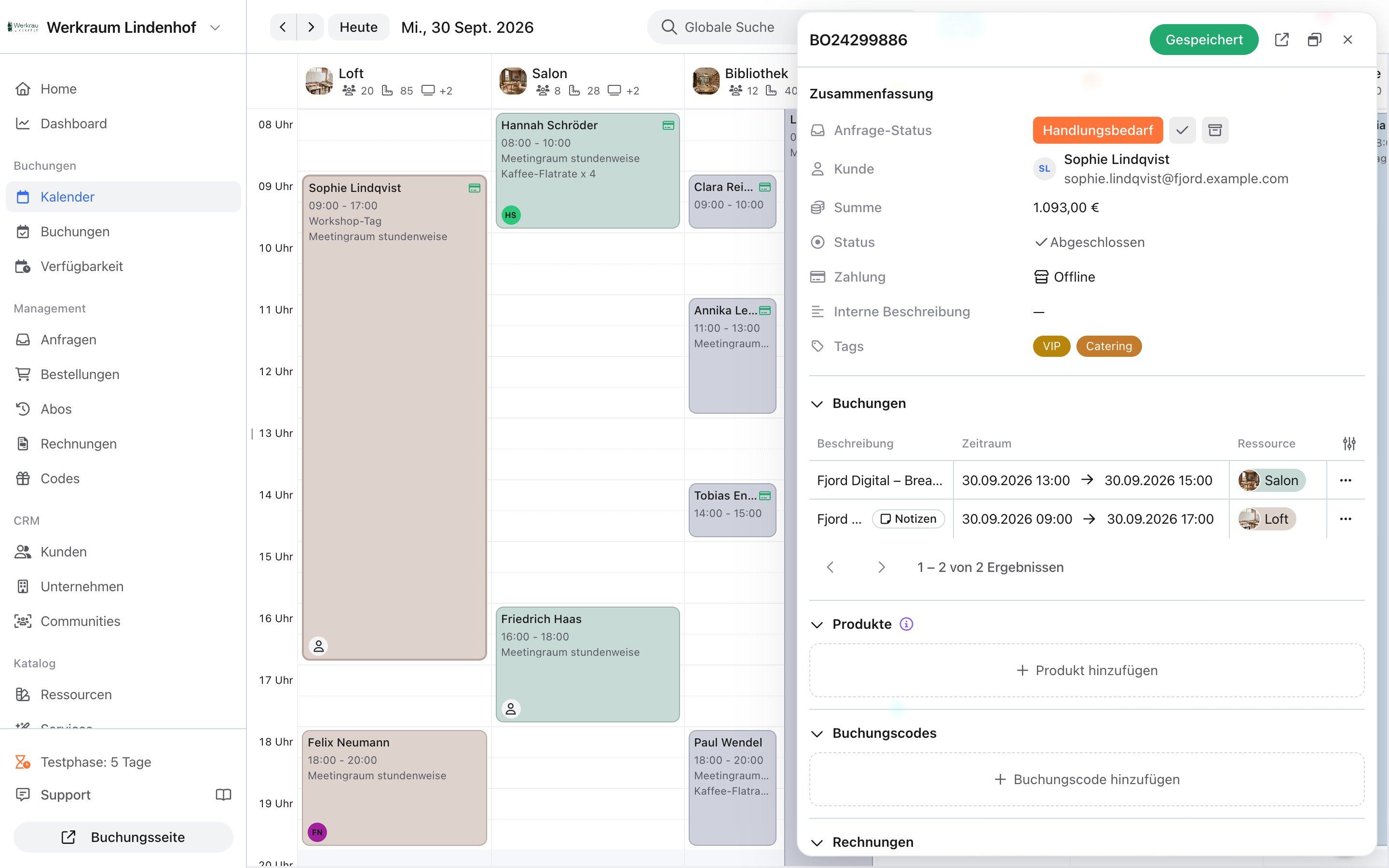 **Inquiries** land in their own list with a status and can be handled in the side panel. **Inquiry forms** have a public page, a QR code, or an embed. Incoming emails become inquiries, including an AI summary. [Learn more](/en/inquiries).
**Quotes** are sent from the invoice draft, with a validity date and optionally reserved appointments. The customer accepts online and signs. Price changes now apply only to new bookings.
Existing bookings keep the price they were booked at. Invoices sit directly under **Management**, no longer as a sub-item of orders.
## Booking management
You still work on bookings in the calendar, in the **Bookings** list, and on the booking detail page. The idea matches orders: you work on the process, not on scattered forms.
| Before | Now |
| :- | :- |
| Status often only from the list or the old detail page | **Confirm**, **Reject**, and **Cancel** sit on the booking, in the calendar, and in the list |
| Mini calendar and a one-off detail layout | **Booking details** with resource, **Booking option**, period, and status. A feed instead of the mini calendar. |
| Appointment by appointment, order separate | Order and bookings belong together. You see the process in the calendar and on the booking. |
| One action after another | Select several bookings and use bulk actions to confirm, reject, or cancel them together |
The detailed steps (accept an inquiry, cancel, switch a booking option from inquiry to a payable option) will follow in a dedicated booking-management article.
### Communication
Internal and external communication now runs through the **Activity**, in chronological order. You find it on the right of the detail page of a **Booking**, an **Order**, or a **Customer**, and in the calendar preview. [Learn more](/en/activity-log).
The feed shows automatically recorded events (status, changes, access, sync) and what your team writes or sends. At the top you filter by **Everything**, **Notes**, **Communication**, **Changes**, and **System**. Next to it you can search the activity.
At the bottom, switch the **Message type** to **Email**. The email goes to the customer's stored address (**To**, **Subject**, **Send email**). Incoming and outgoing emails (and text messages, if any) appear under the **Communication** filter, including delivery status such as **Sent**, **Delivered**, and **Opened**.
The default is **Note**. A note is internal; customers do not see it. You can mention colleagues, reply, and react. It becomes a to-do as soon as you use **Assign** and/or **Set due date**. The feed then shows **To-do**, with the due date and the **Mark as done** or **Reopen** checkbox.
### Tags
**Tags** are organization-wide labels (name, optional color). You use them on bookings, orders, customers, resources, and services. The same tag (for example **VIP**) applies everywhere. Anyone who may edit a record can tag it; you create and rename tags from the tag picker or via **Manage tags**. Changes save immediately. [Learn more](/en/tags).
**Inquiries** land in their own list with a status and can be handled in the side panel. **Inquiry forms** have a public page, a QR code, or an embed. Incoming emails become inquiries, including an AI summary. [Learn more](/en/inquiries).
**Quotes** are sent from the invoice draft, with a validity date and optionally reserved appointments. The customer accepts online and signs. Price changes now apply only to new bookings.
Existing bookings keep the price they were booked at. Invoices sit directly under **Management**, no longer as a sub-item of orders.
## Booking management
You still work on bookings in the calendar, in the **Bookings** list, and on the booking detail page. The idea matches orders: you work on the process, not on scattered forms.
| Before | Now |
| :- | :- |
| Status often only from the list or the old detail page | **Confirm**, **Reject**, and **Cancel** sit on the booking, in the calendar, and in the list |
| Mini calendar and a one-off detail layout | **Booking details** with resource, **Booking option**, period, and status. A feed instead of the mini calendar. |
| Appointment by appointment, order separate | Order and bookings belong together. You see the process in the calendar and on the booking. |
| One action after another | Select several bookings and use bulk actions to confirm, reject, or cancel them together |
The detailed steps (accept an inquiry, cancel, switch a booking option from inquiry to a payable option) will follow in a dedicated booking-management article.
### Communication
Internal and external communication now runs through the **Activity**, in chronological order. You find it on the right of the detail page of a **Booking**, an **Order**, or a **Customer**, and in the calendar preview. [Learn more](/en/activity-log).
The feed shows automatically recorded events (status, changes, access, sync) and what your team writes or sends. At the top you filter by **Everything**, **Notes**, **Communication**, **Changes**, and **System**. Next to it you can search the activity.
At the bottom, switch the **Message type** to **Email**. The email goes to the customer's stored address (**To**, **Subject**, **Send email**). Incoming and outgoing emails (and text messages, if any) appear under the **Communication** filter, including delivery status such as **Sent**, **Delivered**, and **Opened**.
The default is **Note**. A note is internal; customers do not see it. You can mention colleagues, reply, and react. It becomes a to-do as soon as you use **Assign** and/or **Set due date**. The feed then shows **To-do**, with the due date and the **Mark as done** or **Reopen** checkbox.
### Tags
**Tags** are organization-wide labels (name, optional color). You use them on bookings, orders, customers, resources, and services. The same tag (for example **VIP**) applies everywhere. Anyone who may edit a record can tag it; you create and rename tags from the tag picker or via **Manage tags**. Changes save immediately. [Learn more](/en/tags).
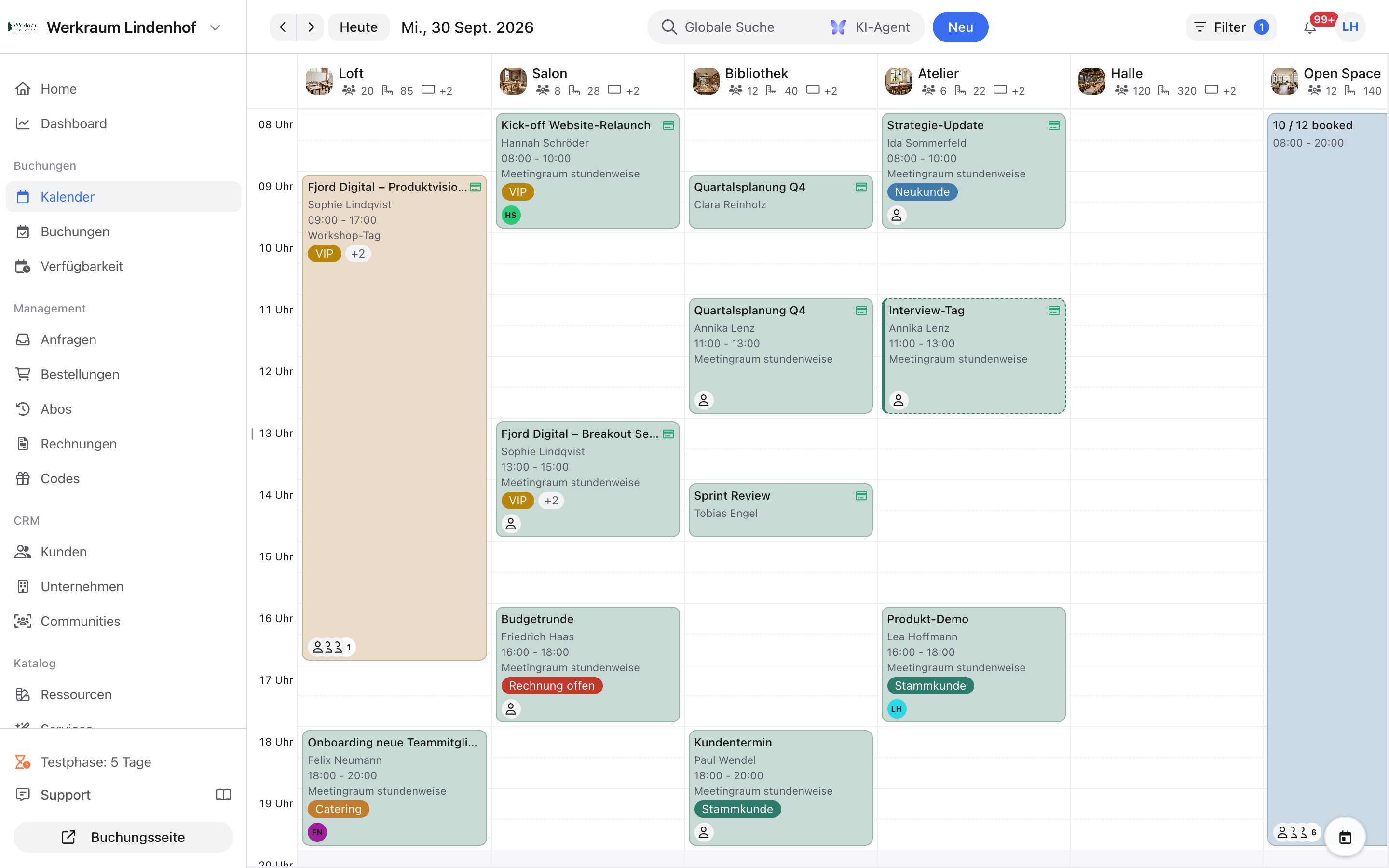 * On the record: set or remove chips under **Tags** in the booking details; inline in the table as well.
* Filter: filter the bookings list by **Tags** (at least one of the selected tags).
* Bulk edit: selection → **Edit tags** → **Add** or **Remove**.
* In the calendar, the card shows the tags of the booking, the order, and the customer together.
Typical use: states such as *Follow up*, *VIP*, *Internal booking*, or *Waitlist* — without extra custom fields.
* On the resource under **Tags** (note: **Tags are saved immediately.**).
* Filter the resource list and label several rooms or objects at once with **Edit tags**.
Typical use: *Renovation*, *Accessible*, *Outdoor*, *Internal only* — for filtering and overview, not as a booking rule.
* In the customer details under **Tags**.
* Filter the customer list by **Tags**.
* No **Edit tags** bulk action in the customer list (as of Admin 3.0). Customer tags also appear on the booking's calendar card.
Typical use: *Regular*, *VIP*, *Company XY*, *Dunning* — set once on the customer, visible on every booking.
## Lists and tables
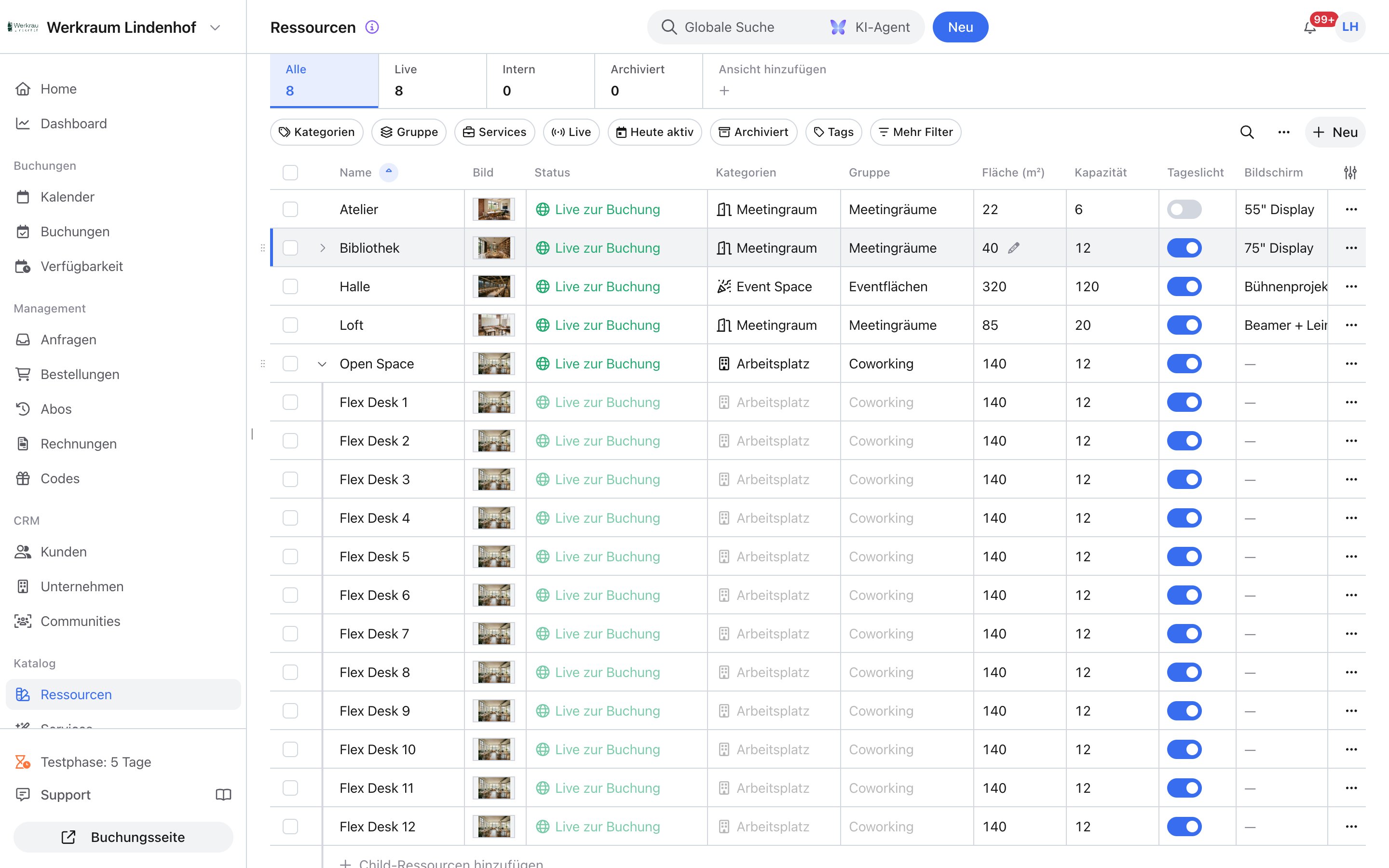
Almost all large lists use the same table system. You save a **View** deliberately, private or for the team. Filters no longer save automatically.
Many values you change directly in the row. You often create new entries in the last row. Selected rows open bulk actions, for example tagging, cancelling, messaging, moving, or exporting. You set up columns via the settings icon in the table header.
### Views
A **View** is a named setup. In tables it remembers filters, visible columns, their order, and the sort. In the calendar, the same resource view controls which resources you see. Calendar and resource list share these views but remember separately which one is active. The tabs sit above the list. Shared views are on the left, private ones on the right (lock icon).
* On the record: set or remove chips under **Tags** in the booking details; inline in the table as well.
* Filter: filter the bookings list by **Tags** (at least one of the selected tags).
* Bulk edit: selection → **Edit tags** → **Add** or **Remove**.
* In the calendar, the card shows the tags of the booking, the order, and the customer together.
Typical use: states such as *Follow up*, *VIP*, *Internal booking*, or *Waitlist* — without extra custom fields.
* On the resource under **Tags** (note: **Tags are saved immediately.**).
* Filter the resource list and label several rooms or objects at once with **Edit tags**.
Typical use: *Renovation*, *Accessible*, *Outdoor*, *Internal only* — for filtering and overview, not as a booking rule.
* In the customer details under **Tags**.
* Filter the customer list by **Tags**.
* No **Edit tags** bulk action in the customer list (as of Admin 3.0). Customer tags also appear on the booking's calendar card.
Typical use: *Regular*, *VIP*, *Company XY*, *Dunning* — set once on the customer, visible on every booking.
## Lists and tables
Almost all large lists use the same table system. You save a **View** deliberately, private or for the team. Filters no longer save automatically.
Many values you change directly in the row. You often create new entries in the last row. Selected rows open bulk actions, for example tagging, cancelling, messaging, moving, or exporting. You set up columns via the settings icon in the table header.
### Views
A **View** is a named setup. In tables it remembers filters, visible columns, their order, and the sort. In the calendar, the same resource view controls which resources you see. Calendar and resource list share these views but remember separately which one is active. The tabs sit above the list. Shared views are on the left, private ones on the right (lock icon).
 | Type | Who sees it |
| :- | :- |
| **Private** | Only you. You can always create, rename, and delete it yourself. |
| **Shared view** | All team members. Visible to everyone who can see the list. |
1. Set filters, columns, and sort the way you need them.
2. Click **Add view**.
3. Enter a **View name**.
4. Optionally turn on **Shared view** (**Visible to all team members**).
5. Click **Save view**. If you change filters or columns on an existing view, anny does not save that on its own. You choose **Save** (overwrite this view), **Save as new view**, or **Discard changes**. In the tab menu (⋯ on hover, right-click, or Shift+F10): **Edit view**, **Duplicate**, **Remove**. The last view of a list cannot be deleted. Drag and drop to reorder, within the private or shared group. Typical use: *Today's inquiries*, *Unpaid invoices*, *Meeting rooms* in the calendar and in the resource list.
## Catalog and detail pages
Detail pages follow the same layout: page header, action menu, **Save** at the top with a visible status, activity on the record. Settings sit in collapsible groups.
| Type | Who sees it |
| :- | :- |
| **Private** | Only you. You can always create, rename, and delete it yourself. |
| **Shared view** | All team members. Visible to everyone who can see the list. |
1. Set filters, columns, and sort the way you need them.
2. Click **Add view**.
3. Enter a **View name**.
4. Optionally turn on **Shared view** (**Visible to all team members**).
5. Click **Save view**. If you change filters or columns on an existing view, anny does not save that on its own. You choose **Save** (overwrite this view), **Save as new view**, or **Discard changes**. In the tab menu (⋯ on hover, right-click, or Shift+F10): **Edit view**, **Duplicate**, **Remove**. The last view of a list cannot be deleted. Drag and drop to reorder, within the private or shared group. Typical use: *Today's inquiries*, *Unpaid invoices*, *Meeting rooms* in the calendar and in the resource list.
## Catalog and detail pages
Detail pages follow the same layout: page header, action menu, **Save** at the top with a visible status, activity on the record. Settings sit in collapsible groups.
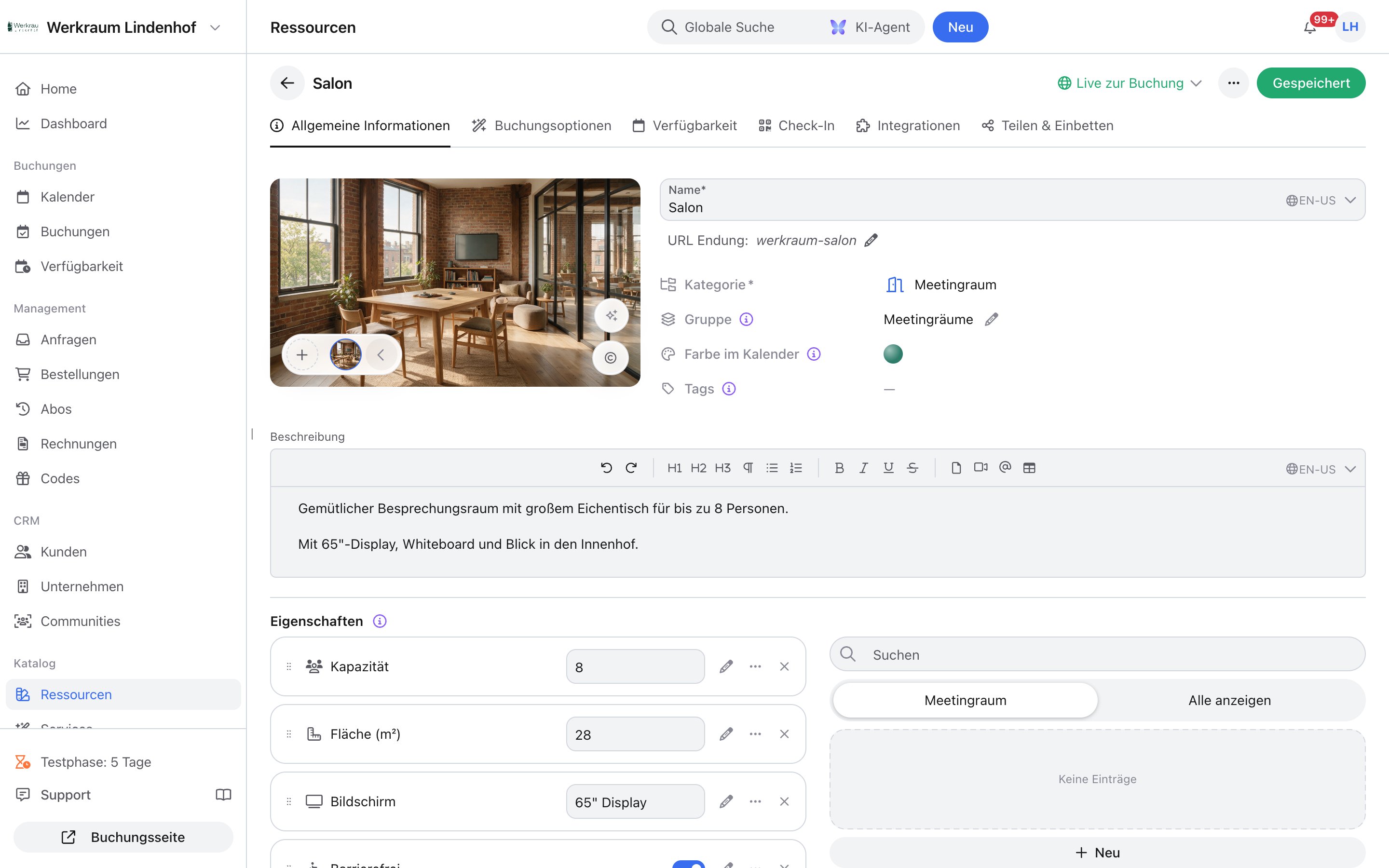 Add-ons are now called **Products** and have their own area in the **Catalog**. The former **Booking page** tab is now **Share**. You maintain child resources in the resource list, not on a separate page. You sort resources and services via drag and drop. This order applies in the admin and on the booking page.
## Settings and integrations
Settings sit in collapsible groups, for example General, Inquiries, anny AI, Invoicing, Booking rules, and Share & embed. **Apps & Integrations** and features moved from the organization settings to **Account › Apps & Integrations**. You set language and appearance in the user menu, no longer in the profile. Team, invitations, and roles are sections on one page.
## Booking page
Admin 3.0 is mainly an update of the admin. The booking flow stays. New are the public inquiry page and the quote page. Resources and services appear in the order you set in the admin, no longer alphabetically.
## Also new
Beyond the calendar and orders, a lot has changed too: a new [Check-In](/en/check-in-overview), a dark mode, [AI maps](/en/maps-and-floor-plans) from your floor plan, [Products](/en/add-ons) without an appointment, and [notifications](/en/admin-notifications) in the admin or in the browser.
## What stays the same
* Existing bookings, orders, invoices, and customers
* Permissions and roles
* Public booking pages, booking options, and availability (flow unchanged)
* Integrations and smart locks, under **Apps & Integrations**
## FAQ
No. Data and configuration stay. If you want resources and services in a specific order, set it now via drag and drop.
Hardly. The booking flow stays the same. New are the inquiry page and the quote page. The booking page shows resources and services in the order set in the admin.
No. New prices apply only to new bookings. Existing bookings keep the price they were booked at.
The **Support** button opens the **AI Agent**. It helps right away and, if needed, creates a **Support request** that goes to the support team.
Into **Filter** next to the calendar. The left rail is gone. The calendar gets the space.
**Activity** and comments take its place. To place a booking in time or move it, go to the main calendar. There the booking sits next to the other appointments.
Via the settings icon in the table header.
Filters no longer save automatically. Save a setup you need often as a **View**, private or for the team.
Under **Account › Apps & Integrations**.
You start exports from the respective table. **Maps** and **Export Schedules** sit under **Account › Settings**. Maps are also available as a view in the calendar. Everything can also be reached via **Search** (⌘K).
They are now called **Products** and have their own area in the **Catalog**.
Up into the page header. It shows whether saving is in progress and whether it worked.
Via **Support** or the **AI Agent**. Feedback on Admin 3.0 is collected.
Hidden announcement in docs.json group Announcements (`hidden: true`, `public: true`). Slug `en/admin-3-0`; DE twin `/admin-3-0`. Orientation article for existing admins after Admin 3.0. Not a how-to. Keep go-live wording only as in the Warning (public beta from October 5, old/new toggle until default rollout on November 1). In-admin assistant: topbar **Support** opens the **AI Agent** (launcher label **AI Agent**, ask placeholder **Ask anny AI Agent**, shortcut ⌘L). Search is ⌘K. This is not the customer-facing phone/chat product documented at `/en/anny-ai-setup`. The agent asks for approval before writes and can create a **Support request**. Intercom messenger is no longer in admin. Sidebar sections (en-US): Bookings, Management (not Sales), CRM, Catalog, Check-In, Account, Hardware (not Apps), plus **Hidden**; Home and Dashboard sit above the sections. Hide/show: **Hide from sidebar** / **Show in sidebar**. Relocations: resource picker in calendar **Filter** side panel; blockers under **Bookings › Blockers**; invoices under **Management**; integrations under **Account › Apps & Integrations**; exports from the table; maps under **Account › Settings** and as calendar view; **Save** in the page header; add-ons renamed **Products**. Do not treat this page as a second calendar, check-in, or activity-log article. Deep how-tos: `/en/calendar`, `/en/activity-log`, `/en/inquiries`, `/en/tags`, `/en/global-blockers`, `/en/maps-and-floor-plans`, `/en/invoicing`, `/en/add-ons`, `/en/check-in-overview`, `/en/queuing-system`, `/en/account-settings`, `/en/admin-notifications`, `/en/roles-and-permissions`, `/en/anny-ai-setup`. Planned, not registered: Search, AI Agent in the admin, booking management, quotes, order as a process, tables/views. Do not invent hrefs for planned pages. Price changes apply only to new bookings. Do not confuse `/en/modify-bookings` (customer self-service) with admin booking management.
This documentation is built and hosted on [Mintlify](https://mintlify.com), a developer documentation platform.
Add-ons are now called **Products** and have their own area in the **Catalog**. The former **Booking page** tab is now **Share**. You maintain child resources in the resource list, not on a separate page. You sort resources and services via drag and drop. This order applies in the admin and on the booking page.
## Settings and integrations
Settings sit in collapsible groups, for example General, Inquiries, anny AI, Invoicing, Booking rules, and Share & embed. **Apps & Integrations** and features moved from the organization settings to **Account › Apps & Integrations**. You set language and appearance in the user menu, no longer in the profile. Team, invitations, and roles are sections on one page.
## Booking page
Admin 3.0 is mainly an update of the admin. The booking flow stays. New are the public inquiry page and the quote page. Resources and services appear in the order you set in the admin, no longer alphabetically.
## Also new
Beyond the calendar and orders, a lot has changed too: a new [Check-In](/en/check-in-overview), a dark mode, [AI maps](/en/maps-and-floor-plans) from your floor plan, [Products](/en/add-ons) without an appointment, and [notifications](/en/admin-notifications) in the admin or in the browser.
## What stays the same
* Existing bookings, orders, invoices, and customers
* Permissions and roles
* Public booking pages, booking options, and availability (flow unchanged)
* Integrations and smart locks, under **Apps & Integrations**
## FAQ
No. Data and configuration stay. If you want resources and services in a specific order, set it now via drag and drop.
Hardly. The booking flow stays the same. New are the inquiry page and the quote page. The booking page shows resources and services in the order set in the admin.
No. New prices apply only to new bookings. Existing bookings keep the price they were booked at.
The **Support** button opens the **AI Agent**. It helps right away and, if needed, creates a **Support request** that goes to the support team.
Into **Filter** next to the calendar. The left rail is gone. The calendar gets the space.
**Activity** and comments take its place. To place a booking in time or move it, go to the main calendar. There the booking sits next to the other appointments.
Via the settings icon in the table header.
Filters no longer save automatically. Save a setup you need often as a **View**, private or for the team.
Under **Account › Apps & Integrations**.
You start exports from the respective table. **Maps** and **Export Schedules** sit under **Account › Settings**. Maps are also available as a view in the calendar. Everything can also be reached via **Search** (⌘K).
They are now called **Products** and have their own area in the **Catalog**.
Up into the page header. It shows whether saving is in progress and whether it worked.
Via **Support** or the **AI Agent**. Feedback on Admin 3.0 is collected.
Hidden announcement in docs.json group Announcements (`hidden: true`, `public: true`). Slug `en/admin-3-0`; DE twin `/admin-3-0`. Orientation article for existing admins after Admin 3.0. Not a how-to. Keep go-live wording only as in the Warning (public beta from October 5, old/new toggle until default rollout on November 1). In-admin assistant: topbar **Support** opens the **AI Agent** (launcher label **AI Agent**, ask placeholder **Ask anny AI Agent**, shortcut ⌘L). Search is ⌘K. This is not the customer-facing phone/chat product documented at `/en/anny-ai-setup`. The agent asks for approval before writes and can create a **Support request**. Intercom messenger is no longer in admin. Sidebar sections (en-US): Bookings, Management (not Sales), CRM, Catalog, Check-In, Account, Hardware (not Apps), plus **Hidden**; Home and Dashboard sit above the sections. Hide/show: **Hide from sidebar** / **Show in sidebar**. Relocations: resource picker in calendar **Filter** side panel; blockers under **Bookings › Blockers**; invoices under **Management**; integrations under **Account › Apps & Integrations**; exports from the table; maps under **Account › Settings** and as calendar view; **Save** in the page header; add-ons renamed **Products**. Do not treat this page as a second calendar, check-in, or activity-log article. Deep how-tos: `/en/calendar`, `/en/activity-log`, `/en/inquiries`, `/en/tags`, `/en/global-blockers`, `/en/maps-and-floor-plans`, `/en/invoicing`, `/en/add-ons`, `/en/check-in-overview`, `/en/queuing-system`, `/en/account-settings`, `/en/admin-notifications`, `/en/roles-and-permissions`, `/en/anny-ai-setup`. Planned, not registered: Search, AI Agent in the admin, booking management, quotes, order as a process, tables/views. Do not invent hrefs for planned pages. Price changes apply only to new bookings. Do not confuse `/en/modify-bookings` (customer self-service) with admin booking management.
This documentation is built and hosted on [Mintlify](https://mintlify.com), a developer documentation platform.